🛰️ Even Realities
Heads-up access to your local AI. Talk to your Companion agents through Even Realities G2 smart glasses — ask a question with a touchbar long-press and watch the answer stream onto the heads-up display, no screen required.
Overview
CI-Even-Realities is an Even Hub app for the Even Realities G2 smart glasses, paired with a small sibling agent-hub service. The glasses app stays a thin OpenAI-compatible client: voice goes in through the G2 touchbar, transcribed text is sent to whichever agent you point it at, and the streamed reply is word-wrapped onto the G2’s green MicroLED display in real time.
Every backend kind it talks to runs on your hardware — a local LLM, a coding agent, or any OpenAI-compatible endpoint on your LAN. The glasses are purely an input/output peripheral; your Hub does the thinking.
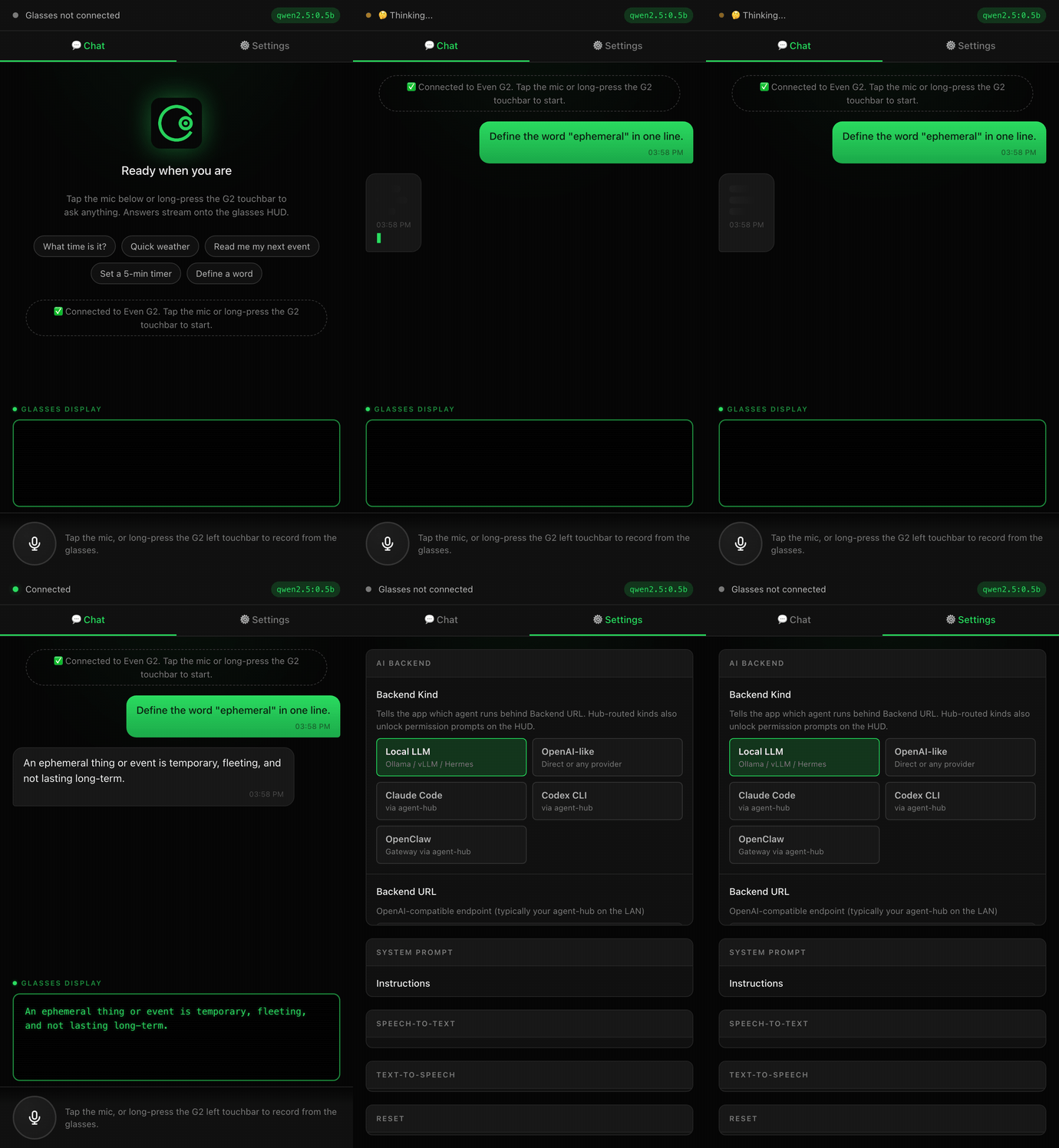
The phone companion UI shown above includes a live Glasses display mirror so you can see exactly what is on the G2 HUD while developing — handy when the glasses aren’t on your face. The screenshots on this page were captured against a local Ollama model.
Key Features
- Streaming HUD — answers stream onto the 640×350 MicroLED display, auto word-wrapped to ~42 characters across 5 lines per page
- Hands-free voice — long-press the G2 left touchbar to record; transcription via server-side Whisper or the browser Web Speech API
- Pluggable local agents — one OpenAI-compatible wire in front of local LLMs (Ollama / vLLM / llama.cpp), Claude Code, Codex CLI, and OpenClaw
- Permission prompts on the HUD — coding agents surface approval cards; a single ring tap approves, a double-tap denies
- Ring navigation — single-tap pages forward, scroll moves between pages, double-tap clears the conversation
- Phone companion UI — Chat and Settings tabs, quick-action chips, and the live glasses-display mirror
- Runs anywhere — as a standard web app inside the Even Hub mobile app, in any modern browser, or in the Even Hub simulator for development
Supported Hardware
| Device | Connection | Status |
|---|---|---|
| Even Realities G2 | Bluetooth LE (via Even Hub app) | ✅ Supported |
| Even Hub simulator | Local web preview | ✅ Dev / testing |
| Any modern browser | Dev / “browser mode” | ✅ Dev / testing |
The G2 display is a 640 × 350 px MicroLED (green-on-black) with ~488 px of usable text width. The renderer paginates long replies into 5-line screens that you advance with the ring.
Backend Kinds
The Backend Kind selector in Settings tells the app what to expect on the wire and, for hub-routed kinds, which adapter the agent-hub loads.
| Kind | Where it runs | Notes |
|---|---|---|
openai | Any OpenAI-compatible URL | Default. Hub optional. |
local-llm | Ollama / vLLM / llama.cpp on the LAN | Hermes-3 / Hermes-4 GGUFs land here. |
claude-cli | agent-hub spawning Claude Code | Emits permission_prompt cards; ring tap approves. |
codex-cli | agent-hub spawning Codex CLI | Same permission flow as Claude. |
openclaw | agent-hub forwarding to an OpenClaw Gateway | Node port of the dAAAb Cloudflare bridge. |
Architecture
[G2 touchbar long-press] ──▶ Mic capture ──▶ Whisper STT ──▶ ApiAdapter
                                                                │
                                                                ▼
                                                          ┌───────────┐
                                                          │ agent-hub │ (LAN, optional)
                                                          ├───────────┤
                                                          │  local-llm│ → Ollama / Hermes
                                                          │  claude-cli│ → Claude Code
                                                          │  codex-cli │ → Codex CLI
                                                          │  openclaw  │ → OpenClaw Gateway
                                                          └─────┬─────┘
[G2 display] ◀── GlassesRenderer ◀── SSE stream ◀──────────────┘
                  │
                  └── permission_prompt cards · ring single-tap = approve
The glasses app speaks one wire format (OpenAI SSE) regardless of backend. For openai and local-llm you can point straight at the endpoint; the claude-cli, codex-cli, and openclaw kinds route through the agent-hub, which brokers the agent process and forwards its events.
Setup
Install the app
Open the app from the Even Hub mobile app, or run it from source for development:
git clone https://github.com/companionintelligence/CI-Even-Realities
cd CI-Even-Realities/ci-glasses-app
npm install
npm run dev   # serves on http://0.0.0.0:5173
Open it in the Even Hub simulator (or any browser) to preview:
npm run simulator # evenhub-simulator http://localhost:5173/Point it at your backend
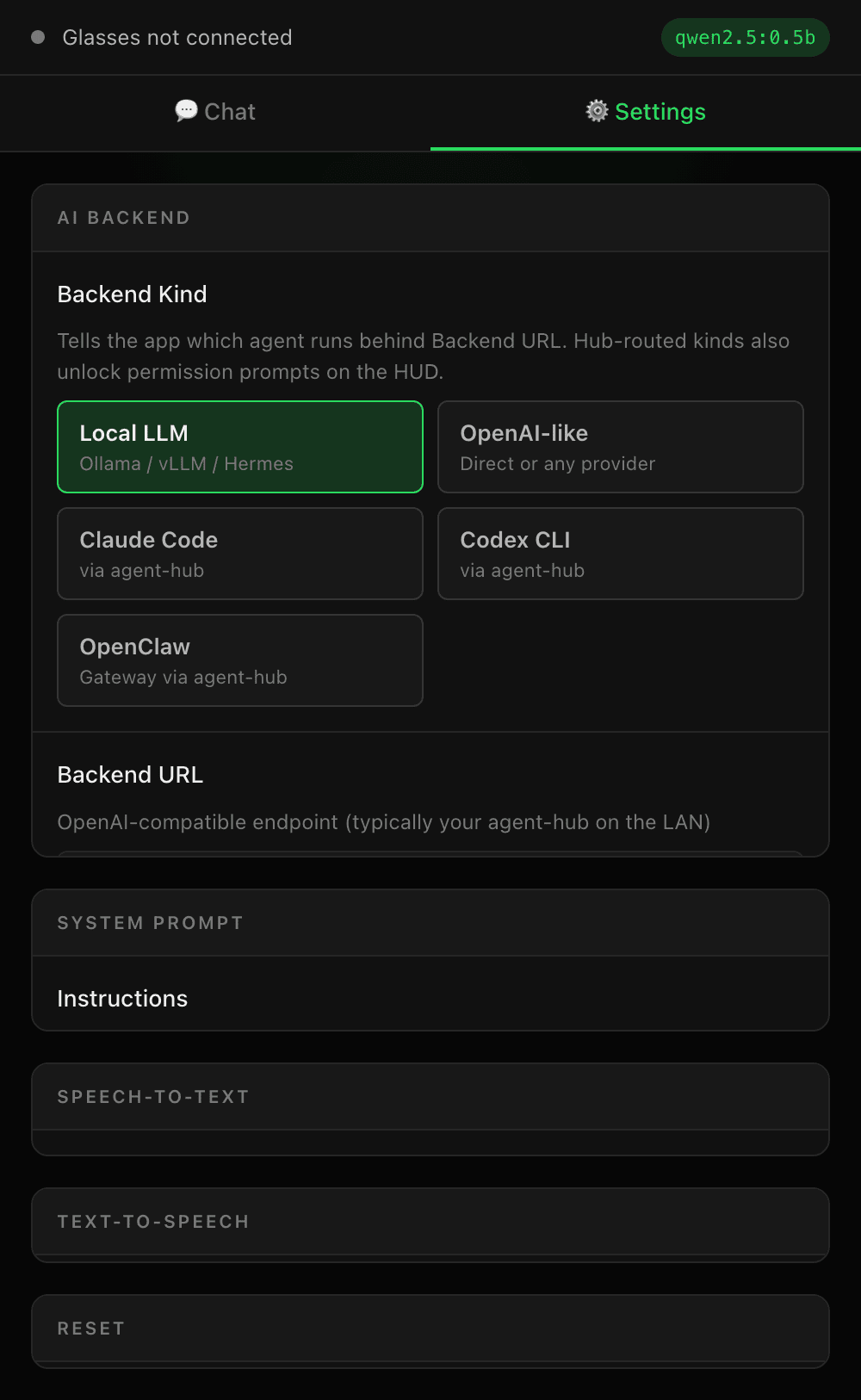
Open the Settings tab and set your AI backend:
| Field | Example | Description |
|---|---|---|
| Backend Kind | Local LLM | Which agent runs behind the URL |
| Backend URL | http://<hub-ip>:11434 | Any OpenAI-compatible server (e.g. Ollama) |
| API Key | ci-local-key | Bearer token (any string for local backends) |
| Model | qwen2.5 / hermes3 | Model name forwarded to the backend |
| API Mode | auto | auto probes the server, or force completions / responses |
| STT Provider | whisper | whisper (server-side) or webspeech (browser) |
| TTS | off | Speak responses through the phone speaker |
(Optional) Run the agent-hub
For the claude-cli, codex-cli, or openclaw kinds, start the hub on the LAN and point Backend URL at it:
cd CI-Even-Realities/agent-hub
npm install
npm start
The app calls your backend directly from the browser, so the backend must
allow the app’s origin via CORS. Ollama allows local origins out of the box;
for other servers, add the app origin (e.g. http://localhost:5173) to the
allowed list.
Usage
Ask a question
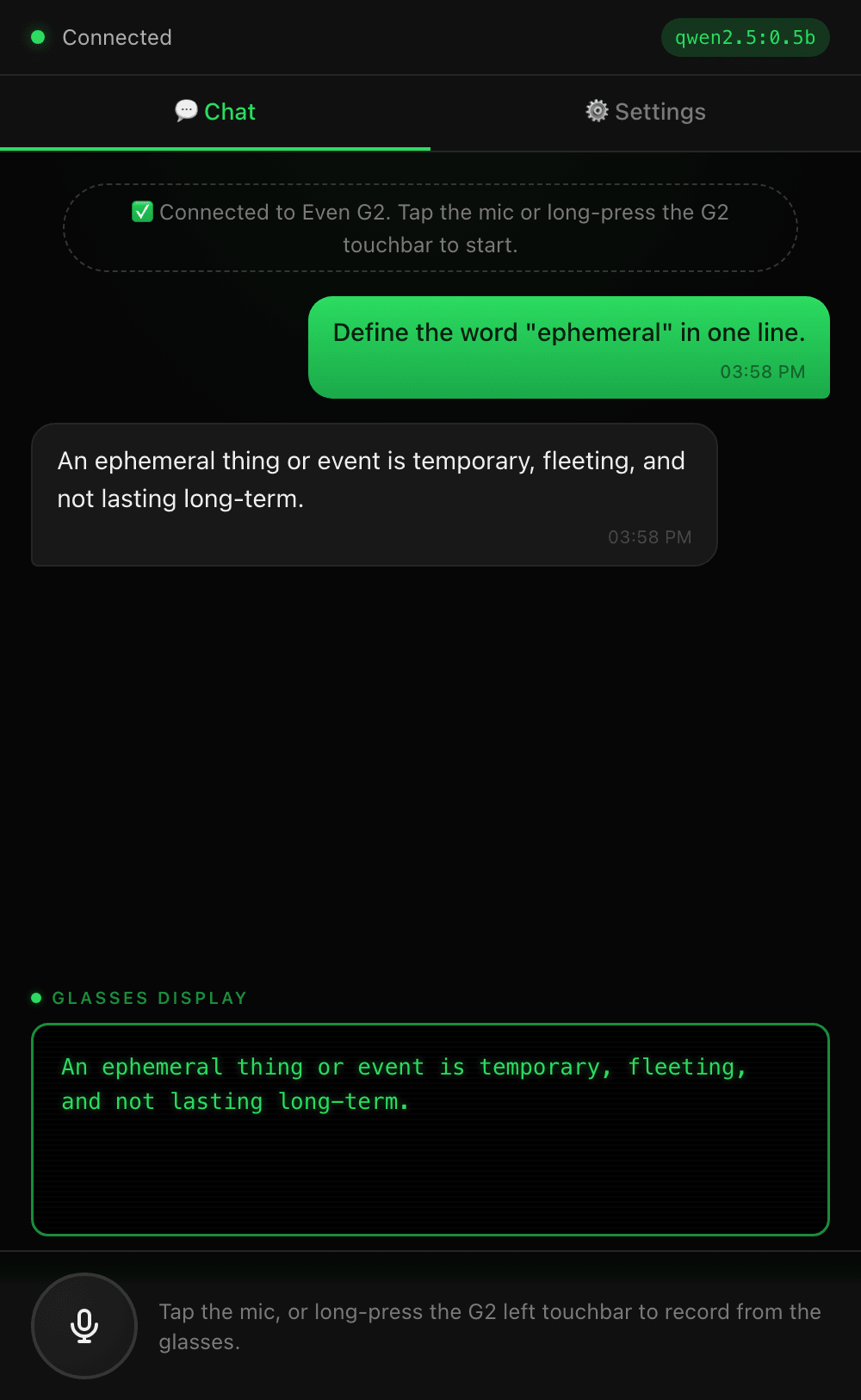
Long-press the G2 left touchbar (or tap the mic in the phone UI) to record, then release. The audio is transcribed and sent to your backend, and the reply streams onto the HUD as it arrives.
Read and navigate
Long replies are paginated into 5-line screens. Use the ring to move through them:
- Single tap — next page (or approve an on-screen permission prompt)
- Scroll up / down — previous / next page
- Double tap — clear the conversation (or deny a permission prompt)
Quick actions
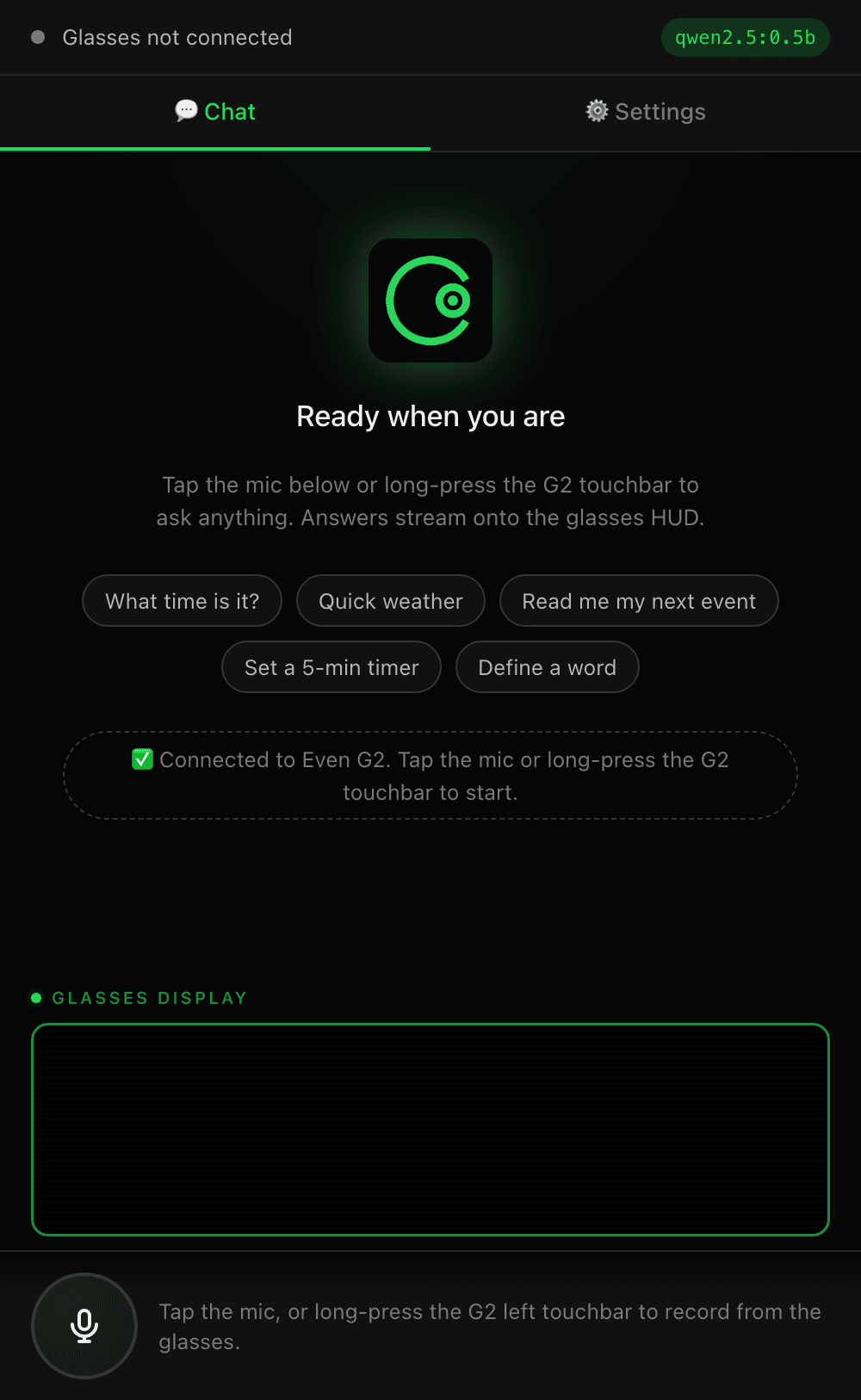
On a fresh conversation the phone UI shows quick-action chips — tap one to fire a starter prompt without speaking.
Approve agent actions
When a coding agent (claude-cli / codex-cli) needs to run a tool, it sends a permission-prompt card to the HUD. A single ring tap approves it; a double-tap denies — so you can supervise an agent entirely from the glasses.
Troubleshooting
Backend unreachable / connection test fails Confirm the Backend URL is reachable from the device running the app and that the server allows the app origin via CORS (see the warning above). Use Settings → Test Connection to probe both API shapes.
No answer appears, only an error
Check that the Model name exists on your backend and that Backend Kind matches the server (use local-llm for Ollama/vLLM/llama.cpp).
Voice not transcribing
For whisper, ensure your backend exposes /v1/audio/transcriptions. Otherwise switch STT Provider to webspeech to use the browser’s recognizer.
“Running in browser mode” This is expected when the Even Hub bridge isn’t present (e.g. a plain browser tab). Chat and streaming still work; the on-glasses display only renders on real hardware or in the simulator.