Expose Apps with Cloudflare Tunnels
Manual Cloudflare Tunnel setup is no longer necessary. Pairing your Hub with a CI Account provisions a managed Cloudflare Gateway for you, and you expose an app by setting its Exposure mode to Public Web.
See Cloudflare Gateway for the recommended approach.
How a tunnel reaches your Hub
Whether the Gateway provisions the tunnel for you or you run your own, the traffic path is the same: a cloudflared connector on your Hub dials out to Cloudflare and holds that connection open, and public requests come back down it. Your router never needs an open inbound port.
flowchart LR
    B["Visitor's browser"] -- "https://app.your-domain" --> CF["Cloudflare edge"]
    CF -- "down the existing tunnel" --> CD["cloudflared container<br/>on your Hub"]
    CD -. "outbound connection,<br/>held open" .-> CF
    CD --> HUB["Companion Hub"]
    HUB -- "only apps you exposed" --> APP["App"]
    R["Your router"] -. "no port forwarding needed" .- CD
Self-managed tunnel
If you want to use your own Cloudflare account instead — you manage DNS yourself and keep full control of the Cloudflare configuration — run your own cloudflared connector and point it at the app’s port. Hub doesn’t manage this tunnel or its hostname: it is separate from the Gateway tunnel that Hub runs after pairing. The steps use searx.dddd.li as the public hostname for a SearXNG app; substitute your own subdomain and domain.
A self-managed tunnel bypasses Hub’s authentication. The app must have its own login, because Enable authentication doesn’t work with an address that is an IP and port.
Add your domain to Cloudflare
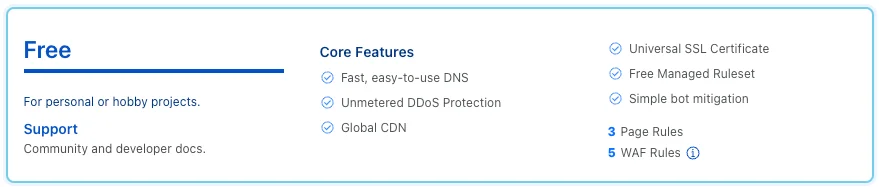
In the Cloudflare dashboard, add your domain as a site and choose the Free plan when asked.
Point your domain at Cloudflare’s nameservers
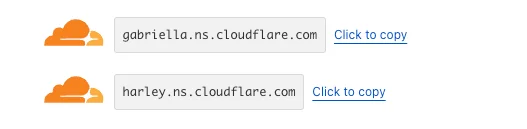
Cloudflare assigns two nameservers to your zone. Set them at your domain registrar — as NS or “name server” records, depending on the registrar — and wait for the change to propagate.
Create a tunnel and run the connector
In the Cloudflare dashboard, open Zero Trust → Networks → Tunnels, create a tunnel, and copy the Docker command Cloudflare shows for the connector. Run it on a machine that can reach your Hub, such as the Hub server itself, so cloudflared starts and the tunnel shows as connected. Don’t reuse the Hub’s own cloudflared container or its token file.
Find the app’s address
Set the app’s Exposure mode to This Machine Only. In that mode Hub publishes the app on a host port, so you reach it at the Hub machine’s address and that port. Open the app from your dashboard and note the address and port in your browser’s address bar, for example http://192.168.1.101:8305. Confirm the same address works from another device on your network.
Add a public hostname
Under the tunnel’s Public hostname tab, add a hostname: the subdomain you want, your domain, service type HTTP, and the app’s address and port as the URL, such as 192.168.1.101:8305.
The app is now reachable at https://<subdomain>.<domain>. Cloudflare terminates TLS, so the origin needs no certificate.