Core Server quick start
Use these steps with Companion Core machines and other Companion Intelligence hardware that arrives ready to run. Companion OS, the operating system on these machines, is in beta.
What’s already installed
Your Core Server ships with every prerequisite in place. There is nothing to install:
| Status | |
|---|---|
| Docker | Preinstalled and running |
| Ollama | Preinstalled and running |
| Companion Hub | Preinstalled and running |
| Operating system | CI-OS, tuned for local inference |
CI-OS downloads its default Ollama models on first boot if they are missing. The largest is a 27-billion-parameter model, so allow extra time on a slow connection.
Skip the software setup entirely. The Install Docker and Install Ollama walkthroughs are for people building a Hub on their own PC. You don’t need either. Go straight to powering on and connecting to your network below.
Building on your own PC or server instead? Start with Installation.
The whole route, from power cable to a paired Hub. A wired connection skips the setup hotspot:
flowchart TD
    P["1. Power on"] --> N{"Ethernet<br/>connected?"}
    N -->|"yes"| S
    N -->|"no"| H["2. Companion-Setup-XXXX hotspot<br/>appears within about 2 minutes"]
    H --> W["Join it, open 192.168.99.1,<br/>pick your Wi-Fi network"]
    W --> S["3. Hub dashboard at<br/>http://YOUR_DEVICE_IP:5002"]
    S --> R["Device registration:<br/>enter the pairing code"]
    R --> T["DNS and tunnel setup<br/>(a few minutes)"]
    T --> A["Sign in as the first admin,<br/>then run the setup wizard"]
You need a phone or laptop for the steps below. You do not need a monitor or keyboard on the Core.
Before you start, get a pairing code so you have it ready. Both the Wi-Fi setup page and Hub’s registration screen can ask for it.
- On your phone or laptop, sign in or register at https://hub.ci.computer .
- Select Add Device, name your Hub, and copy the 6-character pairing code.
To share this Hub with other people, add them in Organizations. Each person uses their own CI Account.
1. Power on and connect
Power on
Connect the power cable and press the power button on the front panel.
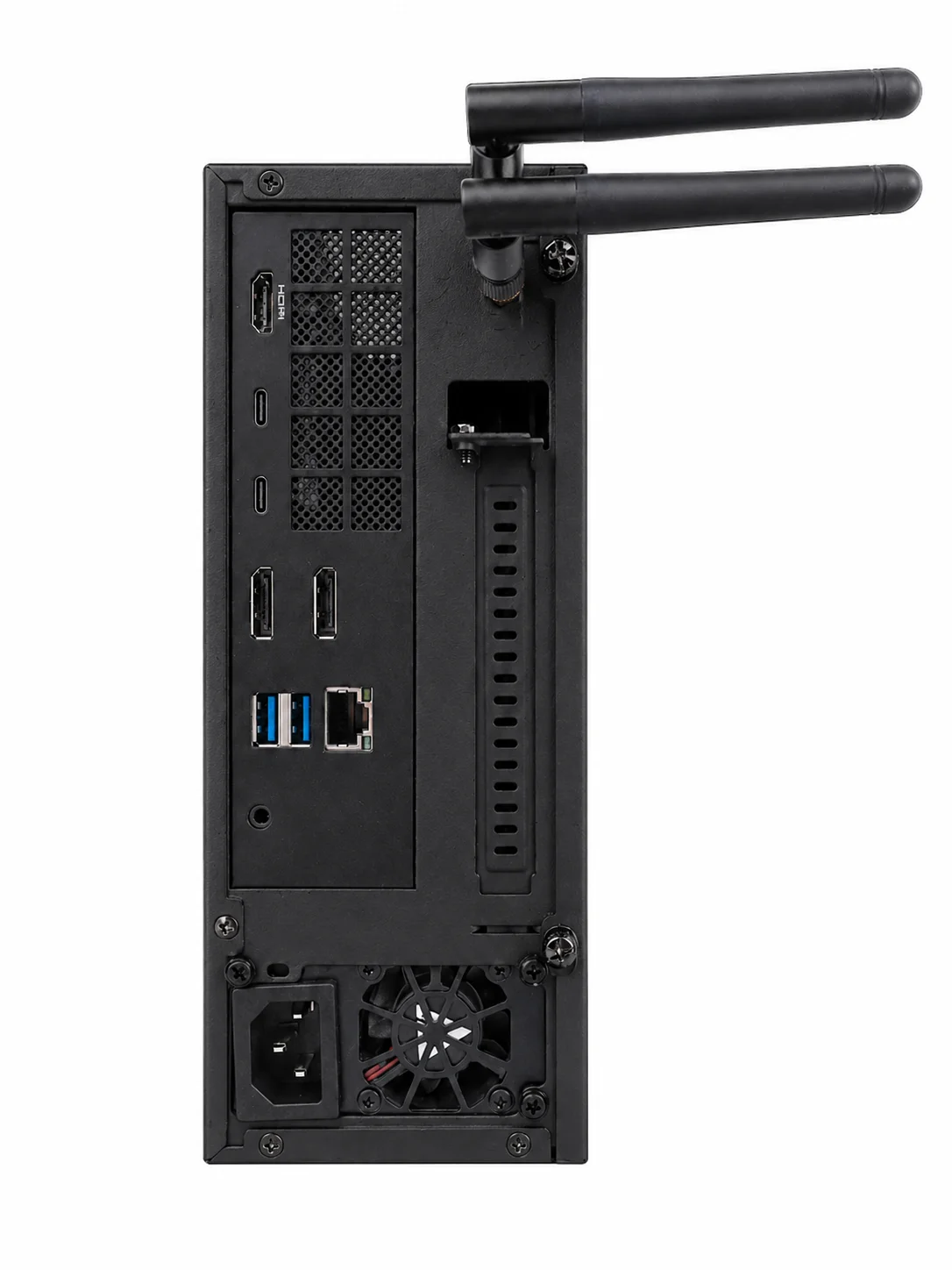
Choose how the Core joins your network
| Connection | What to do |
|---|---|
| Ethernet | Plug the Core into your router before you power it on. The Core gets an address automatically and skips Wi-Fi setup. Go to step 3. |
| Wi-Fi | Leave Ethernet unplugged. The Core starts its own setup hotspot. Continue with step 2. |
Wait for boot
When the Core finds no working network, the setup hotspot can take up to about two minutes to appear after it finishes booting. The Core waits up to 45 seconds after boot for a known Wi-Fi network, needs two failed connection checks (about 6 seconds), and scans for nearby networks before it starts broadcasting.
2. Connect the Core to Wi-Fi (Wi-Fi only)
You can configure the device headlessly without attaching a monitor.
Join the setup hotspot
On your phone or laptop, open the Wi-Fi settings and join the network named Companion-Setup-XXXX. The four characters after the dash change every time the hotspot starts, so pick the one that is currently listed.
The hotspot is protected with WPA2. The default password is SetupDevice123.
Open the setup page
Most phones open the Connect Companion Core page on their own. If yours doesn’t, open http://192.168.99.1 in a browser. Use http, not https: the setup page has no secure version.
Your phone may say the network has no internet. Stay connected. The hotspot has no internet by design.
Fill in the form
- If a Pairing Code field is showing, enter the 6-character code from Add Device. Letters and digits only; case doesn’t matter. If the page subtitle says pairing not required, the field is hidden. You pair in step 3 instead.
- Select your Wi-Fi network in the list. If it isn’t there, choose Enter network manually… and type its name.
- Enter the Wi-Fi password. Leave it blank for an open network.
- Select Configure Device.
Expect your phone to disconnect
The page answers Settings saved and the button changes to Setup in progress. Within a few seconds the Core shuts down its hotspot and joins your Wi-Fi, so your phone drops off Companion-Setup-XXXX. About 20 seconds after you submit, the page tries to open a link to portal.ci.computer. That link isn’t your Hub and it may not load. Ignore it, and reconnect your phone to your normal network.
Give the Core about two minutes to join your network. When it does, the Companion-Setup-XXXX network disappears from your Wi-Fi list and stays gone while the Core has a working connection.
See Headless Wi-Fi setup portal for what this page does behind the scenes, and what each failure looks like.
3. Open Hub on your network
Option A: from another device on your network (headless)
- Find your device’s local IP address. Your router’s list of connected devices shows it.
- On a phone or laptop on the same network, open
http://YOUR_DEVICE_IP:5002.
Option B: directly on the Core
- Plug a keyboard, mouse, and monitor into the machine.
- Open the browser and go to
http://localhost:5002.
What you see first
A Hub that is not paired yet shows these screens in order:
Register the device
Hub opens on the device registration screen. Enter the 6-character code from Add Device in Enter Pairing Code, then select Register. Skip this screen if you already entered the code on the Wi-Fi setup page.
Hub then sets up DNS and a secure tunnel. This usually takes a few minutes, and DNS propagation can add another minute or two. Keep the window open. Your Hub appears in your CI Account dashboard when it finishes.
See Device pairing for the full flow.
Sign in as the first admin
When registration finishes, Hub sends you to its sign-in screen, Login to your local admin account. The first person to sign in becomes the Hub’s admin. Sign in with the CI Account you paired with: select Sign in using your CI Account, or enter that account’s email address and password. If Hub shows Create local admin user for this device instead, see First login and setup.
Run the setup wizard
The Set Up Companion Hub wizard picks your agent, models, and apps, then installs them. See the setup wizard.
You can also pair from a terminal on the Core. Run cihub register --code YOUR_CODE, then cihub claim --email you@example.com to create the first admin without a browser. See the CLI reference.
Important security step: change password
If your appliance shipped with a default operating system password, change it immediately.
Default OS password
ci.computer!
Action
Open a terminal on the machine and run passwd to set a secure custom password as soon as possible.
Something went wrong?
| Symptom | What to do |
|---|---|
No Companion-Setup-XXXX network after about two minutes | Unplug Ethernet: a working wired connection prevents the hotspot. Check that the Core has finished booting. If a Wi-Fi network the Core already knows is in range, it joins that instead. |
| You can join the hotspot but the setup page doesn’t open | Open http://192.168.99.1 (not https). Turn off any VPN or private DNS on your phone. If your phone offers to leave the network because it has no internet, stay connected. |
| Your Wi-Fi network isn’t in the list | The list is captured once, when the hotspot starts. Scan re-reads it and doesn’t search again. Choose Enter network manually… and type the name. |
| The page shows Settings saved, or a network error, after Configure Device | Expected: the hotspot shuts down as the Core joins your Wi-Fi. Reconnect your phone to your normal network and wait two minutes. |
| The page says Setup is already in progress. Please wait. | You submitted the form twice. Wait for the Core to finish, then reconnect your phone to your normal network. |
| The hotspot is gone but the Core isn’t reachable | The Wi-Fi password may be wrong. The Core notes the failure and its monitor brings the hotspot back, which can take several minutes. Rejoin Companion-Setup-XXXX: the setup page shows Last pairing attempt failed and the reason. If the hotspot doesn’t return, restart the Core, then connect Ethernet or a monitor and keyboard. |
| Hub rejects the pairing code, or the setup page reports a pairing problem | Codes are single-use, and the setup page can’t tell you whether the code worked. If Hub still opens on its device registration screen once the Core is online, select Add Device in your CI Account for a fresh code and enter it there. The Core keeps its Wi-Fi settings. |
| Hub shows This pairing code was made for a different device | In your CI Account, open this computer’s device menu, choose Regenerate pairing code, and enter the new code. |
| Registration is stuck on Provisioning your domain | Wait. DNS and tunnel setup can take a few minutes. Your Hub works locally in the meantime. |
The dashboard doesn’t load at :5002 | On first start, Hub downloads its images, which takes several minutes. Check that the Core is on your network and that you use http, not https. |
| Marketplace installs fail, or the App Store looks empty | Hub isn’t paired yet. Installs need the device key that pairing issues. Pair the Hub, then try again. |
Still stuck? Getting help.
What’s next
Your Core Server is online and paired. From here the experience is identical to any other Hub. The setup wizard configures your agent, models, and apps, then you install whatever you like from the App Store.