What is your CI Account?
A CI Account at hub.ci.computer is required to pair a Companion Hub. You use it to pair Hubs, check their status from anywhere, install apps from the store, and share devices with other people through organizations.
Your Hub’s own sign-in page, on the dashboard at :5002, checks your CI Account too. Select Sign in using your CI Account, or enter your CI Account email and password. There is no separate Hub-only login: pairing and signing in both need a CI Account.
What it is for
- Device pairing — attach a local Hub to your account with a 6-character pairing code from Add Device
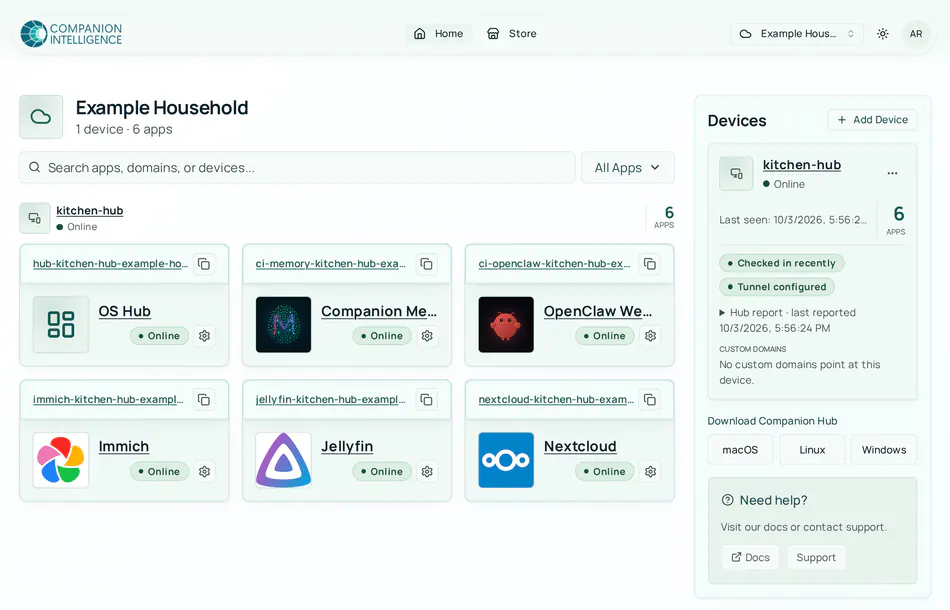
- Home — see every Hub in your active organization with its online status and the apps installed on it, with a link to open each app. Each Hub has a menu to rename it, regenerate its pairing code, or delete it
- Organizations — add people (each with their own CI Account) and give them access to your devices
- Public web addresses — pairing provisions a Cloudflare tunnel and DNS records for your Hub. Which apps use them is a per-app setting on the Hub, called Public Web. Home shows each app’s public address and tunnel health
- App store — browse the catalog at hub.ci.computer without signing in. With a paired Hub, install an app on it from the web
- Account security — add passkeys, turn on two-factor authentication, review the machines you approved for sign-in, or delete your account
- Billing and custom domains — an organization’s Pro plan and add-ons, and its own domain names in front of a Hub or an app, on deployments where those switches are turned on (hub.ci.computer does not offer them today)
Your CI Account at hub.ci.computer and your Hub on your own network split the work: the account holds the cloud-side controls, and the Hub keeps the apps and their data.
flowchart LR
    subgraph account["CI Account"]
        P["Paired Hubs<br/>name, online status, tunnel IDs"]
        O["Organizations<br/>people with their own CI Accounts"]
        G["Public web addresses<br/>tunnel and DNS for exposed apps"]
        S["App store<br/>install apps on a paired Hub"]
    end
    subgraph hub["Companion Hub"]
        D["App data stays here<br/>files, databases, app logs"]
        A["Hub dashboard, port 5002<br/>apps, settings, AI"]
    end
    P -->|"pairing code"| A
    O -->|"device access"| A
    G -->|"tunnel to exposed apps"| A
    S -->|"installs apps"| A
Your CI Account stores device metadata (name, online status, tunnel IDs), the list of apps you expose with their public addresses, and what each Hub reports about itself. App data — files, databases, and app logs — stays on the Hub.
Where to find things
| To do this | Go to |
|---|---|
| Pair a Hub | Home → Add Device |
| Rename, re-pair, or delete a Hub | Home → the Device options menu on the Hub’s card |
| Create or switch organizations | The organization menu in the header |
| Invite people, manage roles | Organization menu → Organization settings → Members |
| Add a passkey or turn on two-factor | Account menu → User settings → General |
| Review or revoke approved sign-ins | User settings → Sign-in approvals |
| Install an app on a paired Hub | Store → open an app → Install |
Create an account, sign in, and learn how it relates to your local Hub admin.
Account and loginConnect a local Hub to your CI Account with Add Device and a pairing code.
Device pairingAdd people with their own CI Accounts and grant them access to your devices.
OrganizationsSee the public web addresses your account provisions for a paired Hub, and where you control them.
Cloudflare GatewayThe Pro plan, per-unit add-ons, and the Billing tab an organization’s owners and admins see on deployments where billing is switched on.
BillingPut your own domain in front of a paired Hub or an app, with Entri writing the DNS records and Cloudflare issuing the certificate, on deployments where domain connecting is switched on.
Custom Domains