Organizations
An organization at hub.ci.computer lets you add people and grant them access to your devices. Everyone signs in with their own CI Account, on hub.ci.computer and on the Hub.
Devices you pair with Add Device belong to an organization. People you add to that organization can access those devices.
Everything hangs off the organization: people join it with their own CI Account, and Hubs are paired into it.
flowchart TB
    YOU["Your CI Account"] -->|"Create organization"| ORG["Organization<br/>name and slug"]
    INV["Invitee's CI Account"] -->|"Accept invitation"| MEM
    ORG --> MEM["Members<br/>Owner · Admin · Member"]
    ORG -->|"Add Device"| DEV["Paired Hubs"]
    MEM -->|"access to the organization's devices"| DEV
    DEV -.->|"Enable authentication, on by default"| APP["App on the Hub<br/>Hub sign-in still required"]
Organization access does not replace per-app sign-in. The Enable authentication switch on the install form is on by default for apps that support it, and it requires a Hub sign-in before anyone can reach the app.
Create an organization
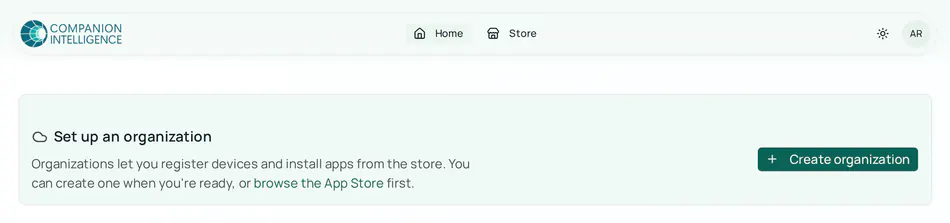
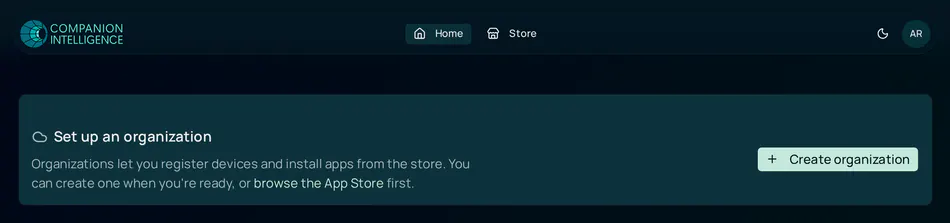
If you do not have an organization yet, Home shows a Set up an organization card and asks you to create one before you can add a device.
Open Create organization
Sign in at hub.ci.computer and select Create organization on the Set up an organization card. If you already have an organization, choose Create Organization from the organization menu in the header.
Name it
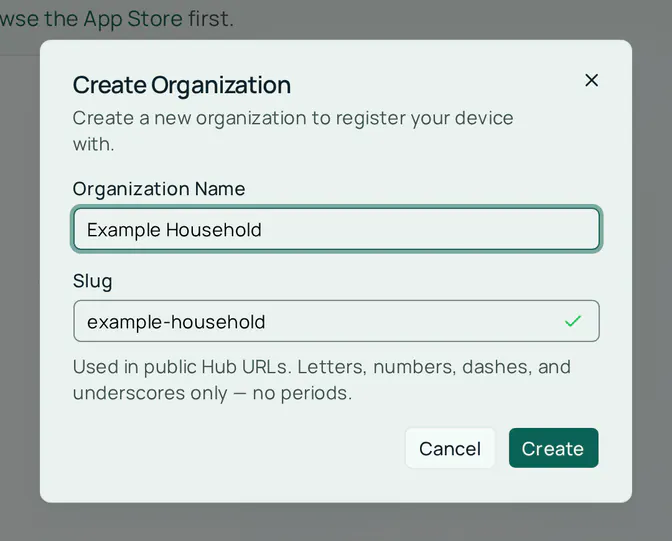
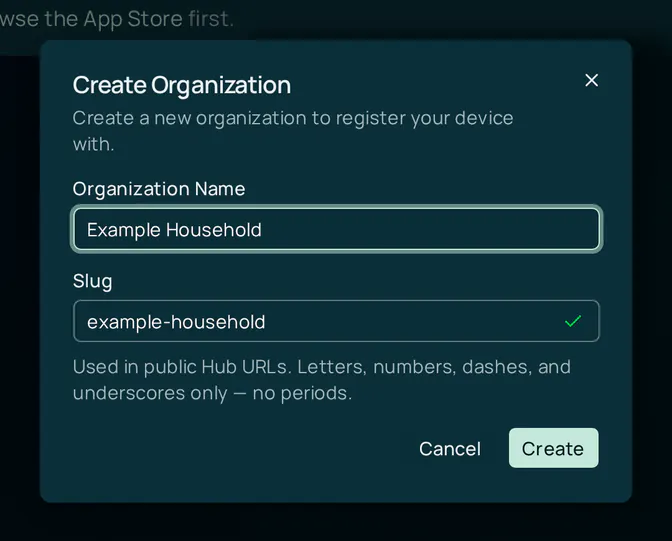
Enter an Organization Name and a Slug, then select Create. The form fills in the slug from the name and checks that it is free.
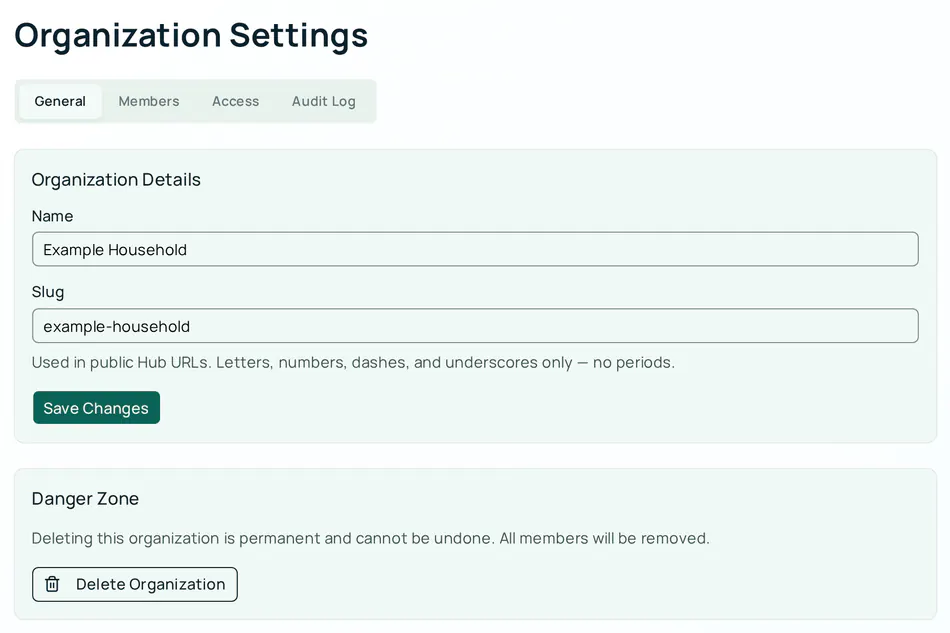
The slug appears in public Hub URLs. Use letters, numbers, dashes, and underscores only — no periods.
After you create an organization, pair a Hub with Add Device. The device is added to that organization.
Renaming an organization, or changing its slug, renames every public web address on its Hubs, because the slug is part of each address. The Portal queues the old DNS records for removal, so links you shared stop working. Pick the slug before you share any URLs.
Add people
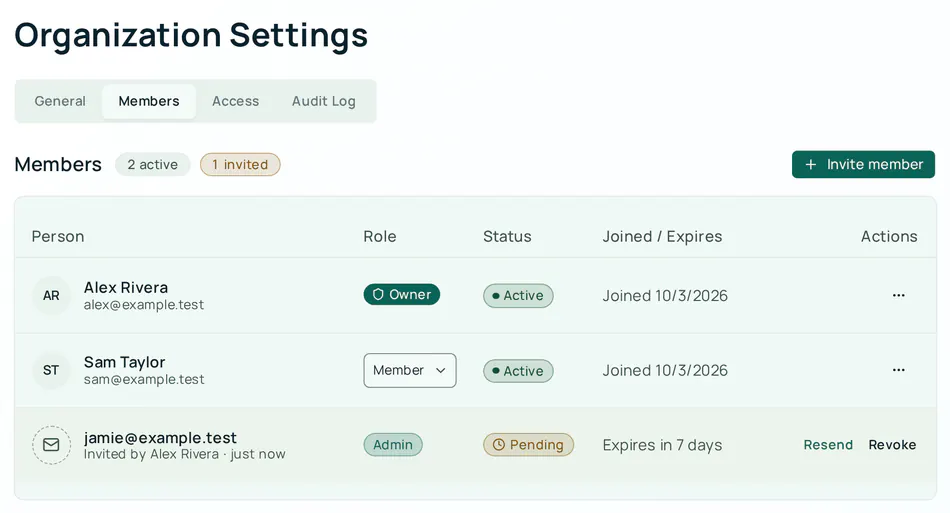
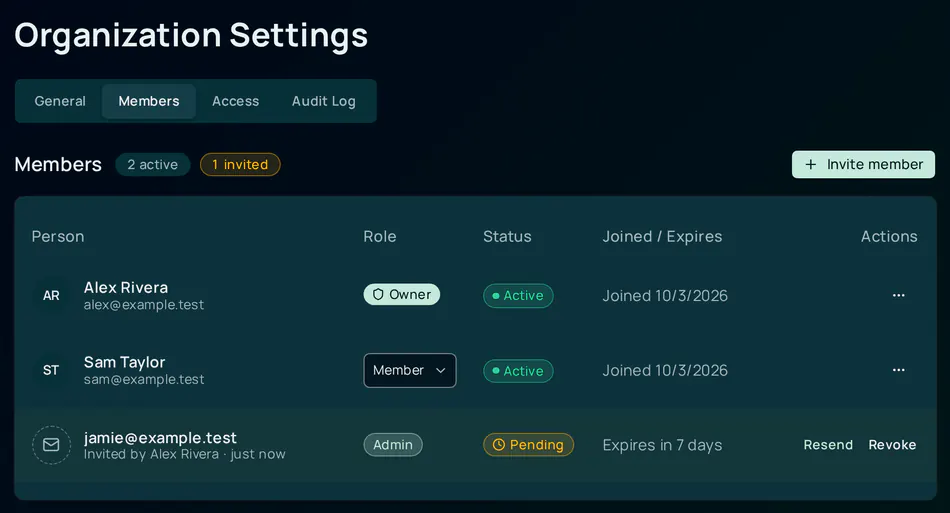
Owners and admins invite people from Organization settings → Members. Each invitee uses their own CI Account — they sign in with the email you invited, and create an account if they do not have one yet.
Open Members
At hub.ci.computer , open Organization settings from the organization menu and select the Members tab.
Send an invitation
- Select Invite member
- Enter the person’s email address
- Choose a role: Member or Admin
- Select Send Invitation
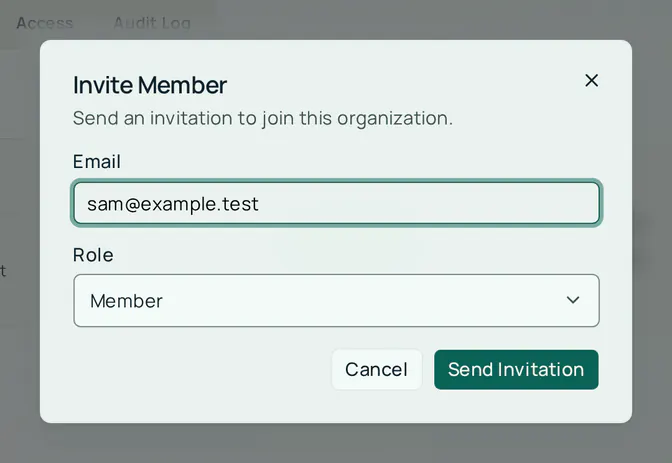
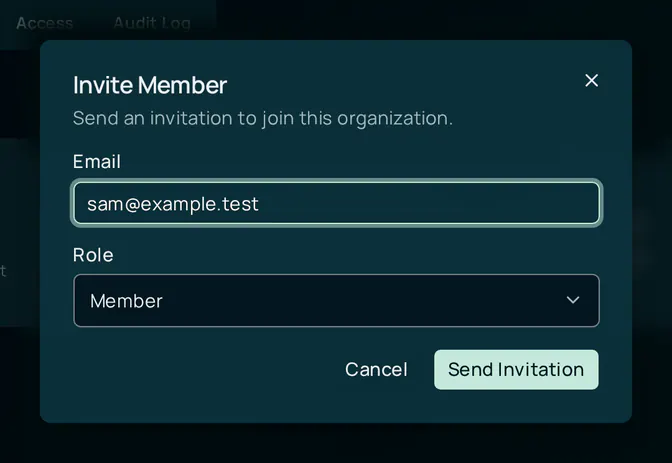
The invitee gets an email titled “name invited you to join organization” with a View invitation button, and a banner on Home once they are signed in. The email tells them to sign in with the address you invited. They choose Accept or Decline on the banner, or under Pending Invitations in User settings → General. An invitation expires after 7 days. Pending invitations appear in the same Members list. Owners and admins can Resend (which starts a new 7-day window) or Revoke an invitation.
You cannot invite an address that already belongs to a member, or one that already has a pending invitation.
Roles
| Role | In the Members tab |
|---|---|
| Owner | Can invite people, change another person’s role (including making them an owner), and remove members. Can delete the organization |
| Admin | Can invite people, resend or revoke invitations, and remove members other than owners |
| Member | Can see the member list; does not see invitation or remove controls |
An organization always keeps at least one owner. Beyond the Members tab:
- Any member can add a device and rename one.
- Owners and admins can regenerate a device’s pairing code, delete a device, edit organization settings and the access policy, read the audit log, and buy plans and paid apps.
- Deleting an organization is an owner action and works only after every device in it has been deleted.
Organization settings tabs
Organization settings at hub.ci.computer is split into tabs. Billing only appears when the deployment turns it on; Domains appears when the deployment allows connecting domains or the organization already holds one.
| Tab | What it does |
|---|---|
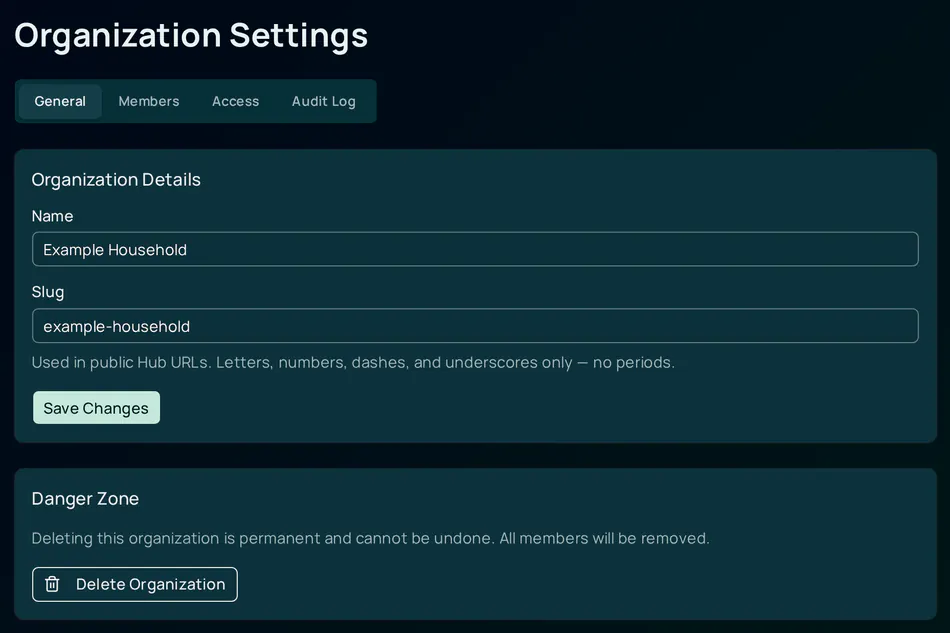
| General | Organization Details: name and slug, which owners and admins can edit. Owners also find Delete Organization in the Danger Zone |
| Members | Invite people, change roles, resend or revoke invitations — see Add people |
| Access | App access: the organization’s access policy, edited as JSON. Owners and admins can edit and select Save policy; members see it read-only. The default policy gives every member the same app actions as admins, including install |
| Billing | The organization’s plan and add-ons. Shown only to owners and admins, and only when the deployment offers billing (a live payment processor is configured and the billing switch is on) — see Billing & Subscriptions |
| Domains | Connect the organization’s own domain names to a Hub or an app. Shown when the deployment allows connecting domains, or when the organization already holds a domain — see Custom Domains |
| Audit Log | A record of actions taken in the organization: time, actor, action, and details, 50 entries a page. Only owners and admins can read it; a member sees an empty list |
As of this writing, hub.ci.computer does not offer the Billing tab or the connect-a-domain flow — the code is deployed, but the switches are off. On such a deployment, opening ?tab=billing directly falls back to General, and ?tab=domains falls back to General unless the organization already holds a domain, in which case the Domains tab still appears so the domain can be managed.
The sentence at the top of the Access tab says that owners and admins can install and uninstall apps. The policy listed under it is what is enforced, and its default grants every member the install action, so the CI Account accepts a member’s install request.
Device access
People in the organization can access devices registered to it. There is no separate per-device invite — adding someone to the organization grants access to that organization’s devices.
In your CI Account, every member sees the organization’s Hubs on Home and can open their apps. On a Hub, a member signs in with Sign in using your CI Account, and the Hub checks that the account belongs to the organization. If it does not, the Hub tells the person to ask an admin for an invitation.
You can still put additional authentication on any app. On the install form, Enable authentication requires a Hub sign-in for that app, even after the person has organization access to the device.
Privacy
Your CI Account stores device metadata (name, online status, tunnel IDs). App data — files, databases, and app logs — stays on the Hub.
See Account and login and Device pairing.