Uninstalling
Removing Companion Hub involves two things: the app you installed, and the Docker containers, volumes, and data folder that Hub created. Removing the app doesn’t always remove the rest, and some removals delete everything, so check what yours does before you start.
Every wipe below is destructive and can’t be undone. Back up first — see Move your Hub to a new machine or the per-app Backup and restore.
Remove one app
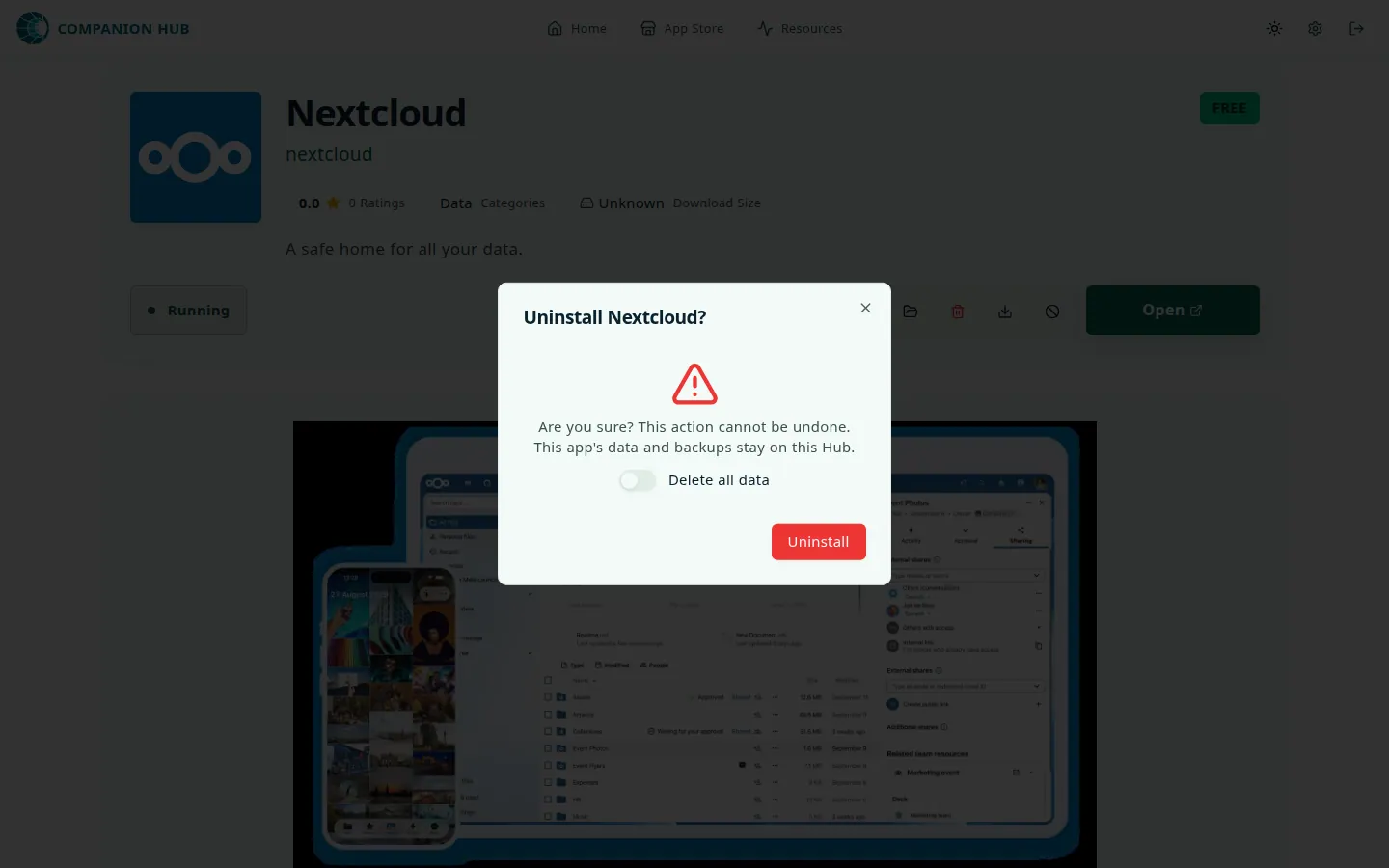
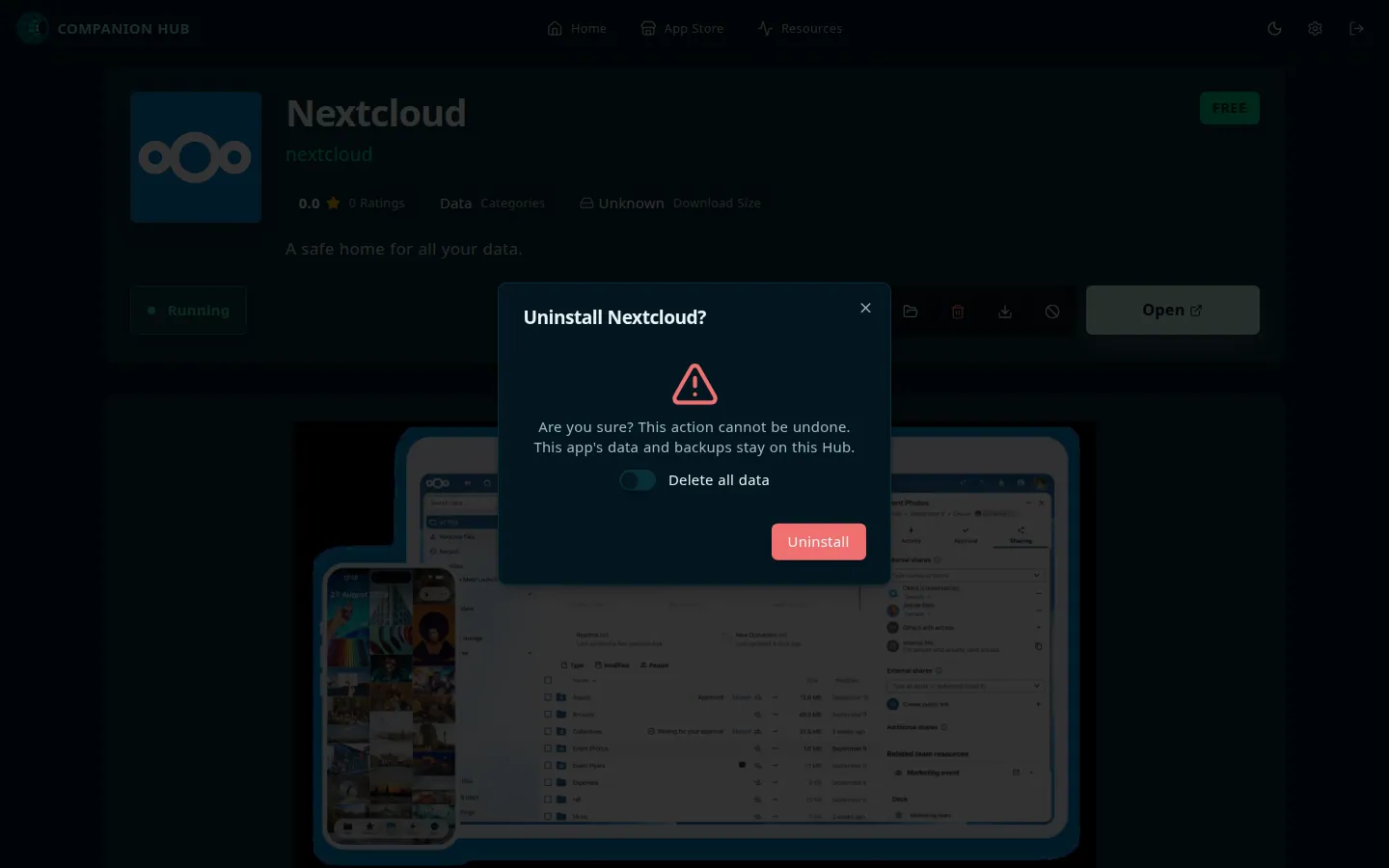
To remove a single app, select the trash-can icon (Remove) on the app’s page and confirm Uninstall <name>?. The dialog has one switch, Delete all data, on by default. With it on, Hub deletes the app’s data folder, Docker volumes, and backups once the uninstall succeeds. With it off, all three stay, and the dialog says This app’s data and backups stay on this Hub. Either way, Hub removes the app’s containers, images, and installed files. Kept backups stay in <ROOT_FOLDER_HOST>/backups/<app-store>/<app-name>/, and the Backups card lists them again if you reinstall the app.
Wipe Hub’s data and keep the app
To return to a clean state without removing the app, use cihub reset. It works from any directory on an installed Hub:
cihub reset --yesBefore it asks for confirmation, cihub reset lists what it will remove. Add --dry-run to print that list and the host folders it would delete, and stop. Without --yes, the CLI asks for confirmation. cihub reset removes:
- every installed app, with its containers, networks, and Docker volumes
- any other container attached to the Hub’s Docker network (
ci-hub_network), even one you started yourself withdocker run - the Hub containers and their volumes, including the database
- the Hub data folder, which holds app data, backups, and settings
- the Hub’s tunnel token and registration files, from the
tunnelfolder next to the data folder
It prints Reset complete only after it checks that these are gone. If something is left, it prints Reset incomplete, lists what remains with the command that removes it, and exits with status 1. If Docker can’t list its containers, it stops without removing anything, because apps with a restart policy would come back after the wipe.
It leaves the device registered in your CI Account. Pair the Hub again afterward, or remove the device in your CI Account — see Device pairing.
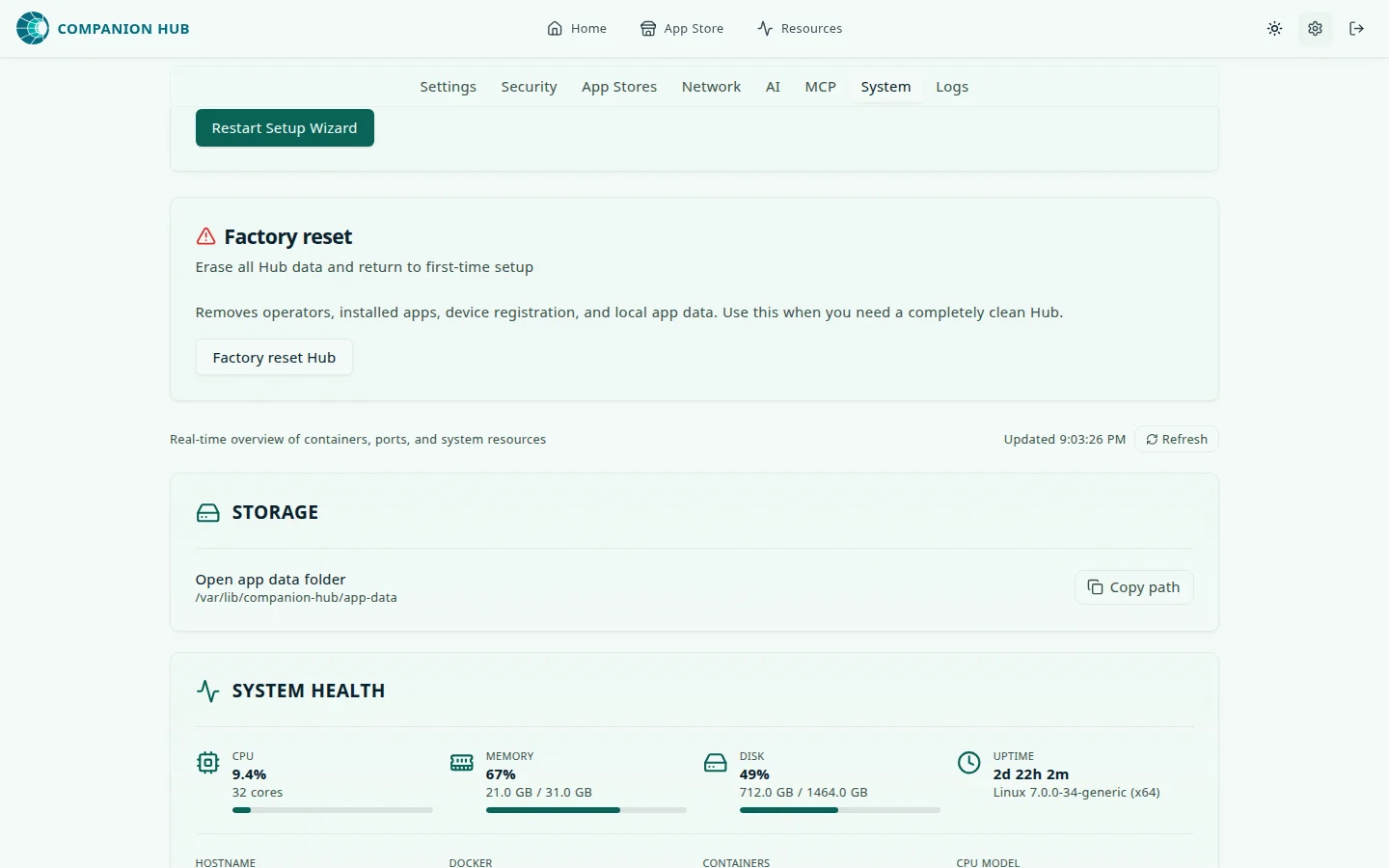
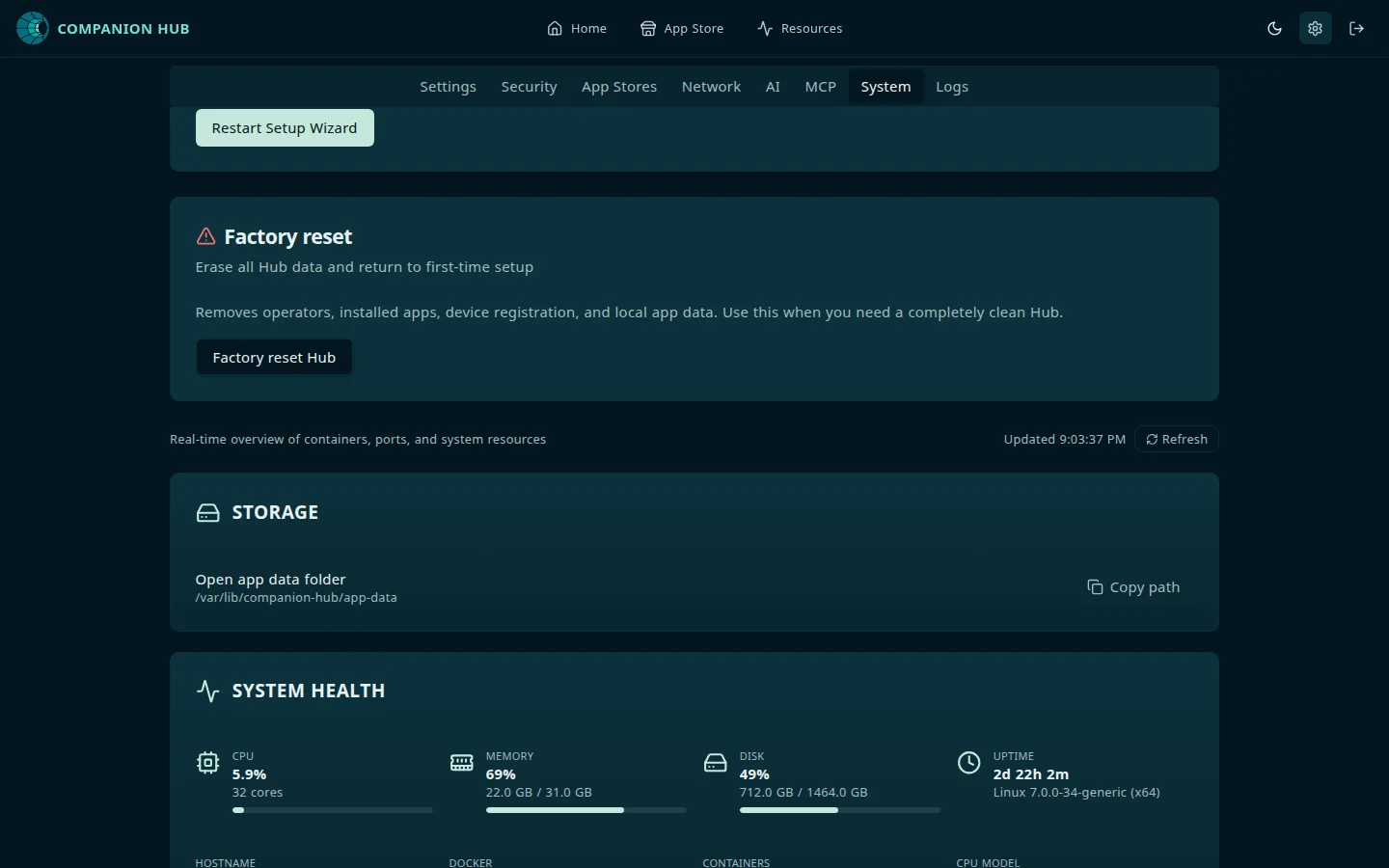
From the dashboard, Settings → System → Factory reset Hub does a similar wipe while the Hub is running. You confirm by typing the Hub’s device name, so a Hub that isn’t paired yet has no name and the button stays locked. Use the CLI when the dashboard isn’t reachable or the Hub isn’t paired.
Which wipe to run
The CLI has several wipe paths. They differ in how far they reach, not in how they are invoked.
| cihub clean | cihub reset | cihub uninstall | |
|---|---|---|---|
| Where it runs | Installed Hub, or a source checkout | Installed Hub, or a source checkout | A source checkout only |
| Installed apps | Containers and networks removed; Docker volumes kept | Containers, networks, and volumes removed | Containers, networks, volumes, and images removed |
| Hub containers and database volume | Kept | Removed | Removed, with images |
| Hub data folder | Deleted, including app data and backups | Deleted | Deleted, with platform config and cache folders |
| Example | cihub clean --yes | cihub reset --yes | cihub uninstall --yes |
cihub clean isn’t a light cleanup. It deletes the data folder that every app mounts, so it removes app data and backups even though it keeps Docker volumes. Use cihub reset for a full reset, and cihub down when you only want to stop the stack. clean and reset also remove the Hub’s token and registration files from the tunnel folder next to the data folder, and leave anything else in that folder alone.
cihub uninstall needs the CI-Hub source repository as its working directory. Run from an installed Hub, it stops with Run from a CI-Hub checkout. Use cihub reset --yes instead.
Remove the app
Removing the app from your machine depends on how you installed it. Companion Hub’s data and Docker resources aren’t always removed with it.
| You installed with | To remove the app | What happens to your data |
|---|---|---|
| Homebrew (macOS) | brew uninstall --cask companion-hub | Kept. Add --zap to also delete the data folder, the tunnel token, and app caches. Containers and volumes stay in Docker; run cihub reset --yes first to remove them |
macOS .dmg | Drag Companion Hub to the Trash | Kept. Nothing is cleaned up: Hub’s containers stay in Docker and its data stays. Run cihub reset --yes first to remove them |
| Scoop (Windows) | scoop uninstall companion-hub | Kept. Removes the Hub’s and your apps’ containers and networks. Volumes, images, and the data folder stay |
| Windows installer | Uninstall from Settings → Apps | Removed. The uninstaller runs a cleanup of Hub’s Docker resources and app data, even if you clear Delete the application data. Updates skip the cleanup, but the -setup.exe option Uninstall before installing is a real uninstall |
.deb (Linux) | sudo apt remove companion-hub | Removed. The package cleanup deletes Hub’s containers, volumes, images, and the data folders in every user’s home. Upgrades skip it |
.rpm (Linux) | sudo rpm -e companion-hub | Removed, as for .deb |
Uninstalling the Windows or Linux package deletes your Hub data. Back up first, or move the data folder aside, if you plan to reinstall.
Where the data lives
The default data folder is:
| Platform | Data folder |
|---|---|
| Linux | ~/.local/share/companion-hub |
| macOS | ~/Library/Application Support/companion-hub |
| Windows | %APPDATA%\companion-hub |
The Cloudflare tunnel token sits in a tunnel folder next to it, for example ~/.local/share/tunnel on Linux. cihub doctor prints the exact data folder on its Root folder line.
The full command list is in the CLI reference.