Skip to Content

Design System — UI Gallery

A living gallery of real UI screenshots captured from the Companion Intelligence platform. Every surface here — the appliance apps, the cloud plane, the capture tools, the XR clients, the setup portals — is built on one shared design system, so they read as a single product family across web, desktop, and headset.

This is the expanded, multi-screen set: each product below shows several of its key surfaces rather than a single hero, and — where we captured both — every screen is shown in light and dark, auto-swapping with this page’s theme toggle.

The shared design language

  • Teal accent#0f717a in light mode, #abd4d8 in dark mode. It is the canonical --primary token: buttons, active nav, focus rings, and brand marks.
  • Deep-navy surfaces — dark mode is grounded in near-black navy (#041620 family) rather than flat black, so elevated cards and teal accents stay legible.
  • Montserrat — the platform typeface across headings and body, with a monospace stack reserved for code, keys, and technical read-outs.
  • Dual light/dark themes — every product ships both. Where we captured both, the pair below auto-swaps with this page’s theme toggle; single-theme captures are labelled.

The canonical source of truth is the CI-Common UI Style Guide  and the shared design-token package . This page is a visual index of how those tokens land in shipping product.

Screenshots are a point-in-time capture from the front-end re-test run on 2026-07-03. UIs evolve — treat these as representative, not pixel-current.


CI-Portal

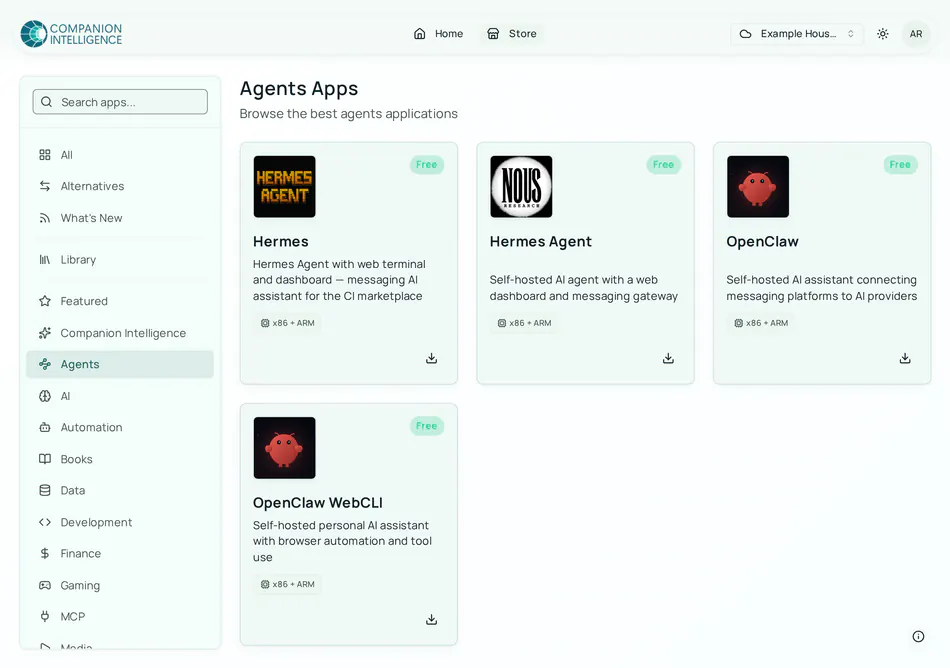
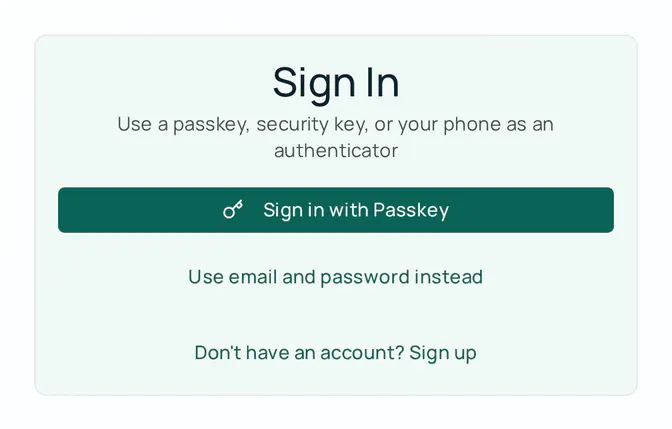
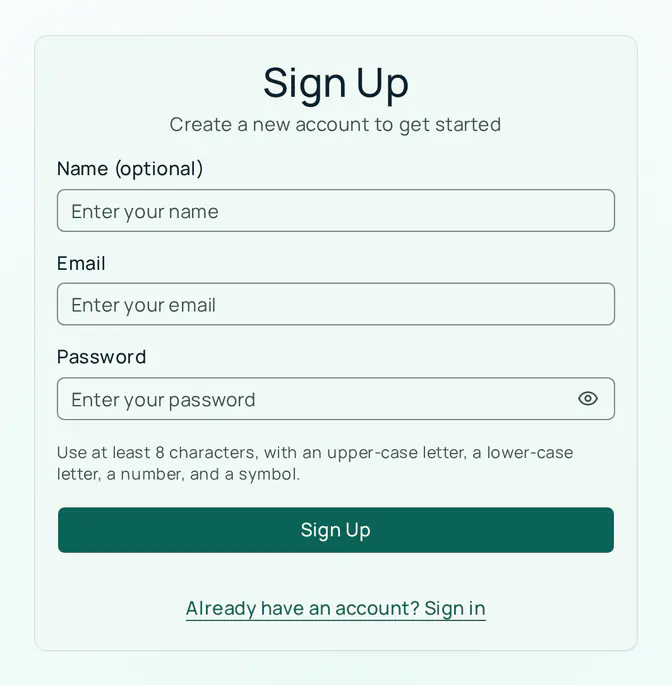
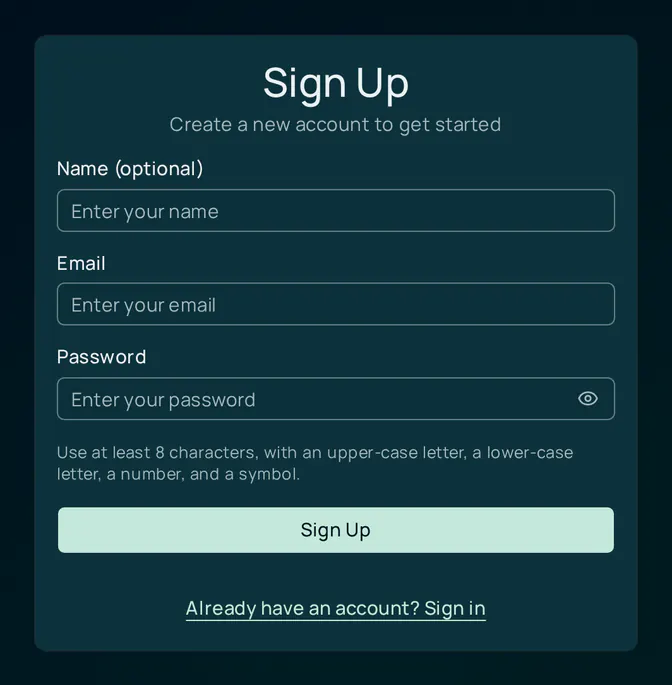
The CI Account and remote app store — the cloud plane surface where you sign in, browse apps, and manage devices. Four surfaces below: the store catalog, the passkey-first sign-in, its email/password fallback, and the signed-in catalog view.

Store — app catalog

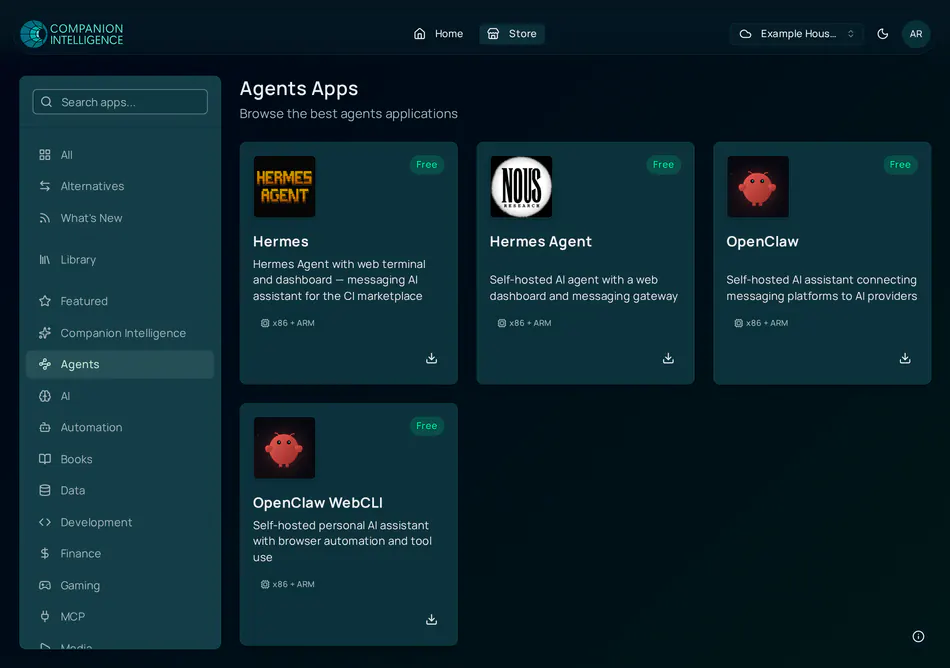
CI-Portal store in light mode — Companion Intelligence top nav (Home, Store), a Search apps field, and a category sidebar (All, Library, Alternatives, Featured, AI, Automation…) over a loading app grid CI-Portal store in dark mode — the same catalog and category rail on a deep-navy surface

Sign in — passkey

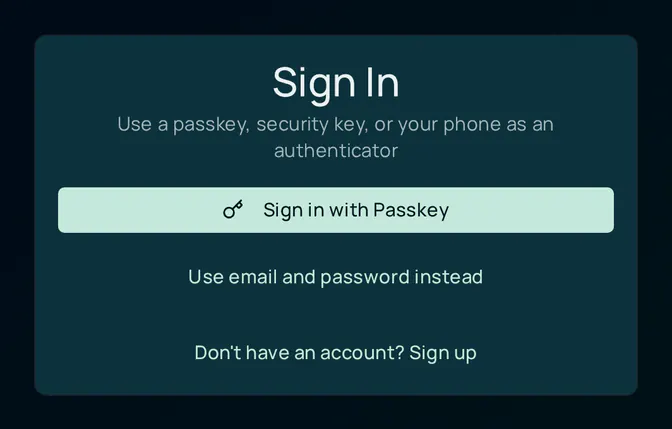
CI-Portal sign-in in light mode — a Sign In card with a teal 'Sign in with Passkey' button, 'Use email and password instead', and a sign-up link CI-Portal sign-in in dark mode — the same passkey-first Sign In card on a deep-navy surface

Sign in — email & password

CI-Portal sign-in in light mode with the email/password fallback expanded — 'OR USE YOUR PASSWORD' divider, Email and Password fields, a teal Sign In button, and a Forgot password link CI-Portal email/password sign-in in dark mode — the same expanded form on a deep-navy surface

Catalog — signed in

CI-Portal signed-in app catalog in light mode — the category rail and search over the app grid CI-Portal signed-in app catalog in dark mode — the same catalog on a deep-navy surface

Companion-Planning

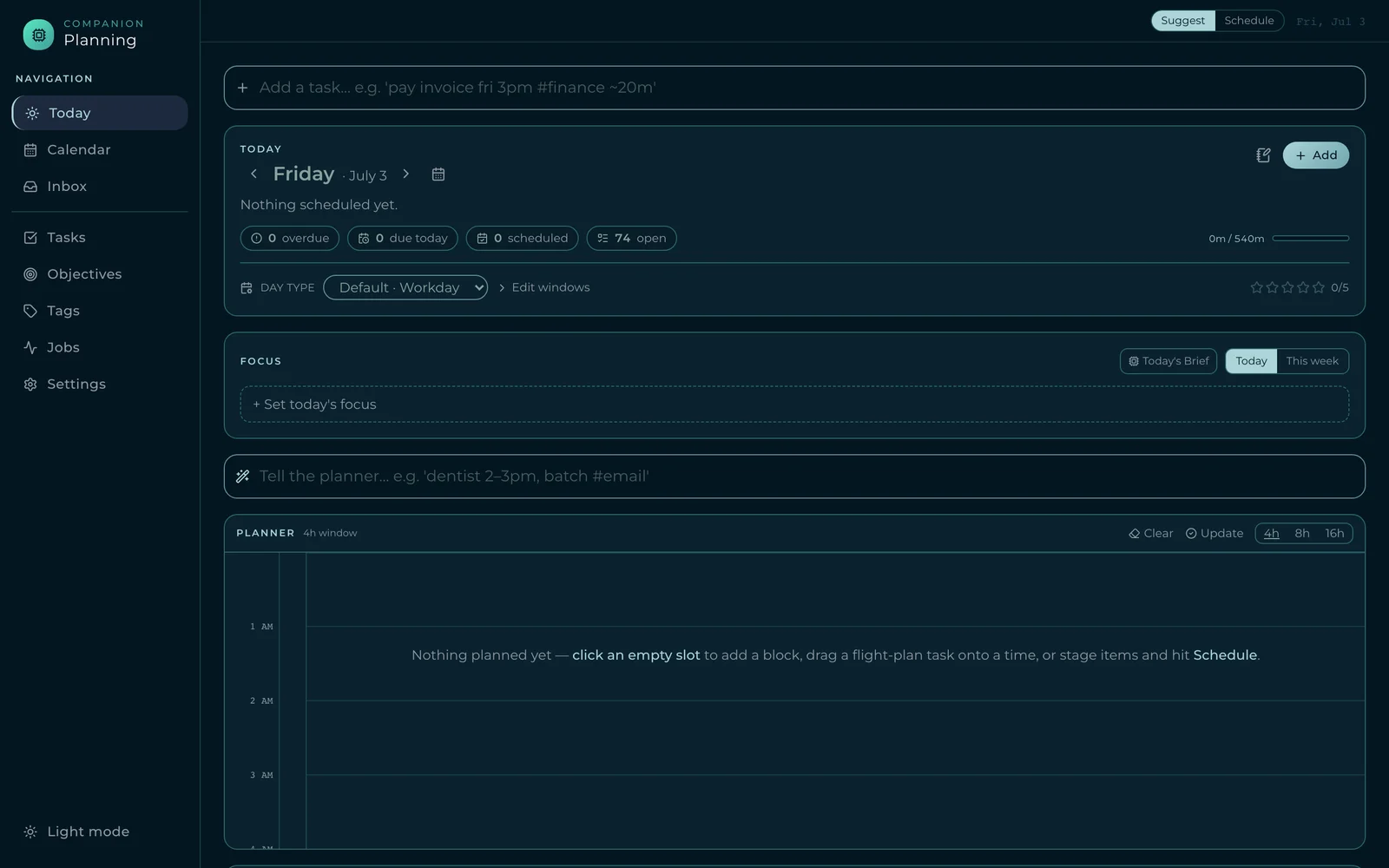
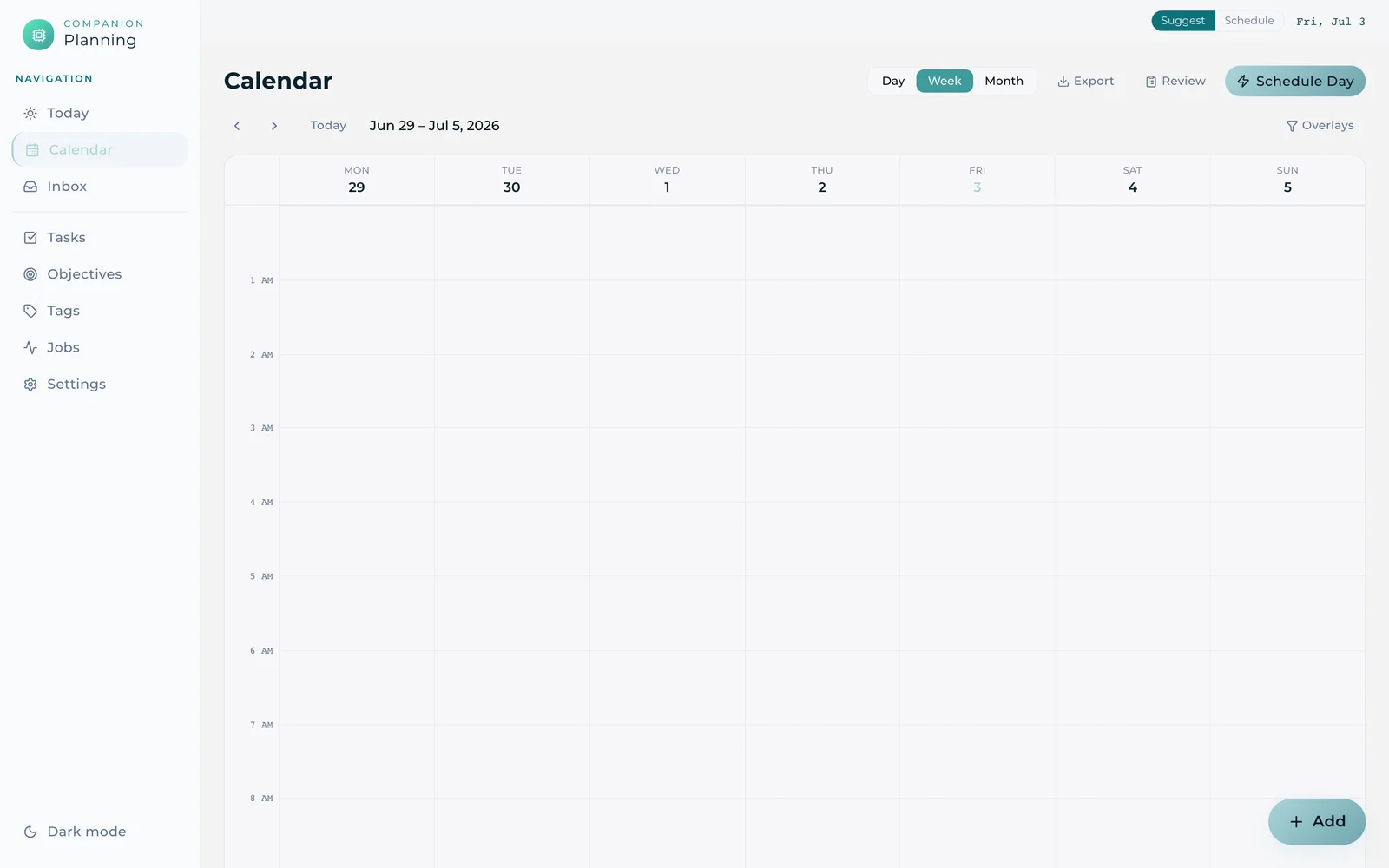
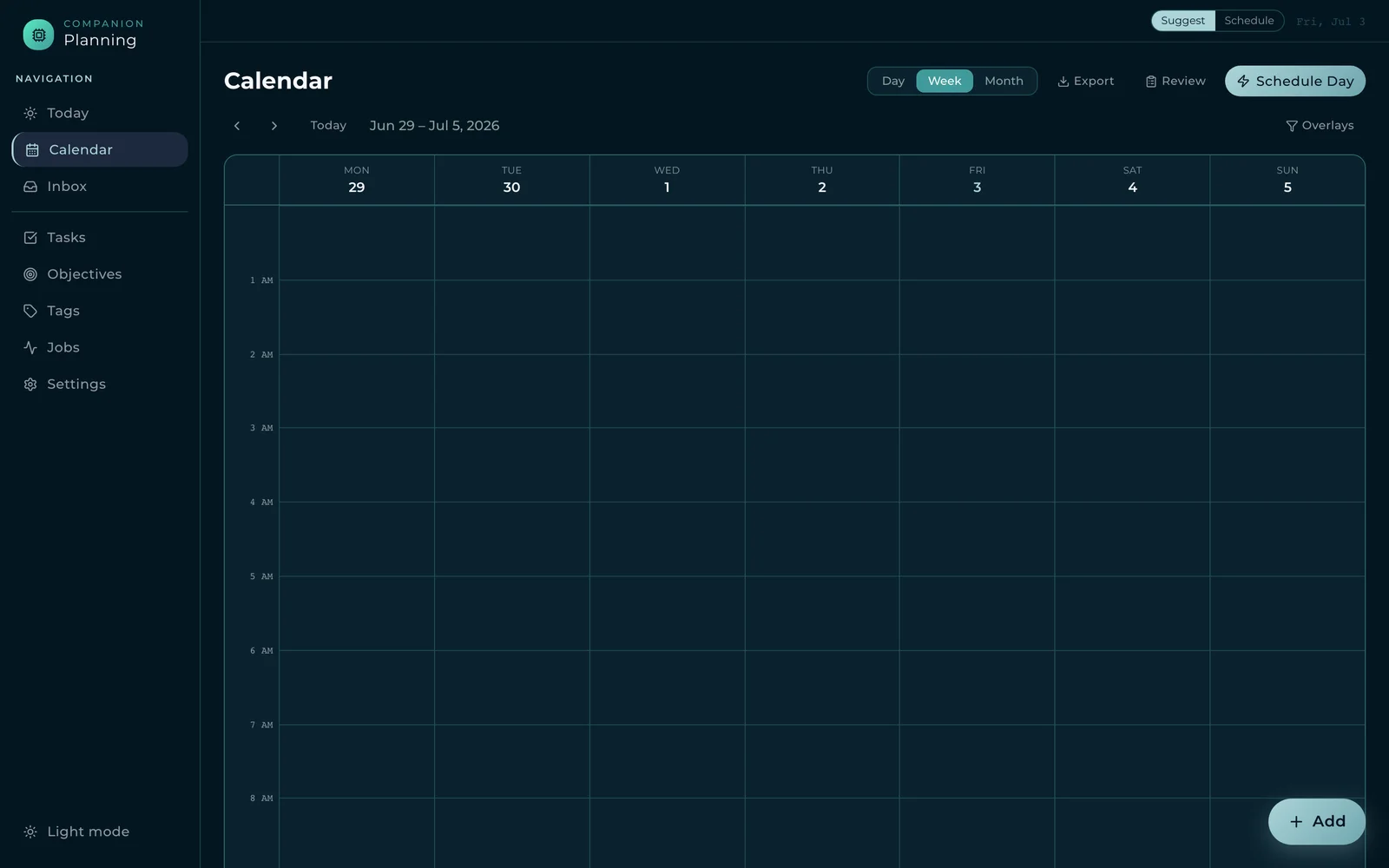
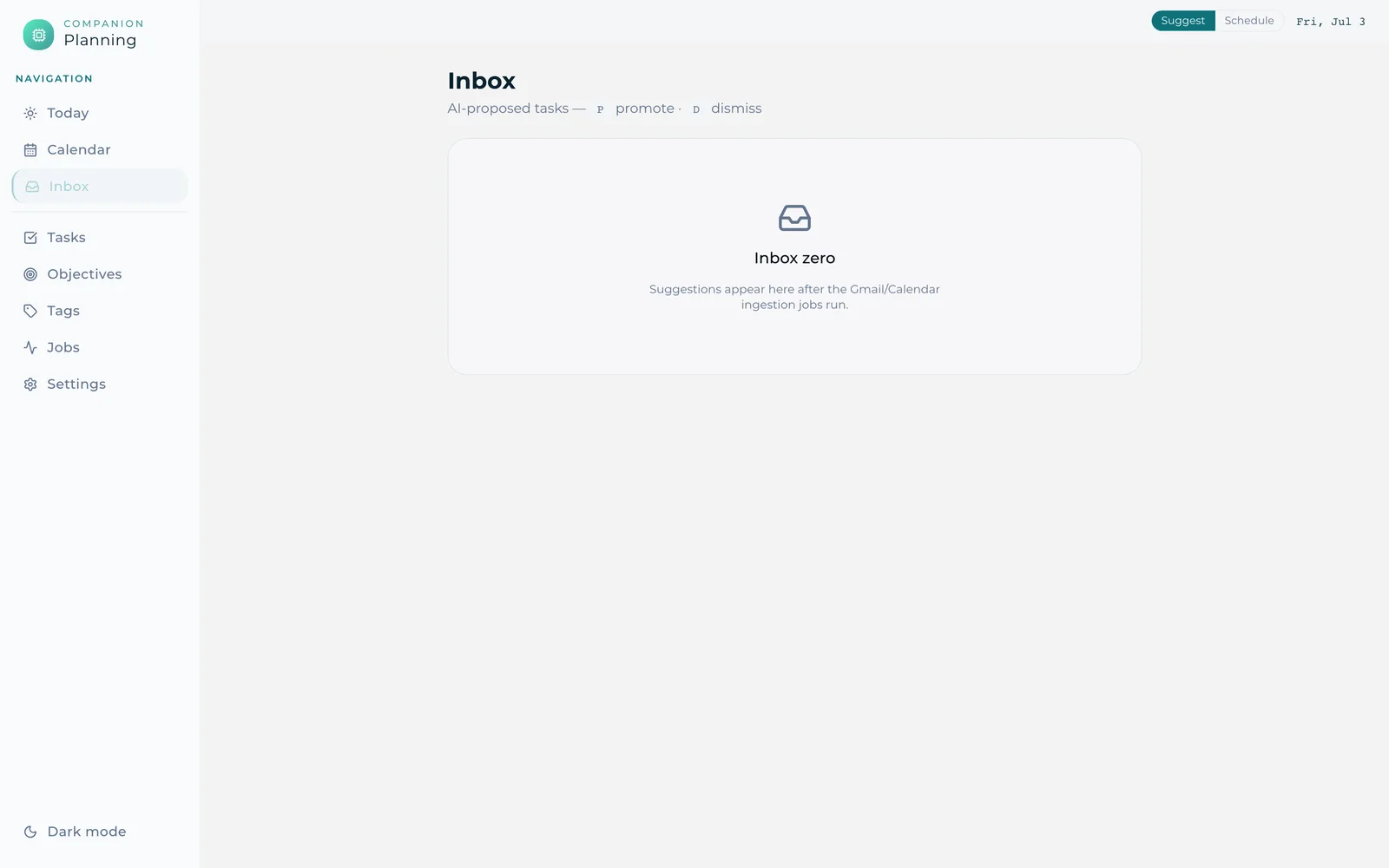
The tasks, habits, and time-blocking app. Five surfaces below walk its primary navigation — Today, Calendar, Inbox, Tasks, and Objectives — with teal carrying selection, priority, and the active nav item.

Today
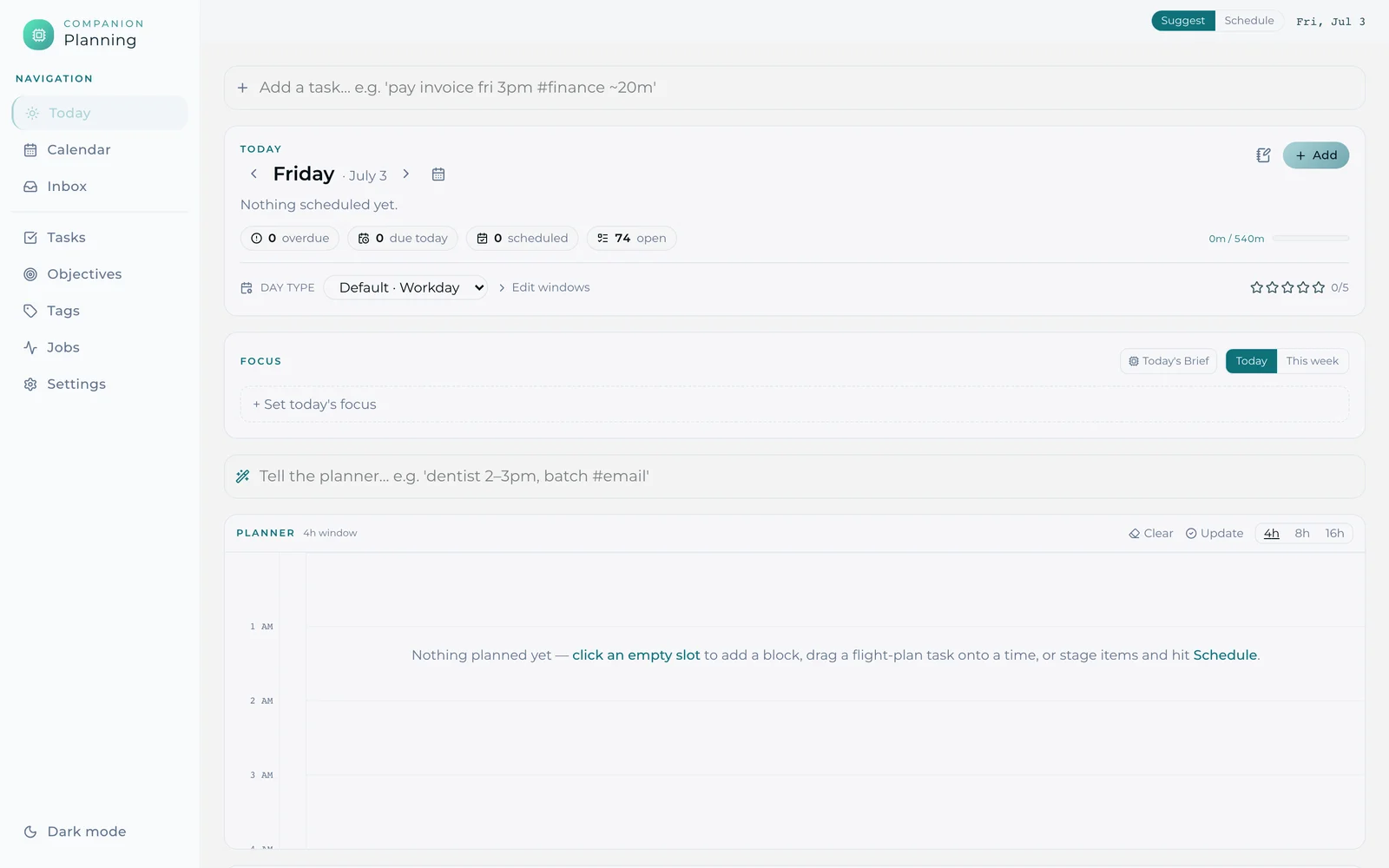
Companion-Planning Today view in light mode — a 'Friday · July 3' header with overdue / due today / scheduled / open counters, a Focus panel, and a Planner day grid with the Suggest/Schedule toggle Companion-Planning Today view in dark mode — the same day dashboard and planner grid on a deep-navy surface

Calendar

Companion-Planning Calendar in light mode — a Day/Week/Month week grid (Jun 29 – Jul 5, 2026) with Export, Review, and a teal Schedule Day action Companion-Planning Calendar in dark mode — the same week grid on a deep-navy surface

Inbox

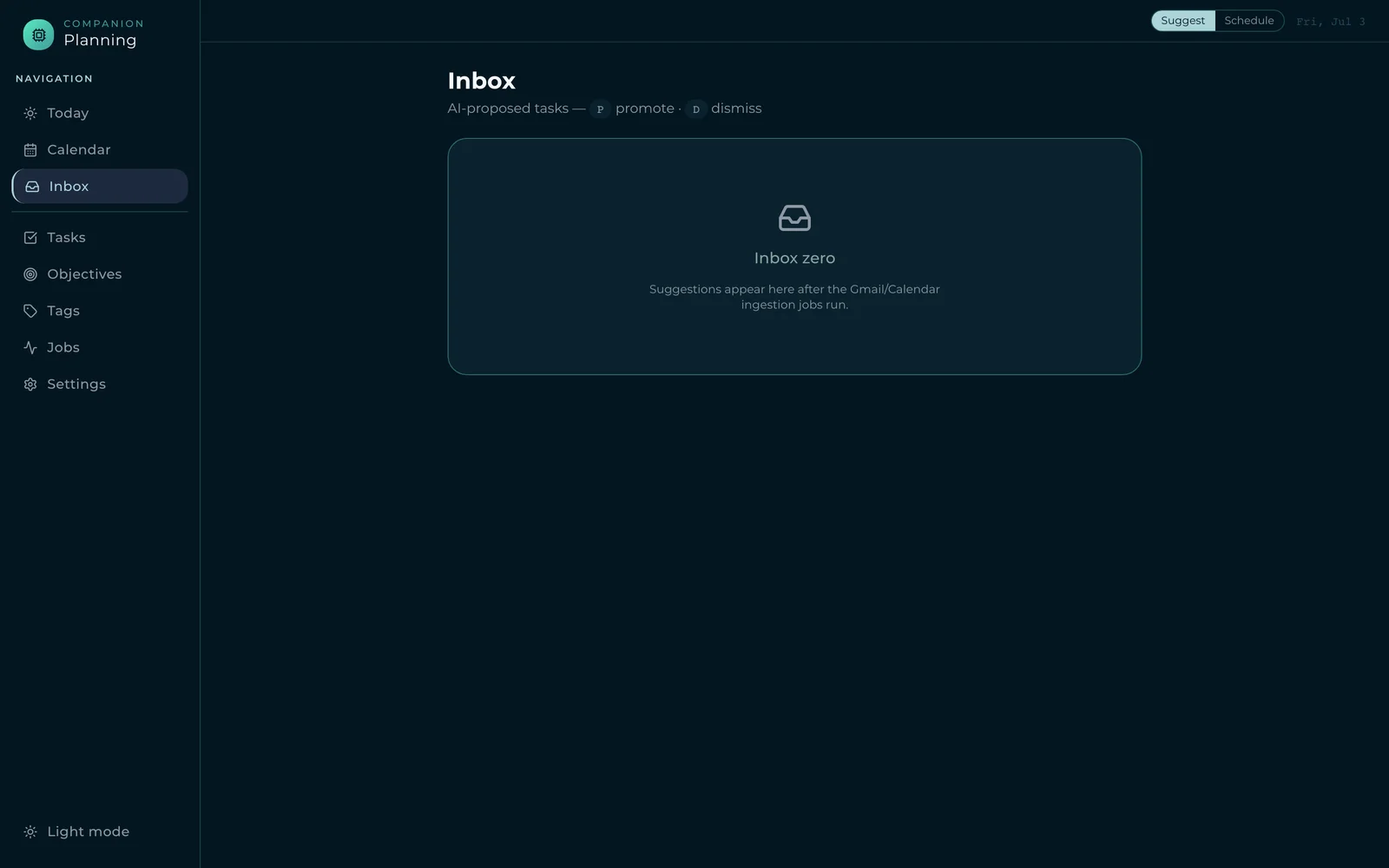
Companion-Planning Inbox in light mode — an 'Inbox zero' empty state for AI-proposed tasks with promote / dismiss key hints Companion-Planning Inbox in dark mode — the same AI-proposed-tasks inbox on a deep-navy surface

Tasks

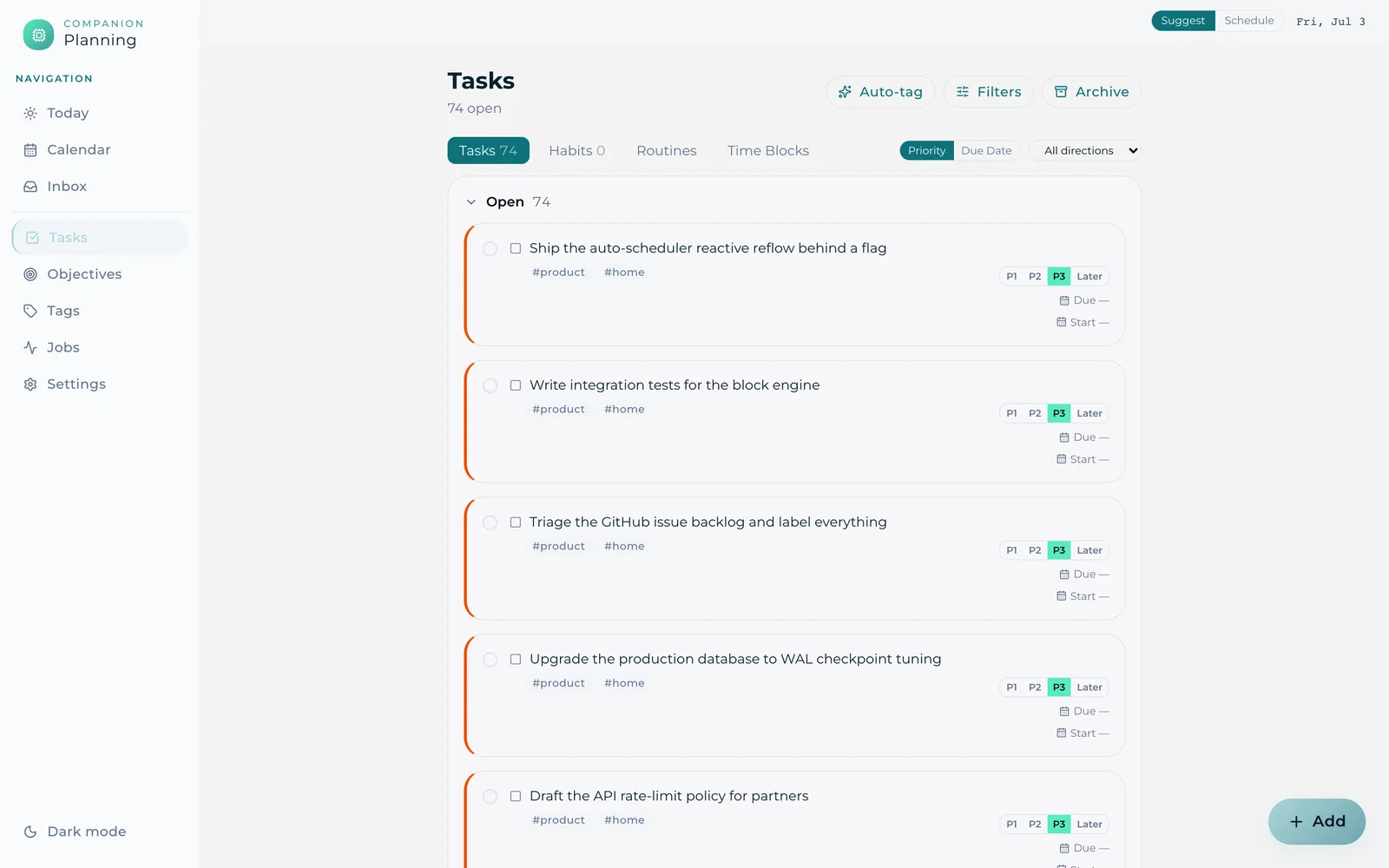
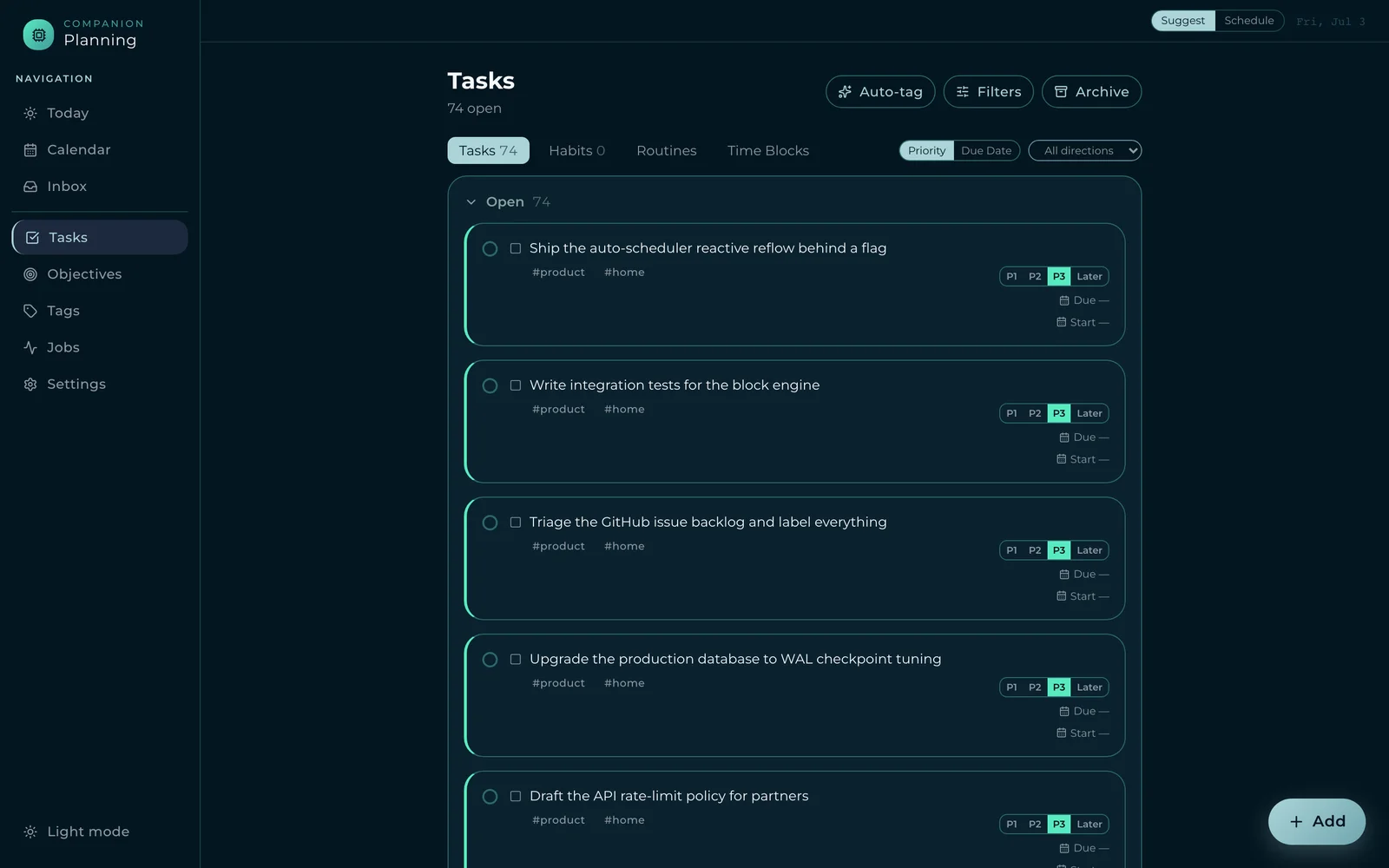
Companion-Planning Tasks view in light mode — a task list with priority chips, hashtag tags, and Auto-tag / Filters / Archive controls Companion-Planning Tasks view in dark mode — open tasks with teal priority chips and soft-teal card borders over a deep-navy background

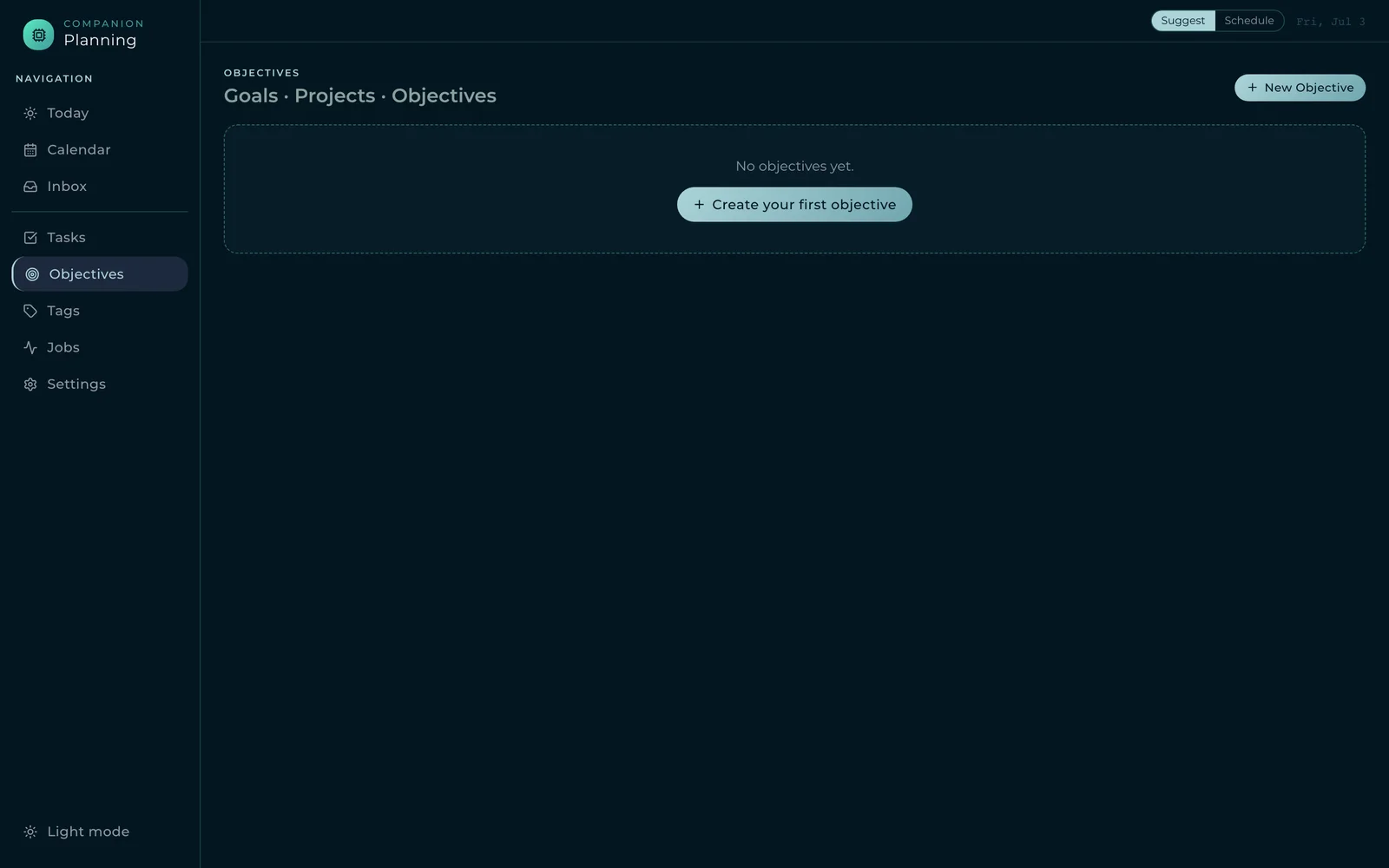
Objectives

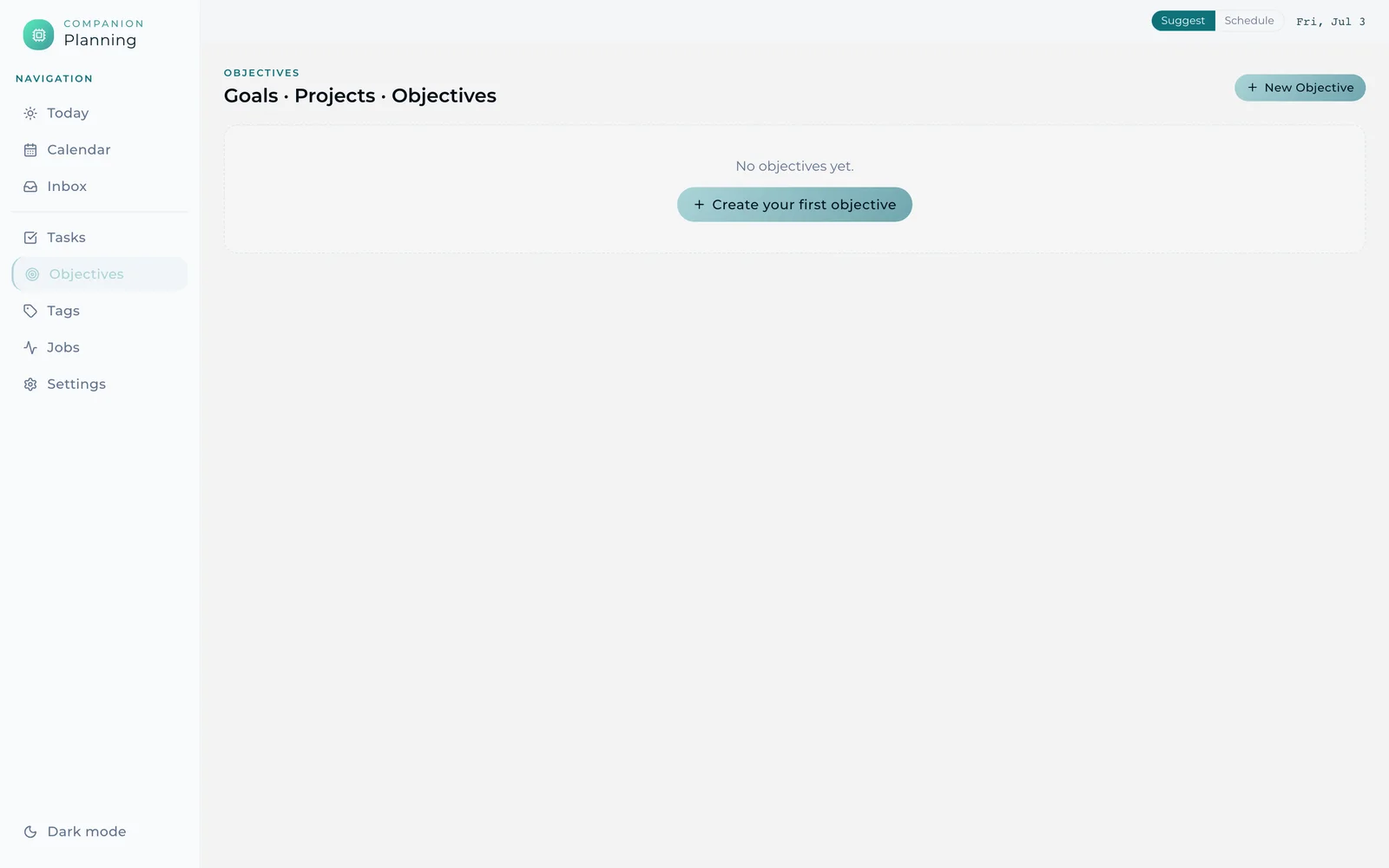
Companion-Planning Objectives in light mode — a 'Goals · Projects · Objectives' page with a 'No objectives yet' empty state and teal 'New Objective' / 'Create your first objective' actions Companion-Planning Objectives in dark mode — the same goals-and-projects empty state on a deep-navy surface

CI-Import-Tools — Companion Memory Data Import

The Companion Memory Data Importer — a local timeline builder that pulls your data exports into Companion Memory. Below: the guided Pick → Export → Sync wizard (all three steps), the direct Import page, two Explorer views (feed and map), the Stats dashboard, the Jobs pipeline list, Settings, and the in-app Docs.

Wizard — Pick

Companion Memory Data Importer in light mode — the 'Collect Your Data History' wizard on the PICK step with a Pick/Export/Sync stepper, a Search services field, category chips, and source cards grouped by Google, Apple, Microsoft, and AI assistants Companion Memory Data Importer PICK step in dark mode — the same source picker on a dark surface

Wizard — Export

Companion Memory Data Importer in light mode — the EXPORT step with a Google (Takeout) 'how to export' guide, an 'Open Google export page' button, and an 'Upload files / Upload a folder' drop zone Companion Memory Data Importer EXPORT step in dark mode — the same export guide and drop zone on a dark surface

Wizard — Sync

Companion Memory Data Importer in light mode — the SYNC step, 'Ship it to Companion Memory', with an ingest-URL field, a 'Sync to my memory' button, and an OIDC one-click tip Companion Memory Data Importer SYNC step in dark mode — the same ship-to-memory panel on a dark surface

Import

Companion Memory Data Importer Import page in light mode — File/folder and API source tabs, a Path field with Downloads / Archives / Google Takeout / Apple Photos / iMessage shortcuts, and a Recognize button Companion Memory Data Importer Import page in dark mode — the same file/folder import form on a dark surface

Explorer — Feed

Companion Memory Data Importer Explorer in light mode, Feed view — a search bar with Messages/Content/Events/Places filters and Feed/List/Gallery/Map/Graph view toggles over timeline cards ('120 items · showing 60') Companion Memory Data Importer Explorer Feed view in dark mode — the same searchable timeline feed on a dark surface

Explorer — Map

Companion Memory Data Importer Explorer in light mode, Map view — a Leaflet/OpenStreetMap map of San Francisco with clustered located items ('120 located items') Companion Memory Data Importer Explorer Map view in dark mode — the same located-items map with a dark chrome

Stats

Companion Memory Data Importer Stats in light mode — Items / Entities / Relationships / Date range summary cards and teal 'By data source' and 'By classification' bar charts Companion Memory Data Importer Stats in dark mode — the same summary cards and teal bar charts on a dark surface

Jobs

Companion Memory Data Importer Jobs in light mode — an import-runs page ('Every import you've run… each one is a pipeline') with a 'No imports yet' empty state Companion Memory Data Importer Jobs in dark mode — the same import-runs empty state on a dark surface

Settings

Companion Memory Data Importer Settings in light mode — a System card with the inbox folder path, Copy path / Reveal in Finder actions, version and database read-outs, and a Companion Memory ingest section with a 'Sync to my memory' button Companion Memory Data Importer Settings in dark mode — the same credentials and ingest settings on a dark surface

Docs

Companion Memory Data Importer in-app Docs in light mode — a documentation sidebar (Getting Started, Export Guides) beside a 'Companion Memory Data Import' page with Full documentation and Companion Hub cards Companion Memory Data Importer in-app Docs in dark mode — the same documentation index on a dark surface

See the full Companion Memory Data Import docs for the wizard walkthrough.

Companion-Pipe

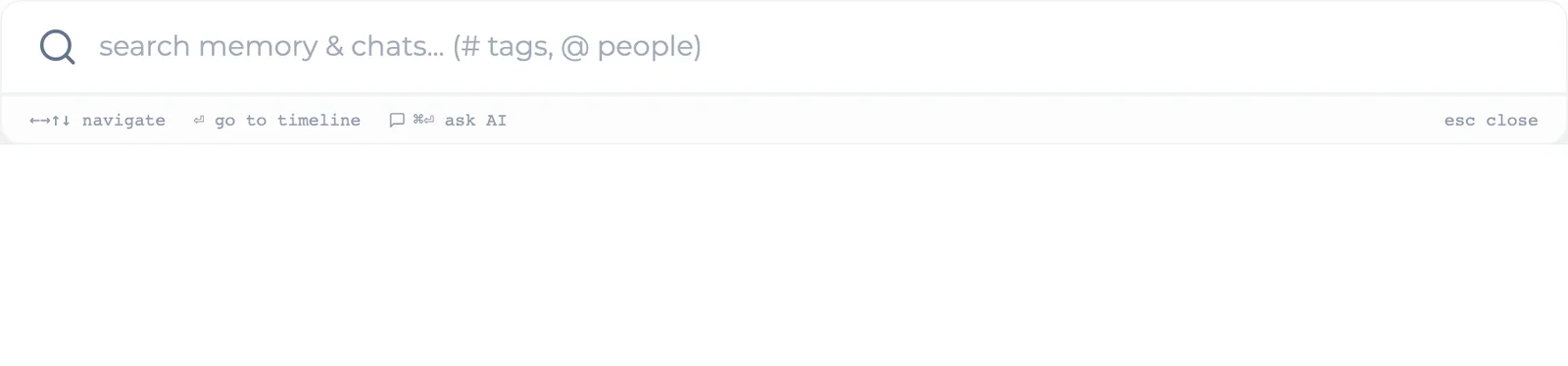
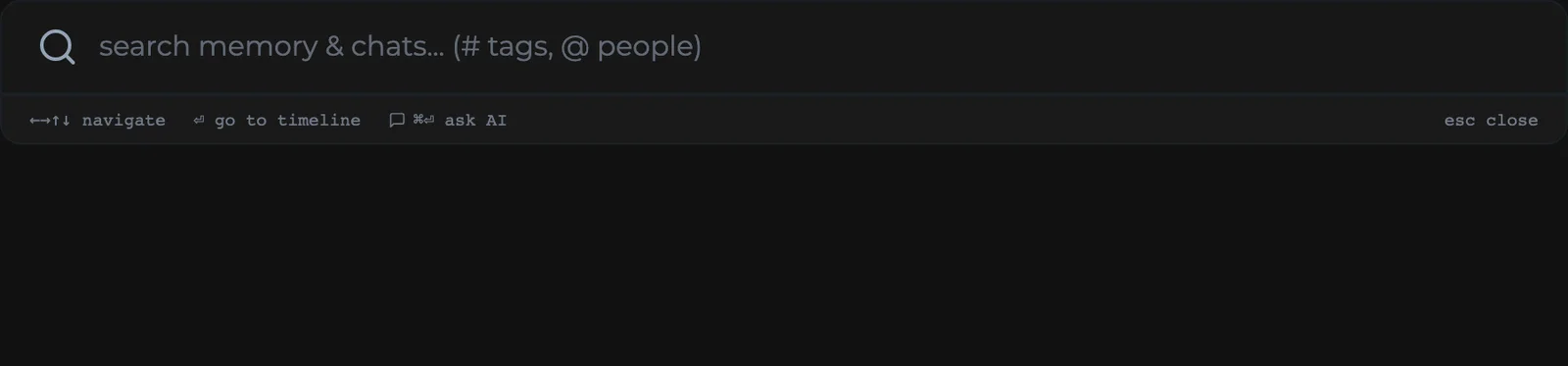
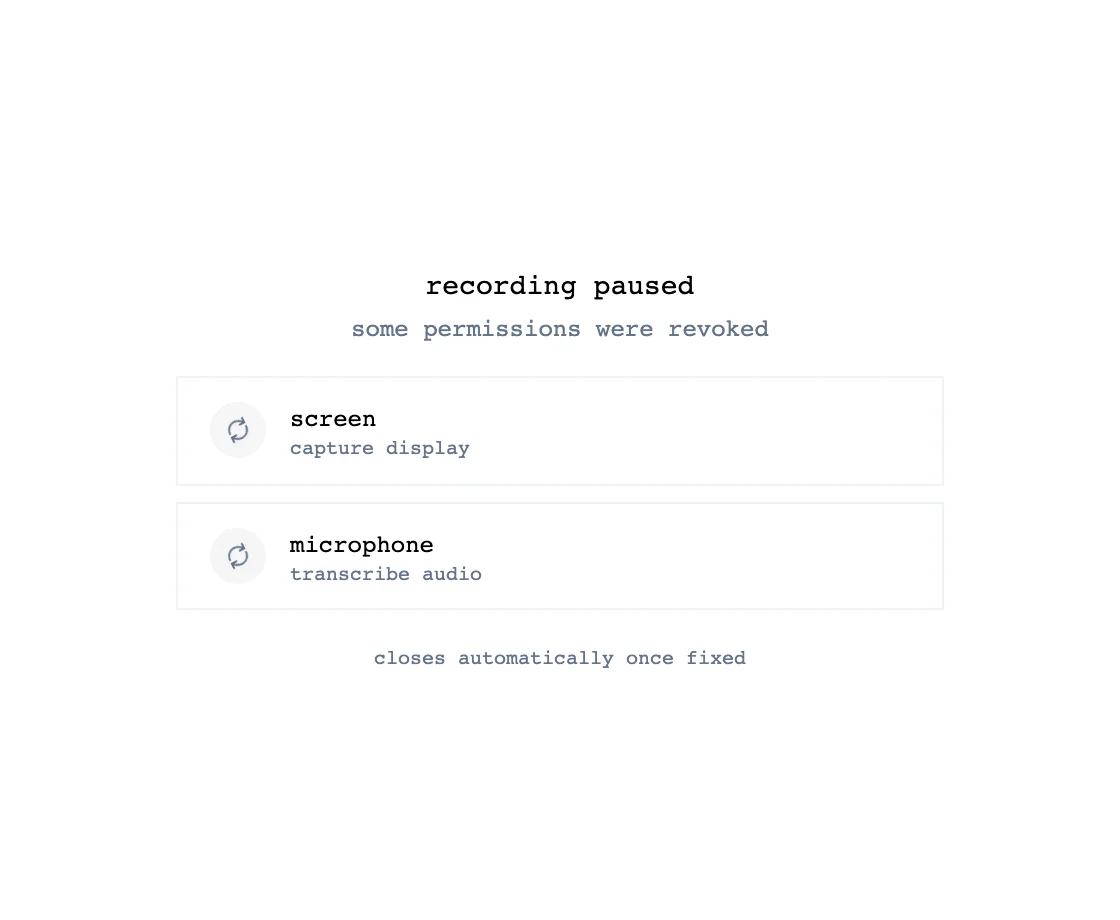
The capture pipe that feeds Companion Memory. Three states from its minimal, monospace-accented UI: the search command bar, the recording-paused permissions notice, and the onboarding splash.

Companion-Pipe search bar in light mode — a spotlight-style field reading 'search memory & chats… (# tags, @ people)' with navigate / go to timeline / ask AI key hints and an esc-to-close hint Companion-Pipe search bar in dark mode — the same command bar on a near-black surface

Permissions

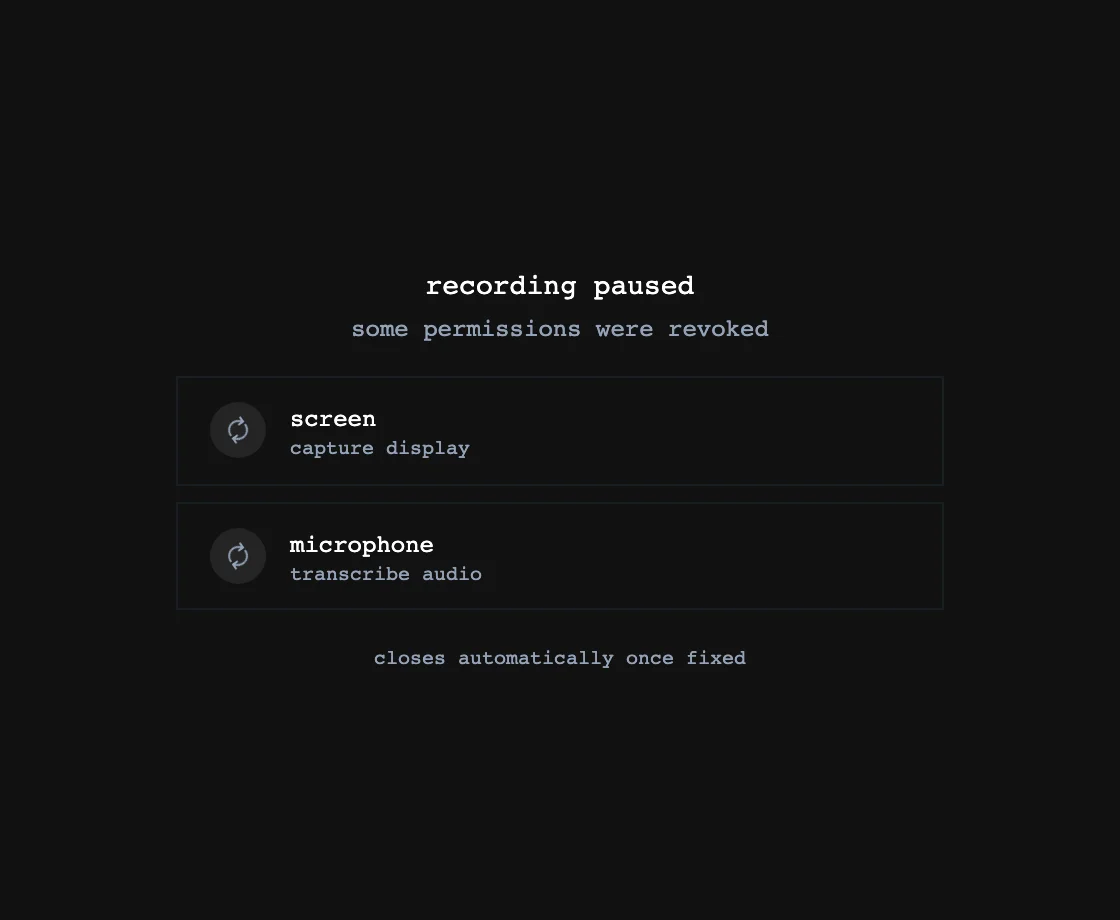
Companion-Pipe permissions notice in light mode — 'recording paused / some permissions were revoked' with screen (capture display) and microphone (transcribe audio) rows that resolve automatically Companion-Pipe permissions notice in dark mode — the same recording-paused rows on a near-black surface

Onboarding

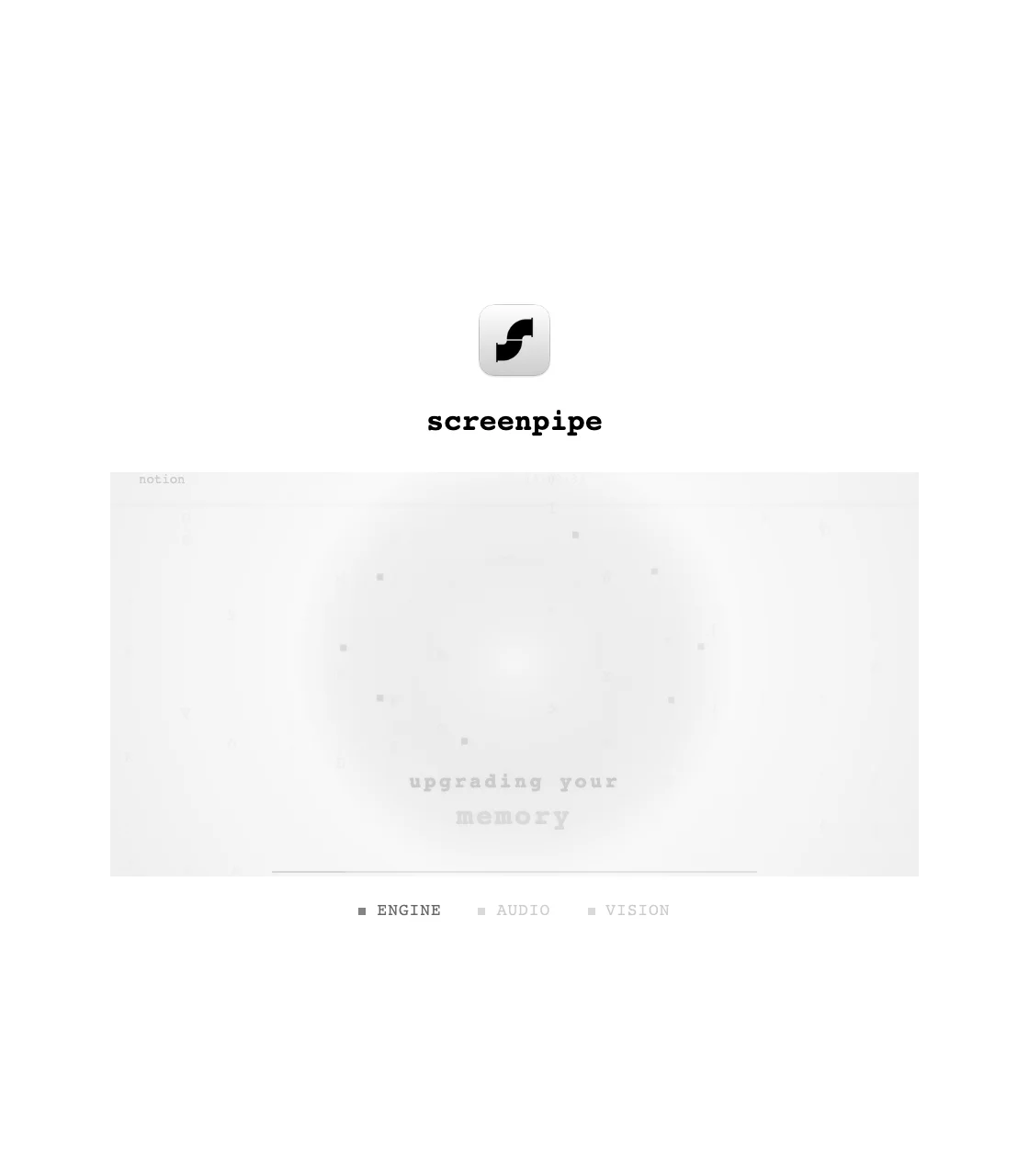
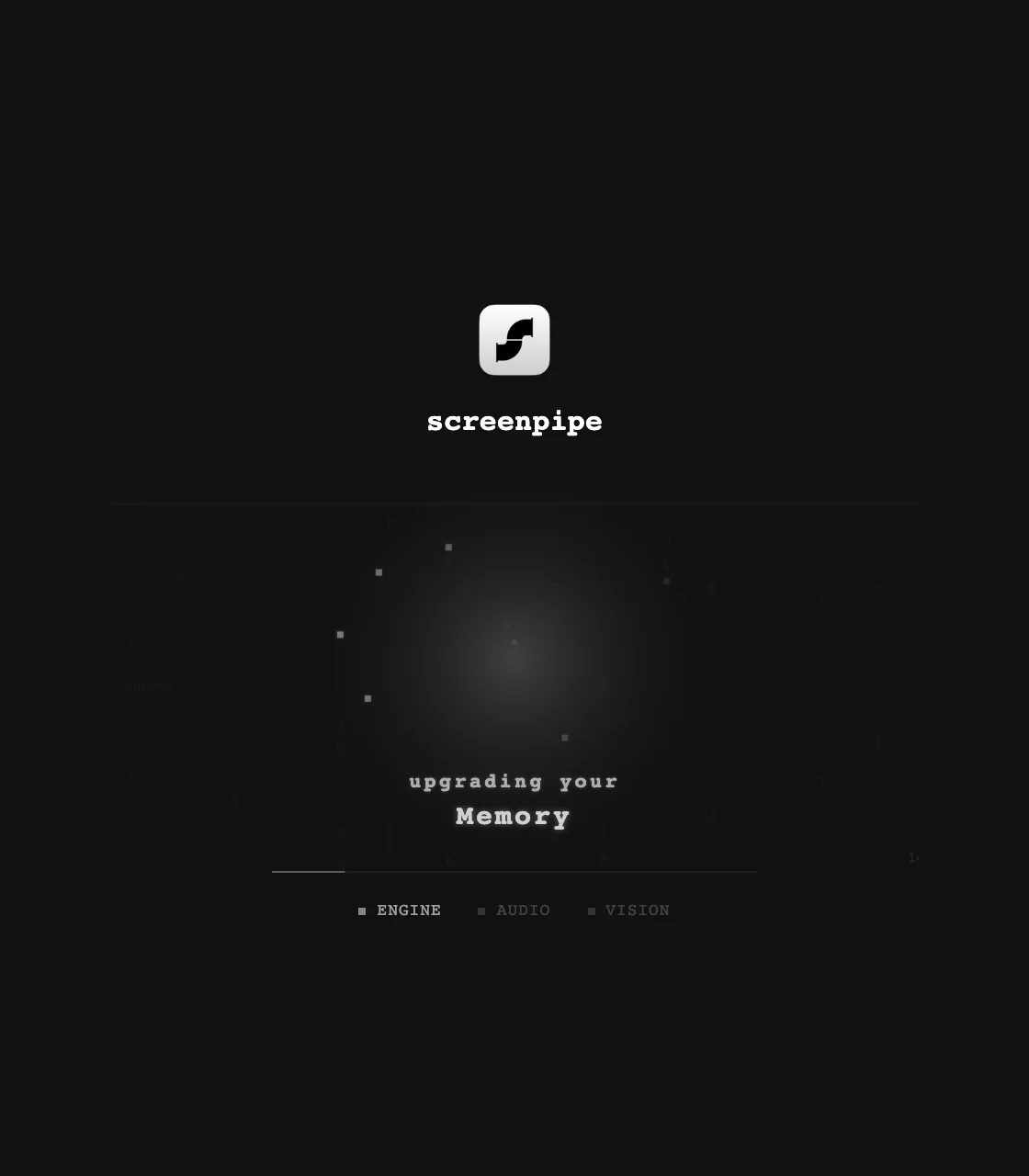
Companion-Pipe onboarding splash in light mode — the screenpipe app mark over an 'upgrading your memory' animation with ENGINE / AUDIO / VISION status pills Companion-Pipe onboarding splash in dark mode — the same upgrading-memory screen on a dark surface

companionintelligence.github.io — App Store

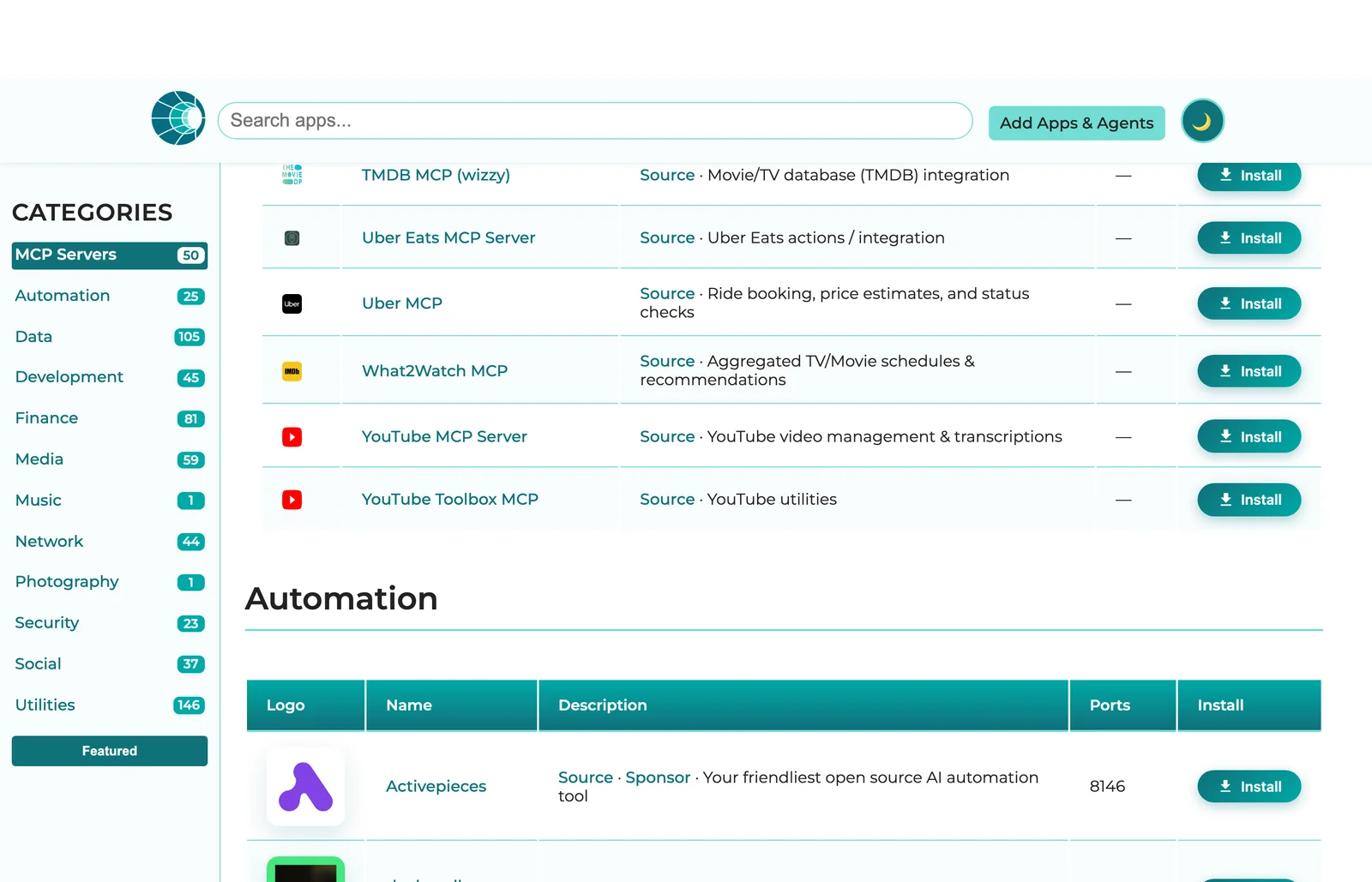
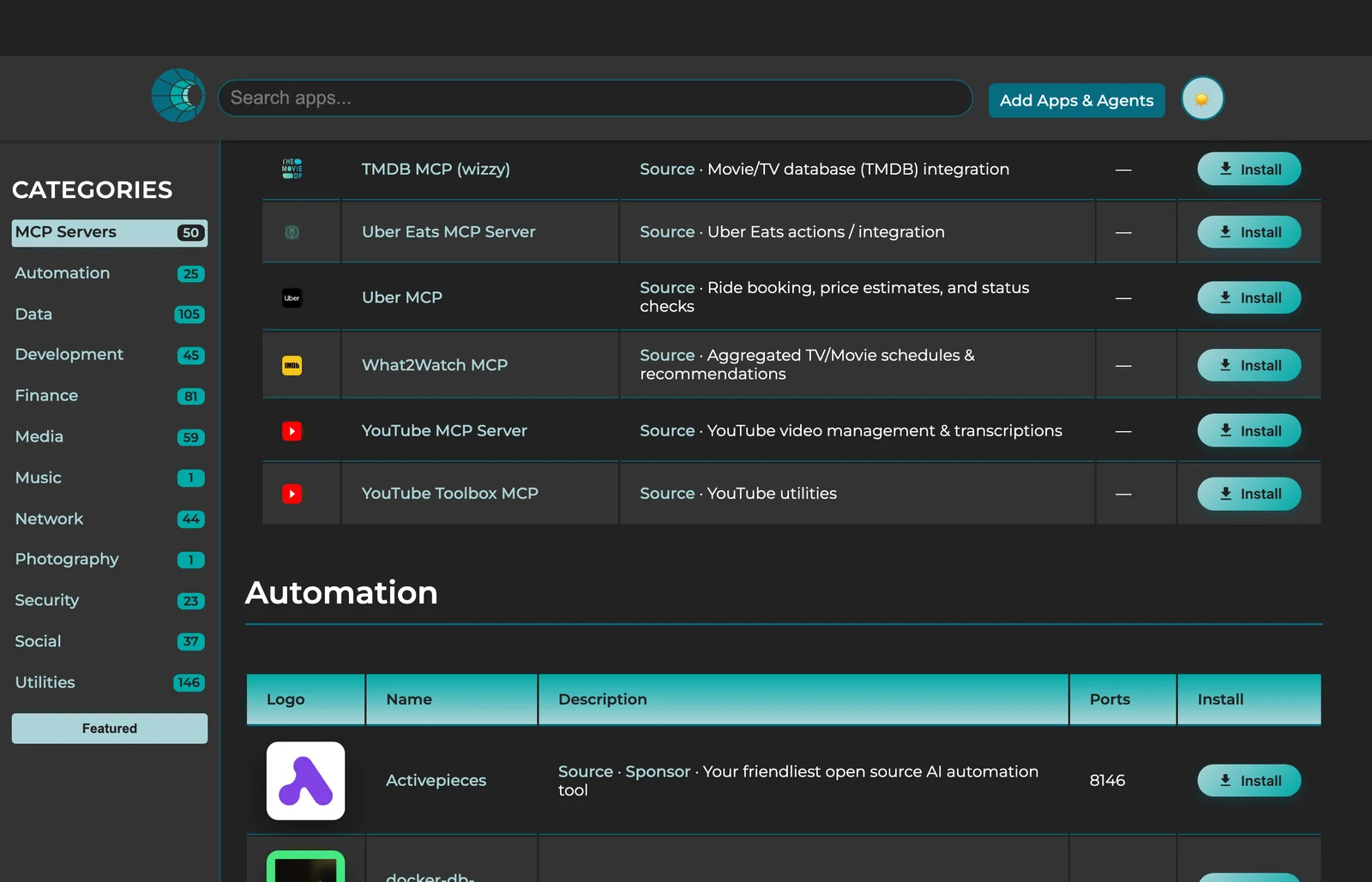
The public app-store site (GitHub Pages, built from the marketplace catalog). Two views: the ‘Un-Cloud & Un-Plug’ alternatives table mapping proprietary tools to private, self-hostable ones, and the categorized install grid.

Un-Cloud & Un-Plug
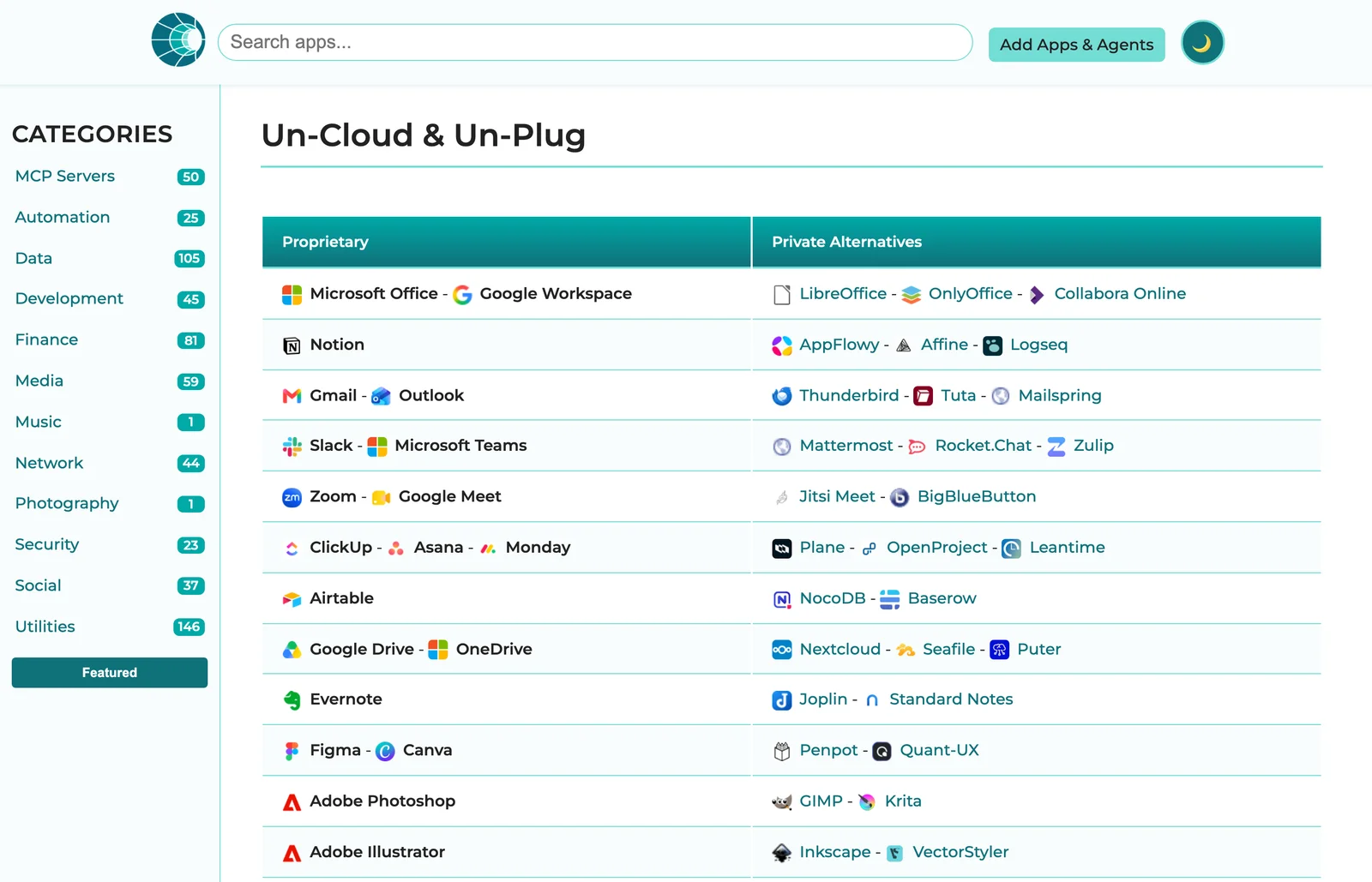
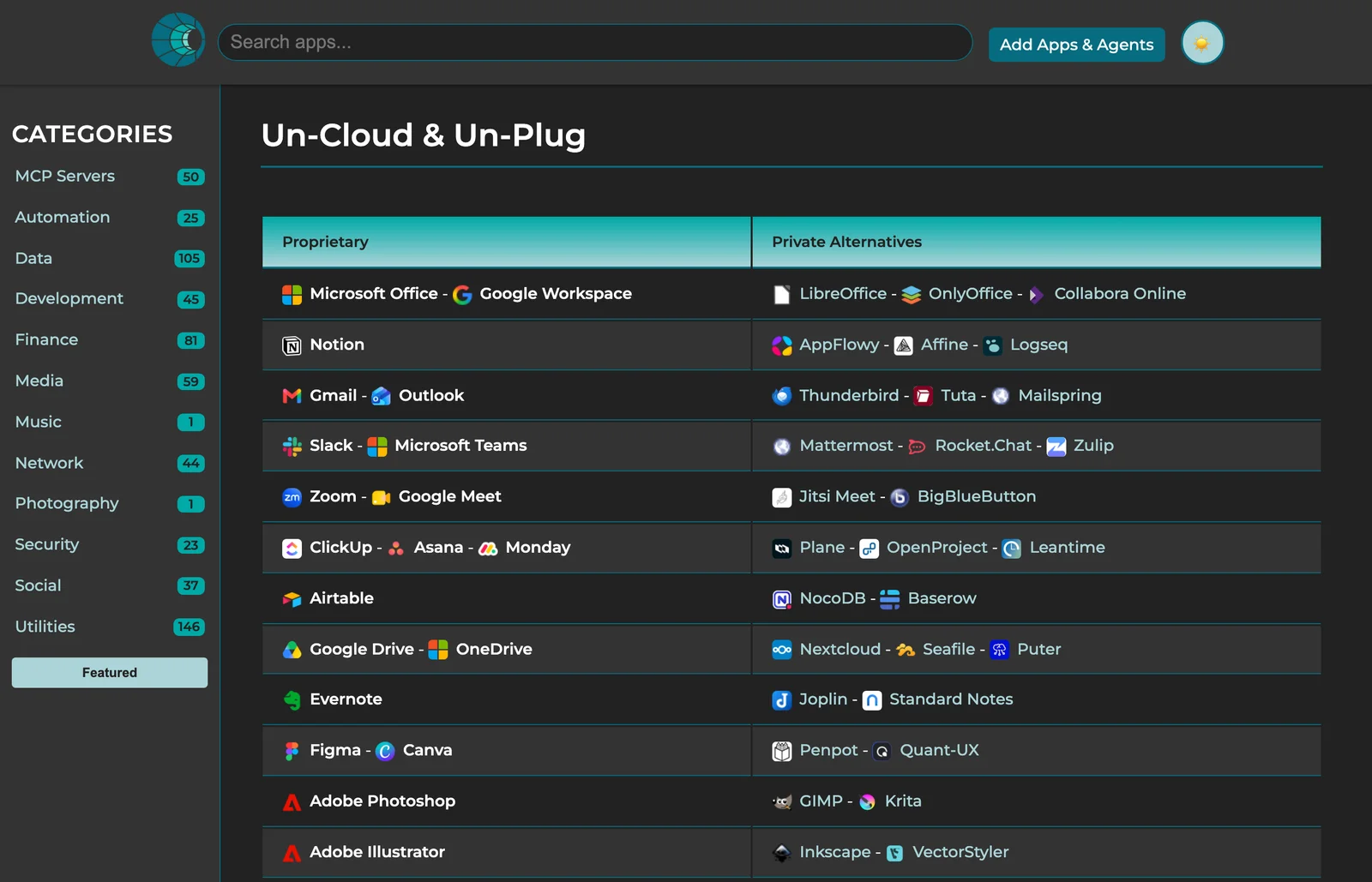
Public app store in light mode — the 'Un-Cloud & Un-Plug' page mapping proprietary tools (Microsoft Office, Notion, Gmail, Slack, Zoom…) to private alternatives, with a teal Categories rail and a teal-headed Proprietary / Private Alternatives table Public app store in dark mode — the same Un-Cloud & Un-Plug alternatives table on a dark surface

Apps grid

Public app store in light mode — the categorized install grid (MCP Servers, Automation…) with per-app rows, Source links, port badges, and teal Install buttons Public app store in dark mode — the same install grid on a dark surface

CI-Docs (this site)

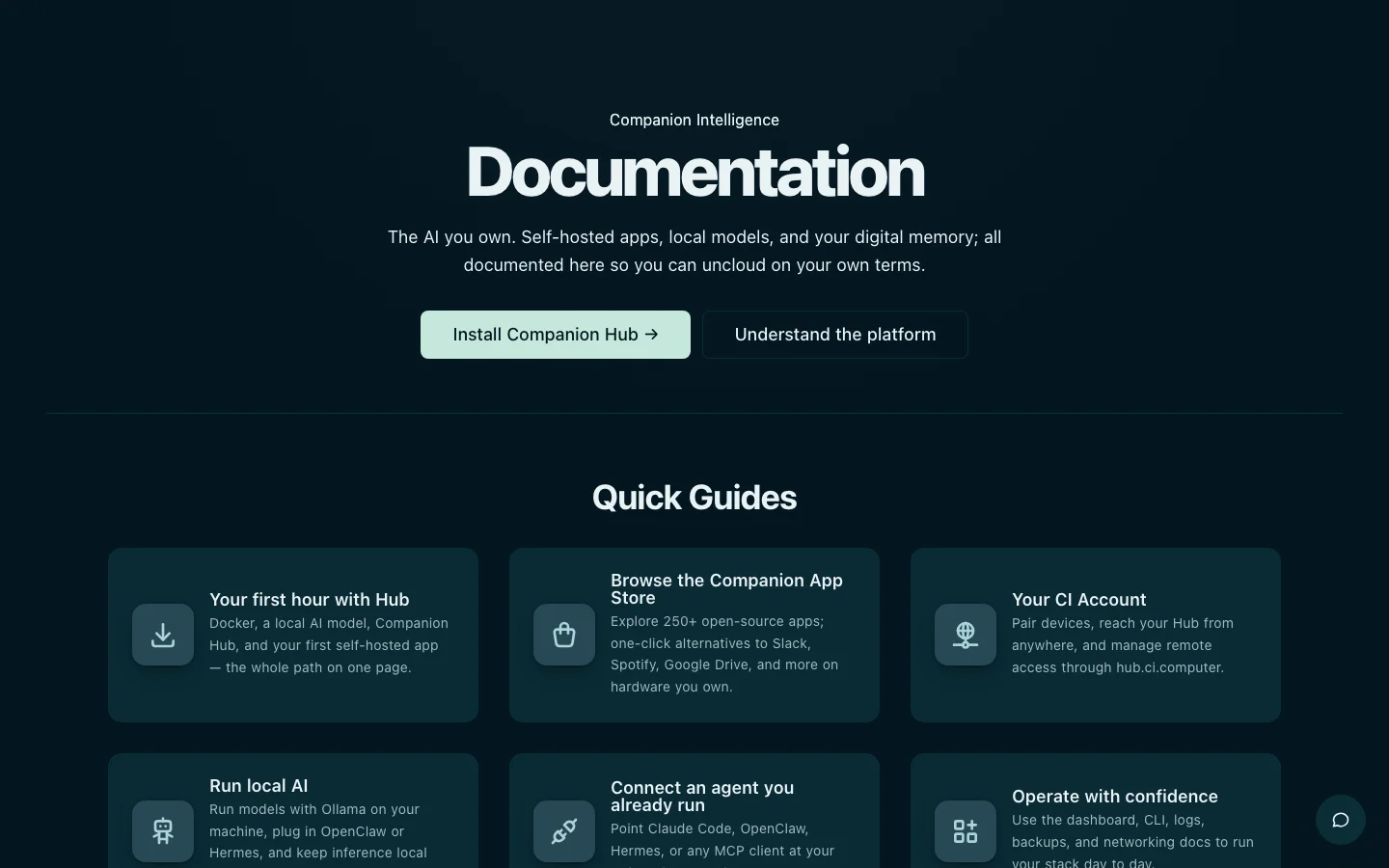
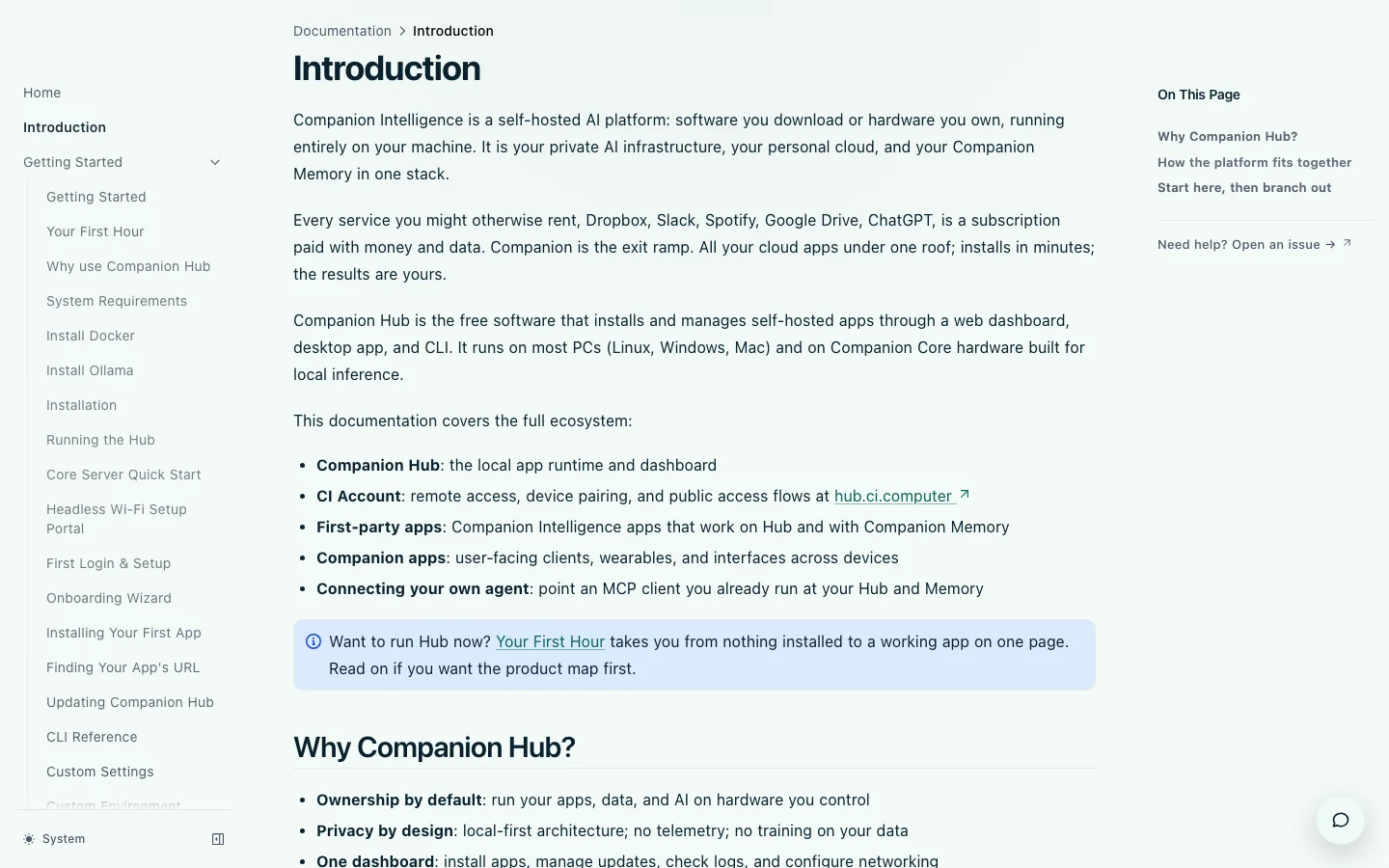
The documentation site you are reading — the same teal --primary, Montserrat, and light/dark surfaces the rest of the platform uses. Two surfaces: the Documentation home with its Quick Guides grid, and an interior doc page with the sidebar and on-this-page rail.

Home
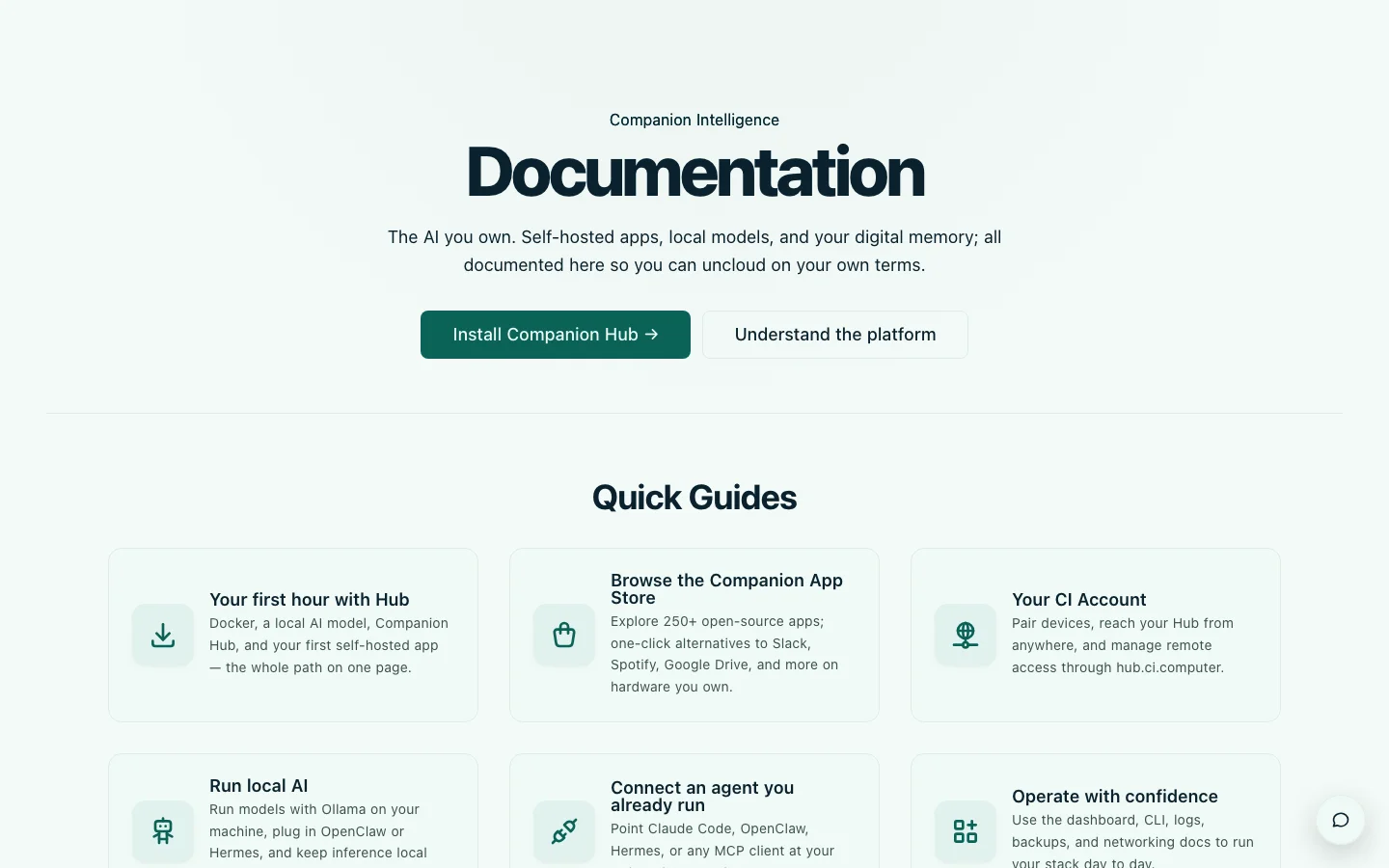
The CI-Docs documentation home in light mode — a large 'Documentation' hero, Install Companion Hub / Understand the Platform CTAs, and a Quick Guides card grid The CI-Docs documentation home in dark mode — the same hero and Quick Guides grid on a deep-navy surface

Doc page

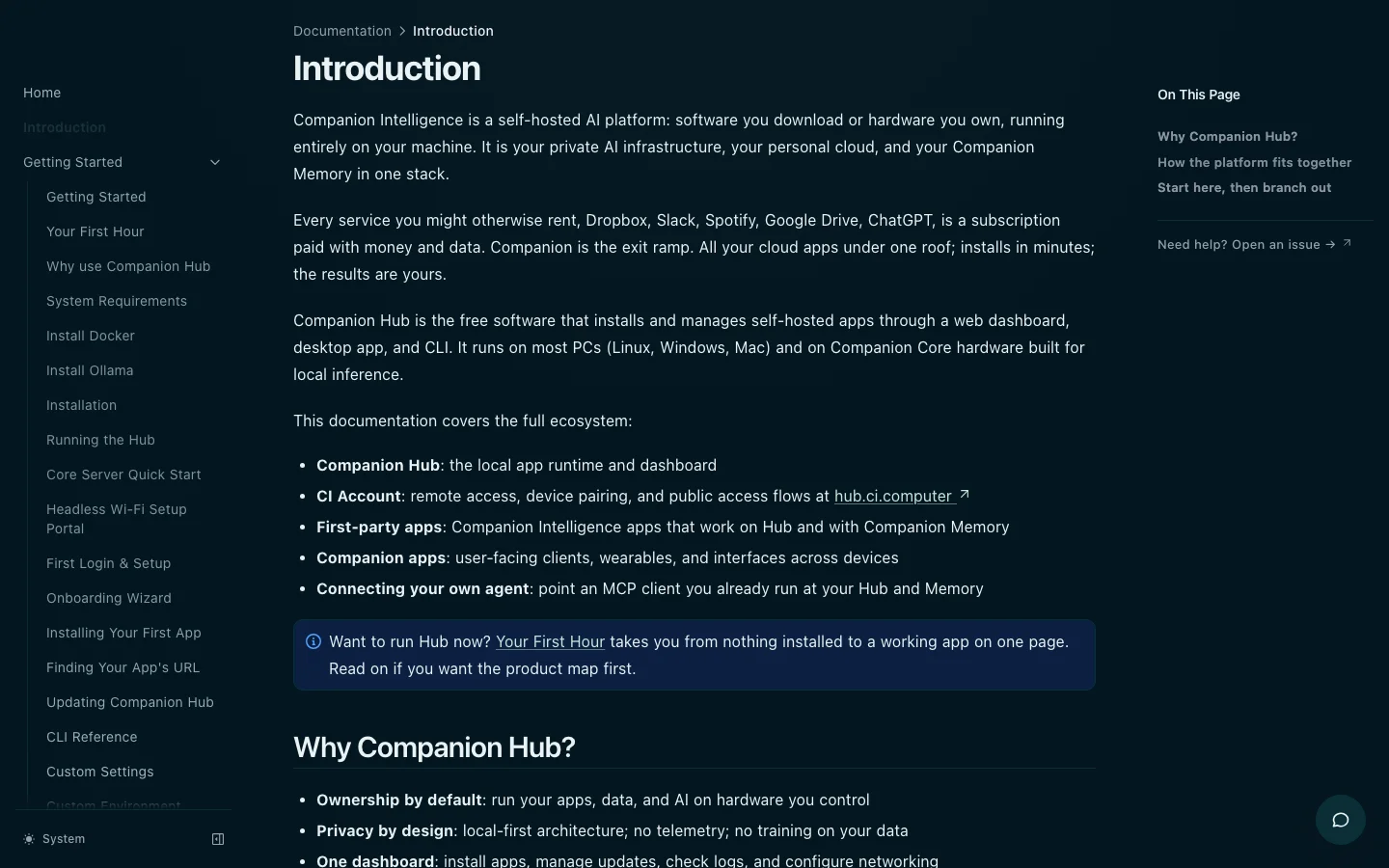
A CI-Docs interior doc page in light mode — the 'Introduction' article with a left navigation sidebar, body prose, and an 'On This Page' rail A CI-Docs interior doc page in dark mode — the same Introduction article and sidebars on a deep-navy surface

JustInCase

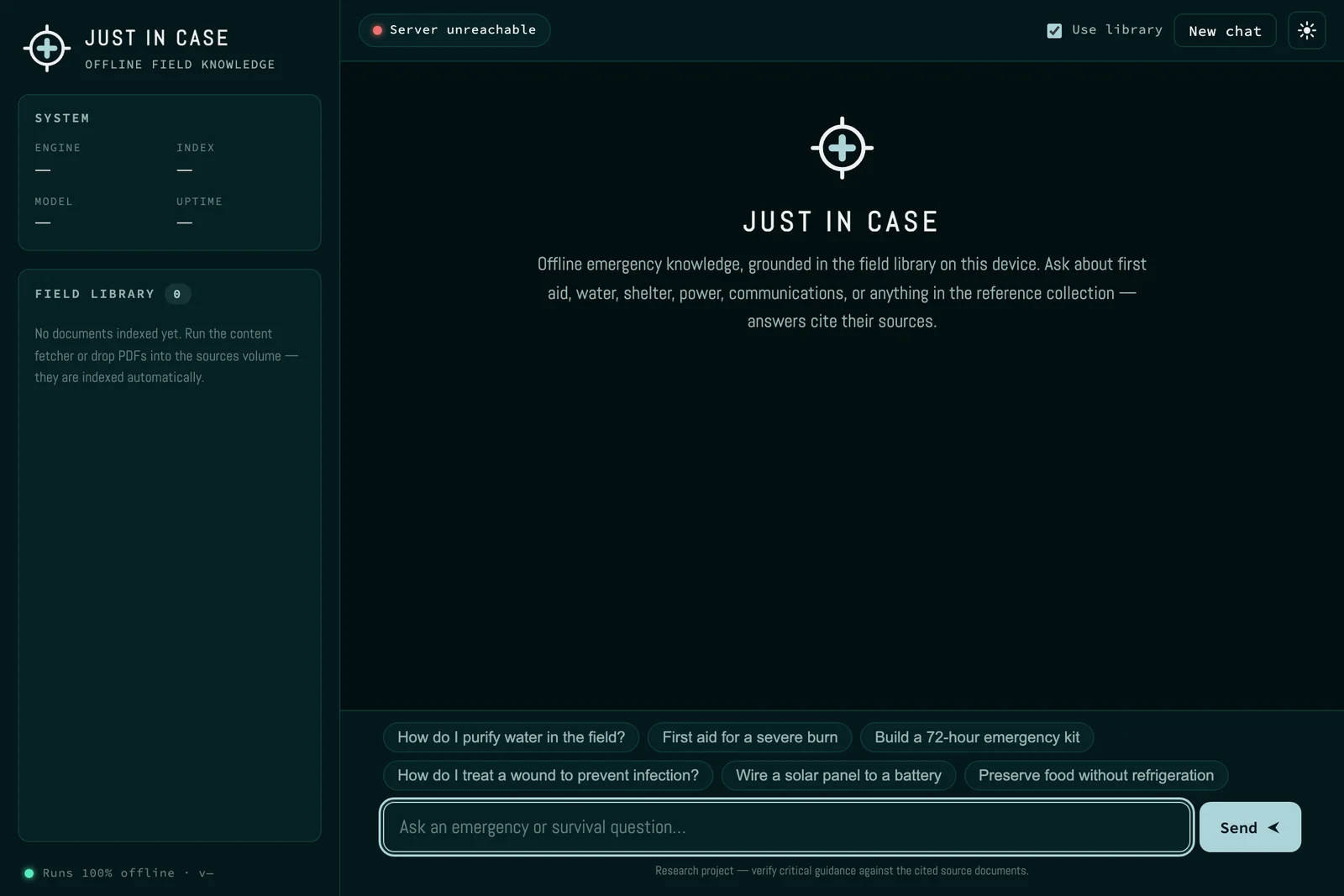
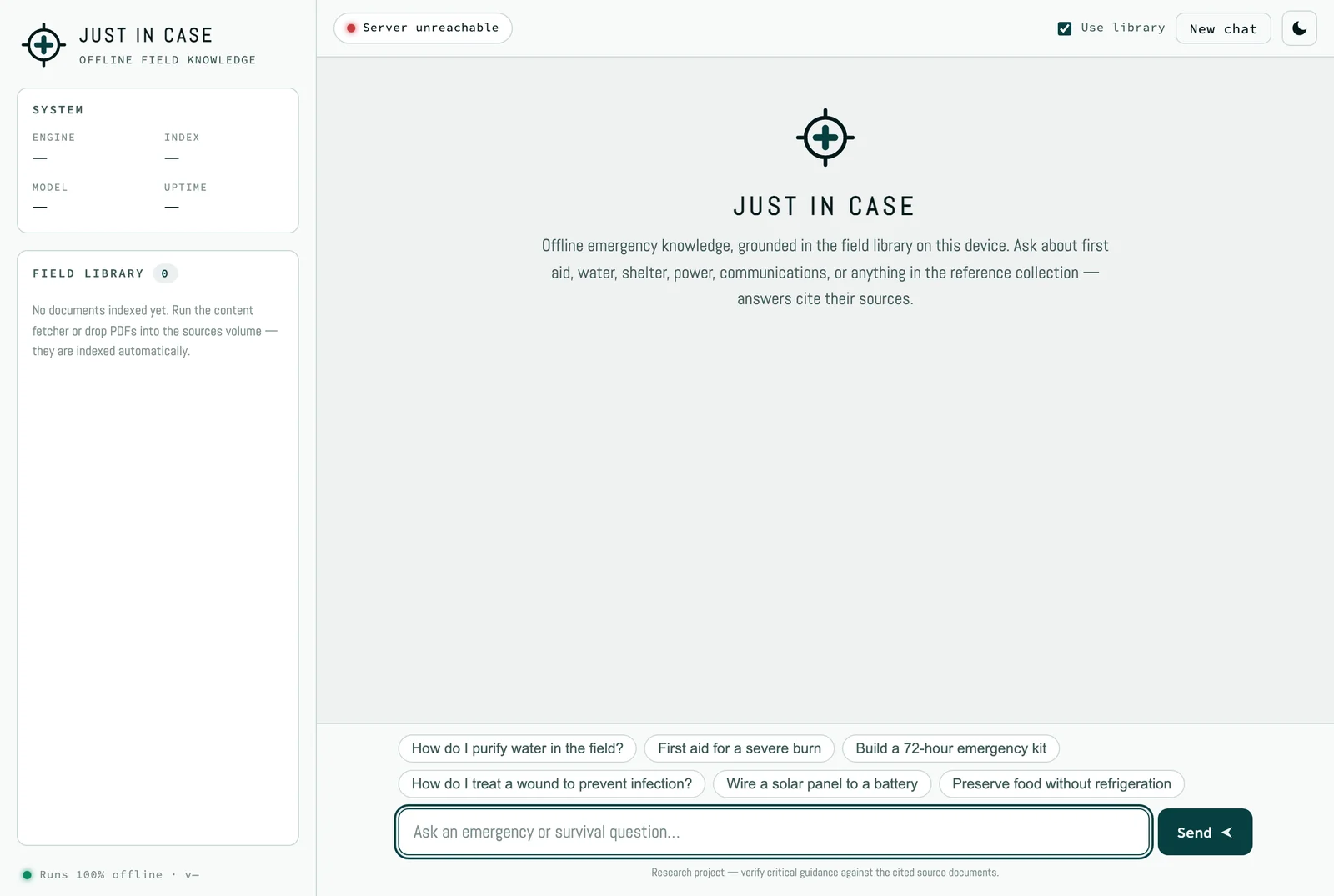
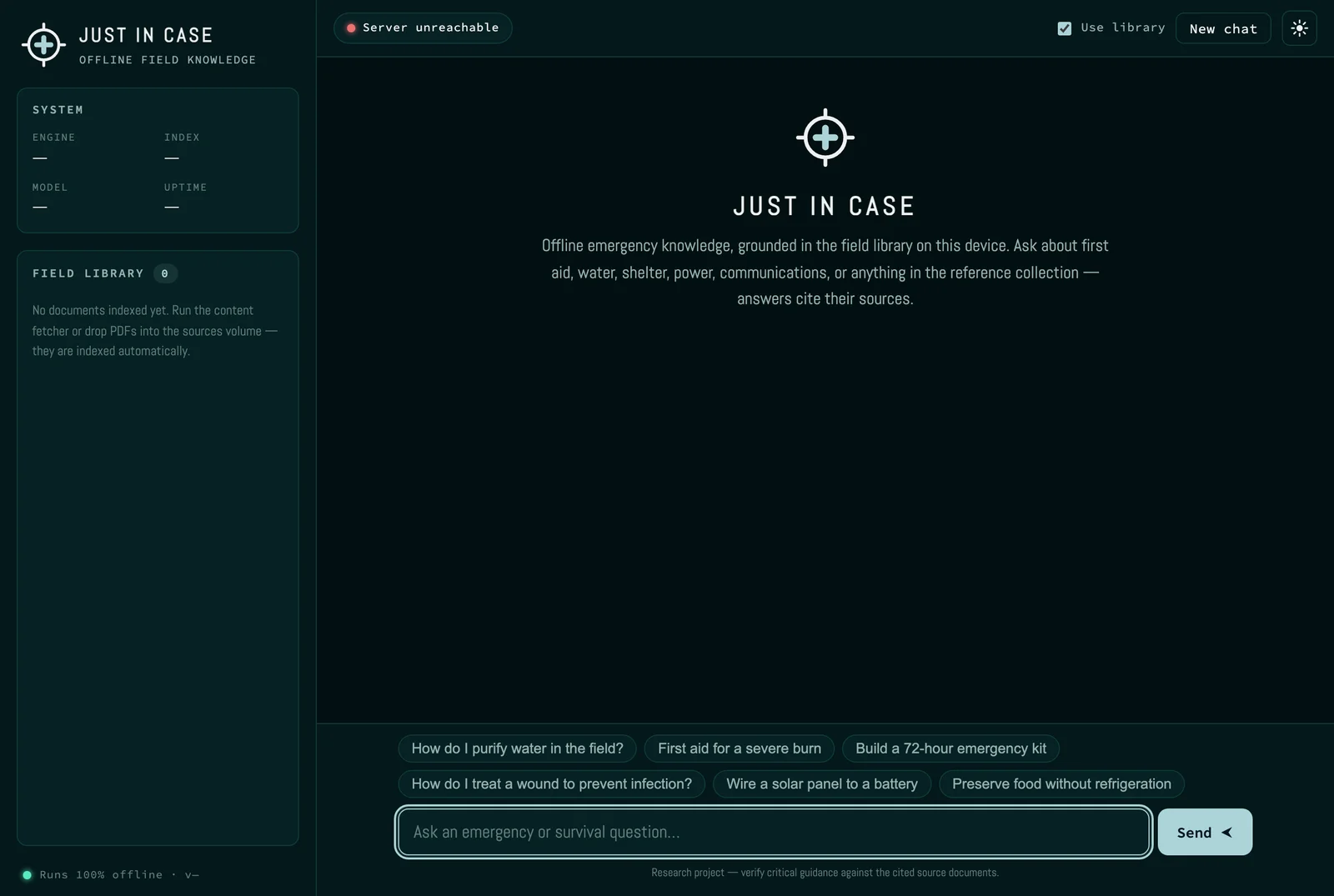
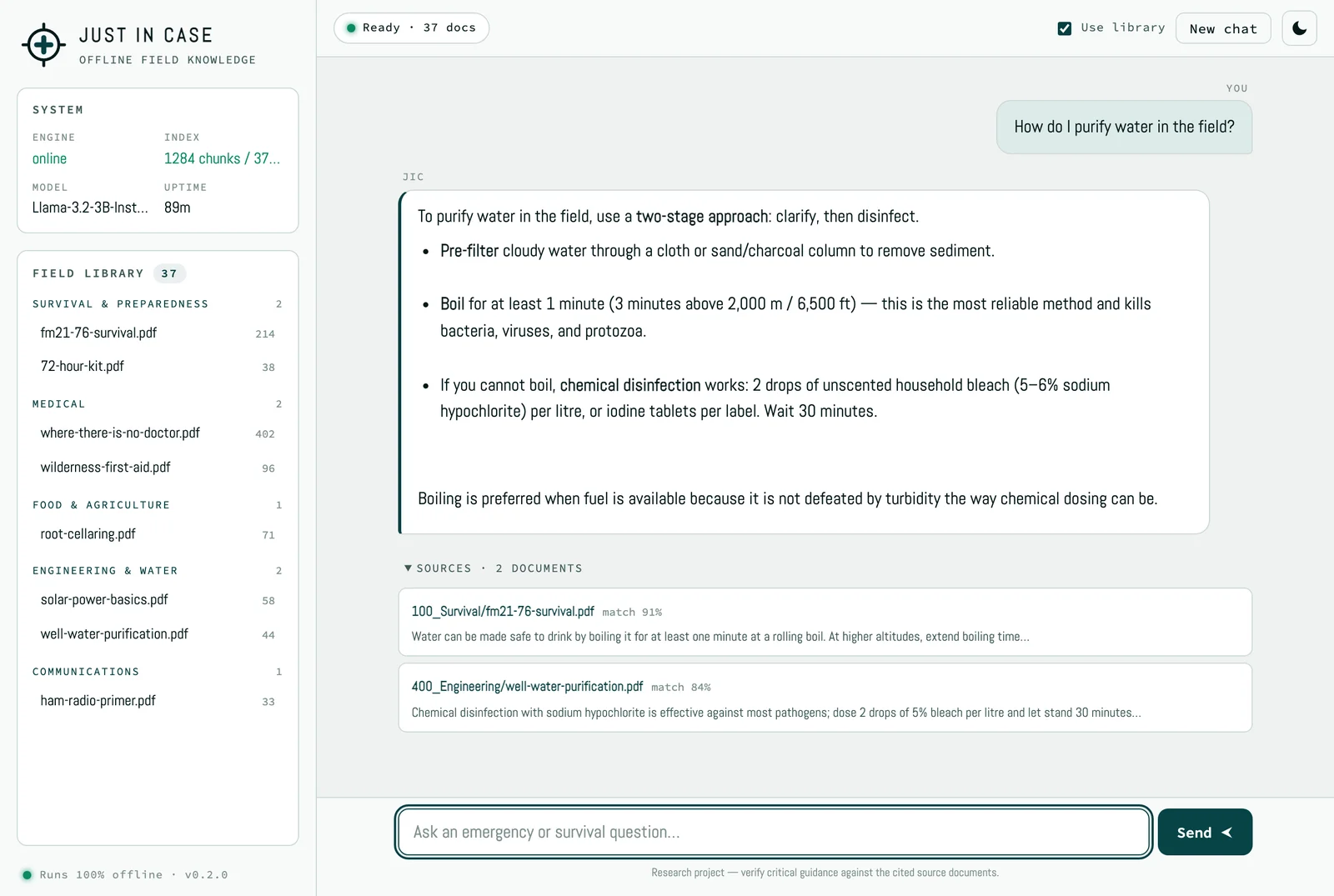
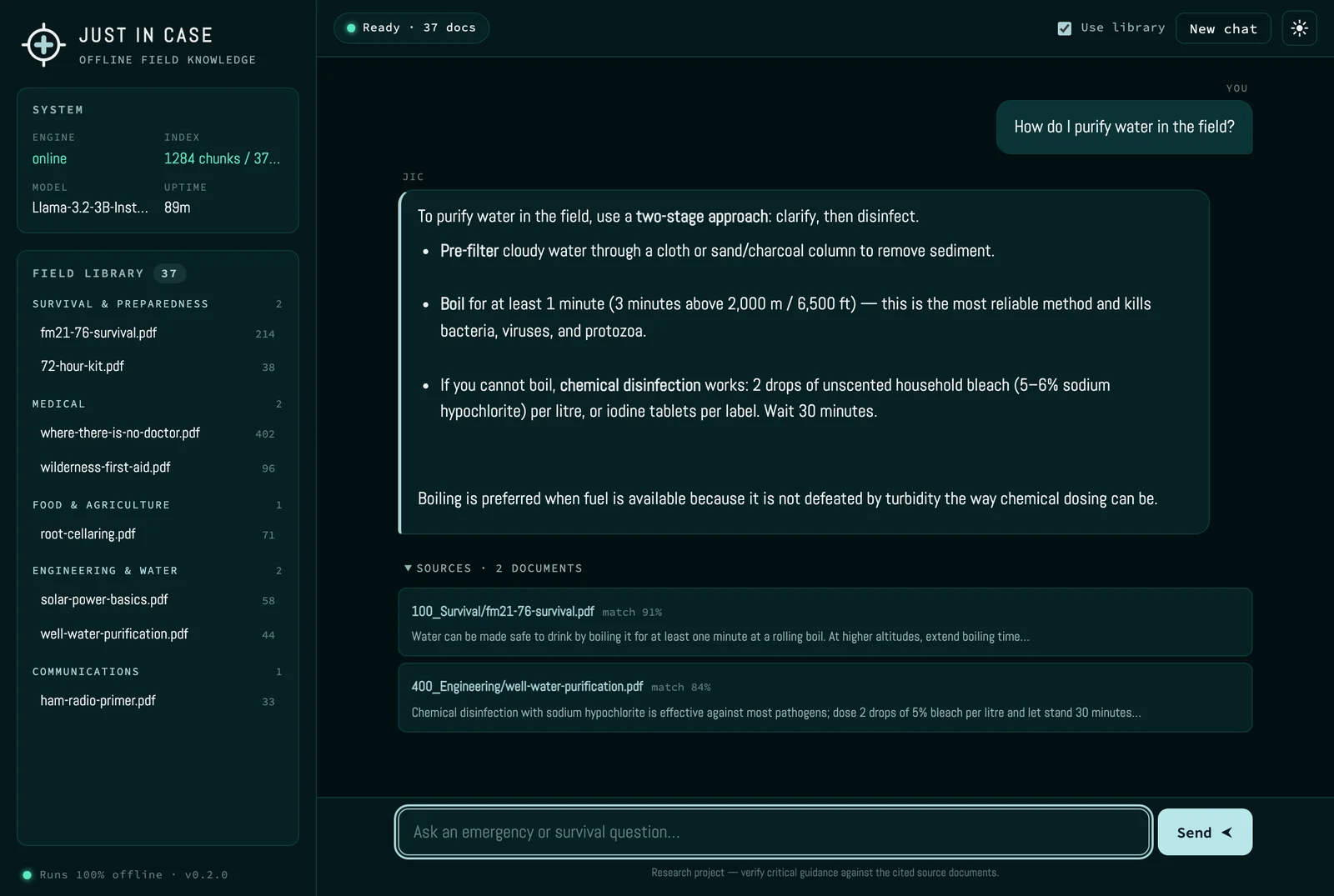
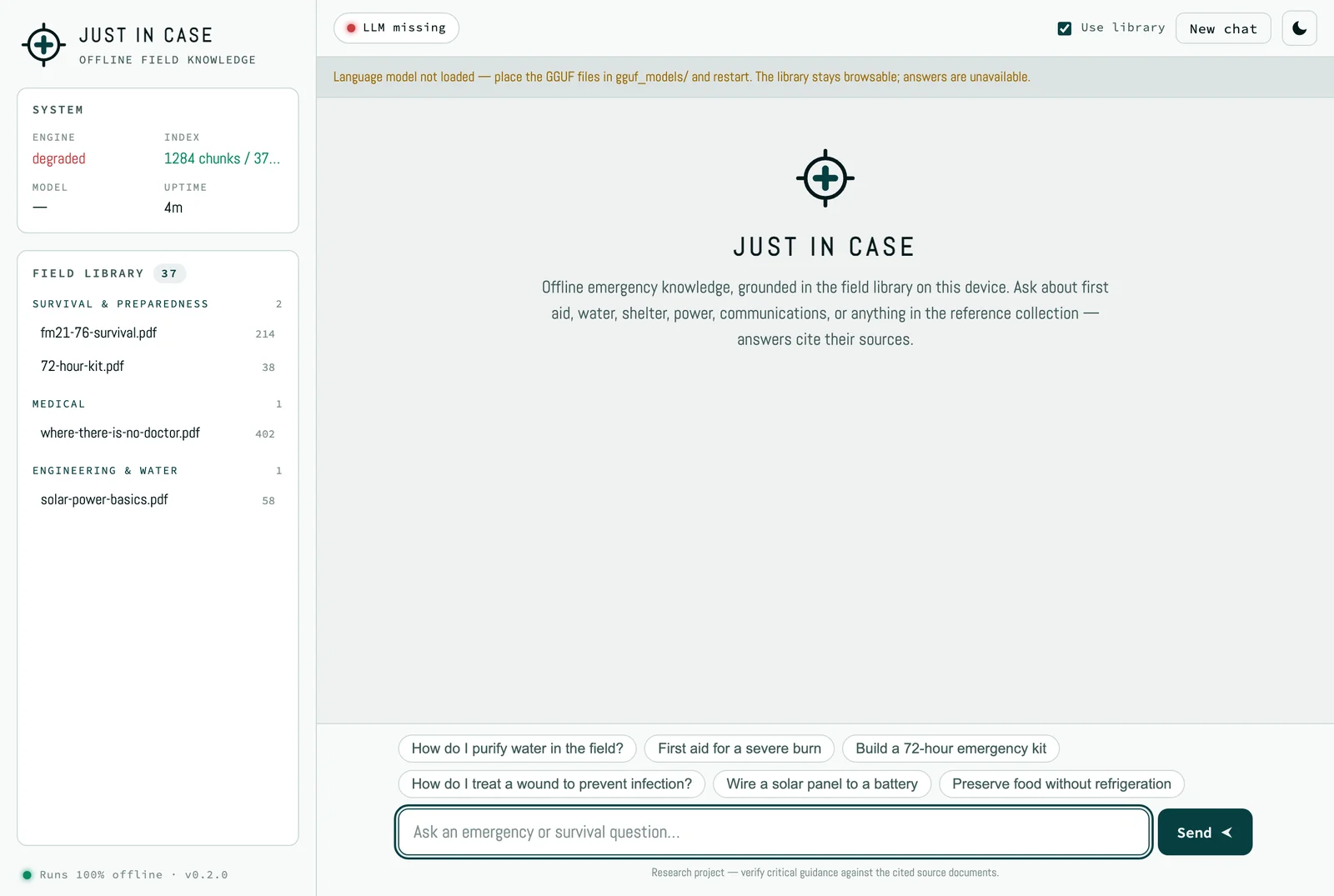
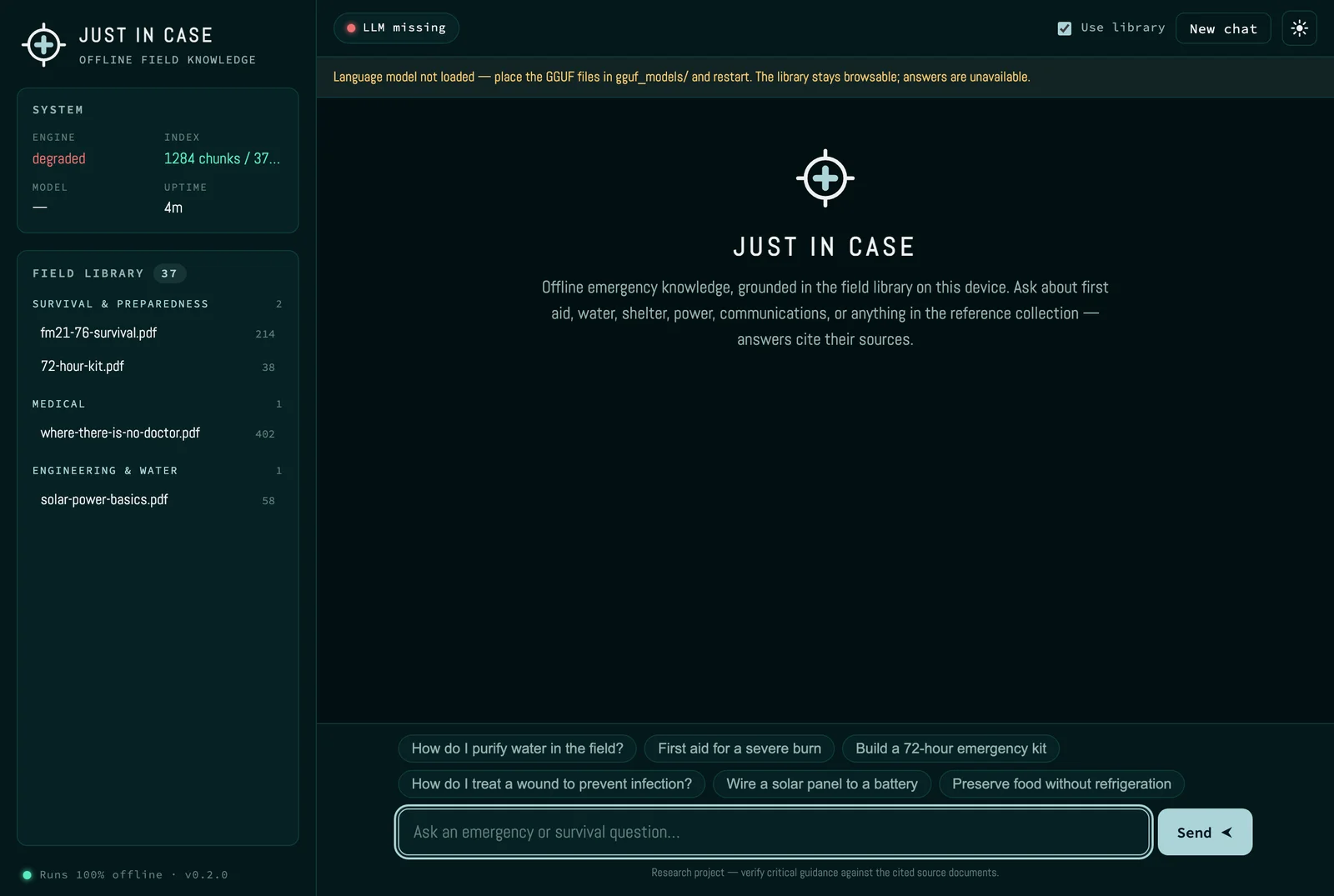
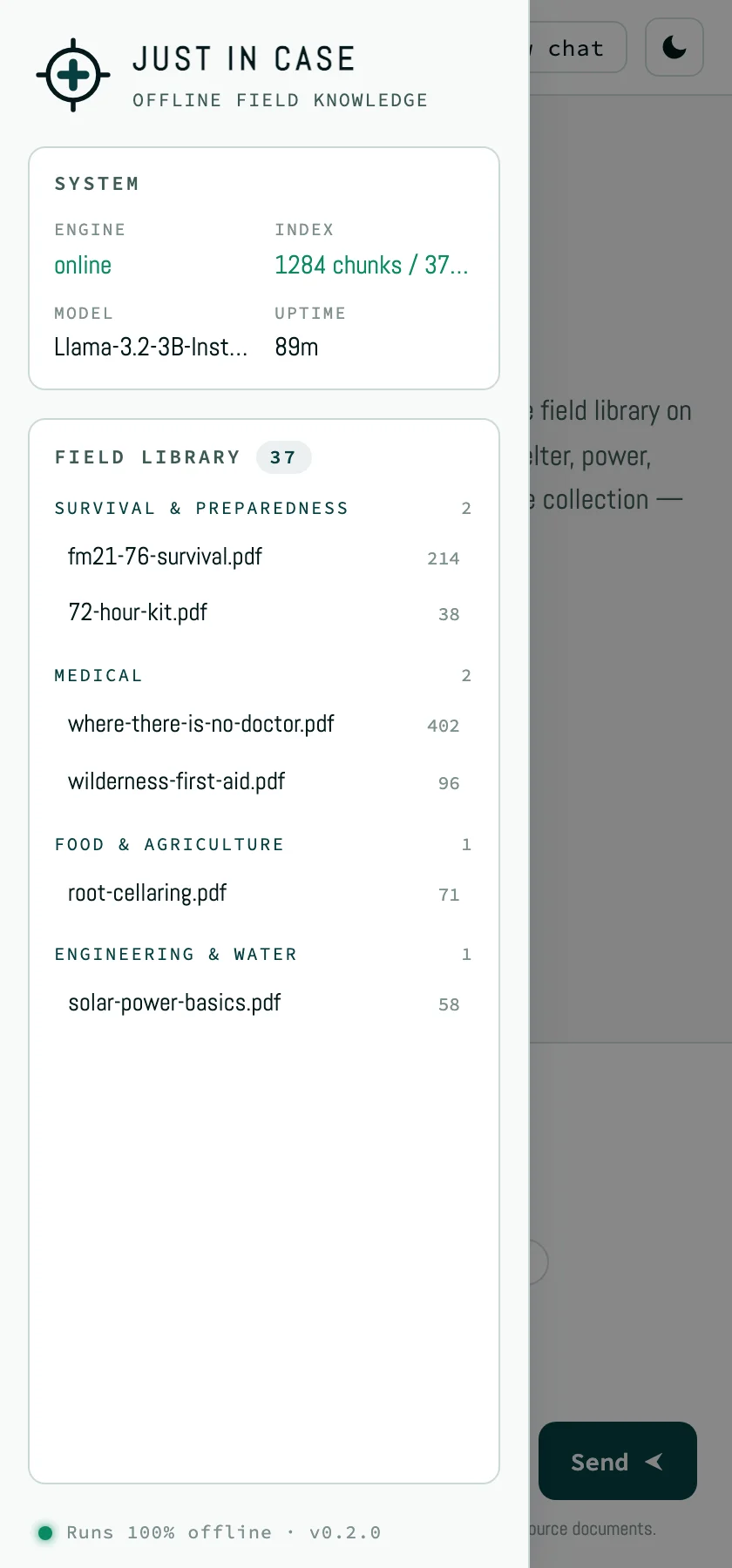
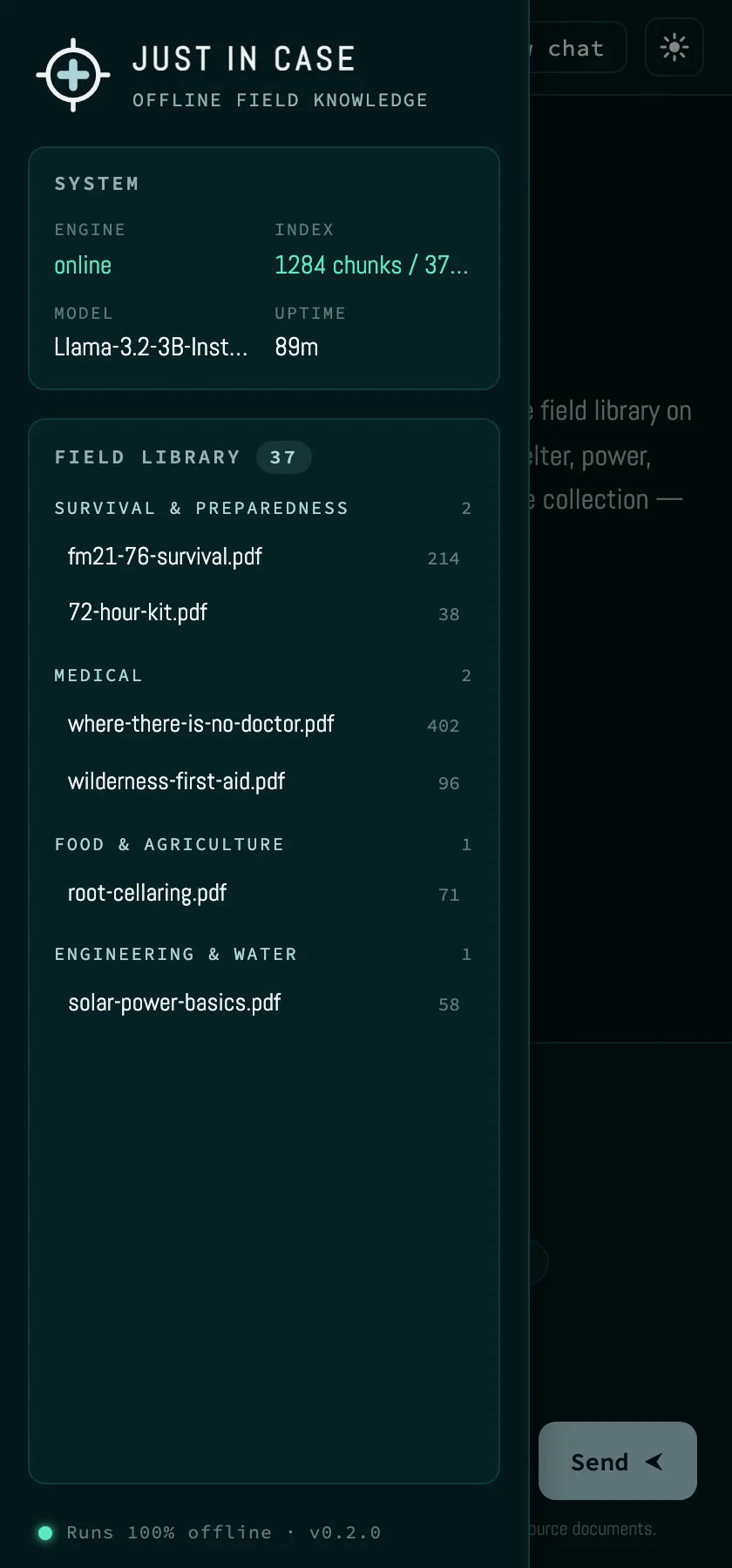
The offline emergency-knowledge app — a local, source-cited assistant grounded in an on-device field library. Its console-style UI uses the monospace stack and teal accents. Five surfaces: the empty first-run state, the welcome/idle screen, a cited conversation, the degraded ‘LLM missing’ state, and the mobile layout with the drawer open.

First run
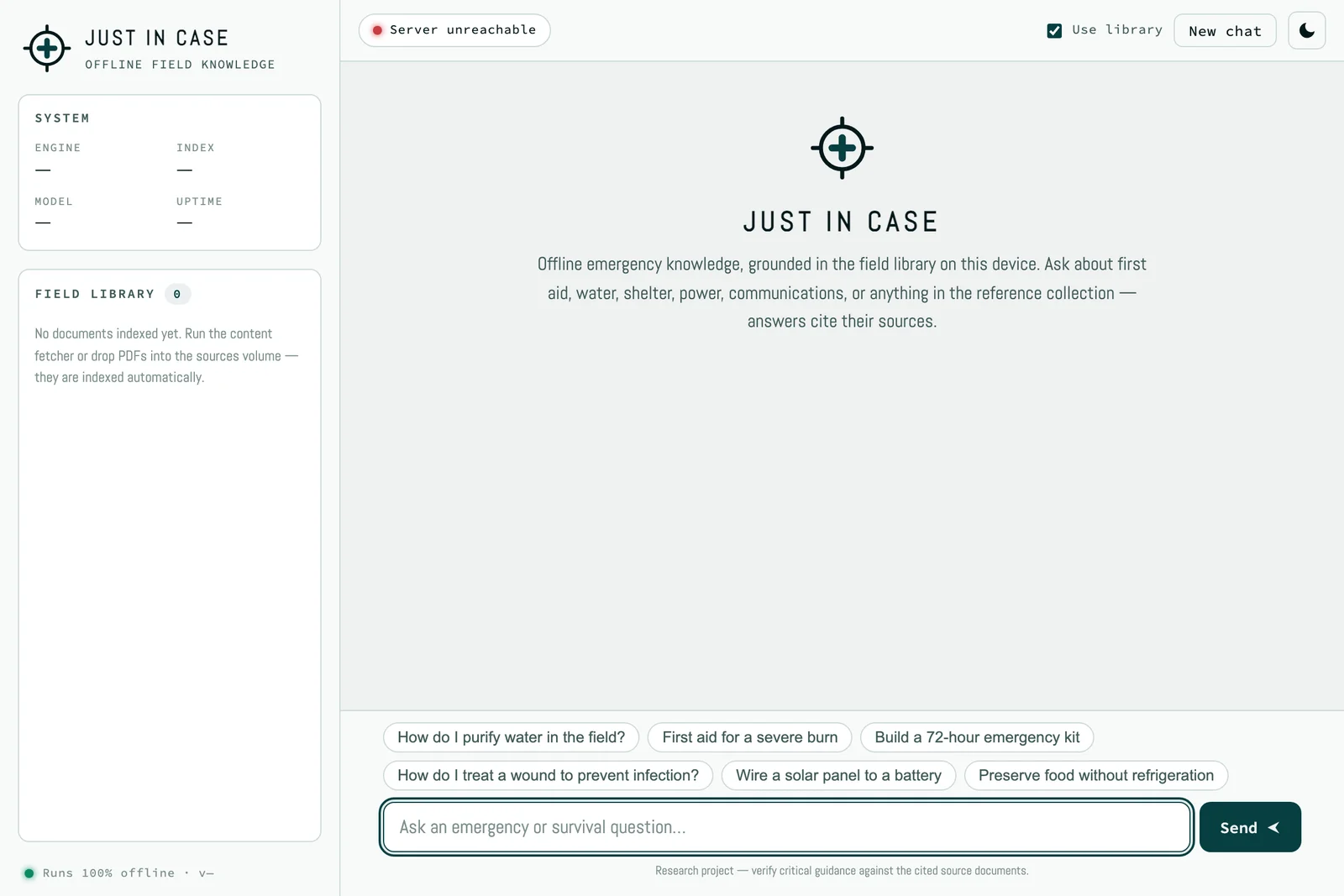
JustInCase in light mode — 'JUST IN CASE / Offline field knowledge' with a System panel, an empty Field Library, suggested emergency questions, a 'Server unreachable' status, and an ask box JustInCase in dark mode — the offline emergency-knowledge console with System and Field Library panels on a deep-navy surface

Welcome

JustInCase welcome screen in light mode — the JUST IN CASE crosshair mark, an offline-knowledge intro, suggested-question chips, and the 'Ask an emergency or survival question…' box JustInCase welcome screen in dark mode — the same idle intro on a deep-navy surface

Conversation

JustInCase conversation in light mode — a 'How do I purify water in the field?' Q&A answered by JIC with bulleted guidance, a 'Ready · 37 docs' status, a populated Field Library, and an expandable Sources panel citing two PDFs with match scores JustInCase conversation in dark mode — the same cited water-purification answer on a deep-navy surface

Degraded — LLM missing

JustInCase degraded state in light mode — an 'LLM missing' status and a banner 'Language model not loaded — place the GGUF files in gguf_models/ and restart. The library stays browsable', with the engine shown as 'degraded' JustInCase degraded 'LLM missing' state in dark mode — the same model-not-loaded banner on a deep-navy surface

Mobile

JustInCase on a narrow mobile viewport in light mode — the System and Field Library drawer slid over the chat, with categorized PDFs and chunk counts JustInCase on a narrow mobile viewport in dark mode — the same drawer over the chat on a deep-navy surface

CI-SquareSpace-Customizations

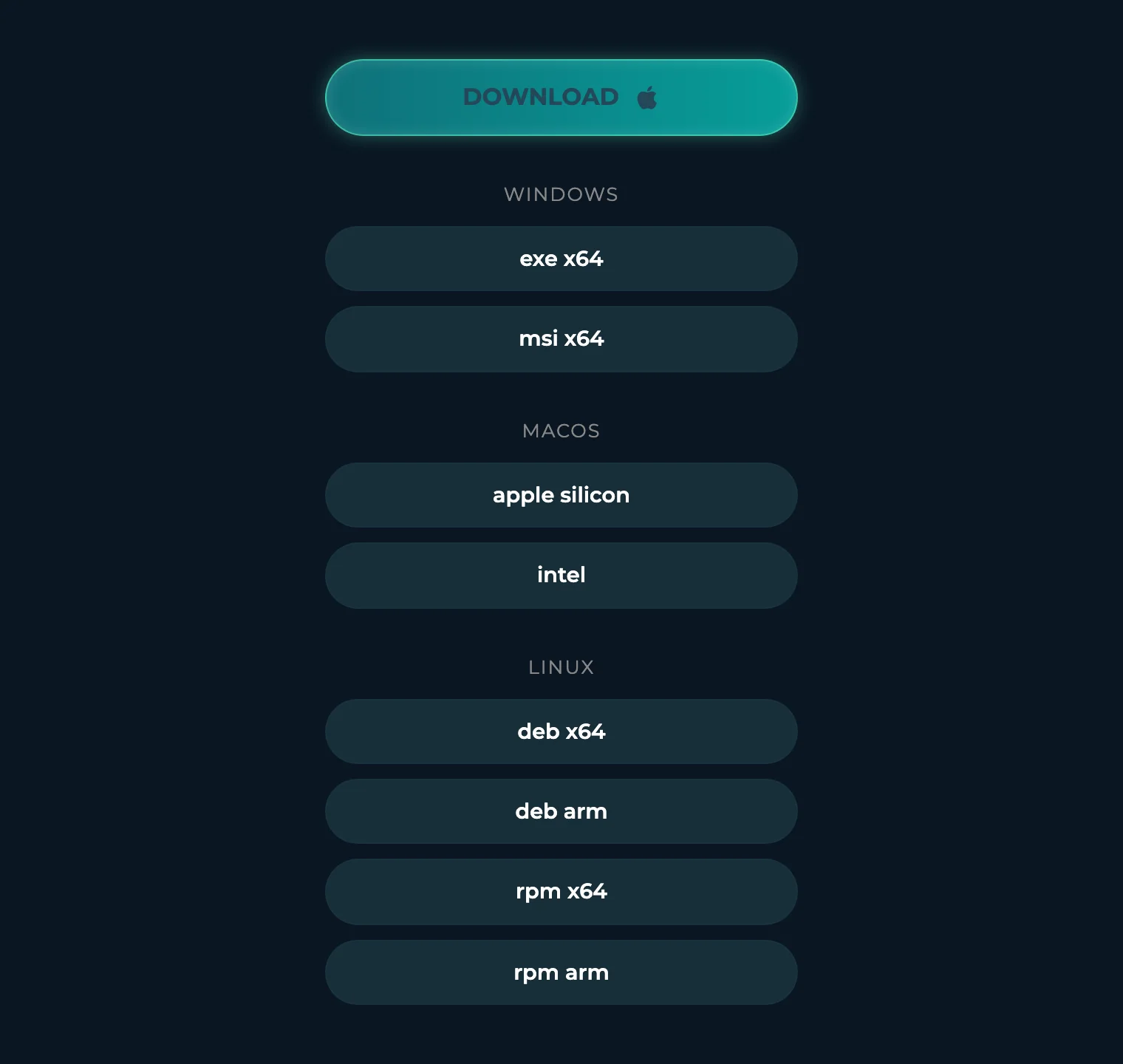
The download surface for the Hub desktop installers, embedded on the marketing site, plus the Companion Core marketing landing page.

Hub download button
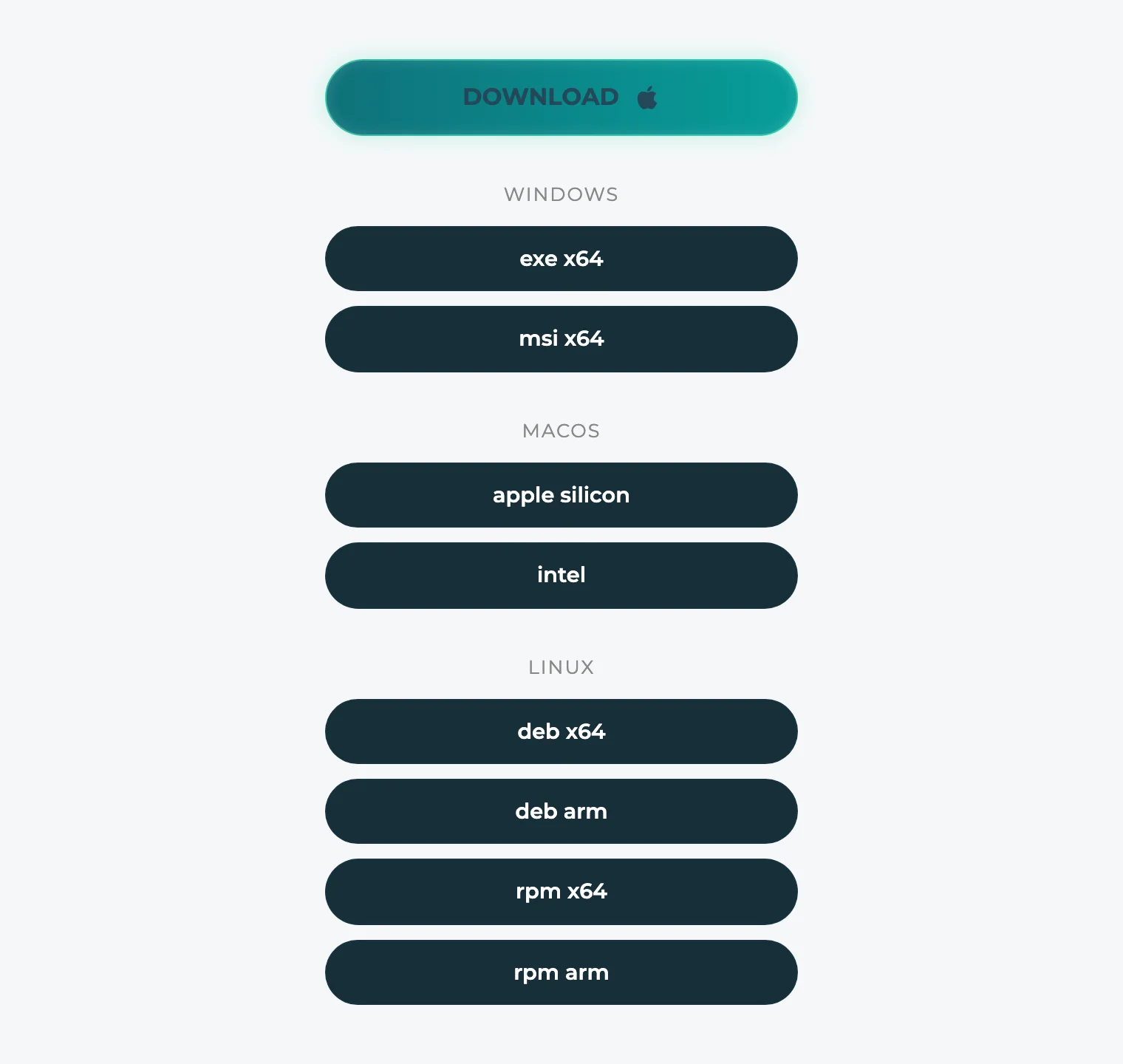
Hub desktop download panel in light mode — a large teal DOWNLOAD button (auto-detecting macOS) above Windows / macOS / Linux sections of dark per-format download pills (exe, msi, apple silicon, intel, deb, rpm) Hub desktop download panel in dark mode — the same teal DOWNLOAD button and per-platform pills on a dark surface

Marketing landing (light only)

The Companion Core marketing landing — ‘Get control of the intelligence stack supporting your life’ — with the layered OS → Hub → Portal → Memory → Interfaces stack and the rented-vs-owned comparison. Captured in light mode.
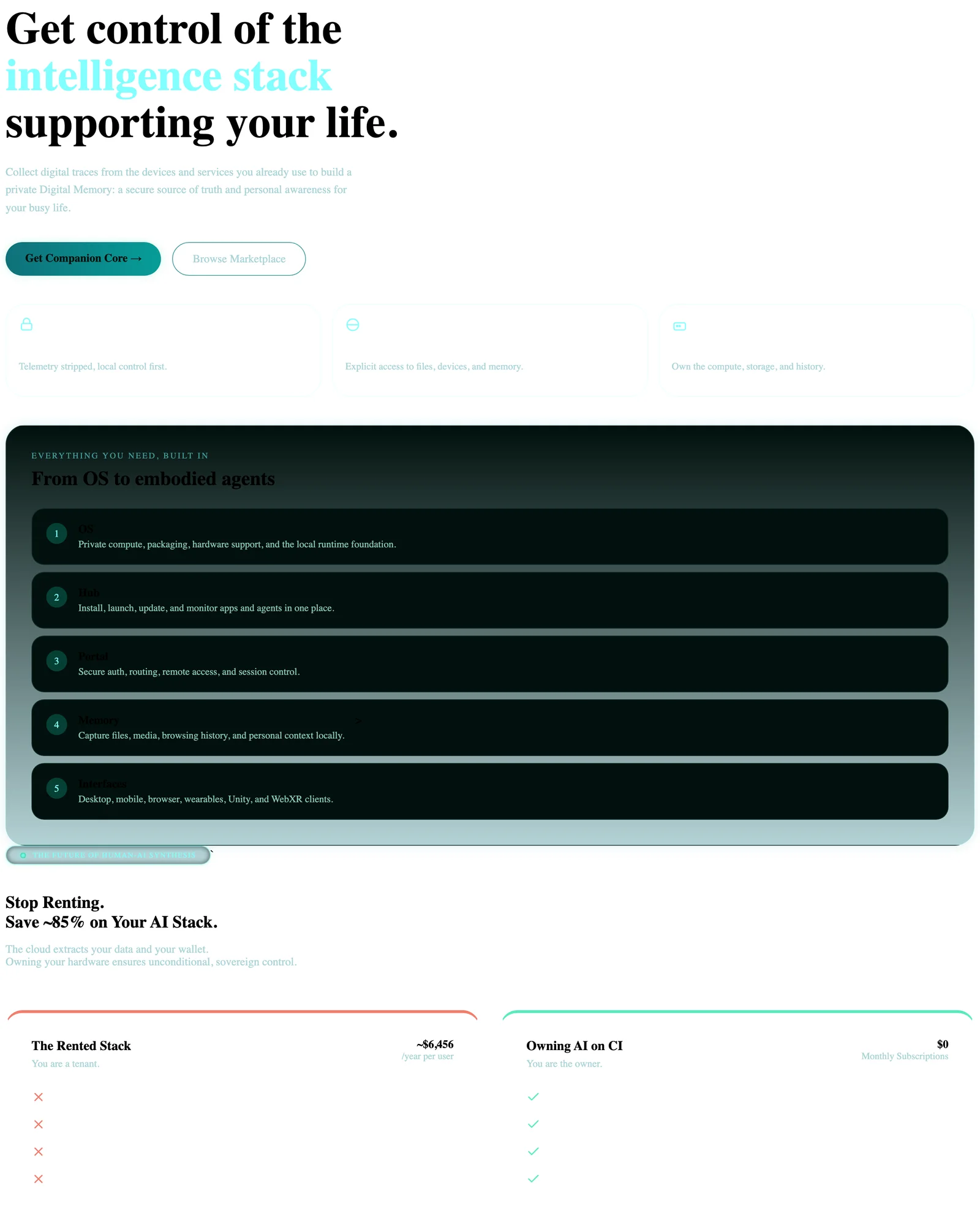
Companion Core marketing landing in light mode — a large 'Get control of the intelligence stack supporting your life' hero with teal accent, Get Companion Core / Browse Marketplace CTAs, a numbered OS-to-interfaces stack, and a 'Stop Renting' rented-vs-owned comparison

Dark-only captures

These surfaces were captured in dark mode only — their default and primary theme.

CI-OS — device setup portal

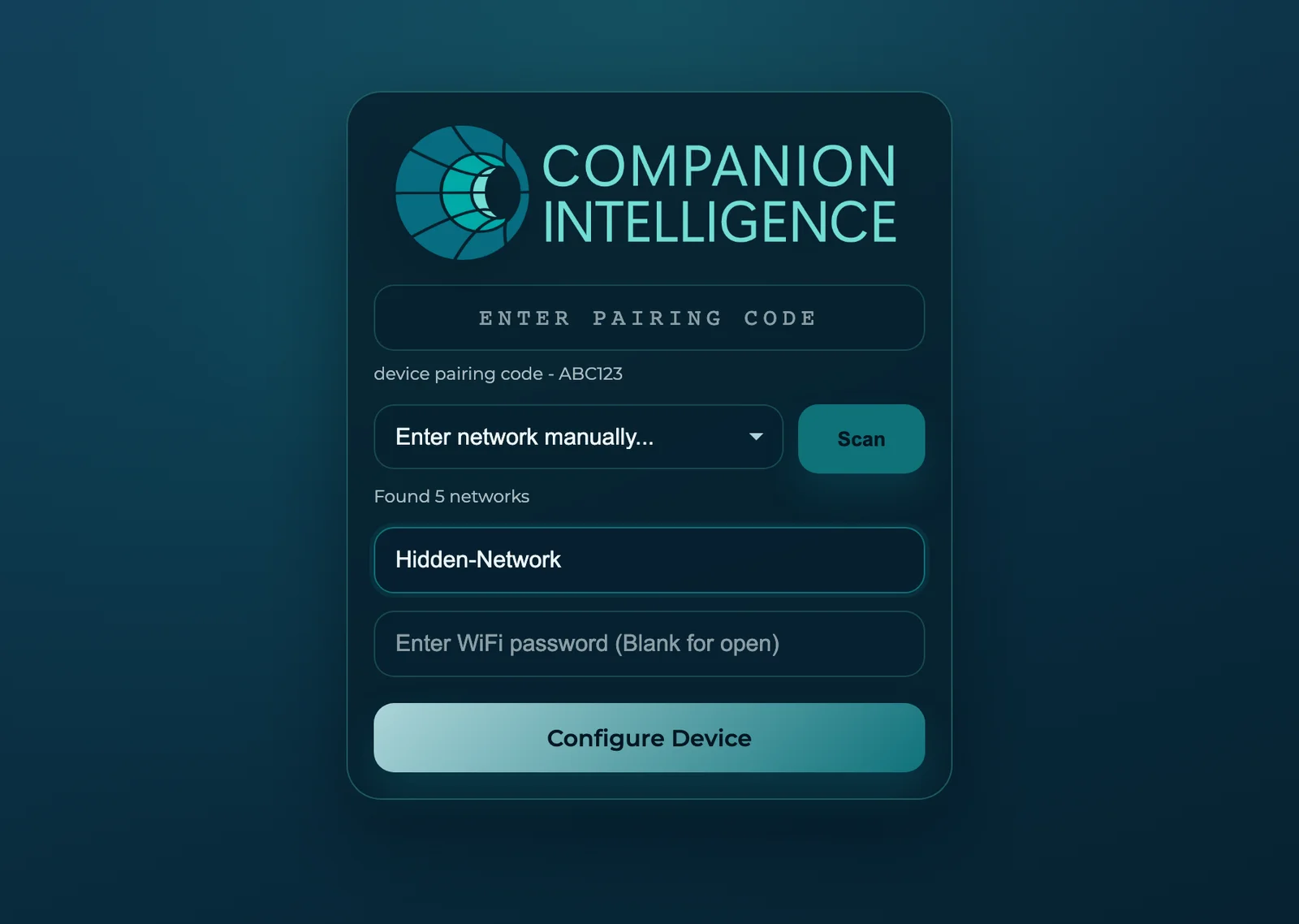
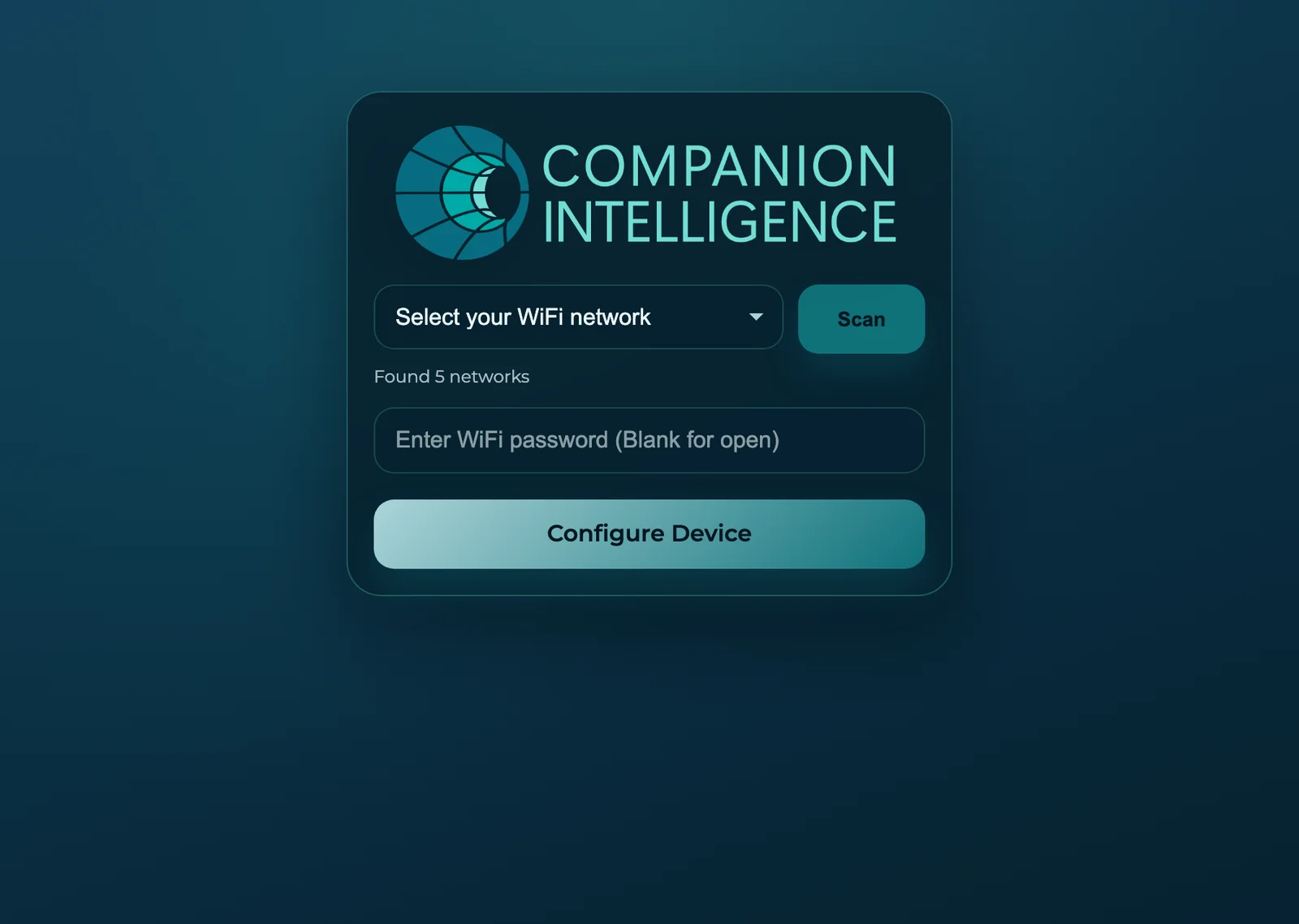
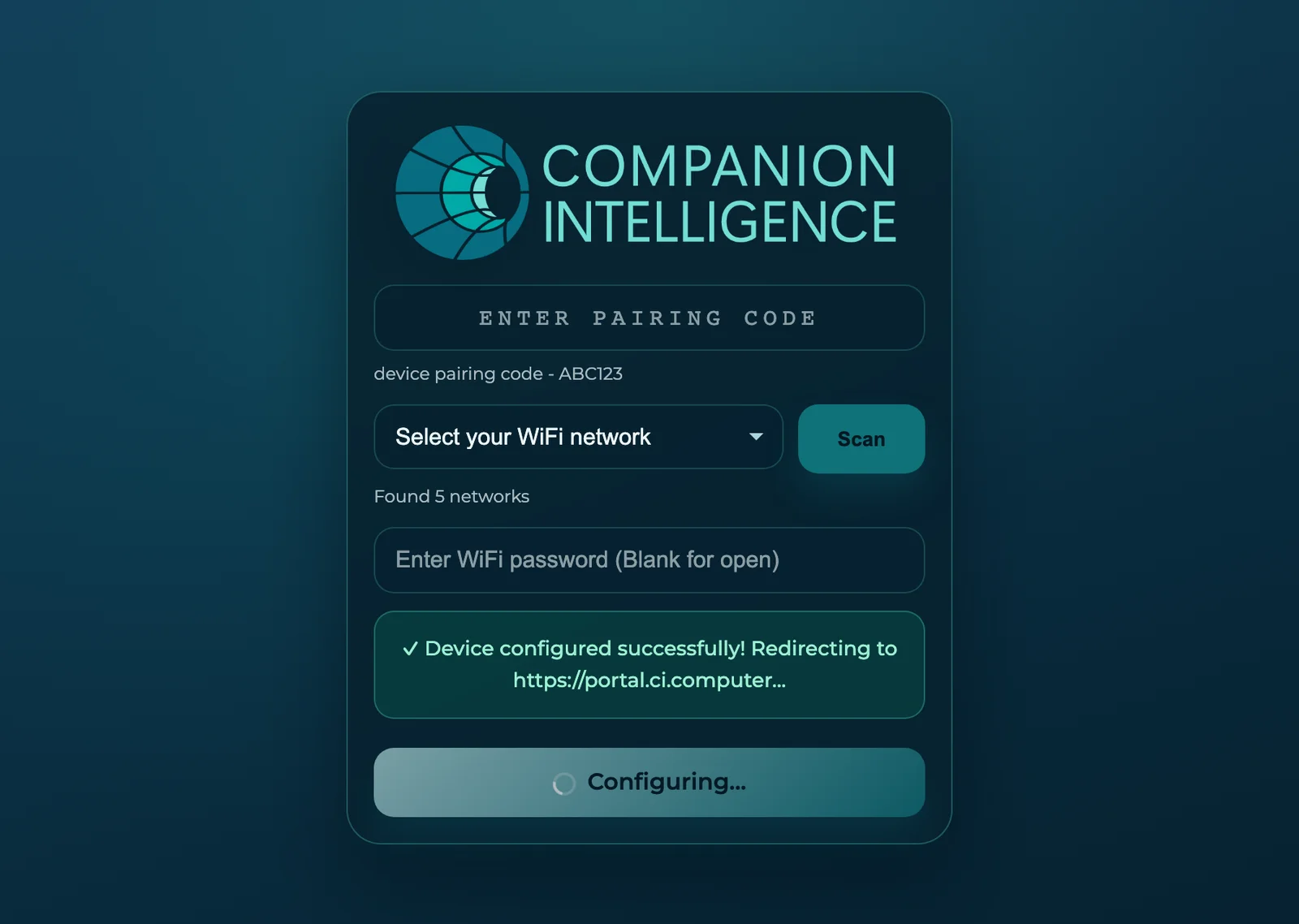
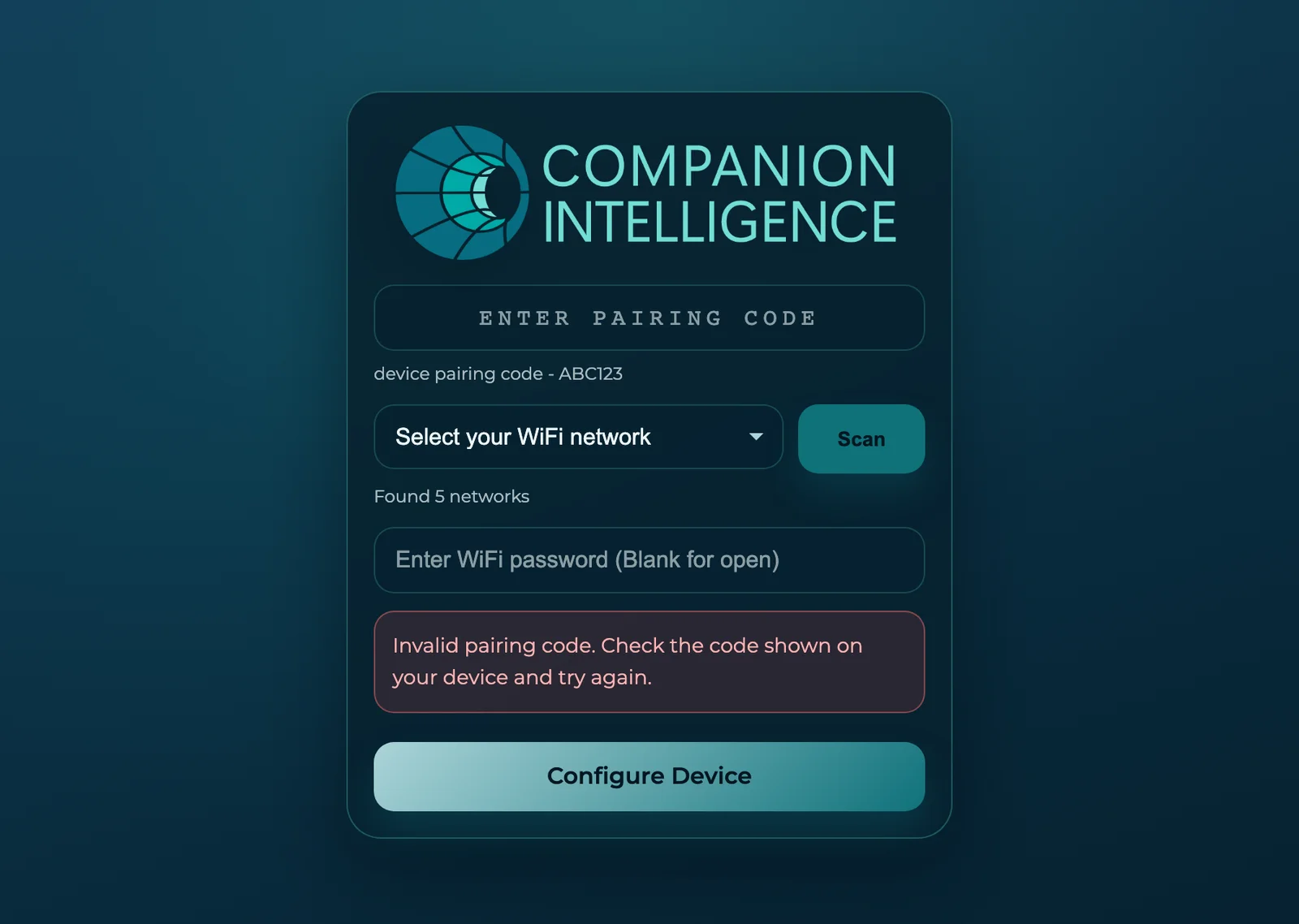
The on-device Wi-Fi and pairing setup portal shown on first boot, on the deep-navy Companion Intelligence brand surface. Six states: the initial pairing form, the scanned-networks dropdown, the manual-network entry, the no-pairing-code variant, the success/redirect state, and the invalid-code error.
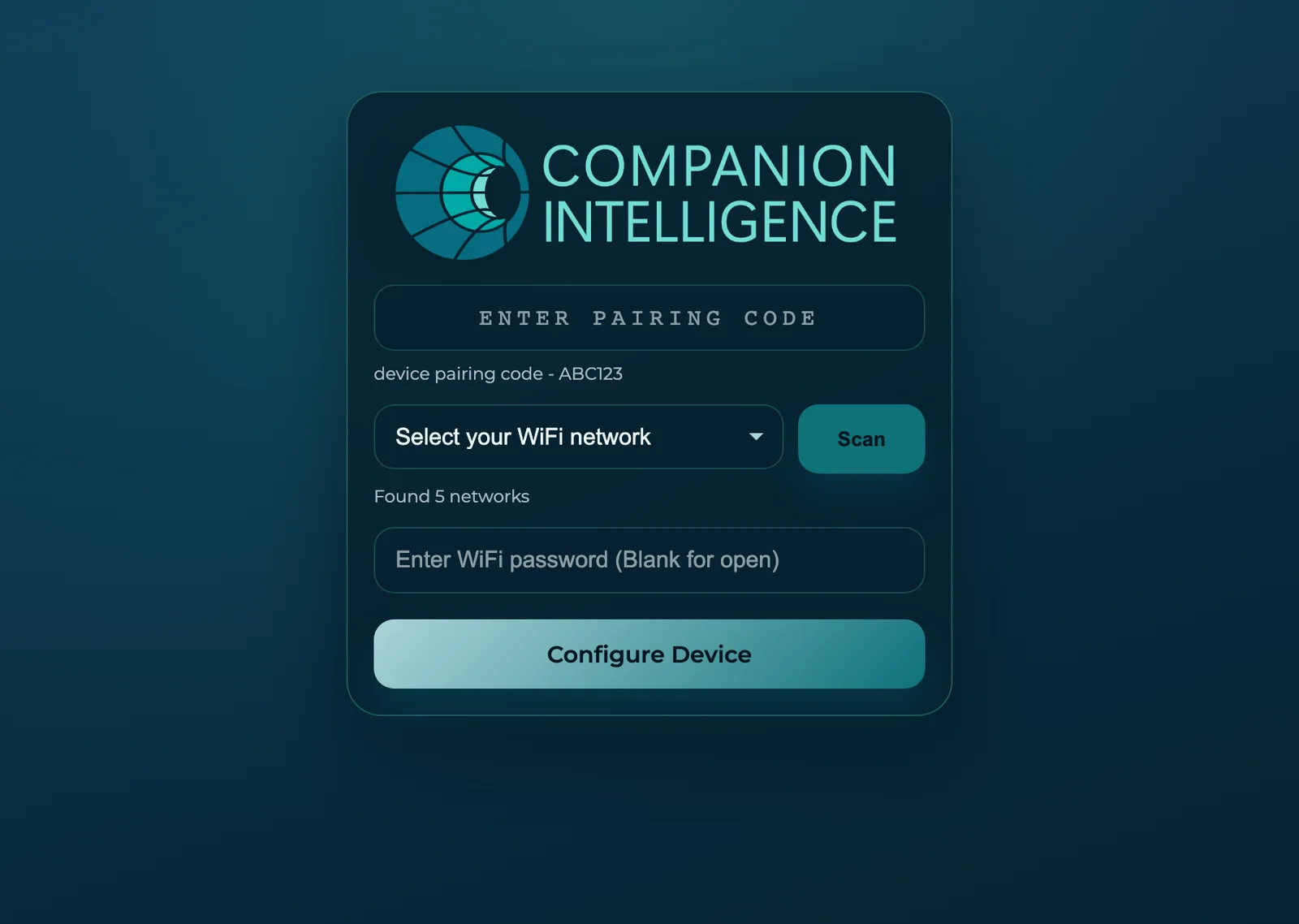
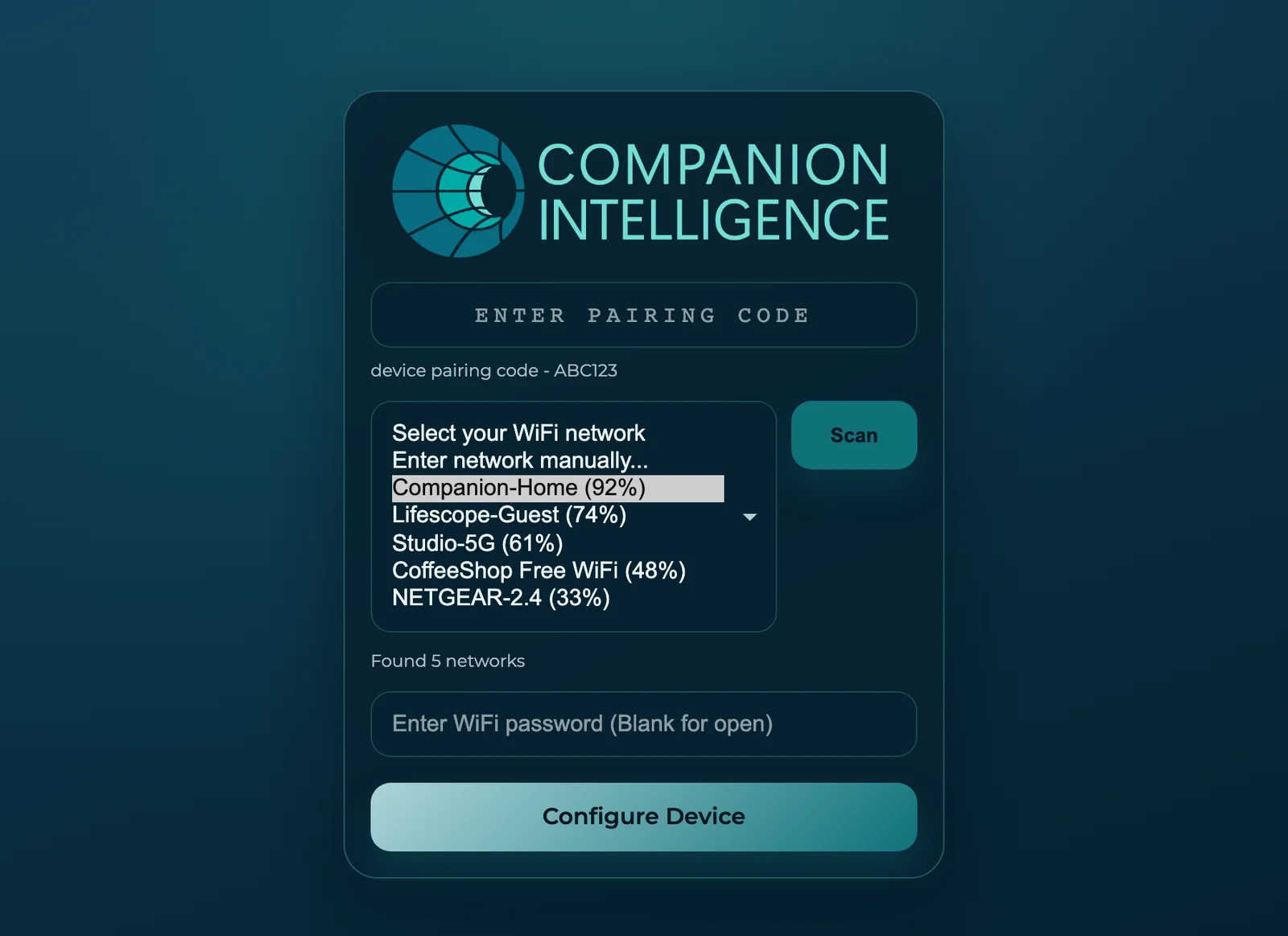
CI-OS device setup portal — an 'ENTER PAIRING CODE' form with a device pairing code, a 'Select your WiFi network' dropdown, a Scan button, a Wi-Fi password field, and a teal Configure Device button on the Companion Intelligence brand surface CI-OS device setup portal — the Wi-Fi network dropdown open, listing 'Enter network manually…' plus scanned networks (Companion-Home 92%, Lifescope-Guest 74%, Studio-5G, CoffeeShop Free WiFi, NETGEAR-2.4) with signal strengths CI-OS device setup portal — the manual-network variant with 'Enter network manually…' selected and a Hidden-Network SSID typed into a free-text field above the Wi-Fi password field CI-OS device setup portal — the no-pairing-code variant showing only the Wi-Fi network dropdown, Scan button, password field, and Configure Device button CI-OS device setup portal — the success state with a green 'Device configured successfully! Redirecting to https://portal.ci.computer…' banner and a 'Configuring…' button spinner CI-OS device setup portal — the error state with a red 'Invalid pairing code. Check the code shown on your device and try again.' notice above the Configure Device button

CI-Even-Realities — glasses companion

The Even Realities glasses companion. A voice-first chat surface that streams answers onto the glasses HUD, plus its AI-backend settings. Two dark-mode surfaces.
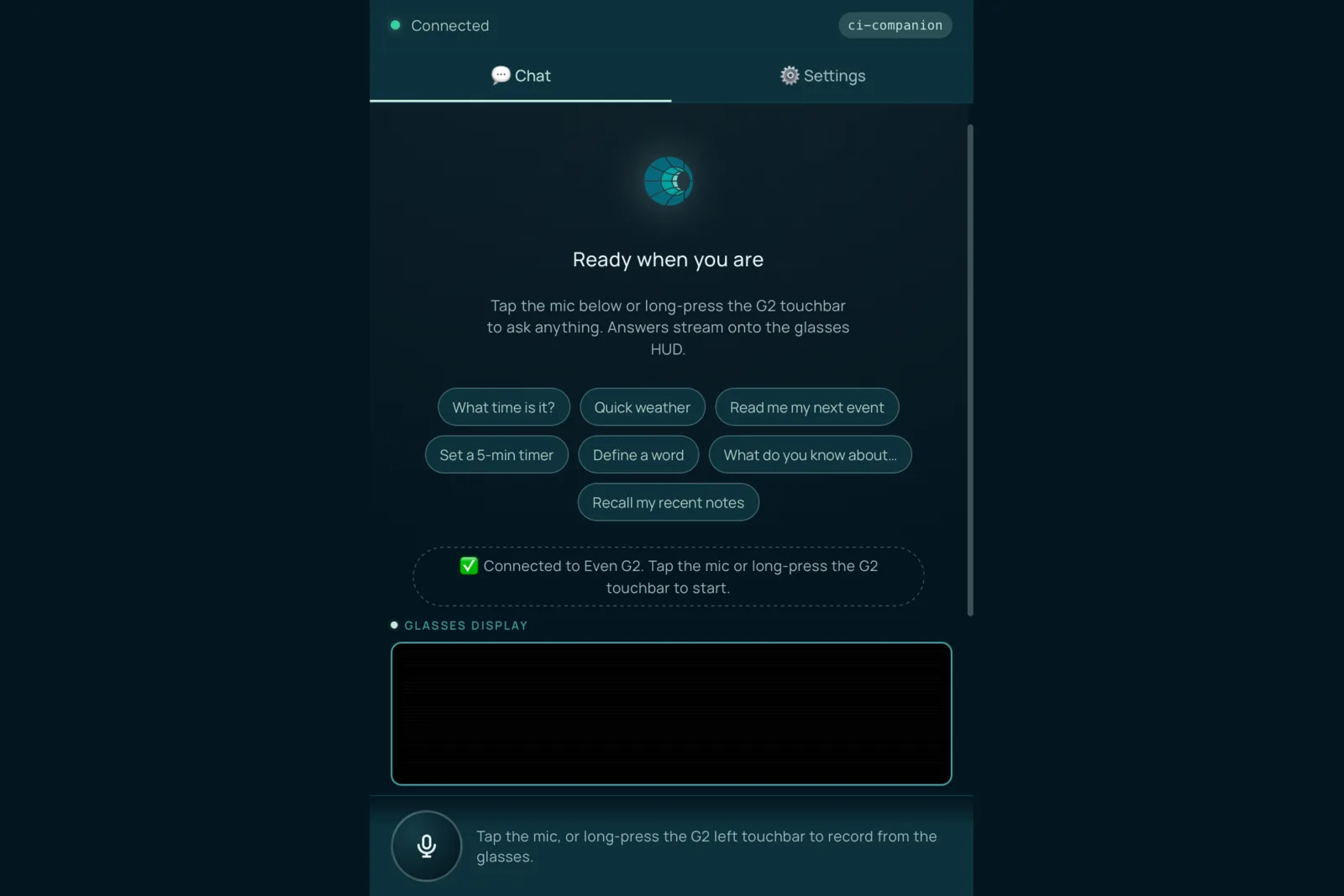
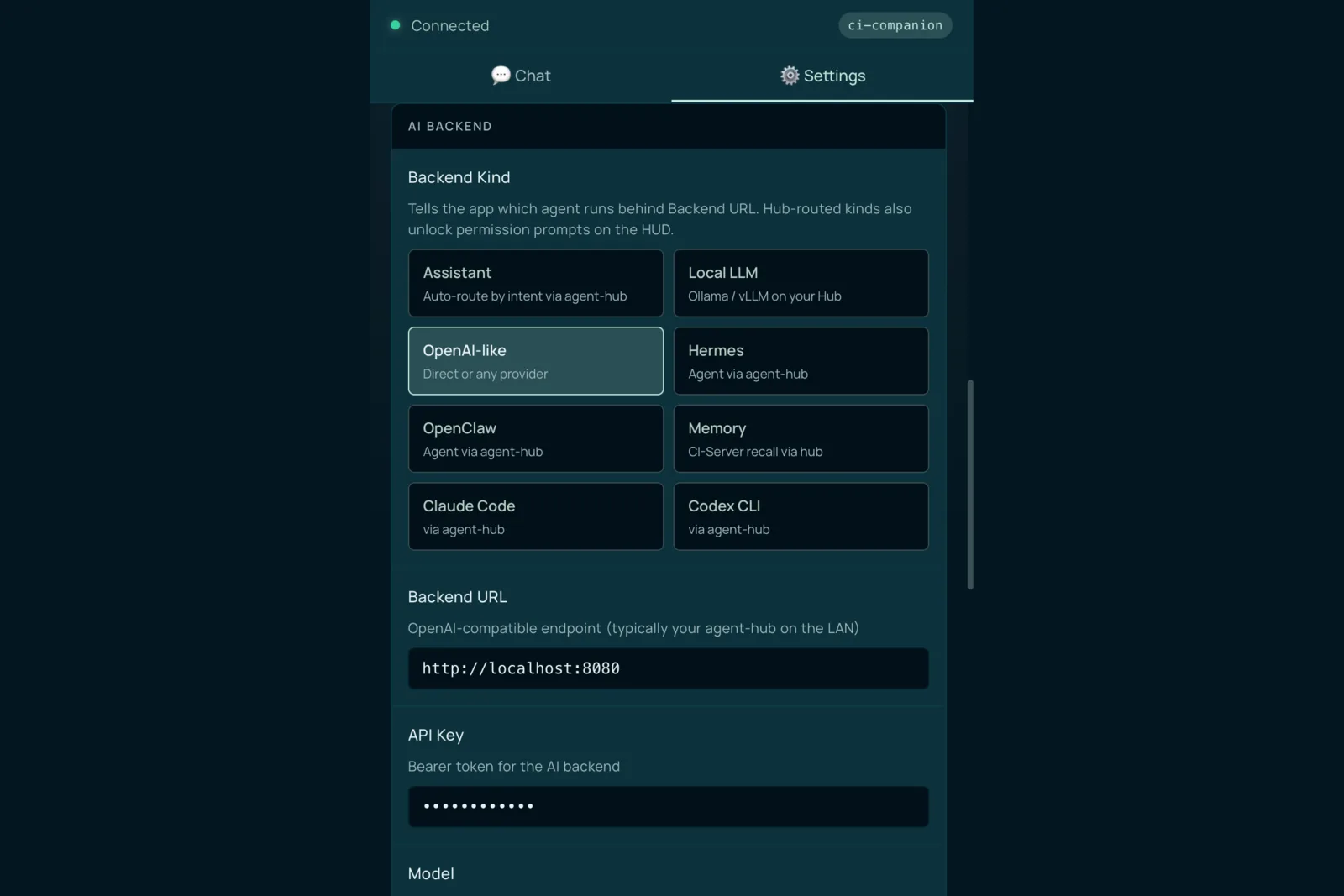
CI-Even-Realities glasses companion Chat tab in dark mode — a 'Ready when you are' screen with quick-prompt chips (What time is it?, Quick weather, Read me my next event, Set a 5-min timer, Define a word), a 'Connected to Even G2' banner, and a Glasses Display panel CI-Even-Realities glasses companion Settings tab in dark mode — an AI Backend section with Backend Kind options (Local LLM, OpenAI-like, Claude Code, Codex CLI, OpenClaw) plus System prompt, Speech-to-text, and Text-to-speech sections

CI-Spatial-Companion-WebXR — spatial companion

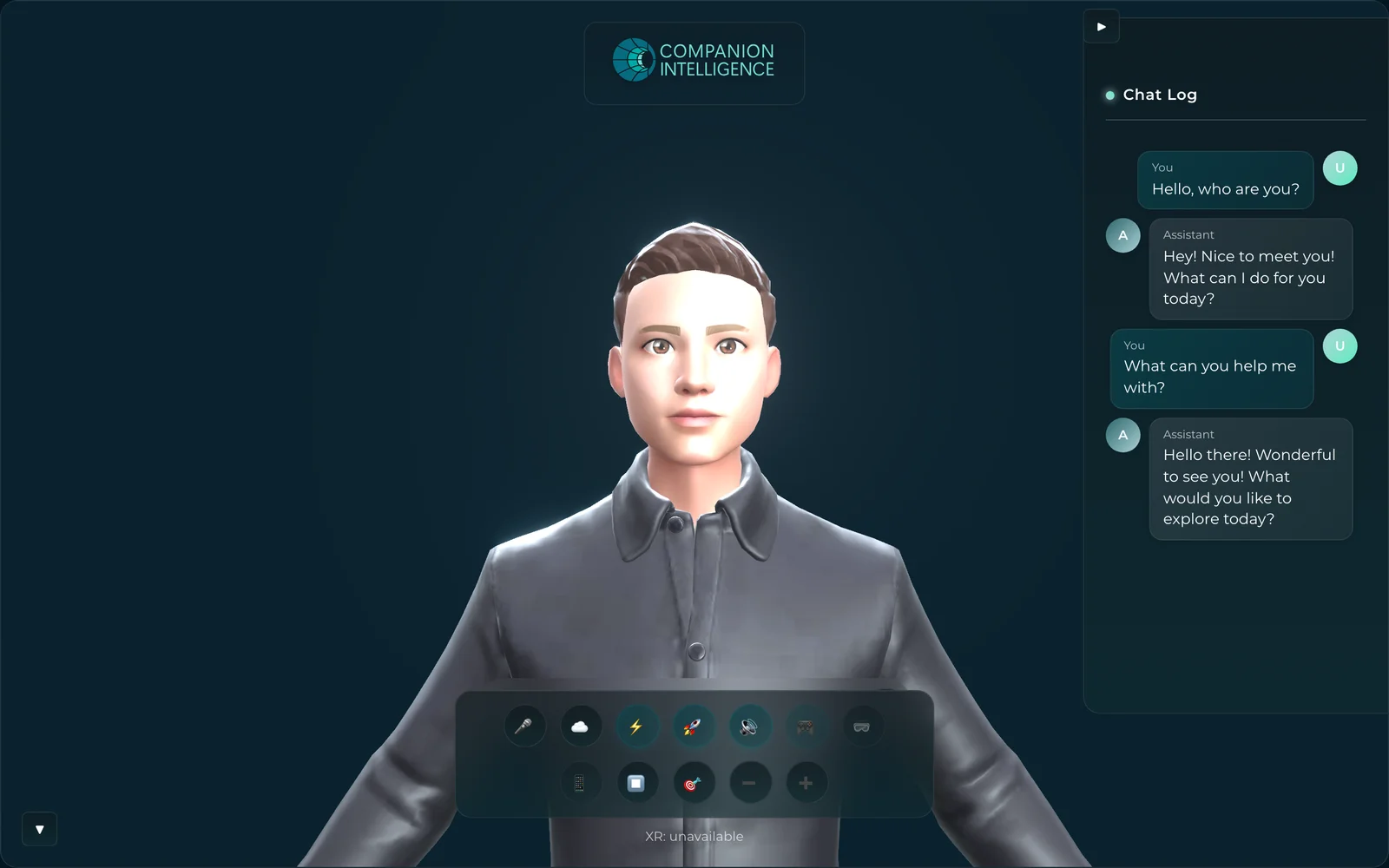
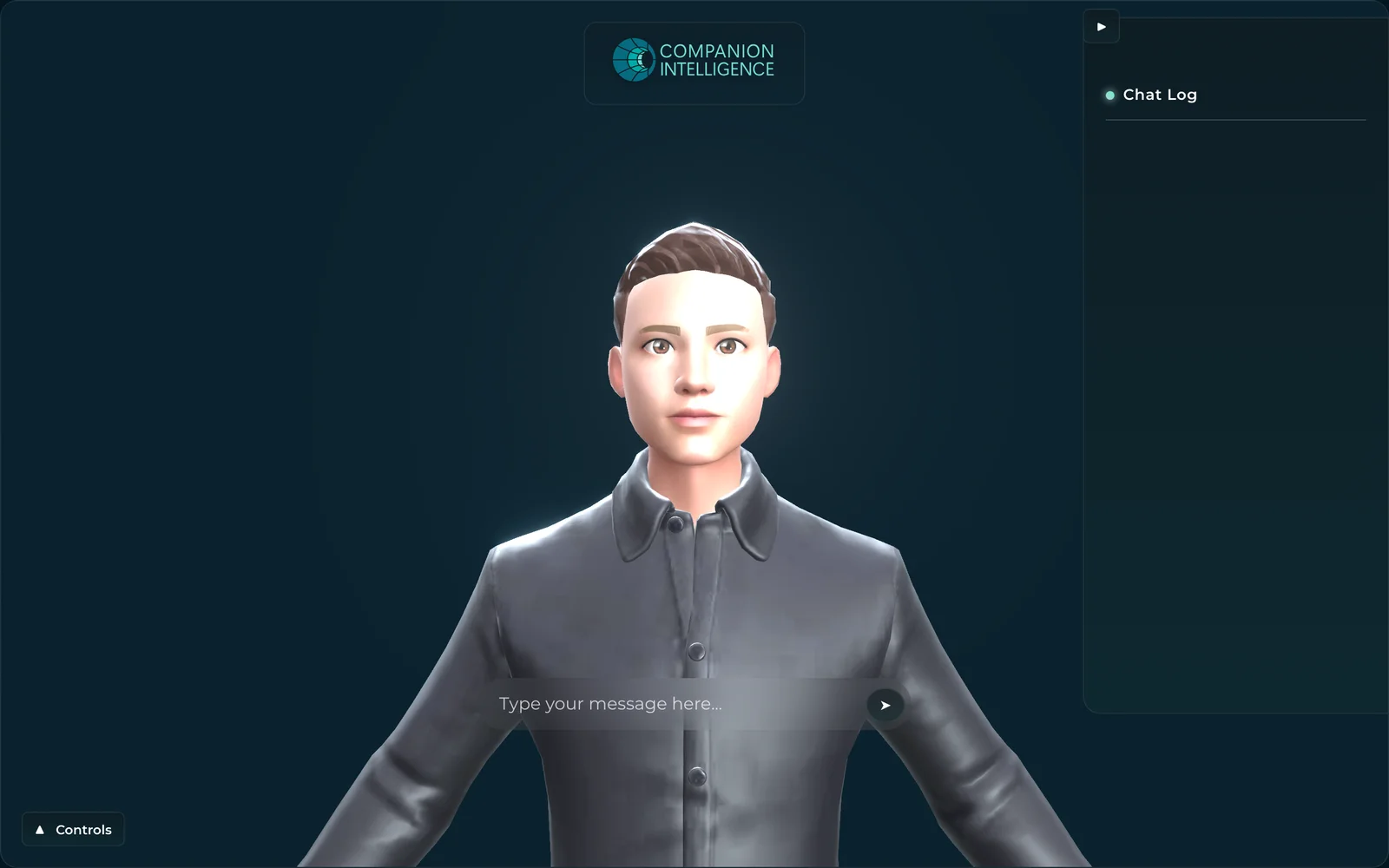
The spatial companion for WebXR — a 3D avatar with a floating action dock and Chat Log panel, rendered against a deep-navy spatial backdrop. Four dark-mode surfaces: the mic-permission onboarding, the default shell, an active chat, and the collapsed-controls text-entry state.
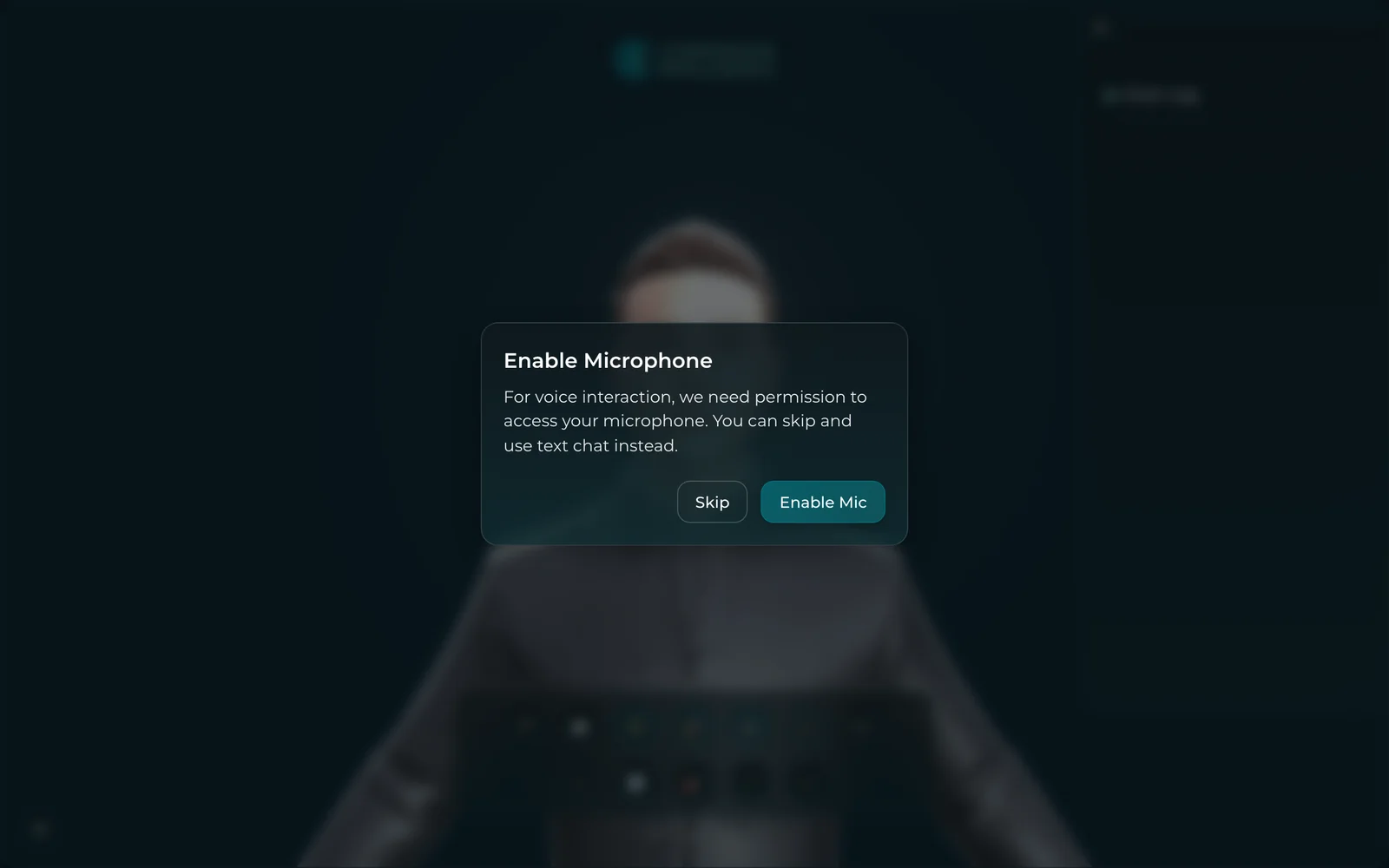
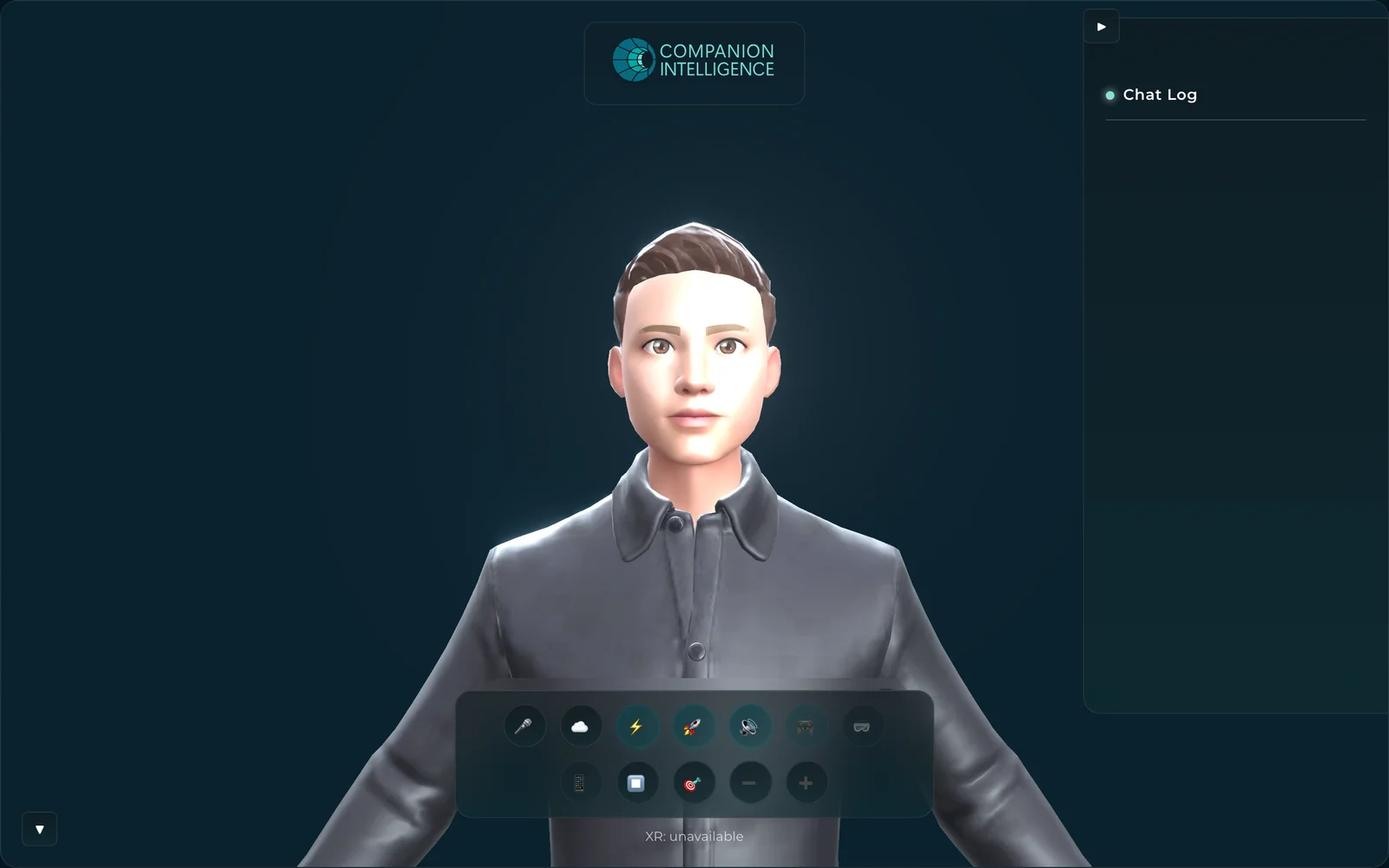
CI-Spatial-Companion-WebXR onboarding in dark mode — an 'Enable Microphone' permission dialog ('For voice interaction, we need permission… you can skip and use text chat instead') with Skip and teal Enable Mic buttons over a blurred 3D avatar CI-Spatial-Companion-WebXR default shell in dark mode — a 3D companion avatar with the Companion Intelligence brand mark, an empty Chat Log panel, and a floating circular action dock CI-Spatial-Companion-WebXR active chat in dark mode — the 3D avatar with a populated Chat Log ('Hello, who are you?' / assistant replies) and the floating action dock CI-Spatial-Companion-WebXR with controls collapsed in dark mode — the 3D avatar with a 'Type your message here…' text-entry bar and a Controls toggle in the corner
Last updated on