Install Ollama
Time: about 20 minutes, most of it downloading · You’ll need: ~5 GB free disk, Docker installed
Ollama runs AI models directly on your machine — no API key, no per-token cost, nothing leaving your computer. Install Ollama, run a model, and connect it to Companion Hub.
Ollama is optional but recommended. Without it, Hub apps that use AI need a cloud provider API key or another engine (vLLM on NVIDIA, oMLX on Apple silicon, Lemonade on AMD GPU hardware) instead. You can also do both — see AI & inference.
The desktop app can install Ollama for you. In the Onboarding wizard’s Set up inference step, an Ollama not detected card offers Run this automatically. On Windows with a WSL2 Docker engine, it installs Ollama inside the WSL distribution and binds it to all interfaces for you. Use this page if you’d rather install it yourself, or you run Hub without the desktop app.
The order on this page, with the one step Linux users must not skip:
flowchart LR
    A["Install Ollama"] --> B["ollama pull llama3.2"]
    B --> C["ollama run llama3.2"]
    C --> D{"Linux?"}
    D -->|"Yes"| E["OLLAMA_HOST=0.0.0.0:11434,<br/>restart the service"]
    D -->|"macOS or Windows"| F["Verify from a container"]
    E --> F
    F --> G["Hub detects Ollama:<br/>cihub doctor"]
Install Ollama
macOS
Download the installer from ollama.com/download , open it, and drag Ollama to Applications. Launch it once — it runs in the background and starts automatically from then on.
Confirm it’s installed:
ollama --versionExpected:
ollama version is 0.x.yDownload and run your first model
Pull a model
llama3.2 is a good starting point — around 2 GB, and it runs acceptably on CPU alone:
ollama pull llama3.2You’ll see progress as it downloads:
pulling manifest
pulling dde5aa3fc5ff... 100% ▕████████████████▏ 2.0 GB
verifying sha256 digest
writing manifest
success
Not sure what your hardware can handle? Hub’s Onboarding wizard detects your CPU, RAM, and GPU and recommends models that fit — you can let it choose for you instead.
Actually talk to it
This is the part worth doing before anything else — it proves local inference works end to end:
ollama run llama3.2You’ll get a prompt. Type a question and press Enter:
>>> Explain what a Docker volume is in two sentences.The model responds locally, on your machine. Type /bye to exit.
The first response is slower than the rest — the model has to load into memory first. Subsequent replies in the same session are faster.
Confirm what’s installed
ollama listNAME ID SIZE MODIFIED
llama3.2:latest a80c4f17acd5 2.0 GB 2 minutes agoLet Hub’s containers reach Ollama
This is the step people miss, and it produces the single most common AI problem in Hub: apps report that no models are available even though ollama list shows several.
The reason: by default Ollama only listens on 127.0.0.1, which inside a Docker container means the container itself, not your host machine. Hub’s app containers reach your host at host.docker.internal — so Ollama has to be listening on all interfaces for them to connect.
The path a request takes from an app container to Ollama:
flowchart LR
    subgraph host["Your machine"]
        subgraph docker["Docker"]
            H["Hub app container<br/>127.0.0.1 here is the container itself"]
        end
        O["Ollama on the host<br/>must listen on 0.0.0.0:11434"]
    end
    H -->|"http://host.docker.internal:11434"| O
macOS / Windows
Usually nothing to do — Docker Desktop routes host.docker.internal to the host automatically, and Ollama is reachable as-is.
Skip to Verify the connection. If that check fails, set OLLAMA_HOST=0.0.0.0:11434 in Ollama’s settings and restart it.
Binding to 0.0.0.0 makes Ollama reachable from any machine on your
network, not just Docker containers. On a trusted home LAN that’s usually
fine. On a shared or public network, firewall port 11434 to Docker’s bridge
interface only.
Verify the connection
Two checks. The first proves Ollama is up; the second proves containers can reach it.
curl http://localhost:11434/api/tagsExpected — a JSON list including the model you pulled:
{"models":[{"name":"llama3.2:latest","size":2019393189,...}]}Now the check that actually matters, from inside a container. On macOS and Windows, Docker Desktop provides host.docker.internal:
docker run --rm curlimages/curl -s http://host.docker.internal:11434/api/tagsOn Linux with Docker Engine, a plain docker run doesn’t map that name, so add the mapping yourself — Hub adds the same mapping to its own containers:
docker run --rm --add-host=host.docker.internal:host-gateway curlimages/curl -s http://host.docker.internal:11434/api/tagsThe same JSON confirms that the connection works. If you get Connection refused, Ollama isn’t bound to all interfaces — repeat the step above. If the command hangs and times out, a host firewall is dropping the packets.
If a firewall blocks the connection
A running Ollama can still be unreachable from containers when a firewall such as ufw drops traffic from Docker’s network to the host. A stopped service refuses a connection immediately, so a silent timeout points to the firewall. Allow the Docker network to reach Ollama’s port on the host:
sudo ufw allow from <docker-network> to <docker-gateway-ip> port 11434 proto tcpHub works out both addresses for you: when it can’t reach Ollama, the Set up inference card in the onboarding wizard names the cause and prints a command with your real network range and gateway address filled in — for ufw, firewalld, nftables, or iptables. Run that command on the host, then select Re-check.
Connect it to Companion Hub
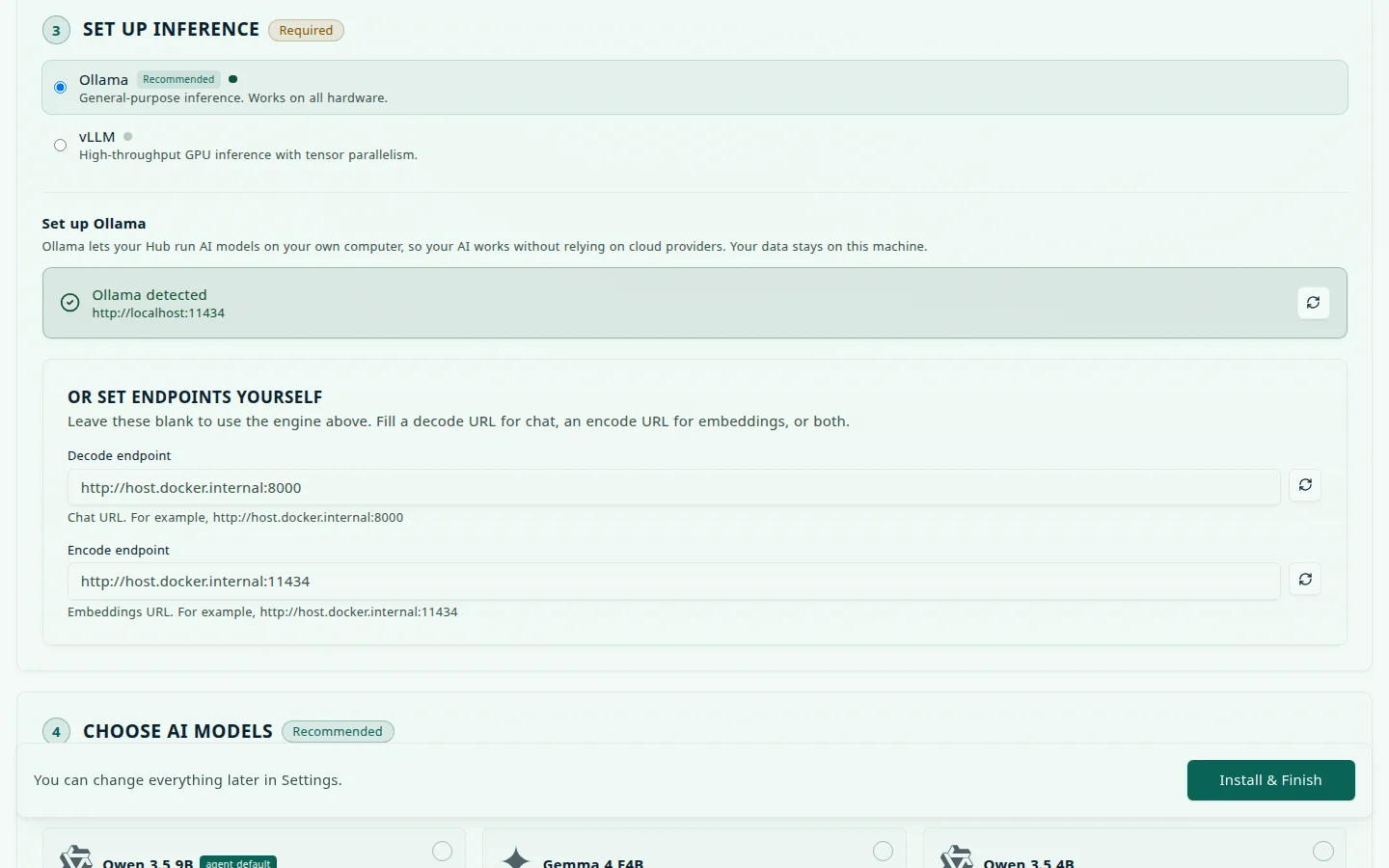
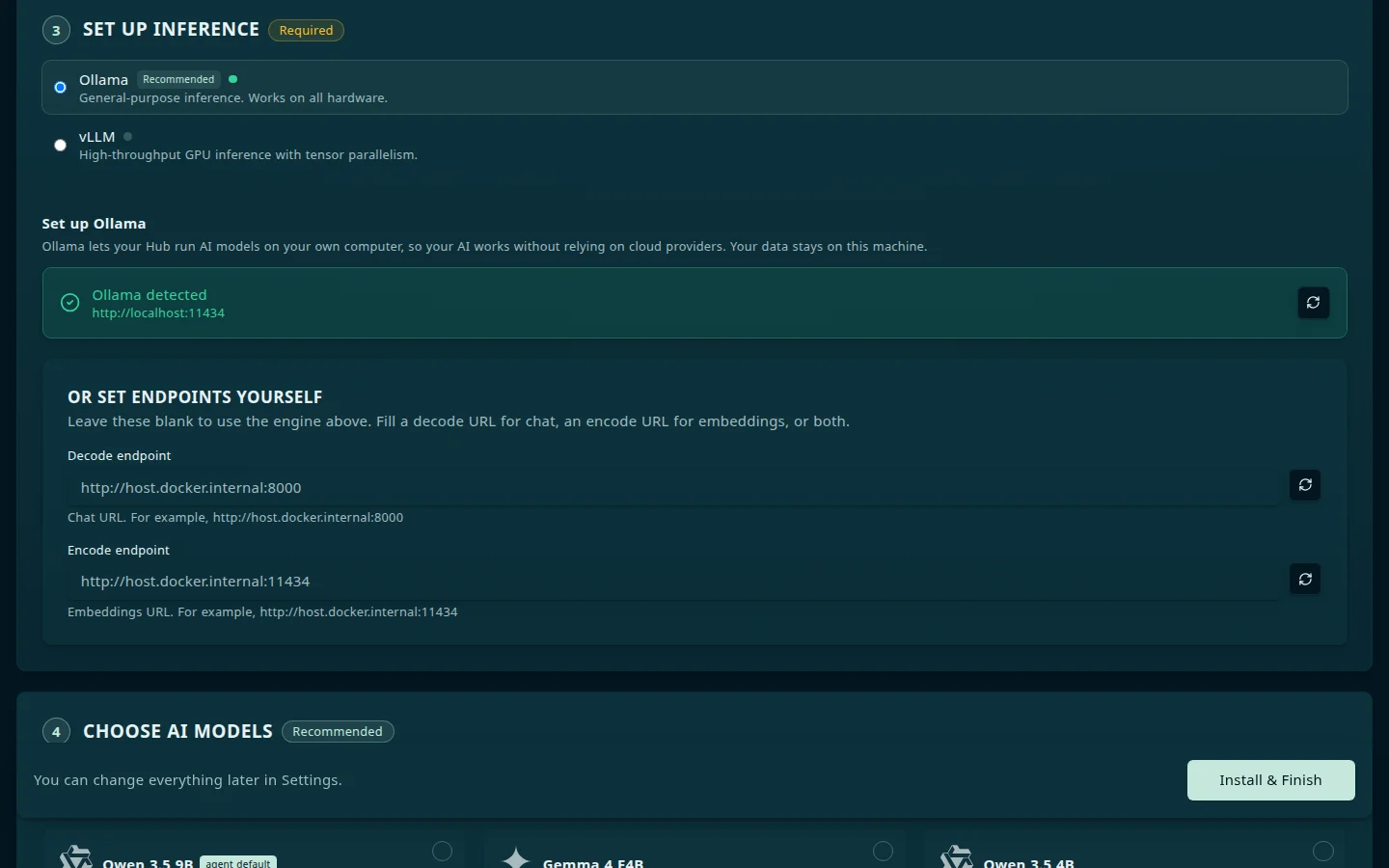
Once Hub is installed, it detects Ollama automatically. In the onboarding wizard’s Set up inference step, a green Ollama detected card shows the endpoint Hub found. If you see Ollama not reachable from Hub or Ollama not detected instead, work through Verify the connection and select Re-check.
Outside the wizard, confirm that Ollama answers and that containers can reach it:
ollama list
cihub doctor
The Docker bridge line in the cihub doctor output tests the connection from inside the Hub container. Manage models with the ollama command on the host:
ollama listollama pull mistralcihub models list and cihub models install work only when Ollama runs as a container in the Hub’s Compose project. On a standard install they report Ollama container not running. See Models.
In the dashboard, Settings → AI shows the detected backend and lets you choose which models Hub downloads and keeps loaded. Hub picks the best-ranked chat model among the ones you keep selected for apps to use. Apps that declare AI support receive these settings automatically at install time — see AI and inference.
Using a GPU
Ollama runs on CPU by default. If you have a discrete GPU, Ollama uses it once the drivers are in place.
NVIDIA: install the current NVIDIA driver. Ollama runs on the host, so it uses the driver directly and detects CUDA automatically. You only need the NVIDIA Container Toolkit for engines that run inside a container, such as vLLM.
AMD: install ROCm drivers. Supported on Linux. On Ubuntu, the onboarding wizard’s System Overview can install ROCm for you when it detects an AMD GPU without a ready runtime.
Check whether it’s actually working — load a model, then while it’s resident:
ollama psNAME ID SIZE PROCESSOR UNTIL
llama3.2:latest a80c4f17acd5 3.5 GB 100% GPU 4 minutes from now100% GPU means acceleration is working. 100% CPU means it fell back — usually the model is too large for your VRAM, or the drivers aren’t visible to Ollama.
Common problems
Hub shows no models
Run through Verify the connection. Almost always the OLLAMA_HOST bind step.
Model runs but is very slow
You’re on CPU, or the model is larger than your available RAM and is swapping. Try a smaller model:
ollama pull phi4-miniOut of memory
The model needs more RAM or VRAM than you have. As a rough guide, a model needs about as much memory as its download size, plus overhead. Pick a smaller one, or let the Onboarding wizard recommend based on your detected hardware.