🤖 Avatar Companion
Give your AI a face. A 3D companion you talk to — in a browser, in a headset, or on Vision Pro. Runs a scripted demo with no backend, and points at your own models without a rebuild.
Install & availability
Available now. Install from the Companion Hub App Store.
| Hub App Store | Search Spatial Companion → Install |
| Exposed port | 8123 (container serves on 5173) |
| Architecture | linux/amd64 and linux/arm64 (multi-arch) |
| Version | 0.2.0 |
| Companion services | A proxy sidecar, installed with the app, brokers chat to your Ollama |
Overview
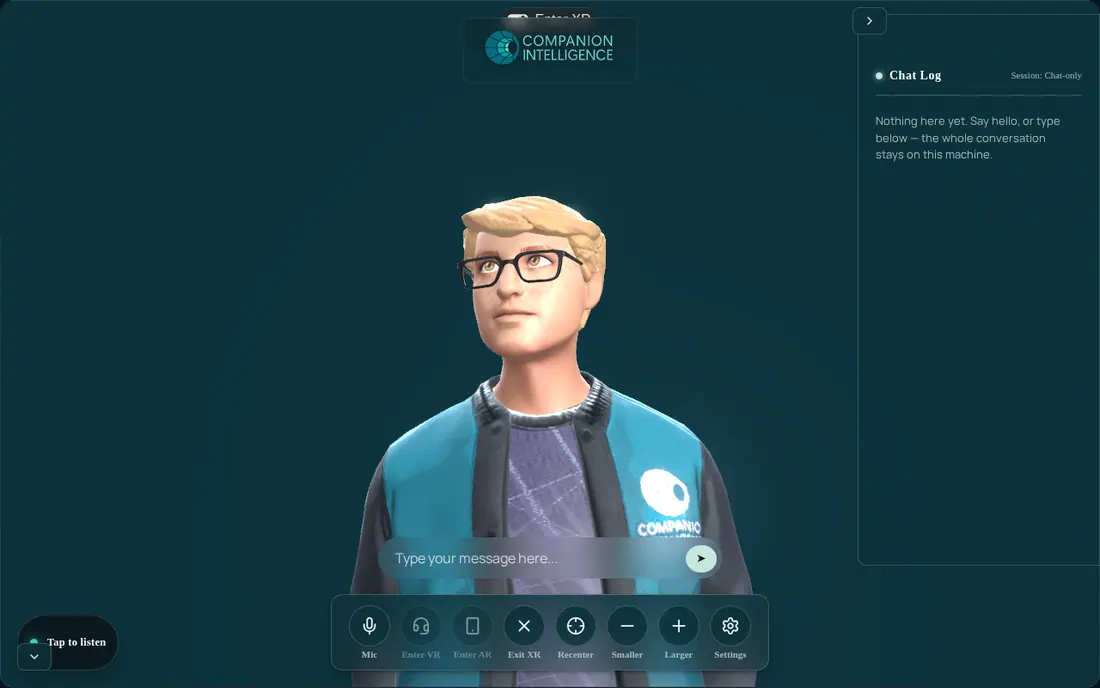
Avatar Companion renders a lip-synced 3D avatar you converse with by voice or text. It can run as a scripted demo with no backend: choose Scripted as the LLM provider and the avatar renders, animates and replies from a built-in set of responses. A Hub install starts on the Proxy provider instead, so it needs a reachable Ollama, and you confirm that with Check connection before the first answer. Connecting speech synthesis or your Companion Memory is optional, and none of it requires rebuilding the image.
To see it before you install anything, open the hosted demo at avatar.ci.computer . It’s the same app with no backend proxy, so it runs as the scripted demo (Session: Demo-only) once you close the first-run dialog.
Your conversations stay on your network. Chat is brokered to your own Ollama through a same-origin proxy, so the browser never needs CORS exceptions or a public tunnel. Crash reporting is on by default and can be turned off with APP_SHARE_CRASH_REPORTS. The reports strip credentials, file paths, request bodies, and your memories.
The app needs internet access to load. Each time the page opens, it
fetches its lighting environment from a public CDN (raw.githack.com). If the
device can’t reach it, the page stays blank except for an Enter XR button.
- Facial-rig tiers detected
- 3
- ARKit-52, Oculus visemes, or VRM expressions — whichever the model carries.
- from What it does today
What it does today
- 25 avatars in the roster, plus any URL. GLB and VRM both load. Paste a Ready Player Me
.glbor any.vrminto Settings and it binds automatically. - Automatic facial-rig detection. ARKit-52, Oculus visemes, or VRM expressions — whichever the model actually carries. Settings shows which tier was detected and how many channels it found.
- Lip-sync that uses real timings. Where the voice engine reports per-viseme timestamps, the mouth is driven from those directly, with coarticulation between shapes. Where it reports only word boundaries, those supply the clock and letter-to-sound rules supply the shapes.
- Barge-in. Start talking and the avatar stops, immediately.
- Conversation memory. Optionally recalls from and saves to Companion Memory, so it remembers across sessions. See Companion Memory.
- Autonomous vitality. Blinking, micro-saccades, breathing, gaze, and posture that respond to whether it is listening, thinking or speaking.
- WebXR AR + VR on Quest and other headsets, plus a visionOS build, with a browser and iPad fallback.
- Voice input with local speech-to-text, and voice activity detection for hands-free turn-taking.
By default the avatar speaks with your browser’s built-in voices
(APP_TTS_MODE=browser). Point APP_TTS_MODE at a server-backed voice for
phoneme-accurate lip-sync. If that server is unreachable, the avatar still
chats by text and animates normally.
Session states
The app tracks what kind of session you are in and shows it as Session: … in the Chat Log header and in the connection panel. Choose Check connection to update it, and then make the result stick: select Enable Mic in the first-run dialog, or select Save in Settings → Connection. The first-run dialog’s Skip discards the result.
| State | Meaning |
|---|---|
| Unverified | The starting state for every provider except Scripted. The avatar answers “I am not connected yet. Open Settings and run Check connection before we talk.” until you check and apply the result. Also shown when the check finds chat unreachable, and after Skip. |
| Demo-only | The provider is Scripted. Replies come from the built-in set and use no private memory. |
| Chat-only | The check reached your model. Companion Memory isn’t in use. |
| Memory-ready | The check reached your model and Companion Memory. |
Configuration — no rebuild required
Everything below is read from container environment at install time. An nginx entrypoint writes /config.json at boot and the app fetches it on load. The in-app Settings (⚙️) panel overrides the provider, URL, model, and voice for that browser. It doesn’t change the proxy sidecar, so APP_OLLAMA_URL (the Ollama the proxy calls) changes only in the Hub install settings.
| Variable | Purpose | Default |
|---|---|---|
APP_LLM_PROVIDER | proxy, ollama, openai, mlc, or script | proxy |
APP_PROXY_URL | Where the SPA sends chat | /api/chat |
APP_OLLAMA_URL | Ollama the proxy calls | http://host.docker.internal:11434 |
APP_LLM_MODEL | Model tag | gemma3:1b |
APP_TTS_MODE | browser or a server-backed voice | browser |
APP_TTS_VOICE | Voice name | unset |
APP_STT_REMOTE | Send speech input to your appliance’s Whisper instead of transcribing on the device | false |
APP_SHARE_CRASH_REPORTS | Opt out of crash reporting | true |
You don’t rebuild the image to connect a model. Set the APP_* variables
above at install time, or pass them with -e when you run the container
yourself.
Choosing where inference runs
Every provider except the scripted default is a different path out of the browser:
flowchart LR
    B["Browser SPA<br/>Avatar Companion"]
    B -->|"proxy (default)<br/>same-origin /api/chat"| S["Proxy sidecar<br/>in the container"]
    S --> O["Host Ollama<br/>APP_OLLAMA_URL"]
    B -->|"ollama<br/>needs OLLAMA_ORIGINS"| O
    B -->|"openai"| E["Any OpenAI-compatible endpoint"]
    B -->|"mlc<br/>needs WebGPU"| W["WebLLM<br/>in the browser"]
B -->|"script"| X["Scripted provider<br/>no backend"]- Proxy (recommended). The sidecar talks to your host Ollama. The browser only ever talks to the app’s own origin.
- Ollama direct. The browser calls Ollama, so the URL must resolve from the client device and Ollama must allow the app’s origin via
OLLAMA_ORIGINS. - OpenAI-compatible. Any endpoint speaking the OpenAI chat API.
- On-device (WebLLM). Runs a model entirely in the browser. Needs WebGPU.
- Scripted. No backend. This is the offline default.
Companion Memory
The proxy adds Companion Memory when its upstream is ci-server. It fetches your profile context once per session, recalls memories for each thing you say, generates the reply with your configured model, and saves the exchange afterward. If Companion Memory is unreachable, the avatar still answers, without its notes.
The Hub install form has no memory fields and doesn’t connect it for you. To turn it on, set these on the proxy sidecar (the proxy service in the app), using a memory-scoped key from Get your API keys:
| Variable | Purpose | Default |
|---|---|---|
APP_UPSTREAM | Set to ci-server to add memory | ollama |
APP_CISERVER_URL | Companion Memory’s API address. The proxy appends /memory/..., so include /api when you reach it through its gateway. | http://host.docker.internal:3000 |
APP_CI_SERVER_API_KEY | Memory-scoped API key | empty |
APP_MEMORY_MAX_RESULTS | Memories recalled per turn | 6 |
APP_MEMORY_GENERATION_UPSTREAM | Which upstream writes the reply | ollama |
After you restart, Check connection shows Memory-ready when both your model and Companion Memory answer.
Supported platforms
| Platform | Mode | Notes |
|---|---|---|
| Desktop browser (Chrome, Edge) | 3D / WebXR | Needs internet to load; mic needs a secure context |
| Meta Quest | Immersive VR/AR | WebXR |
| Apple Vision Pro | Spatial | Separate visionOS build |
| iOS / Android | 3D / AR | Mic and camera need HTTPS |
Setup
Install from Hub
Search for Spatial Companion in the Hub app store and install. Hub connects it to the Ollama or OpenAI-compatible endpoint it manages when you leave Ollama URL blank.
Point it at a model
Install Ollama on your host and pull something small:
ollama pull gemma3:1bSet Ollama URL and Model in the Hub install form if you don’t want the Hub default. The model tag has to match a model you have pulled.
Open the client
Open the app from the Local access entry on its page in the Hub dashboard, for example http://127.0.0.1:<port> on the Hub machine. See Finding Your App’s URL.
On first load the app opens a Start your companion dialog. Microphone permission and the service connection are separate. Choose Check connection first, then Enable Mic to start with voice. A reachable model changes the session from Unverified to Chat-only. If the check fails, see Troubleshooting.
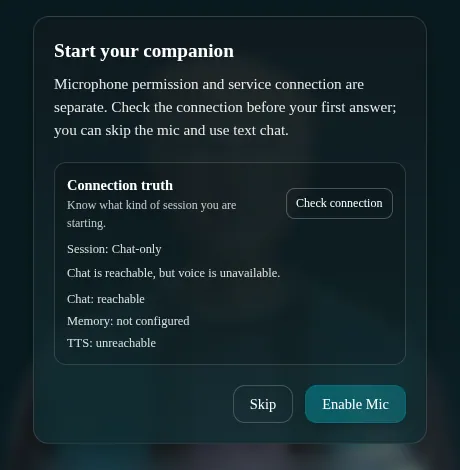
Skip closes the dialog without applying the check, so the session goes back to Unverified and the avatar refuses to answer. To use text chat without the microphone, choose Skip, open Settings (⚙️) → Connection, select Check connection, and then select Save.
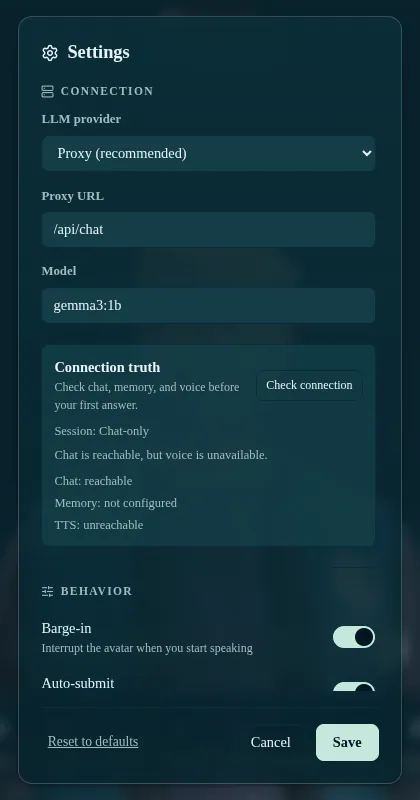
The connection panel can read TTS: unreachable and voice is unavailable on a default install. That line checks the proxy’s server-backed voice, which the default setup doesn’t use: the default voice mode is browser.
To try the avatar with no backend, set LLM provider to Scripted in the same dialog.
Pick an avatar
Open Settings (⚙️) → Avatar. Choose from the roster, or select Custom URL… and paste a link to any .glb or .vrm. The panel reports which facial rig was detected.
Troubleshooting
“I am not connected yet” or the session stays Unverified
The app starts unverified for every provider except Scripted, and Skip in the first-run dialog leaves it that way. Open Settings → Connection, choose Check connection, and select Save. If it reports chat unreachable, confirm that Ollama is running, that the model tag exists on it, and that APP_OLLAMA_URL resolves from the app’s proxy container. The default, http://host.docker.internal:11434, works only when Ollama runs on the Hub’s host.
The page is blank, with only an “Enter XR” button
The app couldn’t fetch its lighting environment from raw.githack.com. Check the device’s internet access, and any network filter that blocks that host.
LLM or TTS unreachable
With the ollama provider, requests come from the browser, not the container: the URL must resolve from the client device and Ollama must allow the app’s origin via OLLAMA_ORIGINS. Switching to the proxy provider avoids both problems.
Microphone not working Mic access requires a secure context (HTTPS). Open the app over a secure hostname.
WebLLM won’t load
The mlc provider needs WebGPU in the client browser.
A custom avatar loads but the mouth doesn’t move Check the facial-rig line under the URL field in Settings. A model with no morph targets is body-animation only — there are no blendshapes to drive. Ready Player Me models exported without the ARKit/Oculus morph options are the usual cause.
A custom avatar’s hair and clothing don’t move
Secondary motion needs bones in the model. Many .glb avatars ship hair as a static mesh with no joints, and nothing can animate what isn’t rigged.