🧬 Companion Memory
Your life, secured locally. A private Personal Digital Twin database and lifelogging engine that keeps your digital history on hardware you own.
Availability: Companion Memory is free on both the Free and Pro plans. Today you install it from the Companion Hub App Store. A desktop app for Windows and Linux (version 0.1.0, built on 2 October 2026) also exists, but it has no public download yet — see Install the desktop app. Its product page is ci.computer/memory .
Overview
Companion Memory is the intelligence core of the Companion ecosystem. It runs on your local hardware and acts as a unified personal knowledge base, aggregating data signals from your devices, browser, connected accounts, and imported archives into a single private timeline — your Personal Digital Twin.
Unlike cloud-based memory products, your records stay on your hardware, and the models that answer your questions run there too. The server exposes a local API that Companion Agents query to provide contextually aware suggestions, recall, and guidance. A few background jobs do contact other services — see What leaves your appliance.
- Rail destinations
- 7
- Planning, Memory, Saved Searches, Sources, Jobs, Approvals, and Self. Forecast is off by default.
- from Getting around
- Memory sections
- 9
- Events, People, Places, Things, Receipts, Content, Tags, Notes, and Chat.
- from The Memory hub
- Explorer views
- 5
- Map, List, Timeline, Gallery, and Graph over the same search. Timeline appears once time is part of the question.
- from The Explorer
Key features
- Automatic ingestion — captures data from browser extensions, Companion Capture, connected accounts, and archive imports with no manual tagging
- Unified Explorer — one searchable view of your whole history across Map, List, Timeline, Gallery, and Graph
- Combinable search & filters — free-text + semantic search combined with who / where / when / how filters, sort, and tags
- Saved searches — name and reuse any search you build, and share a read-only link with someone else on your server
- Agent context (MCP + REST) — structured endpoints for Companion Agents to query memory with temporal and contextual filters
- Private by design — your records stay on your hardware, and answers come from models that run there. Crash reporting is on by default and you can turn it off — see What leaves your appliance
- Planning and approvals — a task board and calendar built from your memory, and an approval queue for anything an agent wants to do that you should confirm
- Modular connectors — extensible data source plugins for custom integrations
Use cases
- Recall anything you’ve seen, read, or done — without relying on cloud services
- Give your local AI agents rich, personal context to improve suggestions and task completion
- Build a searchable personal archive of life events, documents, browser history, and media
- Keep a searchable record of what your capture clients send, such as Companion Capture and the browser extensions. Mentra Live glasses can save to Memory too, but Mentra Live is a developer preview that you can’t install yet
- Planned: give Companion Spatial and Photo Time Machine structured memory data. Neither connects to Memory today: Spatial keeps its history in your browser, and the published Photo Time Machine image is built without a Memory address
Architecture
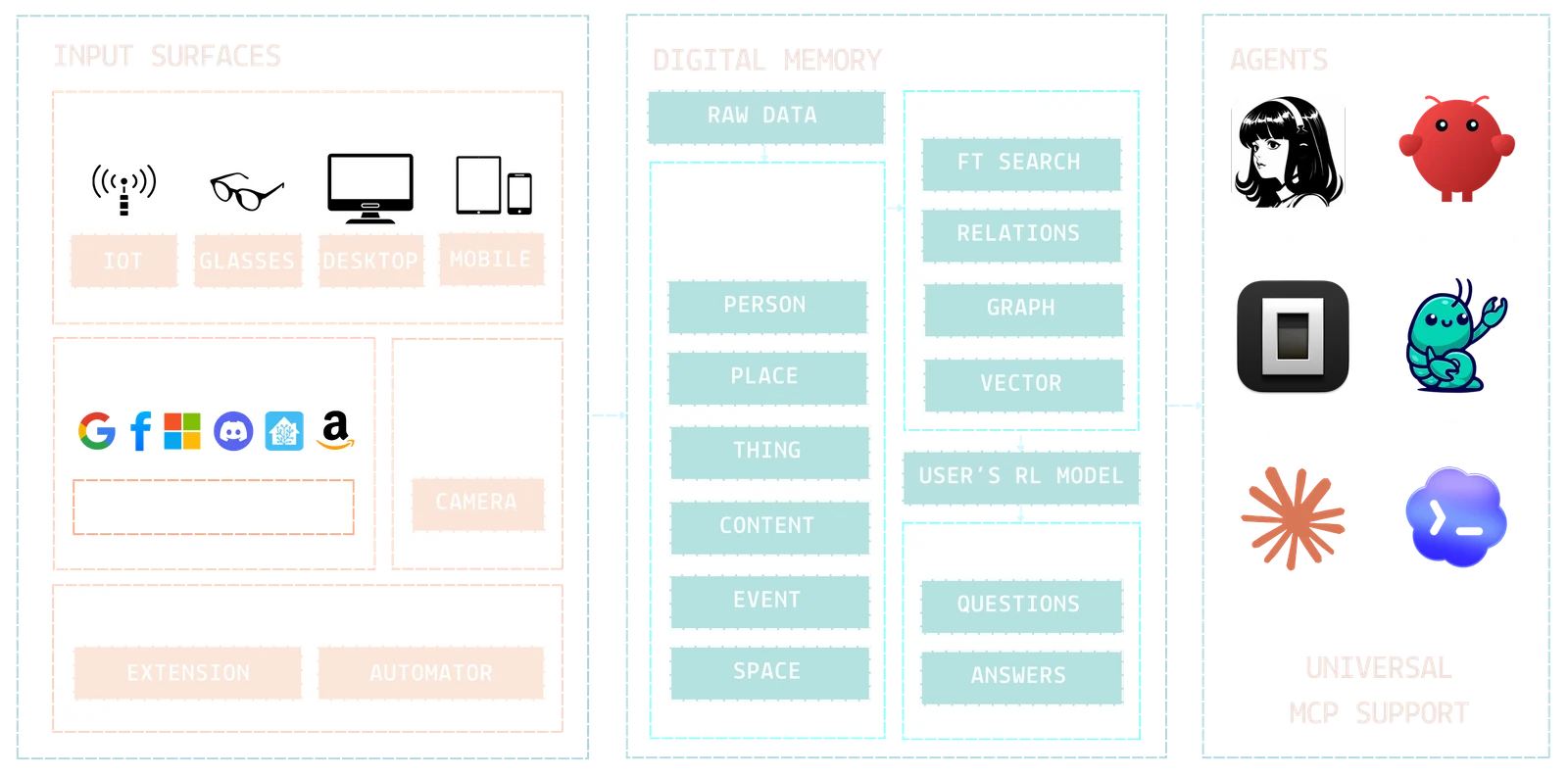
The app ships as a set of containers managed by Companion Hub: a gateway, the API, a PostgreSQL database with pgvector, object storage, and summarization and prediction services. Together they expose:
- A REST API for data ingestion and retrieval
- An MCP (Model Context Protocol) server for direct agent integration
- A local web UI for browsing your timeline and configuring sources
Setup
1. Install via Companion Hub
This is the route anyone can use today. You need a running Companion Hub that you have paired with your CI Account, which Hub asks for the first time you open it.
Open Companion Hub, navigate to the App Store, and search for Companion Memory. Click Install. Companion Memory is free on both the Free and Pro plans, and Hub’s setup wizard pre-selects it for new installs.
The first install downloads the app’s container images, about 3 GB, and Hub then starts them.
How you can run it
| Route | Who can use it today | Address you use |
|---|---|---|
| Companion Hub App Store | Anyone with a paired Hub | http://<appliance-ip>:<host-port>, a tunnel or Tailscale |
| Desktop app (0.1.0) | People who were given the installers; no public download yet | http://127.0.0.1:8642 |
| Standalone Docker (compose) | People who already hold the compose file, which is not published | http://<host>:8642 |
All three run the same containers and the same web app, so everything from Sign in and finish setup onward applies to each of them.
Install the desktop app
There is no public download yet. Companion Memory Desktop 0.1.0 was built on 2 October 2026. As of 3 October 2026 its installers are not offered on ci.computer/download , and the release page they are attached to is not public. Until that changes, install from Companion Hub. This section is for people who were handed the installers, and for anyone deciding what to expect.
The desktop app is a launcher, not a thin client. It starts Companion Memory’s
own containers on your computer with Docker, waits for them to be healthy, and
shows the Companion Memory web app in a window at http://127.0.0.1:8642. Memory
runs on that one computer, and you do not need a Hub.
| Version 0.1.0 | Contents |
|---|---|
| Windows | x64 installers, .msi and -setup.exe, both signed |
| Linux | x86-64 packages, .deb and .rpm, unsigned |
| Not in this release | macOS, Windows on Arm, Linux on Arm, and an AppImage |
Requirements. Docker, running before you open the app: Docker Desktop on
Windows, and Docker Engine or Docker Desktop on Linux (a rootless Docker install
is found too). Docker Compose must be version 2.24 or newer, and port 8642 on
your computer must be free — Companion Hub also tries 8642 first, so a Hub on
the same computer that already runs Memory occupies it. No hardware minimum is
published for this release.
First launch.
- Start Docker. If it is missing, the app says “Docker was not found on this machine” and offers Install Docker, which opens Docker’s download page. If it is installed but stopped, the app says so and waits for Retry.
- Open Companion Memory. The splash screen reads “Waking up your memory.” and lists the steps as they happen. The first launch downloads the container images, about 3 GB, and starts them. If something fails, the splash shows the reason with Retry and View Logs. It stops waiting after 30 minutes.
- The window loads Companion Memory and opens Sign in to your memory. Choose Sign in with Companion account, which opens your browser and returns to the app, or Use email and password instead. I have an invitation is for a second person joining a Memory that already has an owner.
- Continue with Sign in and finish setup.
A local model comes with it. The app makes sure something answers on port
11434 so Chat and search work without installing Ollama yourself. It uses an
Ollama that already runs there; otherwise it uses ollama from your PATH, or
downloads Ollama’s official release into the app’s data folder, checks its
checksum, and pulls nomic-embed-text for search and gemma4:e4b for chat. On
Windows and Linux the Ollama download alone is about 1.3 to 1.5 GB, and the chat
model is several gigabytes more.
Running and stopping. Closing the window hides it; the app stays in the system tray with Show, Start Stack, Stop Stack, View Logs, a status line and Quit. The containers keep running after you quit the app, so use Stop Stack to stop them. Your memory lives in Docker volumes, not in the app, so it survives updates and uninstalling the app. The Inbox folder for imports is in the app’s data folder, and Sources → Import → Inbox shows its exact path.
Updating. There is no in-app updater. Install a newer release over the old one; on its next launch it pulls the matching container images and keeps your data.
Connecting an agent. Sign in with Companion account gives the window a device
key rather than a web session, and creating API keys and managing MCP servers need a
web session. If Settings → API Keys says it needs a web sign-in, open
http://127.0.0.1:8642 in an ordinary browser and sign in there, or sign in with
email and password in the window. Then follow Connect Companion
Memory, using http://127.0.0.1:8642 as the
address from the same computer.
Not in 0.1.0. In-app updates; Docker or GPU-driver installers; GPU acceleration for the prediction service, which always uses its CPU image; a watchdog that restarts a stack that crashed; crash reporting for the app itself; and remembering the window size. The app sets Companion Memory’s local-only mode, so the server’s own crash reports are off too — see What leaves your appliance.
2. Sign in and finish setup
Open Companion Memory from its tile in Companion Hub, or at the address on the Access points card of its app page. On the local network that address is http://<appliance-ip>:<host-port>. Hub tries port 8642 first and picks a free port from 10000 to 60000 when 8642 is taken, so read the port off the card. See Finding Your App’s URL.
The examples on this page write that address as <memory-url>, the origin without a path.
The sign-in page offers Sign in with Companion account, which uses your CI Account. Select Sign in with email instead to use an email and password, or Sign up to create an account on this appliance.
- The first account claims the appliance and becomes its administrator. Administrators change the settings that affect everyone: the model endpoint, the BlueBubbles connection, MCP servers, and the job controls.
- Everyone after that needs an invitation. Open Self → Profile, find Invitations, and select Create an invitation. Each code works once. The new person enters it as the Signup Code on the sign-up form.
The first time you sign in, a setup wizard asks a few questions. Every step can be skipped, and your progress is saved if you leave. In order:
- A welcome screen.
- What should we call you? — only when your account has no name yet.
- Time and place — when you usually wake up, go to bed, and work. Memory detects your time zone.
- What should we focus on? — health, nutrition, communication, entertainment, or travel.
- Who are you usually around? — up to six people and how you know them.
- Connect a source — Companion Capture, a browser extension, or an account such as Google or Microsoft.
- Bring in an export — the same import wizard described below. Skip it if you have not downloaded an export yet.
- How much trust? — Cautious, Balanced or Hands-off: how much your companion may do without asking. You can change it later under Settings → Autonomy.
- Run my first sync and finish — starts a sync of your connected accounts and takes you into the app.
You land on Planning. Nothing is in your memory yet unless you connected a source or imported an export in steps 6 and 7, so the Explorer under Memory shows “Your memory is empty” with two buttons: Connect a source and Import data.
3. Give Memory a chat model
Chat and photo descriptions need a chat model. Open Settings → Model:
- If Hub manages inference for this app, the endpoint is filled in and read-only in Memory. Select Test connection, then choose a model in the model picker. To change the backend, change it in Companion Hub.
- On a direct install, pick the Backend: Ollama (port 11434),
Lemonade (port 13305), or OpenAI-compatible (vLLM, llama.cpp, SGLang)
(port 8000). For the two OpenAI-style choices, the API path is
/v1, or/api/v1for Lemonade, and an API key is optional. Select Save endpoint, then Test connection. The test lists the models the backend reports. A backend that connects but lists no models is not ready for chat: pull or expose a model first.
Only administrators can change the endpoint. Embeddings, the models behind
Semantic search, are configured separately. Companion Memory’s default is
nomic-embed-text, and Hub can set its own. The search index is tied to
768-dimension embeddings, so validate a change before you apply it to an
existing appliance.
4. Add your data
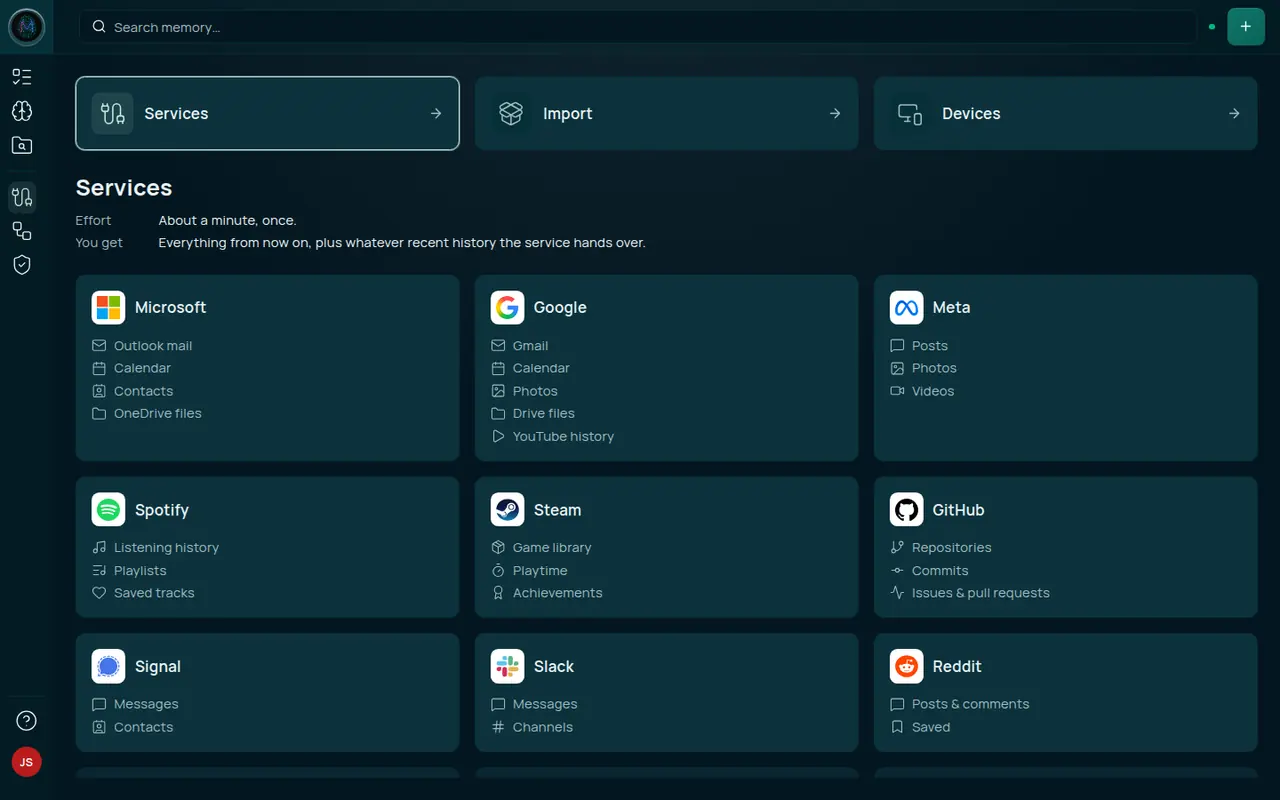
Open Sources in the left rail — one page with three paths, each answering a different part of “get my stuff in”:
- Services — accounts you sign into. Google, Microsoft, Meta, Spotify, Steam, GitHub, Signal, Slack and Reddit are available now; Discord, Instagram, Shopify, X, LinkedIn, Notion, Twitch and Dropbox are listed with a Coming soon badge. About a minute each; you get everything from now on plus whatever recent history the service hands over. Some services need you to bring your own OAuth app, and the connect dialog tells you how when that is the case. One card here isn’t a sign-in: BlueBubbles, a self-hosted bridge (bluebubbles.app ) that exposes one Mac’s iMessage/SMS history over its own REST API. Its card opens a connection page — that Mac’s host, port and server password — instead of an OAuth flow, and shows Connected once you enable it there.
- Import — the archive wizard, built into Companion Memory itself: you request an export from the service, wait for it, then load the file here. There is no separate importer to install. Slower than a service connection, but it reaches as far back as the service keeps your data.
- Devices — what you install rather than sign into: Browser extensions for Chrome and Firefox, with Safari listed as coming soon (history, bookmarks, searches — see the Browser Extension page), and Companion Capture for macOS, Windows and Linux (screen context, app usage, desktop activity — see the Companion Capture page). The extension is in the Chrome Web Store, which Brave and Edge use too, and on Firefox Add-ons; both listed version 1.6.0 on 3 October 2026. Companion Capture is pre-release: ci.computer/download offers 0.2.0-alpha.7. The Memory apps for iOS and Android are in closed preview and have no store listing yet. The extension, Capture and the mobile apps all sign in with your CI Account, and all need a running Companion Memory to send to. The extension and Capture register in the device list, so the page also shows which of your machines is still reporting in.
All three paths land in the same memory:
flowchart LR
    subgraph S["Services — sign in"]
        O["OAuth accounts<br/>Google · Microsoft · Meta · Slack · …"]
        B["BlueBubbles<br/>host, port, password"]
    end
    subgraph I["Import — archive wizard"]
        A["Export archives<br/>from the service"]
    end
    subgraph D["Devices — install"]
        X["Browser Extension"]
        P["Companion Capture"]
    end
    M[("Companion Memory")]
    O -->|"from now on + recent history"| M
    B -->|"iMessage / SMS history"| M
    A -->|"as far back as the export goes"| M
    X -->|"history, bookmarks, searches"| M
    P -->|"screen context, app usage"| M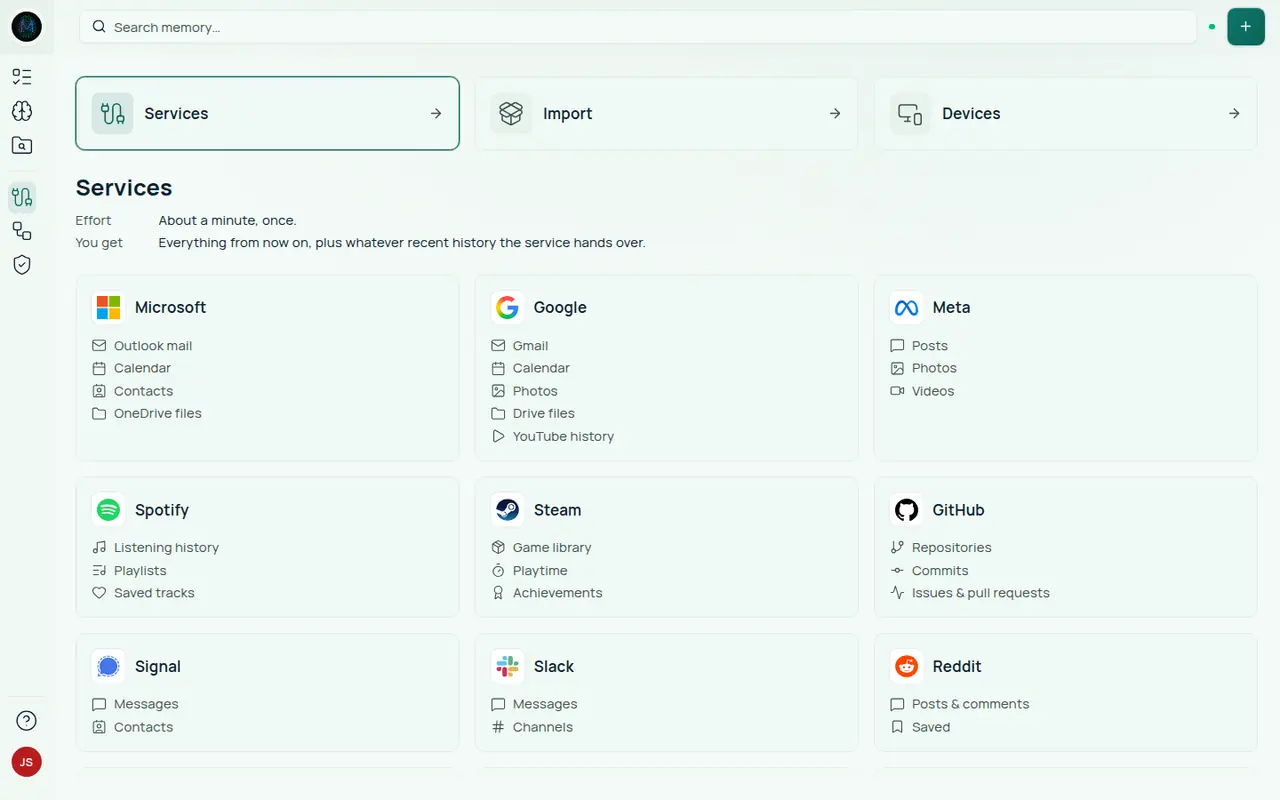
Clicking the BlueBubbles card opens its own settings page rather than a sign-in flow: host, port, HTTPS, the BlueBubbles server password, whether that server’s Private API is enabled (required for Companion Memory to send messages on your behalf, not just read them), and an Enabled switch — alongside Test connection and Sync now, and a status panel reporting the last sync and the last webhook received.
Below the connection fields the page also shows a webhook URL ending in a long random segment. Paste it into your BlueBubbles server’s webhook settings and new messages arrive within a second or two of being sent, instead of waiting for the next sync. Treat that URL as a password: the random segment is the only thing authenticating the delivery, because BlueBubbles’ own outgoing webhooks carry no credentials of their own.
Only an administrator can change the BlueBubbles connection. It is one appliance-wide connection, so Save and Test connection are disabled for other accounts. Companion Memory’s own request log redacts the webhook secret, but treat the URL as a password anyway: anything else that records request paths on the way in, such as a reverse proxy, may log it.
iMessage has more than one route in. Besides this connection, Companion
Capture can read a
Mac’s own chat.db with no BlueBubbles server at all, and the Import
wizard loads a chat.db copy as an archive. They do not deduplicate
against each other — pick one route per Mac. See Which iMessage route to
use.
The wearable and glasses apps that can use Memory — Mentra Live, Pebble and Even Realities — are developer previews that you can’t install yet. Each is set up in its own app, not here.
5. Connect Companion Agents
Settings → Agents lists the agent apps that Companion Hub knows about, and shows whether each is installed, connected to Memory, and running. You connect an agent from its app page in Companion Hub with Connect Memory, which creates the key for you; the Connect button in Memory is disabled. To connect a client yourself, create an API key and use the MCP entry shown under Agent Integration (MCP).
The first time you open a Hub-installed OpenClaw or Hermes while Memory is not connected to it, the app asks first: a screen titled “Give OpenClaw long-term memory” (or Hermes) with Sign in with Companion Intelligence, Maybe later and Don’t ask again. Approving creates one key for that app. It appears under Settings → API Keys as Managed by Companion Hub, with the Memory, Intents and MCP scopes and the Read, write & delete capability. It expires after 90 days, and Hub replaces it before then. Anything that key does that deletes data or sends something outside the appliance waits for you under Approvals, whatever your Autonomy setting.
6. Check what landed
Self → Stats is the “did it work” page: totals for events, entities and relationships, your earliest → latest date range, and bar lists breaking entities down by type, by tag, and by data source. Jobs shows the background work still running behind an import, plus anything that dead-lettered.
Your memory has no retention window: records are not aged out on a schedule. Settings → Your data downloads a portable NDJSON copy of everything, or replaces your data with one — the import asks you to type your email address first, and replaces what is there. Self → Profile has Delete account at the bottom; it signs you out everywhere at once and permanently deletes the account and its data after a 30-day grace period.
What leaves your appliance
Companion Memory stores and searches your records locally, and chat models run on your hardware. A few things do contact other services. This is the full list for Companion Memory 2026.10.2 (3 October 2026):
| What | Where it goes | Default | How to turn it off |
|---|---|---|---|
| Crash reports | Sentry, with credentials, file paths, request bodies, cookies and query strings removed first | On | Turn off Share crash reports in Companion Hub’s settings for the app, or set CI_TELEMETRY=off. CI_LOCAL_ONLY=true also stops it. See Crash reporting |
| Place lookups (geocoding) | Place names and coordinates go to CI Portal, which relays them to a geocoding provider. They run at most weekly, in the nightly window | On | No in-app switch |
| Link previews | The site a saved link points to, or a preview provider such as oEmbed or Wikidata. They run in the nightly window, at most once a day, with a cap per run | On | No in-app switch |
| Sign-in for connected services | CI Portal brokers the OAuth sign-in and holds the long-term credential for Google and Microsoft, unless you register your own OAuth app | On when you connect a service | Use your own OAuth app, or delete the connection |
| Media links in imports | Your browser loads the image or video from the service that hosts it when you view the record. Companion Memory saves the link, not the file | On, for exports that reference media by link, such as Reddit’s | Skip those sources |
Your records, files and embeddings stay on the appliance, and chat prompts go only to the model backend you configure under Settings → Model, which is a local one by default. The Asks feature sends filtered answers to another Companion only under rules you set.
Using the web UI
Most of the time you’ll work with your memory through the local web UI at <memory-url>. The loop is connect, search, share: connect sources, search everything through the Explorer, and share a saved search with someone else on your server.
Getting around
A Power Rail runs down the left edge. It shows icons only until you hover it — or pin it open with the toggle on its edge, and the choice survives a reload. Top to bottom:
Planning · Memory · Saved Searches · Sources · Jobs · Approvals · Forecast (off by default)
Most of them open a submenu:
| Destination | Submenu |
|---|---|
| Planning | Tasks and Calendar. Today joins them when its flag is on |
| Memory | The nine Memory hub sections |
| Saved Searches | Asks — see Asking Other Companions |
| Sources | Services, Import and Devices |
| Jobs | History, Schedules, Dead letters, and one row per job category. The Jobs row itself is the overview |
| Approvals | Activity |
At the foot of the rail, Help holds Support, these docs and the Privacy Policy, and your avatar opens the Self tile: Profile, Stats, Reflections and Settings, with Theme and Log out in the tile’s own menu. On a phone the rail becomes a glass overlay drawer you open from the screen edge, with a Capture entry at the top.
Some destinations sit behind feature flags. planning.page (Tasks), jobs.page, self.page, stats.page, chat.page, files.page, tags.page, insights.page, import.page and ask all default to on. today.page and forecast.page default to off, so a stock install shows no Today page and no Forecast row. Turning off self.page removes your avatar tile, and Settings, Theme and Log out with it.
There are no breadcrumbs anywhere in the app. The header carries the global search box (Search memory…), the view tabs for the page you’re on, and the Add menu (+). Page identity comes from the rail and from the Memory hub’s own section nav.
Add creates things by hand: Note, Person, Concept, Thing, Event and Place. Its Actions row can Upload files into your memory, Capture photos, video and files, Scan a barcode or serial number to look up a thing you own, Connect an account or data source, and Predict, which runs the prediction pipeline now — allow about an hour.
The Memory hub
Memory is not a single screen. It’s a namespace of nine sibling sections, always reachable from the rail’s collapsible Memory submenu and from a section nav across the top of every Memory page, the Explorer included:
| Section | Route | What’s there |
|---|---|---|
| Events | /memory/events | The Explorer’s happenings browse — messages, events and browser visits, newest first |
| People | /memory/people | People and their communications, plus a merge-suggestion review queue |
| Places | /memory/places | Places you’ve been, searchable by name |
| Things | /memory/things | Physical things you own, filterable by category/brand/condition, with a Review sightings tab |
| Receipts | /memory/receipts | Receipts by merchant, with their line items |
| Content | /memory/content | Files and documents; /memory/content/:id opens the viewer in place |
| Tags | /memory/tags | Every tag, with rename and delete |
| Notes | /memory/notes | Your notes; Add → Note opens the editor |
| Chat | /memory/chat | The assistant chat, with your recent threads listed under it in the rail |
The Memory row itself opens /memory, the Explorer’s everything browse — see The Explorer. The old top-level /people, /places, /inventory, /receipts, /files, /tags, /notes and /chat routes all redirect into the hub, /search redirects to /memory, and /memory/knowledge redirects to the Explorer’s graph view (/memory?view=graph).
Content, Tags and Chat are behind the files.page, tags.page and chat.page flags — all on by default.
Reflections moved to Self. The catalogue of questions your companion can
ask you is now Self → Reflections (/self/reflections), not a Memory
section. /memory/reflections, /memory/questions and the older /prompts
all redirect there. The name change is user-facing only — the REST route
(/api/questions), the GraphQL QuestionType, and the database table are all
still called questions. The Reflections tab rides the insights.page flag.
The Explorer
The Explorer answers one question — “show me memories that match this” — in up to five different ways. It has two addresses, and they behave differently:
- Memory → Events (
/memory/events) browses happenings — messages, events and browser visits — newest first, with an activity heatmap alongside the list. - Memory itself (
/memory) browses everything you have, ranked by relevance. Timeline and the dated sort orders appear only once you set a When filter.
| View | Best for |
|---|---|
| Map | Located events on a base map with a synced timeline panel |
| List | Reading results in order. On Events, grouped by day beside the heatmap; on Memory, ranked by relevance |
| Timeline | A slide-style timeline you page through. It appears on Events, and on Memory once a When filter is set |
| Gallery | Photos and videos with a cross-result lightbox |
| Graph | The relationships between entities (people, places, things) |
The view tabs sit in the header beside the global search box, and List is the default. Everything below is the active view. To add an event by hand, use Add → Event in the header. The URL holds the full state of your search (?search=…&view=map&from=…), so any result is a shareable link to someone else on your server.
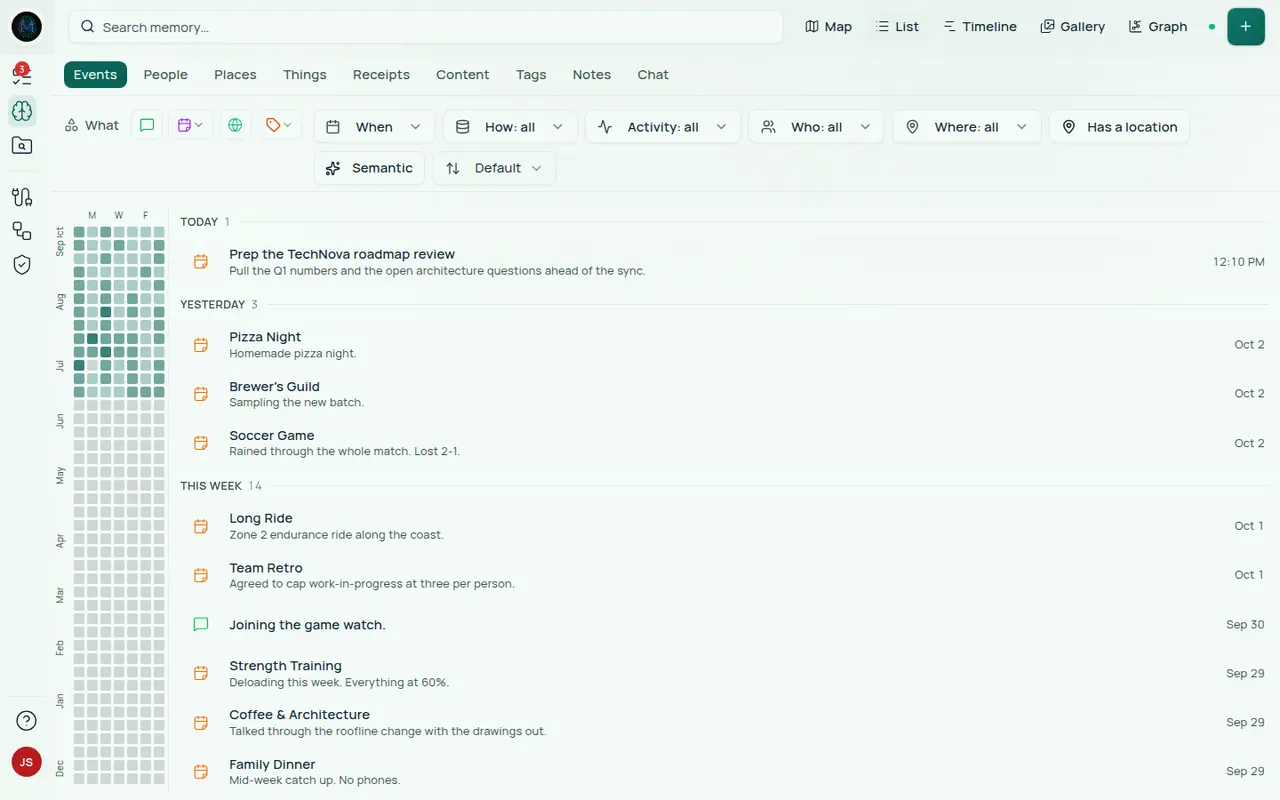
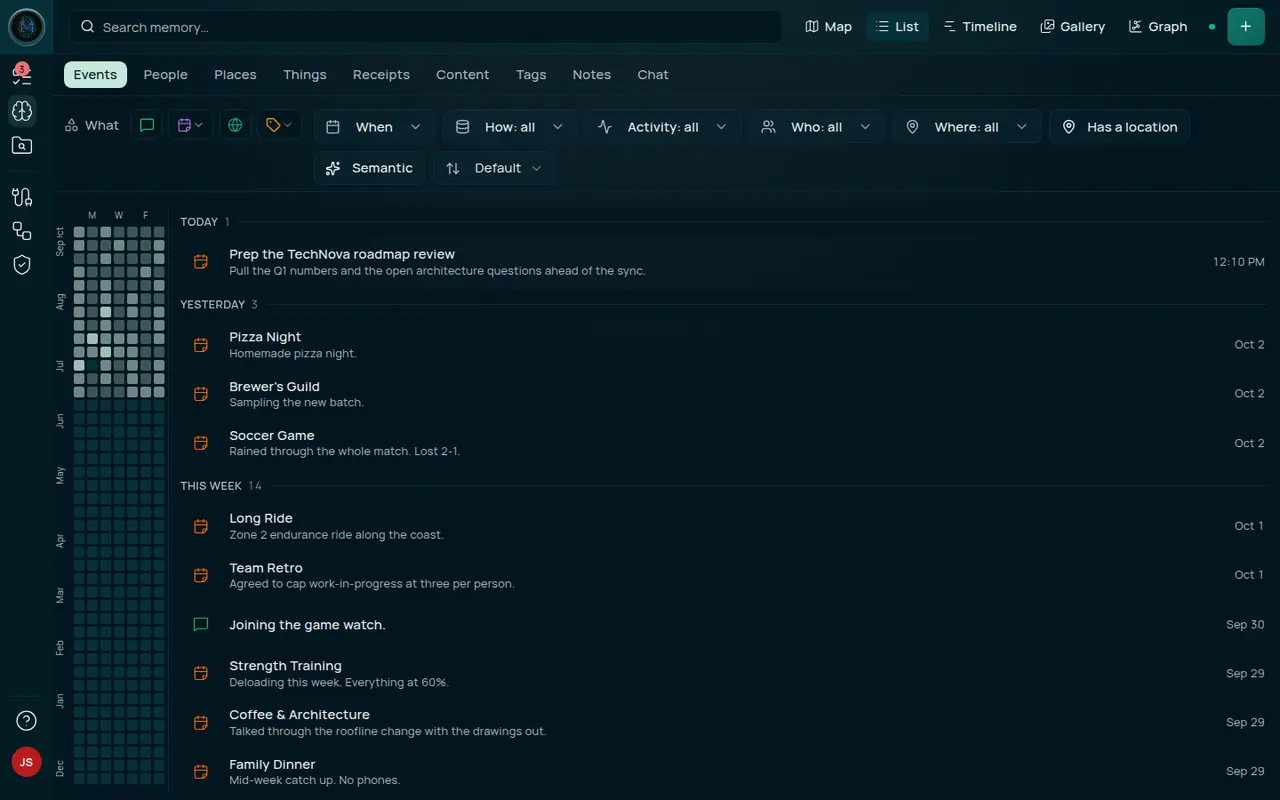
On Events, the List view has a contribution-style activity heatmap down its left edge that scrolls through time and sets the date filter when you drag across it. Its entries are grouped by day (and a No date bucket), each tagged with a type icon — person, place, event, concept, thing, content, note, communication, or file. The screenshot at the top of this page is this view.
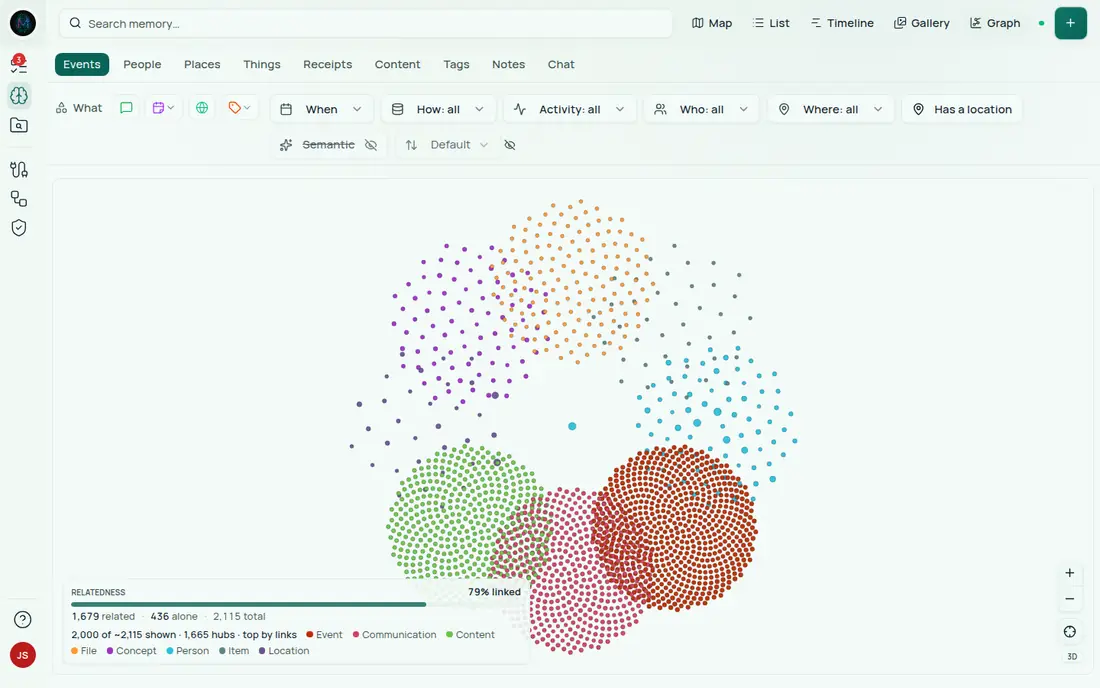
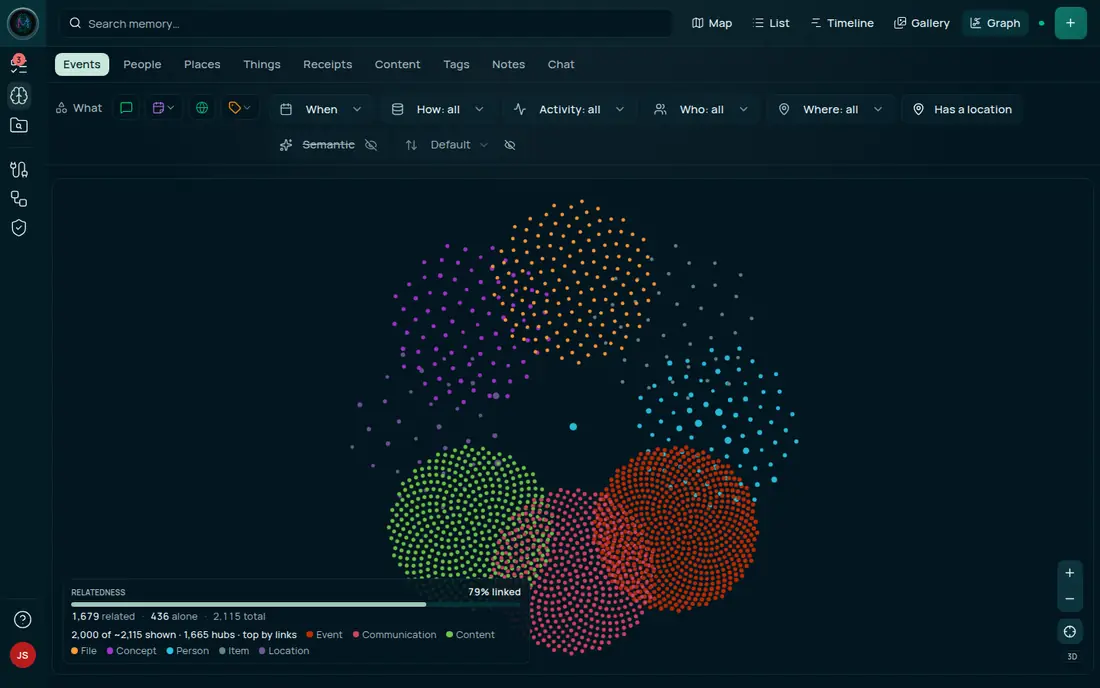
The Graph view (the Knowledge Graph) draws the relationships between entities — people, concepts, events, and places — as an interactive node graph. It has three modes over the same canvas: Overview (the busiest slice of your graph), Focus (one entity’s neighbourhood, entered by clicking a node and left through an explicit Overview control), and Search (the explorer’s query, run against the graph). Clicking a node or a link opens a floating info dialog over the canvas. A legend along the bottom names the types on screen and reports how many nodes are drawn, how many connections they carry, and — in Overview — what share of your entities are linked to anything at all. A small 2D/3D button in the corner switches renderers and remembers your choice:
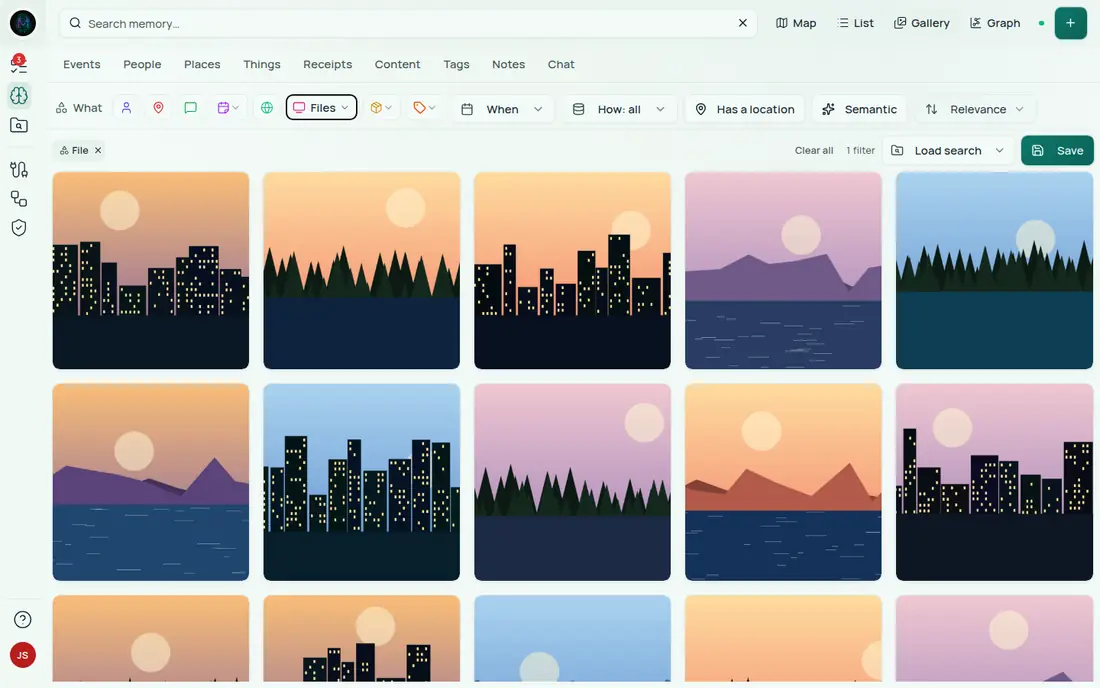
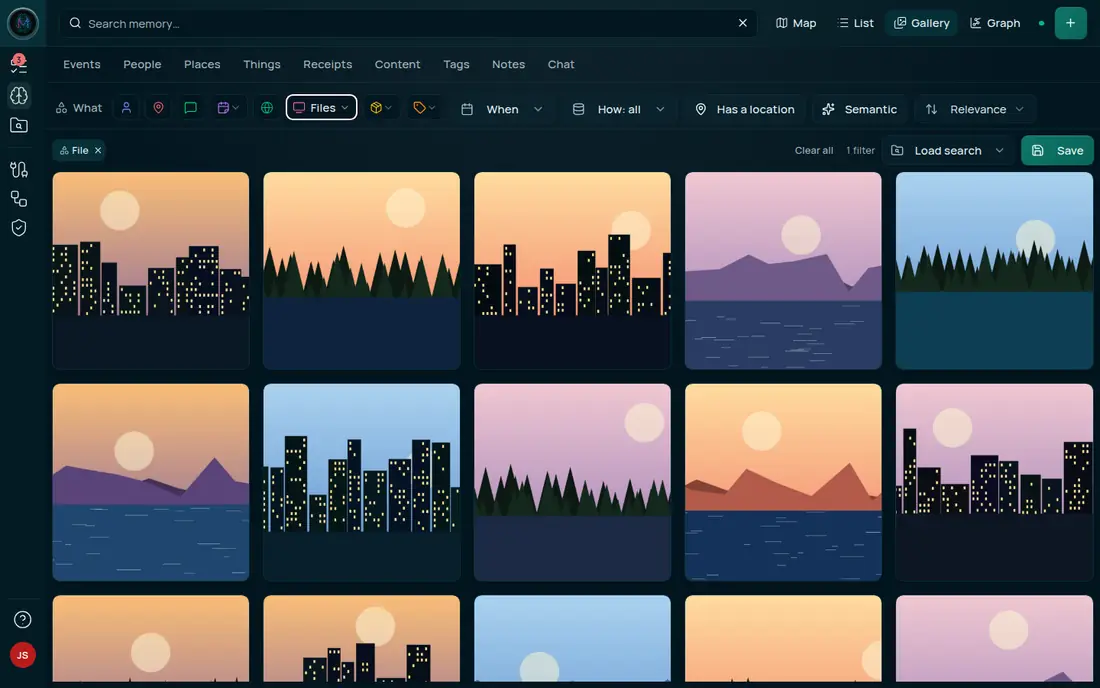
The Gallery view tiles every entity as a card labelled with its type (Person, Place, Concept, Thing, Product, Receipt, Content, Note, Reflection, Thread, Page view, Document excerpt) — events and messages carry a badge naming the connector they arrived through instead, falling back to Event / Message when there is none, and files carry no type label at all. Photo/video entities show real thumbnails, other files show their filename and a file glyph, and text-only entities show their summary.
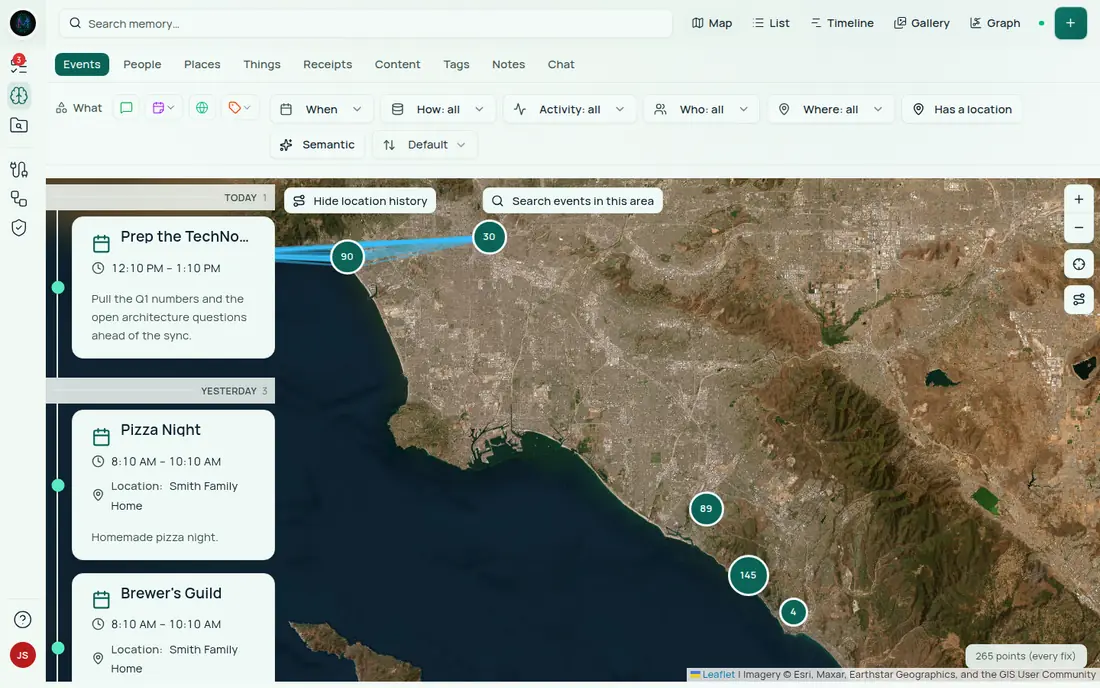
The Map view pairs a base map with a synced timeline panel on the left; clusters expand as you zoom, and the Search events in this area button restricts results to the current viewport.
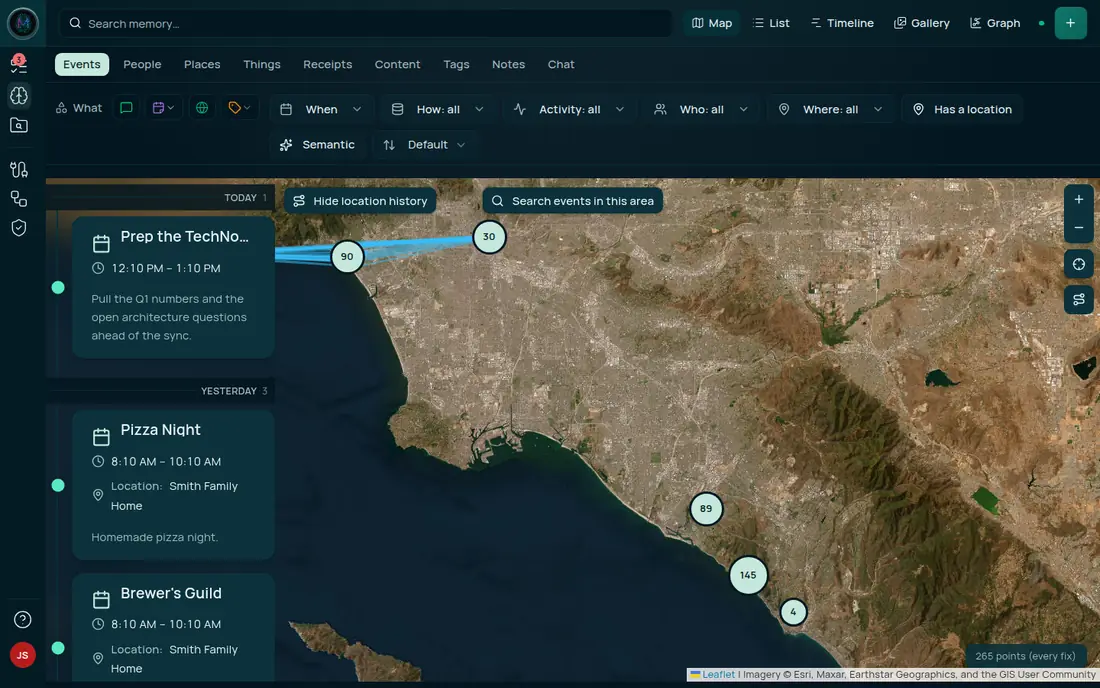
Photo/video events show real thumbnails in List/Gallery/Map; clicking one opens a cross-result lightbox. The same media is preserved when you share the search — see Sharing below.
Search & filters
One global search box lives in the header of every signed-in page, except a shared search — there the body is the owner’s results, so the viewer’s own search box is suppressed rather than misleading them. On the Explorer, and on the People, Places, Things, Content and Tags pages, typing writes ?search live (debounced), so the list narrows as you type. Everywhere else it’s a jump-to launcher: entity suggestions open the matching detail page, and committing a free-text query opens it in the Explorer. Recent searches surface when you focus it.
On the Explorer the filters are not hidden behind an Advanced toggle — they render inline, in a row under the header:
- What — a bar of icon buttons for People · Places · Messages · Events · Browser · Content · Things · Tag. Content and Things are groups (Content, Files, Notes; Things, Products, Receipts), and Events lists your account’s own event kinds — visited, messaged, traveled, and so on. On Memory → Events the bar offers only Messages, Events, Browser and Tag.
- When — presets (Yesterday, Last week, Last month) or a custom range with optional start and end times.
- How — the connectors an event arrived through, listed by their internal names, such as
email,calendar,spotifyorgoogle_photos. - Activity, Who and Where — pickers for event kinds, people and places. Each shows only while a kind it can narrow is in play. Who can also limit results to messages sent to, or received from, that person.
- Has a location — limit to events that carry coordinates.
- Semantic — re-rank by meaning rather than keyword match.
- Sort — on Events: Default / Relevance / Newest first / Oldest first / Name (A–Z) / Name (Z–A). On Memory: Relevance and Name, plus Newest first and Oldest first once a When filter is set.
You can also set who, where and tags by dragging: person, place and tag rows in the header search results are draggable, and dropping one into the filter area adds it to people, places or tags.
Every applied filter — dragged in or picked from a control — appears as a removable chip in one drop area below the row, with Clear all at its right edge and the running count beside Save. A saved-search picker beside Save loads one of your saved searches without leaving the Explorer. Removing a chip clears its URL parameter, which unselects the matching control, so the chips and the controls can never disagree.
The Advanced panel still exists, but only on other pages: focus the header search box there and the same What / When / How / toggles / sort controls open in the panel footer.
The Graph view can’t honour every filter. It ranks by connection rather than by meaning, has no map viewport, and has no result order — so Semantic, Map area and Sort are shown struck through with the reason, and the filter count reports them as “N not applied here” rather than dropping them silently. Graph search also only reaches entities that carry connections, while List, Gallery and Map search the full memory index including file contents.
Editing and deleting
The Explorer is not read-only. Clicking a result opens a detail drawer; where the type supports it, a pencil edits its fields and tags in place, and a bin deletes it.
Nine types can be deleted from the drawer: events, content, places, people, things, concepts, notes, messages and browsing records. Only event deletion is reversible — the event is tombstoned and the confirmation toast offers Undo. Everything else is destroyed outright, along with its tags and links to other things, and the confirmation dialog says so. Files, answers, threads and file chunks have no delete affordance at all.
Elsewhere in the hub: Tags supports rename (renaming onto an existing tag merges them) and delete; People carries a merge-suggestion queue you can accept or dismiss; Things has a Review sightings tab for resolving observations onto the thing they belong to.
In a shared search the drawer is display-only — every edit and delete affordance is suppressed for the viewer.
Saved searches
Any search you build can be saved so you can come back to it. Click Save at the right of the applied-filter row — the dialog stores the current query, entity types, tags, and all your active filters (who/where/when/how/sort/semantic/located), so the saved search round-trips the full search. You can also start from New saved search on the Saved Searches page.
Saved searches live at /saved-searches, one card each, showing:
- The name, and a Shared badge if the search is currently link-shared
- The query, and a coloured dot per entity type it covers
- Which secondary dimensions it carries, named rather than counted —
Who · Where · When · Activity · How · Direction · Semantic - Edit / Share / Delete actions
Below your own searches, a collapsed Starter searches section holds a library of more than a hundred ready-made searches, seeded once per account. Edit or delete any of them.
Clicking a card opens the Explorer with that search restored — every filter, the right sort, the right view.
Editing a saved search
Click the pencil on any card to open the Edit modal. Below the usual name / description / query / entity types / tags, a Filters section exposes a full editor for the secondary dimensions:
- Who / Where — name patterns as removable chips, with live suggestions
- How / Activity — removable chips picked from the values in your own data, so a typo cannot create a filter that matches nothing. How is the connector an event arrived through, and Activity is its kind
- Direction — for a Who filter, whether the message was sent to or received from that person
- From / To — date pickers
- Sort — a preset dropdown
- Located only / Semantic search — toggles
Editing here keeps the saved search in sync everywhere it runs — including a shared link.
Sharing a saved search
A saved search can be turned into a read-only capability link that someone else on your server can open.
Open the share modal from a card’s share button — or build a search, click Save, and choose Save & share to do both in one step.
Under Visibility, choose Link shared to mint an unguessable token. The modal then exposes:
- A share link (
/shared/<token>) with a copy button - Share via buttons for Email, Message and a QR code — the QR code is for someone standing next to you with their phone
The recipient signs into your server and opens the link to a focused, read-only Explorer (List / Gallery / Map) — no edit affordances, no global search, no escape to other parts of the app. The search runs as you (the owner) so the link surfaces only what’s already in your saved search; if they’re signed out when they click, the OIDC login flow brings them back to the same share link automatically.
Capability tokens, signed-in only. A share link grants access only to that one saved search. Choosing Not shared — then Link shared again — rotates the token; the old link stops working. Any viewer still has to be a signed-in user on your server: shares are not anonymous, and the modal says so.
Assistant chat
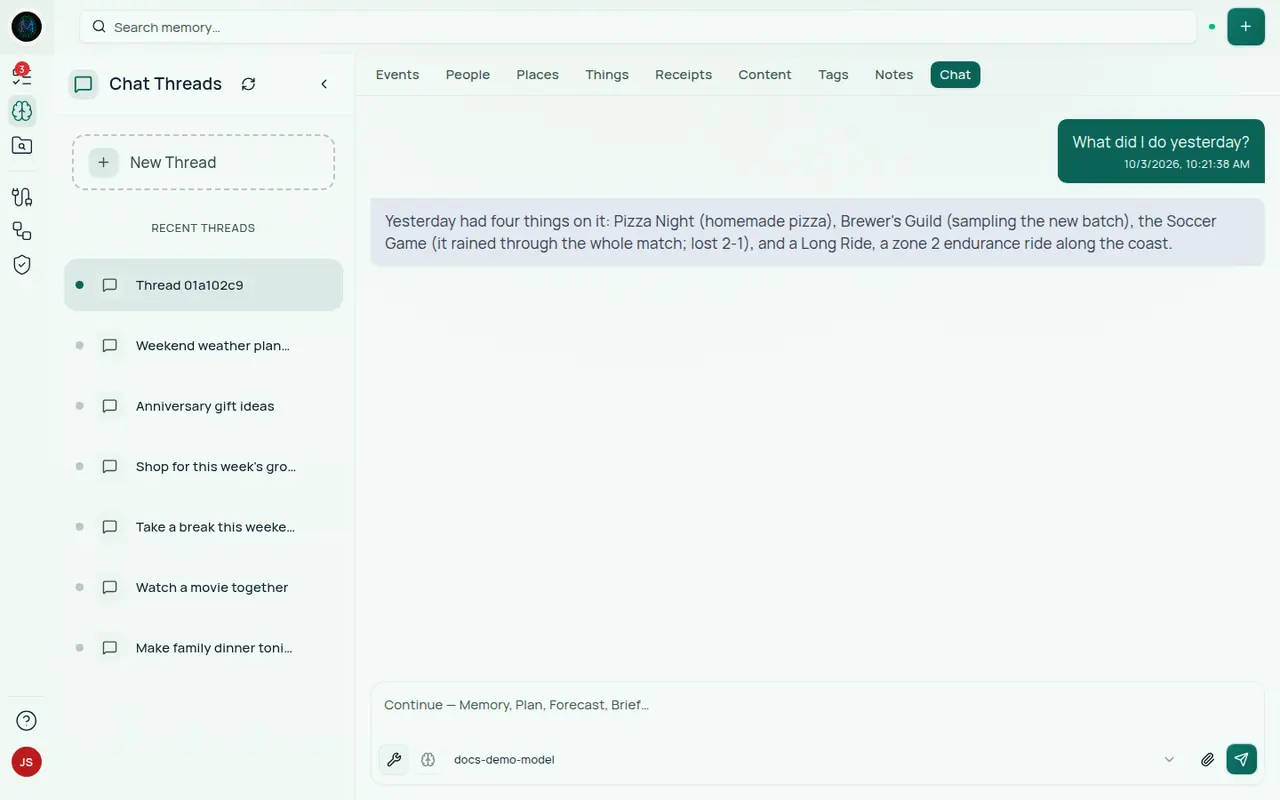
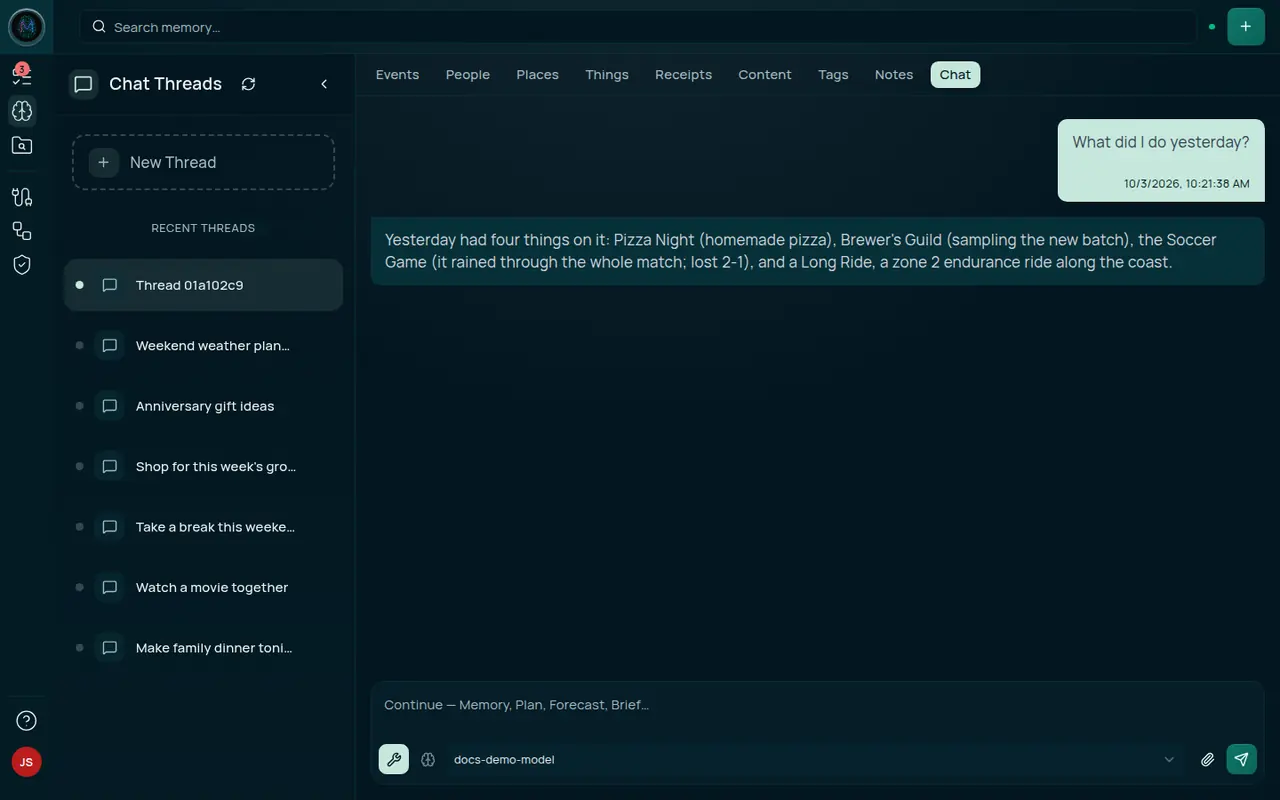
The Chat page (Memory → Chat) turns your memory into a conversational surface: ask a question in natural language and a locally-served model answers grounded in your own entities, citing the people, events, and concepts it drew from. A Chat Threads rail keeps your conversations, and the model picker sits in the composer beside the input, where it selects which model answers and toggles Tools and Thinking for models that support them. The placeholder says what it’s for — “Ask about Memory, Plan, Forecast, Brief…” — and an empty thread offers ten suggested asks.
The composer stays disabled, and the picker reads No models loaded, until Memory has a chat model — see Give Memory a chat model.
Chat can act as well as answer. Depending on the trust setting you chose during setup (Settings → Autonomy), Companion asks first before it deletes or sends something, and on Cautious before it reads from an outside service. Hands-off waives all of it. Those requests wait in Approvals, and Activity records every tool your appliance ran on your behalf and everything it refused to run.
Planning and Forecast
Signed-in users land on Planning, which opens on Tasks — a task board for what you mean to do, where Companion also proposes tasks for you to accept or dismiss. Calendar shows your schedule. If planning.page is off, Planning opens on Calendar instead.
Today is a separate page that gathers the Actions your companion asks you, and the Insights & Summaries it generates as it learns from your memory. It is off by default (today.page), so on a stock install the old /today, /brief, /schedule, /feed and /insights routes all land on Calendar. Forecast — the next-day behavioural strip, what the model thinks comes next — is also off by default (forecast.page) and has its own rail entry when enabled.
Jobs
Jobs shows what the appliance is doing for itself: queued and running work, history charts, schedules, and dead letters. Its Controls card lets an administrator turn work down without turning it off. Pause background work stops every queue that carries no interactive work, so chat keeps answering while imports and indexing wait. Each queue also has an On / Pause / Off mode. Pause keeps the backlog and runs it when you switch back on. Off drops new work, and it does not come back.
Self
Self is the identity hub, reached from your avatar at the foot of the rail:
- Profile — your own person record, your life details, the people you are connected to, About you (how Companion currently understands you, with a How I’d do this box that suggests your approach to a task you paste in — suggest-only, nothing is scheduled — and a Something wrong? box to correct it), Invitations for adding accounts, and your account: change your password or Delete account.
- Stats — totals and breakdowns of what your memory holds.
- Reflections — the catalogue of questions your companion can ask you.
- Settings — a dialog on desktop, a page on a phone. Its sections are Appearance, Preferences, Autonomy, Model, Location, BlueBubbles, MCP Servers, Agents, API Keys, OAuth Credentials and Your data, plus Safari on iOS and a GraphiQL link where the IDE is enabled.
The model endpoint, BlueBubbles connection, MCP servers and job controls are appliance-wide, so only an administrator can change them.
Mobile
The Explorer is responsive, and a shared search opens on a phone too — the view tabs render inline (the global header collapses), the filter row sits behind a Filters button, the map uses a touch-optimised mobile layer, and the Power Rail becomes a glass overlay drawer you open from the screen edge.
The Memory apps for iOS and Android are in closed preview. They are not in the App Store or Google Play, and there is no public TestFlight or APK. If you are given preview access, the team sends you install instructions. See Mobile App. The apps need a CI Account and a running Companion Memory: they sign in through your Companion account, then ask you to choose the Companion Memory instance to talk to. Recent builds add Settings → On-device model, which downloads a small language model to the phone and sets when Chat uses it: always your Companion, your Companion with the phone as a fallback, or always the phone.
API Access
Companion Memory exposes a local REST and GraphQL API. Requests authenticate with an API key that you create in the web UI under Settings → API Keys — the full key is shown once at creation, and you send it as an x-api-key header (or as Authorization: Bearer).
A key carries two independent settings, and both are chosen when you create it:
- Scopes — which surfaces the key opens:
Memory(/api/memory),Intents(/api/intentsand the tools an MCP client sees),MCP(/api/mcp),Capture(bulk ingest at/api/v1and file uploads at/api/files). Leave every box unchecked and the key is a full-surface credential that reaches everything, including GraphQL — which is the default, because GraphQL declares no scope of its own and so refuses scope-limited keys outright. - Capability — what it may do there: Read-only, Read & write (the default), or Read, write & delete. This is enforced independently of scopes. A read-only key can search and read, but a request that changes anything — a non-
GETREST call, or a GraphQL mutation — needs at least Read & write, even if the key has full surface access. That includes the ingest and file-upload routes below.
REST
# Ingest events — up to 1000 per request, deduplicated on the provenance
# triple (source_type, source_system, source_id); source_type defaults to
# "capture" when omitted, so re-POSTing this body counts as a duplicate
curl -X POST <memory-url>/api/v1/events \
  -H "x-api-key: $CI_API_KEY" \
  -H "Content-Type: application/json" \
  -d '{
        "events": [
          {
            "source_system": "my-app",
            "source_id": "meeting-2026-04-01",
            "kind": "note",
            "occurred_at": "2026-04-01T10:00:00Z",
            "title": "Meeting with team",
            "payload": {}
          }
        ]
      }'
Searching is a GraphQL operation rather than a REST route — see below.
GraphQL
The graph of entities, events, files, people, places, and summaries is available through a single GraphQL endpoint at /api/graphql:
# Recent events
curl -X POST <memory-url>/api/graphql \
  -H "x-api-key: $CI_API_KEY" \
  -H "Content-Type: application/json" \
  -d '{"query": "{ events(first: 5) { edges { node { id title startTime } } } }"}'

# Search — results are a union, so select per type with inline fragments
curl -X POST <memory-url>/api/graphql \
  -H "x-api-key: $CI_API_KEY" \
  -H "Content-Type: application/json" \
  -d '{"query": "{ search(input: {query: \"your query\", first: 5}) { totalCount edges { node { __typename ... on EventType { id title startTime } } } } }"}'
API Playground (GraphiQL)
Companion Memory ships the GraphiQL IDE so you can explore the schema and run queries interactively — no external tooling required.
GraphiQL is off on appliances by default. The IDE follows the
graphql.ide feature flag, which production builds — including the one Hub
installs — turn off. With it off, /api/graphiql returns 404 and the
GraphiQL link is hidden from the Settings sidebar. An administrator can
turn it on by setting ENABLE_GRAPHQL_IDE=true. GraphQL schema introspection
is also off in production, so the Docs panel can come up empty. Queries
sent with curl, as above, work either way.
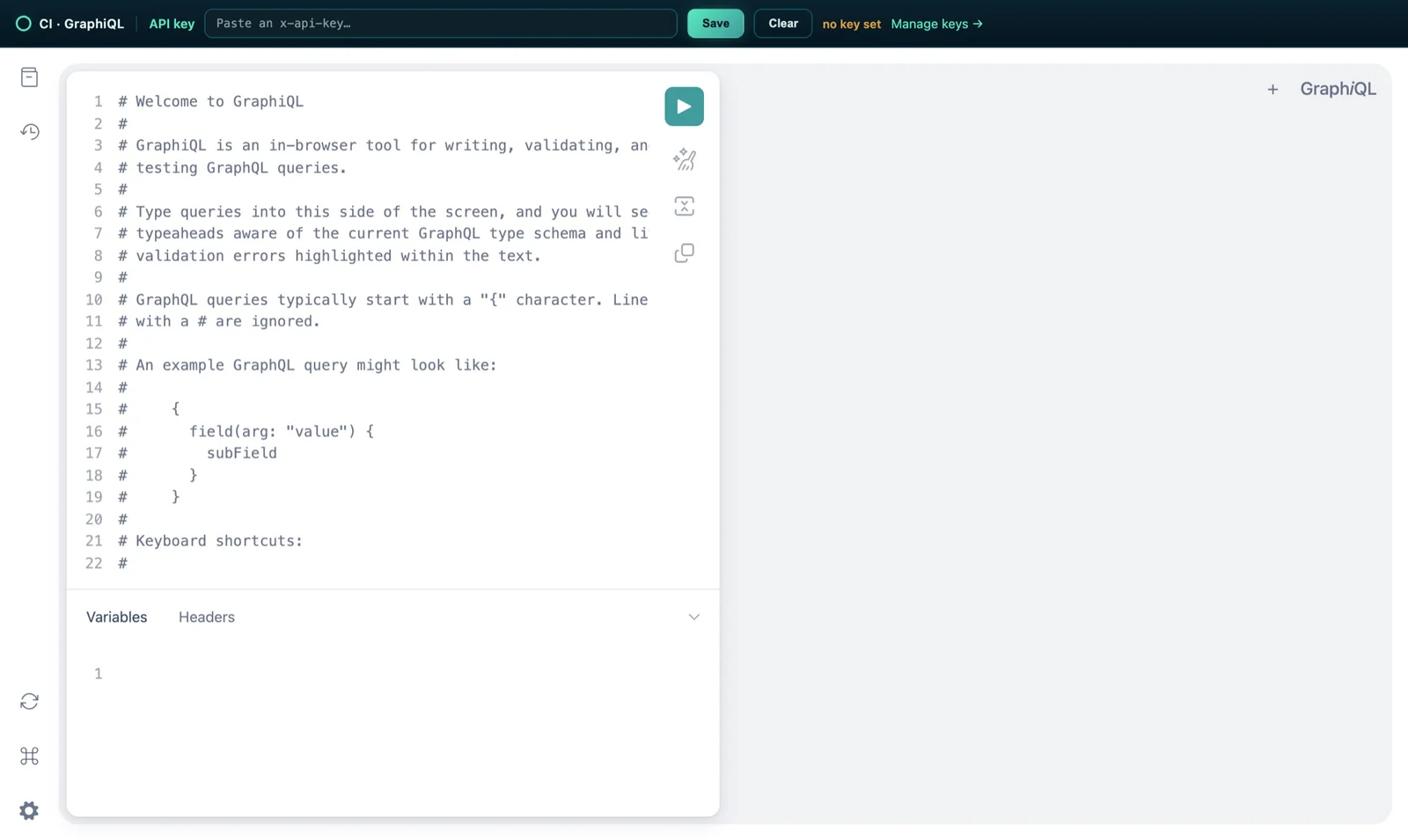
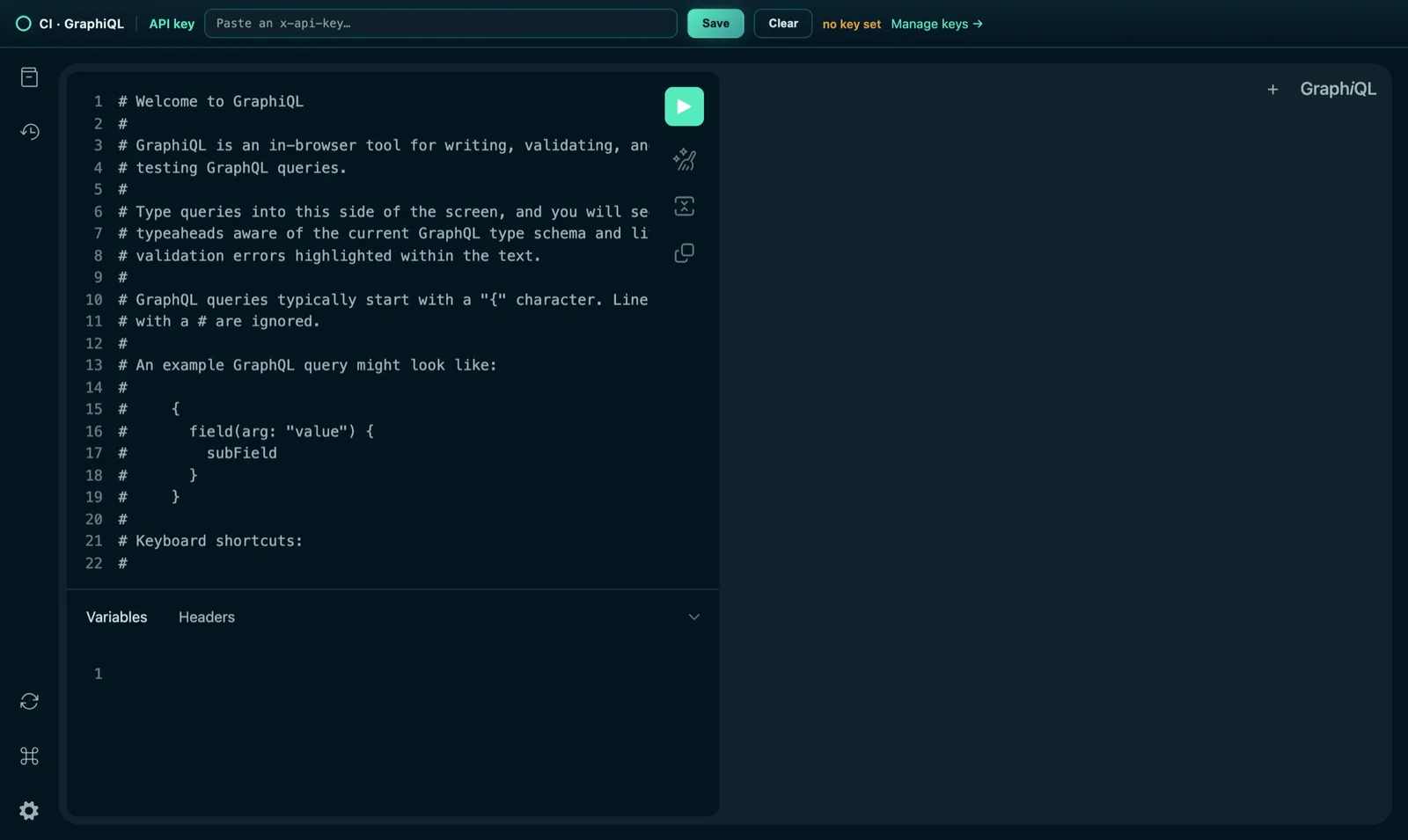
- Create an API key — in the web UI, open Settings → API Keys, click +, name the key, and copy it (it’s shown only once). Leave every scope unchecked: GraphQL declares no scope, so a scope-limited key is refused on every field.
- Open the playground — go to Settings → GraphiQL. It opens the IDE in a new tab (served at
/api/graphiql). - Authenticate — paste your key into the API key field in the top bar and click Save. The status turns to
key activeand the key is stored in your browser and attached (x-api-key) to every request. Use Clear to remove it. - Explore & run — click Docs (top-right) to browse the schema, write a query in the editor, and press the ▶ button to run it. Results appear on the right.
# Your 20 most recent events
query RecentEvents {
  events(first: 20) {
    edges {
      node {
        id
        title
        startTime
      }
    }
    pageInfo {
      hasNextPage
      endCursor
    }
  }
}
List fields use cursor pagination (first/after), so pass the endCursor from pageInfo back as after to page through results.
Agent Integration (MCP)
Connecting an agent you already run? Connect Companion Memory is the full guide — scopes, capability, per-client config, and troubleshooting by symptom. This section is the short version.
Companion Memory speaks the Model Context Protocol over Streamable HTTP at /api/mcp, so any
MCP-capable client — Claude Code, Cursor, OpenCode, OpenClaw, Hermes — can use your memory as a tool
source. Authenticate with the same API key. Companion Memory accepts it either as an x-api-key
header or as Authorization: Bearer — prefer Authorization: Bearer, since Companion Hub accepts
only that form and one pattern then covers both servers.
{
  "mcpServers": {
    "companion-memory": {
      "type": "http",
      "url": "<memory-url>/api/mcp",
      "headers": {
        "Authorization": "Bearer <your API key>"
      }
    }
  }
}
Keep the "type": "http" line. Clients that infer the transport from the URL tolerate its absence,
but Claude Code does not — it skips an entry that has a url and no type, and the server never
appears.
Key scopes
Scopes decide both whether you connect and which tools you see:
| Key | Connects | Tools advertised |
|---|---|---|
| No scopes (full access) | Yes | All — GraphQL-derived and native intents |
| mcp + intents | Yes | Native intents only |
| mcp alone | Yes | None |
| Without mcp | 403 |
A key holding mcp but not intents is the trap: it authenticates, the session opens, and the tool
list comes back empty — which most agents surface as “this server has no tools” rather than as a
permissions problem. Give a scope-limited key both mcp and intents.
A key with no scopes at all also fixes the empty tool list, but it is a
full-surface credential — it reaches GraphQL, bulk ingest, and files.
Capability still applies on every route: anything that changes state needs at
least Read & write, so a “Read-only” unscoped key can query GraphQL but
cannot run a mutation. Prefer mcp + intents unless you specifically need
GraphQL. See the scope
trap.
GraphQL-derived tools are never advertised to a scope-limited key, whatever its scopes; they require
a full-access key. Requests carrying no key at all are rejected with 401.
Troubleshooting
Ingestion pipeline not running Check the container logs in Companion Hub under the Companion Memory app. Ensure the source connector has the correct API key or token configured.
Chat box is disabled, or the model picker reads “No models loaded” Memory has no chat model to talk to. Open Settings → Model, run Test connection, and choose a model. If the test connects but lists no models, pull or expose one in Ollama, vLLM or Companion Hub first. See Give Memory a chat model.
A new person can’t sign up On an appliance that already has an account, sign-up needs an invitation code. The owner creates one under Self → Profile → Invitations → Create an invitation. Each code works once.
Companion Capture or the browser extension can’t sign in, or Memory refuses its token
Both sign in with your CI Account, and Memory checks the token they send. Two server settings control that. PORTAL_OIDC_ENABLED is on by default; set to false, Memory ignores CI Account tokens and both apps are refused. PORTAL_OIDC_AUDIENCE is a comma-separated list of the token audiences Memory accepts. The default includes ci-browser-extension for the extension and ci-applet for Companion Capture, so keep both if you set your own list. Memory also has to match the person. It accepts a CI Account that is already linked to one of its accounts, or one whose verified email address is the email of an account that has not been linked yet. On an appliance that already has an owner, any other CI Account is refused.
Search returning no results Indexing runs asynchronously after ingestion, and after a large import it can lag well behind the data. Text embeddings are built as records arrive, with an hourly sweep as a backstop; the rest of the enrichment runs in a nightly window that opens at 01:00 by default. Open Jobs in the left rail: the dashboard shows what is queued and running, the list filters by state and job type, and History covers the window pg-boss itself no longer retains. If the queues are idle and the results are still missing, the indexing work never got enqueued — check the container logs in Companion Hub rather than waiting longer. There is no in-app “re-index” button.
Nothing to reclaim disk with Stats breaks your memory down by entity type, by tag and by data source, so you can see which source is responsible for the bulk of it — but it counts entities, not bytes, and there is no retention window, pruning rule or per-source storage report in the UI. To cut one off, open it from the connected-accounts list on Sources → Services and Delete the connection; individual objects are deleted from the Explorer’s detail drawer.
Agent not using memory
Verify the MCP endpoint responds from within the Hub network. An unauthenticated request should return 401 — that confirms routing and auth are both live:
curl -s -o /dev/null -w '%{http_code}\n' -X POST <memory-url>/api/mcp \
  -H "Content-Type: application/json" \
  -H "Accept: application/json, text/event-stream" \
  -d '{"jsonrpc":"2.0","id":1,"method":"initialize","params":{}}'
Read the code you get back:
405— the URL is wrong. The MCP server is at/api/mcp, not/mcp.401with a key attached — the key is unknown or revoked. Mint a new one under Settings → API Keys.403— the key is valid but lacks themcpscope.
If the endpoint answers correctly and the agent still ignores memory, check in this order:
- The agent reports the server as connected but empty. The key is missing the
intentsscope — see Key scopes. This is the most common cause. - Claude Code shows no such server at all. Its entry is missing
"type": "http". - Otherwise, open Settings → Agents and check that the agent shows as connected to Memory and running. If it does not, connect it again from its app page in Companion Hub.
Shared link returns “This shared search isn’t available”
The token may have been revoked. Sharing is one of Not shared / Link shared; turning sharing off — then on again — issues a new token, and the old link stops working. Ask the owner to share again; their share modal shows the current link. The link also requires the viewer to be a signed-in user on the same server (shares are signed-in-only, not anonymous).
Shared gallery is blank
The owner’s photo/video event needs to have its media file ingested too (not just the timeline event), and the shared search must include event and file entity types. Open the search via the owner’s Edit modal and confirm the entity types and filters.
Links
- ci.computer/memory — product page
- Browser Extensions
- Importing Your Archives
- Deleting a service’s data
- Asking Other Companions
- Connect Companion Memory — API keys, scopes and per-client MCP setup
- Companion Capture