🌐 Browser Extensions
Bring your web life into your own memory. The Companion Browser Extension captures what you browse, save, read, and watch — and files it into your private Companion Memory, where you and your local AI can search it.
Overview
The Companion Browser Extension is available for Chrome, Brave, Edge, and Firefox. The stores list it as Companion Intelligence. It captures browsing activity and site-specific personal data, and sends it to your own Companion Memory server. A Safari version is not available yet.
What you capture goes to your Companion Memory server and nowhere else. CI-Portal, which signs you in, never receives it. There is no analytics service and no third party in the path, apart from the optional crash reports described in Privacy and permissions.
- Site profiles shipped
- 13
- Streaming, news, work, social, travel, and one finance profile. The finance profile is off and has no switch in the popup yet.
- from Available today
- Places it talks to
- 2
- CI-Portal for sign-in and lookup; your Memory server for storage.
- from Architecture
Key Features
- Browser history sync — page visits with title, time spent, and scroll depth, both live and as a backfill of your existing history
- Bookmarks and downloads — independent switches, off by default
- Save highlights — select text, right-click, and the excerpt is saved with the page it came from
- Site profiles — read your own data out of services that lock it up, like Netflix viewing history or GitHub activity (see below)
- Offline queue — captures that fail to upload are stored locally and retried automatically
- Ignored sites — exclude any site or page from capture entirely
Supported Browsers
| Browser | Status | Install |
|---|---|---|
| Chrome | ✅ Available | Chrome Web Store |
| Brave | ✅ Available | The same Chrome Web Store listing |
| Edge | ✅ Available | The same Chrome Web Store listing |
| Firefox | ✅ Available | Firefox Add-ons |
| Safari | 🔜 Not available yet | The Safari extension is being packaged inside the Memory iOS app, which is in closed preview |
Both stores listed version 1.6.0 on October 3, 2026. This page describes that version.
Use Cases
- Build a searchable, private archive of your browsing
- Ask your local AI “what was that article about X I read last week?”
- Recover what you watched, read, or booked months ago from services that show only a rolling window
- Keep a durable copy of data that lives inside someone else’s account
Architecture
Captures move from the tab to a background worker, queue there, and sync to your server in batches:
flowchart TB
    T["Browser tab<br/>content script: page metadata, scroll depth, selected text, site profiles"]
    W["Extension background worker<br/>classify · batch · retry queue"]
    P["CI-Portal<br/>sign-in (OIDC) · where is my Memory server?"]
    M["Your Companion Memory server"]
    A["/api/v1/browser-activity<br/>visits, downloads"]
    C["/api/v1/contents<br/>bookmarks, highlights, scraped items"]
    F["/api/v1/ingest/finish<br/>makes the batch searchable"]
    T -->|"captures"| W
    W -->|"sign in, look up server"| P
    W -->|"failed uploads retry on the next sync"| W
    W --> M
    M --- A
    M --- C
    M --- F
The extension talks to exactly two places: CI-Portal, to sign you in and to look up where your Memory server runs; and your Memory server, to store what it captures.
Setup
You need a CI Account and a Companion Memory server. If you do not have Memory yet, install Companion Memory on your Hub first.
Install the extension
Chrome / Brave / Edge
Install Companion Intelligence from the Chrome Web Store . Brave and Edge use the same listing. The link is also in Companion Memory under Sources → Devices. Pin the extension to your toolbar so the popup is one click away. Your browser lists the extension’s permissions before it installs; see Privacy and permissions for what each one is for.
Sign in
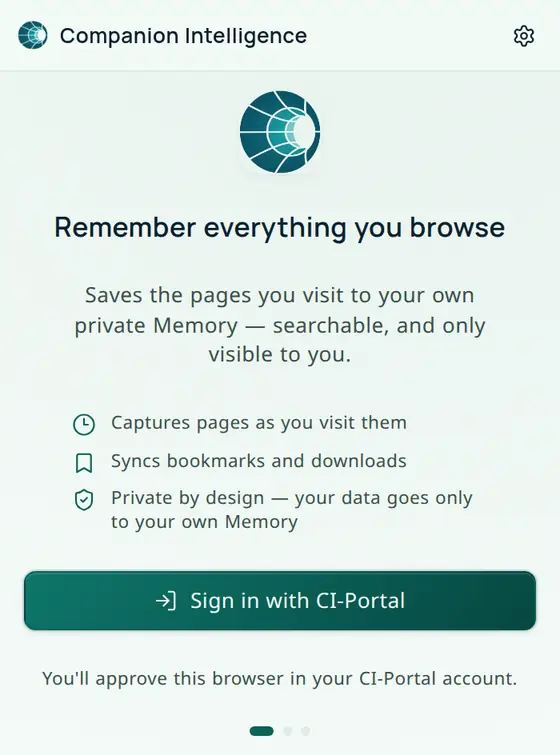
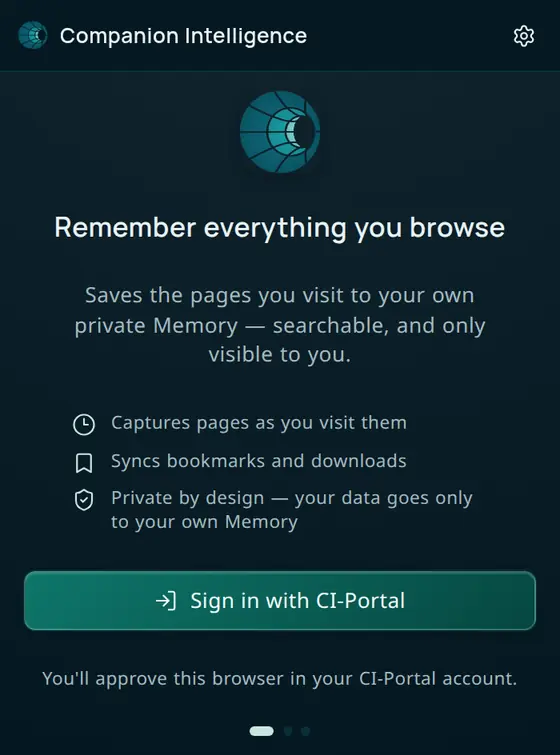
Click the Companion icon in your toolbar. The popup opens on Remember everything you browse. Choose Sign in with CI-Portal. A window opens where you approve this browser in your CI Account; the extension never sees your password. The popup updates by itself when you finish.
Then the popup shows Looking for your Memory… while it asks CI-Portal where your Memory server runs, and configures itself.
- If your account has more than one Memory, Choose your Memory asks which one this browser saves to.
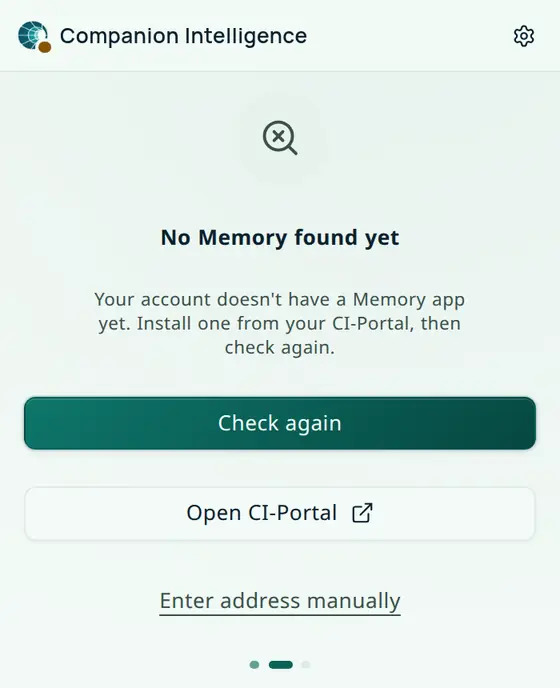
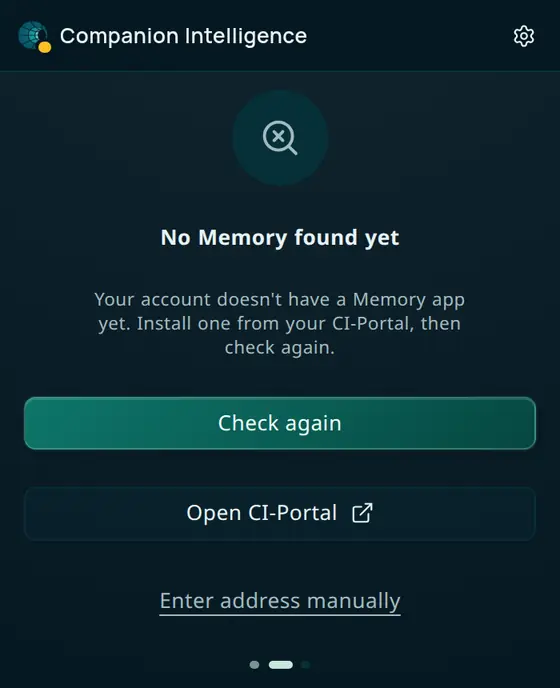
- If your account has none, the popup says No Memory found yet. Install Memory from your CI Account, then choose Check again. Open CI-Portal takes you to your account, and Enter address manually lets you type a Memory address.
In Enter address manually, type a Memory address such as https://memory.example.com. If you leave off the scheme, the popup adds https://. To use a Memory that only answers on plain HTTP, such as one on your local network, type http:// yourself; plain HTTP is not encrypted, so use it only on a network you trust. The message Enter a full web address starting with https:// appears only when the text cannot be read as an address at all; an http:// address is accepted.
You can change the Memory later in Settings → Memory (Find my Memory). A Memory you pick from the list or type in stays put until you clear it: automatic discovery never switches it.
Run the first sync
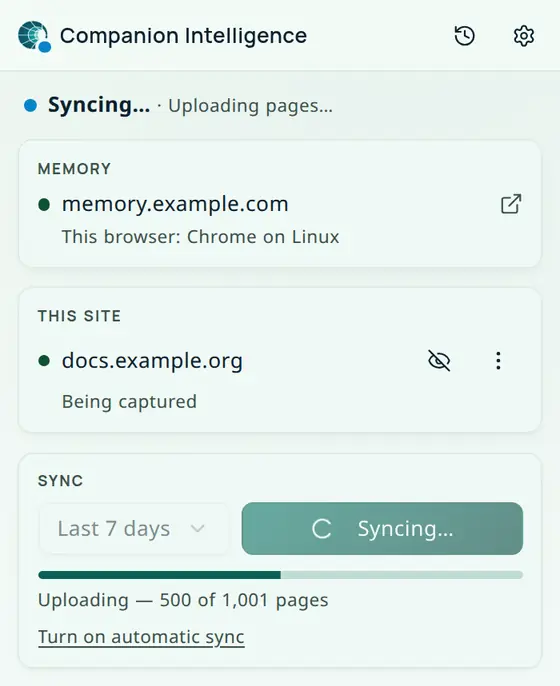
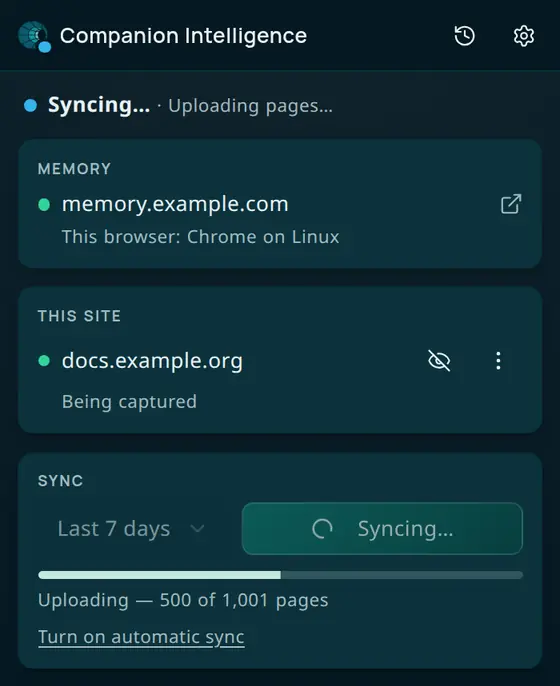
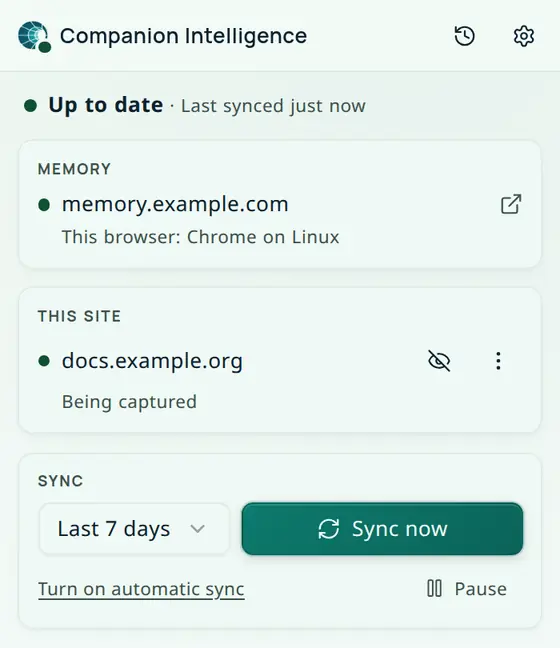
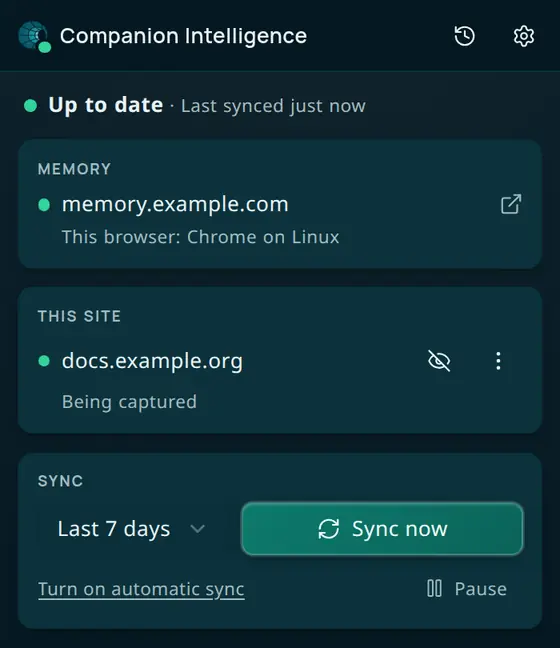
After sign-in, the popup shows your Memory, the current site, and a Sync card. New pages are saved as you browse from this point on; nothing is uploaded from your existing history until you ask.
- In the Sync card, choose How far back to go: Last 24 hours, Last 7 days (the default), Last 30 days, Last 90 days, or Last year.
- Choose Sync now. Sync now is greyed out until the extension has registered this browser with your Memory. The card shows progress, for example Uploading — 500 of 1,001 pages.
- When it finishes, the popup reads Up to date with the last-synced time, and Sync activity (the history icon) lists how many pages synced.
To keep syncing in the background, open Settings (the gear icon) and turn on Sync automatically. It runs every 10 minutes and covers the last 24 hours. Automatic sync is off until you turn it on.
Safari has no history API, so it cannot run a catch-up sync. New browsing is still saved and uploads every 10 minutes.
Choose what is saved
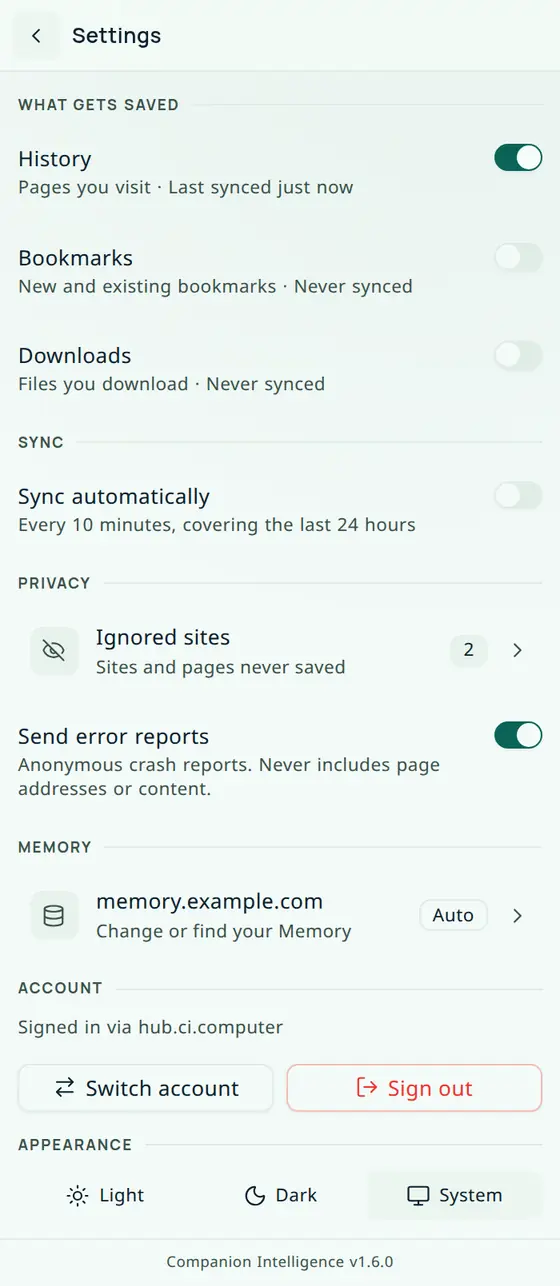
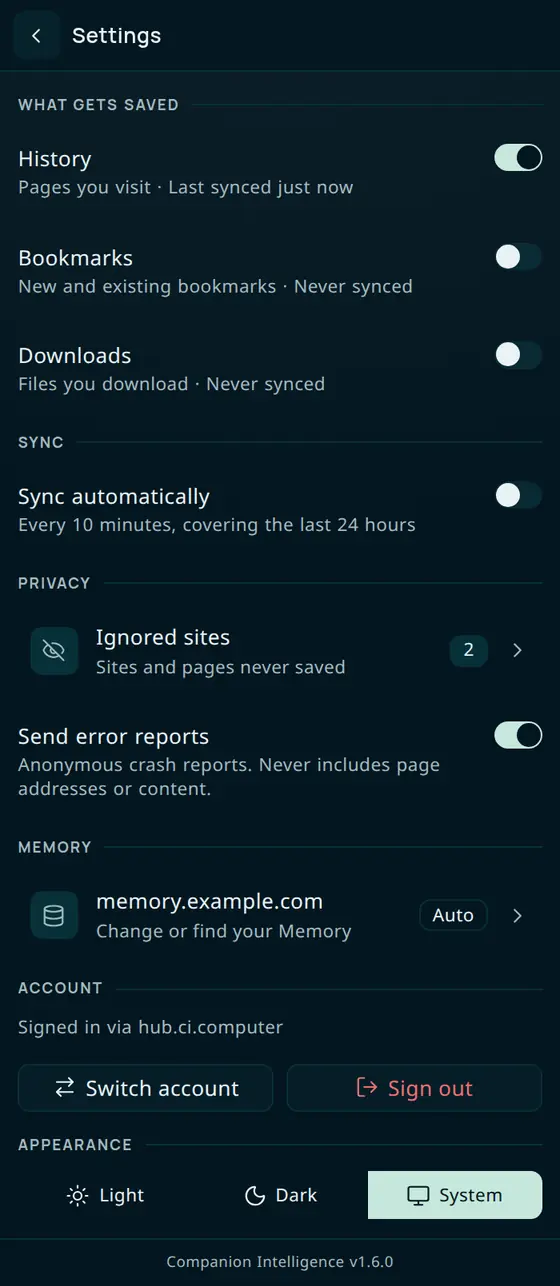
In Settings, under What gets saved, the History, Bookmarks, and Downloads switches are independent. History is on. Bookmarks and downloads are off until you turn them on. Settings also holds Sync automatically, the Ignored sites list, Send error reports, your Memory, Switch account and Sign out, and an Appearance choice of Light, Dark, or System.
Configure privacy rules
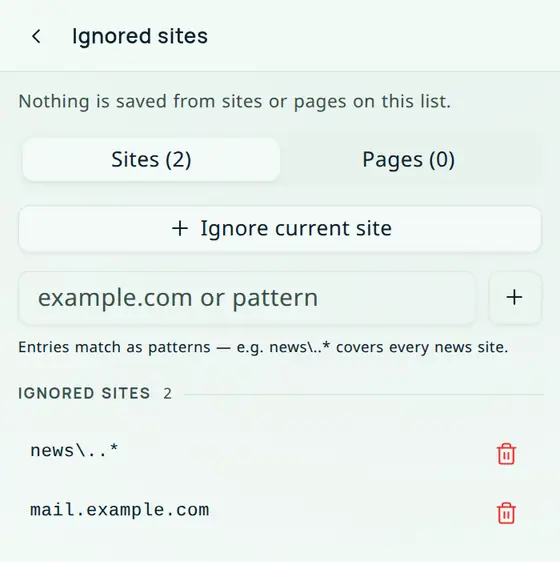
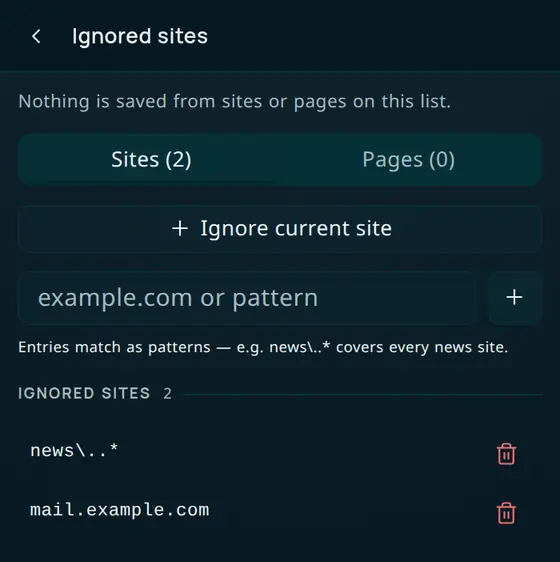
Open Settings → Ignored sites, or use Ignore this site and Ignore this page in the popup’s This site card. The Ignored sites screen has a Sites tab and a Pages tab, with Ignore current site and Ignore current page buttons. Entries match as patterns: news\..* covers every news site. An ignored site is never captured by anything, including site profiles.
What gets captured
Two rules govern everything: your ignored sites always win, and nothing is captured while you are signed out.
From your browser
| Source | Default | What is captured |
|---|---|---|
| History | On | URL, title, visit time, time spent, scroll depth, meta description |
| Bookmarks | Off | URL, title, date added |
| Downloads | Off | URL, filename, size, state, start time |
| Highlights | Always available | Text you explicitly save from the right-click menu, plus the page it came from |
History covers both a live feed as you browse and a backfill of your existing browser history. Backfill preserves the original visit times, so importing on a Wednesday does not make Monday’s browsing look like it happened Wednesday.
Never captured
- Passwords, form contents, and payment fields
- Full page text or HTML — only the title and meta description
- Cookies or session tokens belonging to the sites you visit
- Anything on an ignored site, or anything at all while signed out
Site profiles
Some of the most valuable parts of your history are locked inside individual services. Netflix knows what you watched; your browser history only knows you were on netflix.com. A site profile closes that gap: a small recipe that reads your own data from your own logged-in account and files it into Memory with a meaningful type.
A profile only runs when you are on one of its specific pages (Netflix’s viewing-activity page, not every Netflix page), you are signed in, and the site is not ignored.
Available today
| Category | Sites | What it captures |
|---|---|---|
| Streaming | Netflix, Hulu, Disney+, Max, Paramount+, Prime Video | Viewing history, watchlist, recommendations |
| News & reading | CNN, WSJ, Slashdot | Articles read |
| Work | GitHub | Repositories, issues, pull requests, commits, activity |
| Social | Quora | Questions, answers, who you follow |
| Travel | Airbnb | Trips, wishlist, hosting activity |
| Finance ⚠️ | Robinhood | Portfolio, orders, watchlist — shipped switched off; see below |
Sensitive profiles are opt-in
Profiles marked ⚠️ read data most people would not expect an extension to touch. They are off by default and do nothing until you opt in. The opt-in switch, Include financial accounts, is hidden from the popup in the current release, so the Robinhood profile cannot be turned on yet. It reads nothing in the meantime.
The check happens before the page is read. The extension does not read your brokerage data and then discard it — it does not read it at all unless you have opted in. Any future profile touching balances, health records, or private messages will be gated the same way.
What’s coming, and what deliberately isn’t
The extension exists for the data you cannot get any other way. When a service offers a good bulk export, the better tool is Companion Memory’s built-in data import — an export is more complete than a scraper and doesn’t break when the site redesigns.
That means some obvious candidates are intentionally not on the roadmap. Google and YouTube (Takeout), Spotify, Strava, Goodreads, Steam, X, and Uber all publish good exports. Import those; don’t scrape them.
What we’re building next is the opposite case — services whose export is missing, truncated, or paywalled:
| Next up | Why |
|---|---|
| Kindle highlights | An export exists, but publishers cap it at 10–20% of a book. Your highlights are the most concentrated record of what you actually thought was worth keeping. |
| Travel — Booking.com, Expedia, airlines | No export exists anywhere in this category, and Google removed Timeline’s export. A dated trail of where you were is the backbone of remembering when things happened. |
| Amazon orders | Item-level purchase history — a surprisingly complete record of moves, hobbies, and life changes. |
| Audible | No export at all. What you finished, and when, is otherwise gone. |
| Reddit saved posts | The official export returns bare links with no titles or content. |
| Letterboxd | Dated, rated, reviewed — far richer than a streaming service’s undated title list. Export is paid-tier only. |
| Reservations & events — OpenTable, Resy, Eventbrite | No consumer export. Eventbrite has already deleted pre-2022 order history. |
| Groceries & delivery — Instacart, DoorDash | Item-level food history that nothing else records. |
| Courses — Coursera, Udemy, edX | No consumer export exists. |
Some data is valuable and still not ours to take. We will not ship profiles for LinkedIn or Meta (their terms prohibit extension scraping, and enforcement lands on your account), for banks or credit cards (use CSV import — automated access gets accounts locked), for health portals, or for private messages and employer-owned systems. Messages in particular contain other people’s words, and those people never agreed to be in your memory.
Usage
Saving a highlight
Select text on any page, right-click, and choose Save highlight to Companion Intelligence. The excerpt is stored with the page URL and title. Nothing is captured just because you selected text — saving is always explicit.
Pausing capture
In the popup’s Sync card, choose Pause. Pages you visit are not saved while paused; bookmarks, downloads, and highlights have their own settings. Resume also re-checks your recent history. To stop everything, choose Settings → Sign out: nothing is captured while you are signed out.
Reviewing captured data
Choose Open your Memory in the popup. Everything the extension captures appears in Companion Memory, searchable alongside the rest of your data. To delete data that has already been sent, delete it in Companion Memory; the extension can only add to it.
Privacy and permissions
Your browser lists the extension’s permissions when you install it. Each one is used for one job:
| Permission | Used for |
|---|---|
history | Reading visits for the live feed and the backfill |
bookmarks, downloads | The two optional data types, only when you turn them on |
tabs, webNavigation | Knowing which page is current and when a navigation finishes |
identity | The CI-Portal sign-in window |
contextMenus | The Save highlight to Companion Intelligence menu item |
alarms, storage | Background sync every 10 minutes, and keeping your settings and the retry queue on this browser |
Host access to companionintelligence.com, companionintel.com, and ci.computer | Reaching CI-Portal and your Memory server |
A content script runs on every page you open to read the page title, meta description, and scroll depth. It does not read passwords or form fields, and nothing from an ignored site is uploaded.
The extension has one exception to “your data goes only to your Memory server”: it can report its own crashes to Lifescope’s error-tracking service (Sentry). A crash report holds the error message, a stack trace inside the extension’s code, the extension version, and a label for the task that failed. Page addresses and content are never included. It is on by default in builds that include it, and you turn it off with Send error reports in the popup’s Settings.
Troubleshooting
“No Memory found yet” Your CI Account has no Memory app registered, or CI-Portal could not reach it. Install Memory from your CI Account and choose Check again, or choose Enter address manually and type your Memory’s address.
“Couldn’t register this browser”
The popup signed you in but could not register this browser with your Memory, so Sync now stays greyed out. The popup shows the reason underneath. Check that Memory is running and up to date, then choose Try again. If you typed the address by hand without http:// or https://, the popup used https://; a Memory that only answers on plain HTTP then fails with a network error, so type http:// explicitly.
“We couldn’t reach your CI-Portal to look for your Memory.” The popup cannot reach CI-Portal. Check your connection and try again.
The popup says “Sign-in needed” or “Your session ended” Your sign-in expired. Open the popup and sign in again.
Sign-in succeeds but nothing syncs
Companion Memory accepts CI-Portal sign-in unless it is switched off. If the server rejects the extension’s token with a bare authorization error, check that PORTAL_OIDC_ENABLED is not set to false on your Memory server. If you set PORTAL_OIDC_AUDIENCE, it must include ci-browser-extension.
Pages not appearing in Memory Check that History is on in Settings, that capture is not paused in the Sync card, and that the site is not in Ignored sites. The popup’s This site card says whether the current page is being captured, ignored, or cannot be captured. If you are browsing in a private or incognito window, the extension needs incognito access enabled in your browser’s extension settings. Existing history is not uploaded until you choose Sync now.
A site profile isn’t picking anything up Profiles run only on specific pages — Netflix’s viewing-activity page, GitHub’s profile page, and so on, not everywhere on the site. Sites also change their layout, which can break a profile until its selectors are updated. The Robinhood profile cannot run until the financial opt-in is available in the popup.
Waiting items are not uploading The popup shows Waiting to upload with a count when your Memory could not be reached. Those items retry automatically, with the next sync.
Links
- Chrome Web Store listing
- Firefox Add-ons listing
- Source code: a private repository, not publicly accessible
- Companion Memory
- Companion Capture