🖥️ Desktop Applet
Perceive your desktop, grow your memory. A lightweight menu-bar / system-tray applet for macOS, Windows, and Linux that feeds diff-gated screenshots, activity snapshots, and tracked file edits into your Companion Memory server (CI-Server) over HTTPS.

CI-Applet connects to CI-Server, not Companion Hub. Hub installs and runs Companion Memory in Docker on your appliance, but the applet talks directly to the CI-Server API (screenshots, activity events, file edits). You do not pair the applet to Hub with a device code.
CI-Applet is a Rust tray application built with egui/eframe and tao/tray-icon. It runs three independent capture lanes on one worker runtime and streams everything to your Companion Memory portal over an OIDC-issued bearer token (or a pasted API key). The applet lives in the menu bar or system tray; you interact with it for sign-in, settings, pause/resume, and status checks.
Source: CI-Applet (ci-applet in the monorepo).
What it captures
| Lane | What it records | Ships via |
|---|---|---|
| Screenshots | Primary display on an interval (default every 5 minutes), diff-gated and screensaver-aware | POST /api/files/upload |
| Activity (vizier) | Foreground app and window, working directory, network, filesystem deltas — structured snapshots and JSON patches | POST /v1/events |
| File tracker | Edits in folders you explicitly add — fingerprint, Markdown conversion, durable local queue | POST /v1/events (kind = file_event) |
All three lanes target the same CI-Server origin. Nothing is captured until you sign in; file tracking additionally stays off until you add a watched folder.
Key capabilities
- Diff-gated screenshot capture — configurable interval (default 300s) and diff threshold (default 10%) to avoid uploading near-duplicate frames
vizieractivity perception — cold-start orientation plus livewatch --diffsnapshots via RFC-6902 JSON-Patch envelopes- Opt-in file tracking — add folders to
file_tracker.watched_paths; changes are fingerprinted (SHA-256), converted to language-aware Markdown, and queued - Privacy-first ignores — disableable defaults (
node_modules,.git, build dirs, caches) plus a non-disableable sensitive list (.ssh, keychains,.aws/credentials,.gnupg, password vaults) enforced before any file is hashed - Durable local queue — file events persist in SQLite (
file-tracker-queue.db) and drain with exponential backoff, so a network outage or hard kill never loses a tracked change - OIDC or API key auth — sign in via Authorization Code + PKCE from the tray, or paste a CI-Server bearer token or 64-character API key directly into Settings
--check-serverself-test — reports resolved endpoints, local identity/token state, and a live reachability probe
Optional local vision analysis (activity summary, OCR hints) can run against a separate endpoint (for example LM Studio on localhost). That step is independent of CI-Server ingest.
Supported platforms
| Platform | Status |
|---|---|
| macOS (Intel & Apple Silicon) | ✅ Available — Developer ID signed & notarized |
| Windows (x64) | ✅ Available — per-user installer, Desktop Duplication capture |
| Linux (x86_64) | ✅ Available — .deb / AppImage / Arch package; needs X11 + an AppIndicator tray host |
Use cases
- Give your agent visual context on what you were looking at, without manual note-taking
- Track edits to a handful of project folders so your AI remembers the files you work on, without syncing your whole disk
- Run headless in a container (
--check-server, event ingest) for automation or CI use - Keep capture strictly local-first: nothing is captured until you sign in, and file tracking stays off until you opt in per folder
Architecture
Mac / Windows / Linux Machine
├── CI-Applet (tray)
│   ├── Screenshots ──────┐
│   ├── vizier activity ──┤  OIDC bearer token / x-api-key
│   └── File tracking ────┘
│             │
│             ▼
      Companion Memory (CI-Server)
              │
              ├──▶  POST /api/files/upload   (screenshots)
              └──▶  POST /v1/events          (activity + file_event; /api/v1/events fallback)
Screenshots go to the file upload endpoint; activity snapshots and file-tracking events ride the unified capture ingest endpoint. CI-Server’s canonical route is POST /v1/events; the applet also probes /api/v1/events for older or reverse-proxied deployments. The same server.portal_url works behind a proxy or on a direct CI-Server origin.
Setup
Install CI-Applet
Download the installer for your OS from the CI-Applet Releases page — .dmg, .exe, .deb, .AppImage, or Arch package. Or build from source in the ci-applet repo (cargo build --release && cargo run).
On macOS, grant Screen Recording and Accessibility in System Settings → Privacy & Security when prompted; the applet lives in the menu bar with no Dock icon. On Linux you need an X11 session and an AppIndicator/StatusNotifier tray host (GNOME needs the AppIndicator extension).
Point at your CI-Server
Open Settings from the tray and set Portal URL (server.portal_url) to your Companion Memory server origin — for example https://memory.example.com or http://localhost:62345. Use the server root, not a page route such as /feed.
Sign in
Click Login via … from the tray menu to run OpenID Connect Authorization Code + PKCE — the applet opens your configured oidc.issuer, captures the loopback redirect at http://127.0.0.1:49473/callback, and stores the issued id_token as the bearer credential. Register client id ci-applet at the issuer with that redirect URI.
Prefer not to use browser login? Paste a CI-Server bearer token or 64-character API key into Settings → Identity (API keys are sent as x-api-key).
After sign-in, the applet best-effort registers this machine with POST /api/devices and attaches the returned device_id to ingest payloads.
Verify the connection
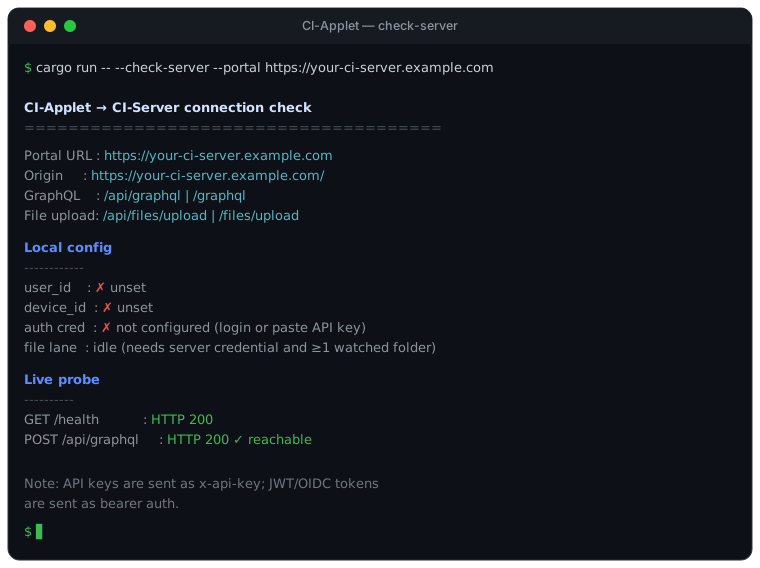
Run the built-in self-test:
cargo run -- --check-server
cargo run -- --check-server --portal https://your-companion-memory.example.com
It reports resolved endpoints, your local identity/token state, and a live reachability probe against /health and GraphQL. Safe to run anytime; it does not mutate server data.
Turn on file tracking (optional)
File tracking is off by default. Add a folder in Settings → File Tracking (or file_tracker.watched_paths in config.json) to start watching it — changes are fingerprinted, converted to Markdown where possible, and queued for sync. Sensitive paths are never tracked; defaults like node_modules, .git, and build directories can be excluded.
Configuration
Settings persist to config.json in the app config directory (macOS: ~/Library/Application Support/com.compint.com.compint/CI-Applet/config.json).
| Field | Purpose |
|---|---|
server.portal_url | CI-Server origin that receives captures |
server.applet_auth_token | JWT bearer or CI-Server API key (set by login or pasted) |
oidc.issuer | OIDC issuer for browser login (optional with API key) |
oidc.client_id | Default ci-applet |
screenshot_interval_secs | Default 300 (minimum 30) |
diff_threshold_percent | Skip frames below this change threshold (default 10) |
file_tracker.watched_paths | Folders to watch; empty = file lane off |
A background task refreshes OIDC tokens before expiry and retries device registration if CI-Server was unreachable at sign-in.
Usage
Reading the tray menu
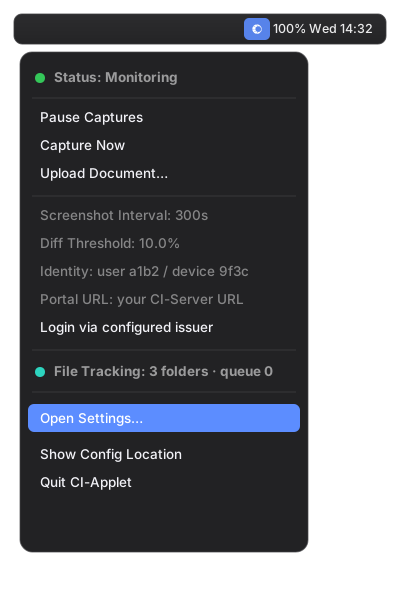
The tray shows live status across all three lanes: a Status line (Monitoring / paused), a File Tracking count of watched folders and queue depth, and quick actions — Pause Captures, Capture Now, and Upload Document… for a one-off manual upload.
Pausing capture
Click Pause Captures from the tray menu to stop screenshots and activity capture. File tracking (if enabled) keeps queuing changes locally regardless, and drains once you resume.
Adjusting screenshot cadence
Open Settings… from the tray to change screenshot_interval_secs (default 300, floored to 30) and diff_threshold_percent (default 10) — the percentage of the frame that must change before a screenshot is uploaded.
Finding your config file
Choose Show Config Location from the tray to open the folder holding config.json — useful for editing file_tracker.watched_paths, ignore_globs, or auth settings by hand.
Troubleshooting
--check-server reports auth as unconfigured
No identity is set yet. Sign in via Login via … in the tray, or paste a bearer token or API key into Settings → Identity.
Applet cannot reach CI-Server
Confirm TLS trust for self-signed certificates, firewall rules, and that Companion Memory is running. The applet probes both /api/... and bare API routes for reverse-proxied deployments.
Screenshots aren’t showing up in Companion Memory
Capture is diff-gated and suppressed while the macOS screensaver is running, so a static desktop can go a while between uploads. Lower diff_threshold_percent or click Capture Now to force one immediately. Confirm server.portal_url points at your CI-Server origin, not a page route like /feed. On macOS, verify Screen Recording permission is granted.
File tracking isn’t picking up a folder
Confirm the folder is listed in file_tracker.watched_paths (empty means file tracking is off) and isn’t excluded by a default or custom ignore glob. Sensitive-path ignores (.ssh, keychains, credential stores) can’t be disabled.
High CPU usage after adding a large folder
The initial scan of a folder with thousands of files can be CPU-intensive; this normalizes once the backlog drains. Exclude high-churn directories (e.g. node_modules, .git, build output) via ignore_globs.
High disk use locally
Screenshots are retained locally until the server acknowledges upload (with configurable age and size caps). File events use a bounded SQLite queue.
Linux tray icon doesn’t appear
You need an AppIndicator/StatusNotifier host — on GNOME, install the AppIndicator extension. The .deb package pulls in the required GTK 3 and libayatana-appindicator3 dependencies automatically.