Get your API keys
You need one key per server, and they come from different places. This is not an oversight — the two credentials answer to different authorities.
| Key | Where it comes from |
|---|---|
| Companion Hub | Hub web UI → Settings → Security, or cihub api-key create on the appliance host |
| Companion Memory | Companion Memory web UI → Settings → API Keys |
Hub gives you both a UI and a CLI because its key is an operator credential — useful to mint from a script on a headless box. Memory’s key is a per-user credential tied to your signed-in session, so the UI is the only route; there is deliberately no memory-side CLI.
Both keys are shown once, at creation. Neither can be retrieved afterwards — if you lose one, mint a replacement and delete the old one.
Both servers issue a key as 64 lowercase hexadecimal characters with no
prefix, so a3f9… and nothing else. Companion Memory refuses any value that
is not exactly that shape with a plain 401 before it looks the key up, and
Hub answers Invalid API key. A trailing space, a doubled Bearer, or a key
cut short in the copy all fail the same way. The short prefix in a key list —
5 characters on Memory, 8 on Hub — only identifies a key; it is never enough
to use.
The Companion Hub key
From the web UI
Open the Hub dashboard and go to Settings → Security. The API keys card is the last card on the page. Create key opens the Create an MCP API key dialog, which asks for three things:
- Name — a label that identifies the client, such as
laptop-claude-code, so you can revoke it precisely later. - Scope — leave MCP selected. An Inference key is for editors and SDKs that use your Hub as an OpenAI-compatible endpoint, and it reaches no MCP tools, so it cannot connect an agent. (Older Hub releases have no Scope choice and always create an MCP key.)
- What this key can do with Hub tools — Read-only, Read & write (the default), or Read, write & delete. Only an organization owner or admin can choose Read, write & delete. See Choosing a capability.
The raw key is shown once, with a Copy key button.
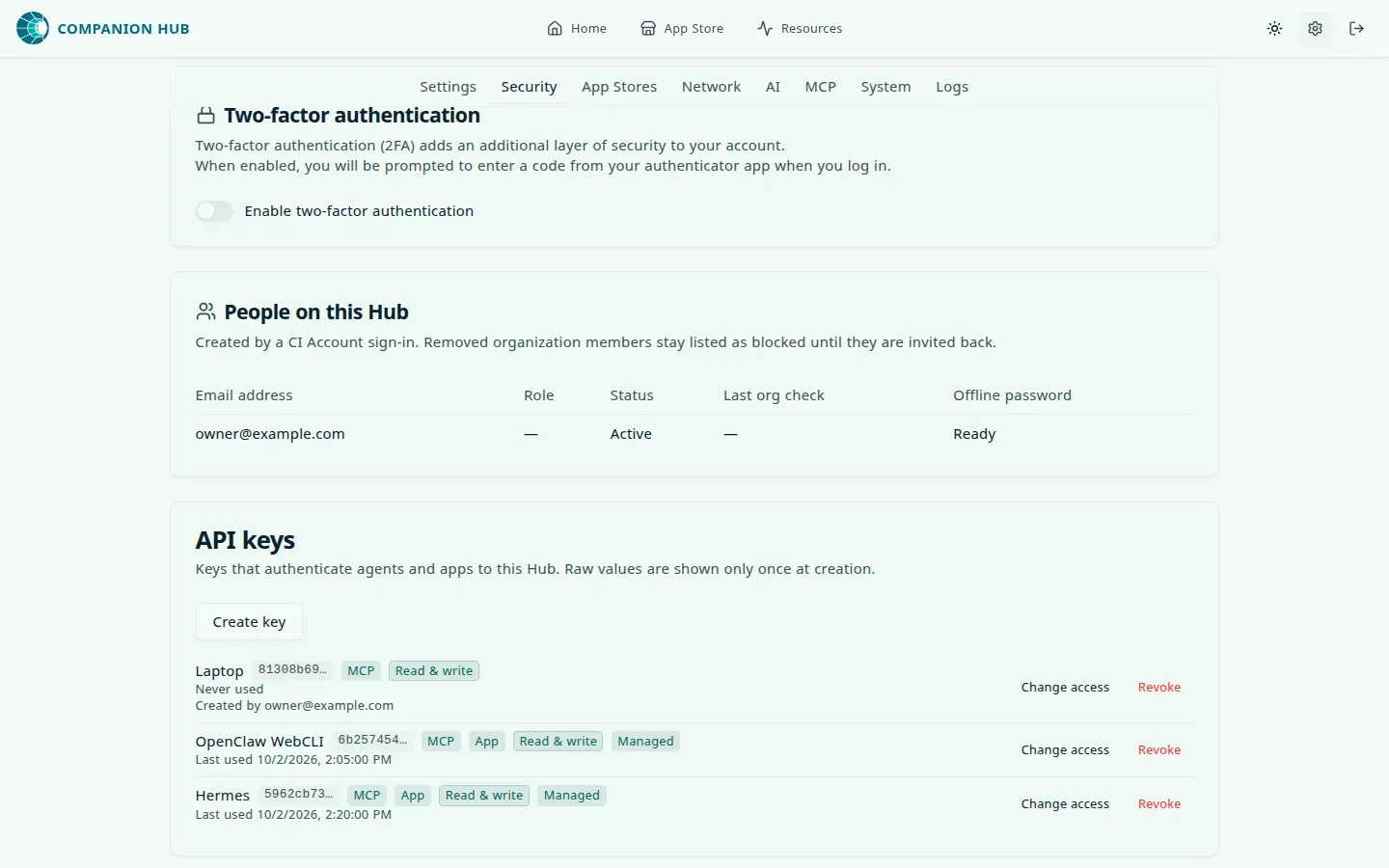
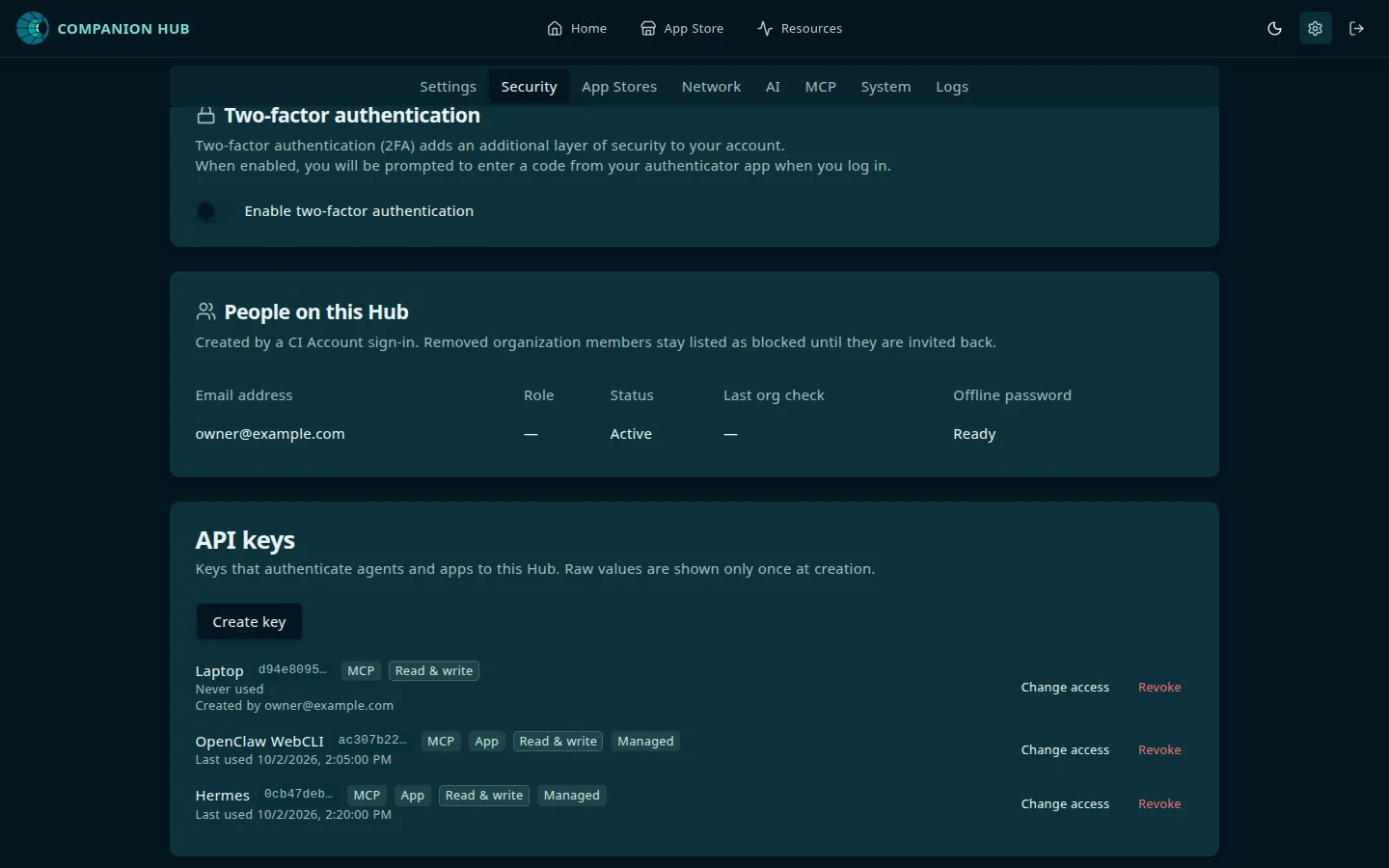
Each row shows the key’s prefix, carries its scopes and capability as chips, and says when the key was last used and who created it. Change access adjusts the capability — scopes are fixed at creation and render as read-only badges. Revoke deletes the key.
A key created in Settings → Security acts with the app grants and role of the person who created
it, so a household member’s key cannot reach apps that person cannot. A key created with
cihub api-key create records no creator and shows Creator unknown; it is bounded only by its
capability. To limit a key to one person’s access, create it in the dashboard while signed in as that
person.
From the CLI
Run this on the appliance host, not on the machine running your agent:
cihub api-key create --name "my-laptop-openclaw"The full form, if you want to be explicit:
cihub api-key create \
  --name "my-laptop-openclaw" \
  --scopes mcp \
--capability read| Flag | Values | Default |
|---|---|---|
--name | any label | required |
--scope, --scopes | mcp, qa:read, inference | mcp |
--capability | read, write, full | write |
--scope and --scopes are the same flag, so give one. Use mcp for an agent: qa:read is a
read-only credential for test harnesses and monitors, and inference is for editors that use your Hub
as an OpenAI-compatible endpoint. Each of those two must be the only scope on its key, and a key with
inference refuses --capability write and --capability full.
List what exists — this prints IDs, names, scopes, capability and a key prefix, but never the key itself:
cihub api-key listHub’s MCP server is enabled by default. If a key connects but the endpoint
refuses, check cihub mcp config — someone may have set MCP_ENABLED=false.
The Companion Memory key
Open Settings
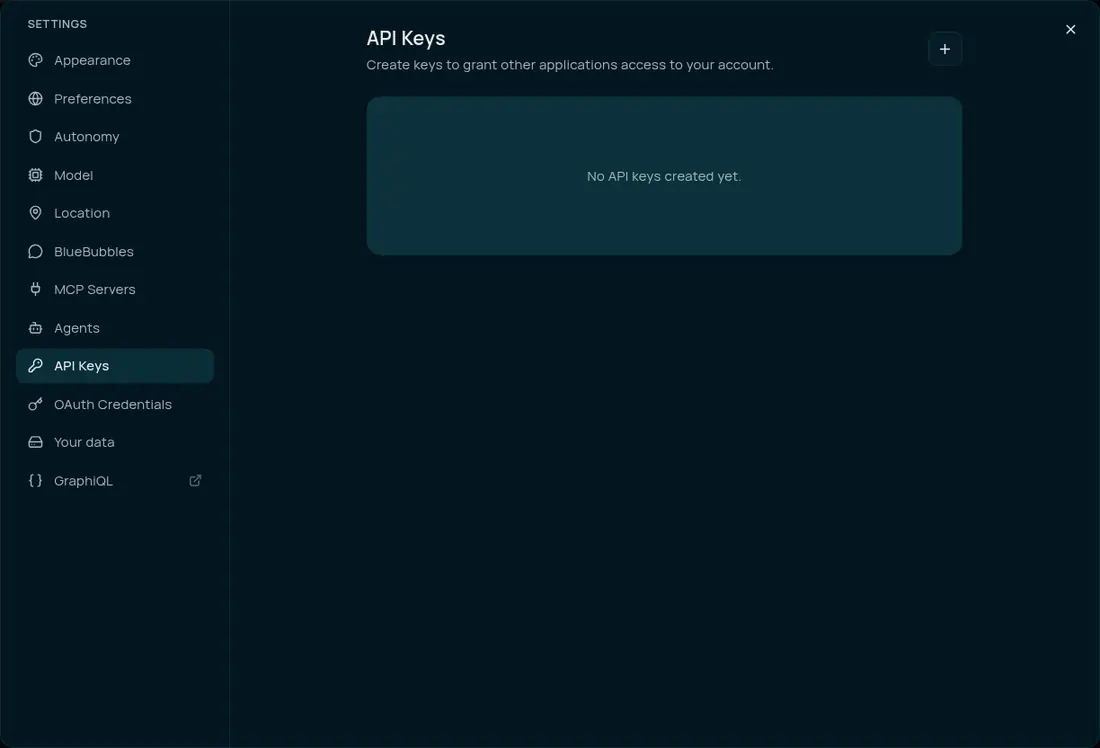
Sign in to Companion Memory and go to Settings → API Keys. The create control is the + button
in the top right of the panel, not a labeled button in the empty state.
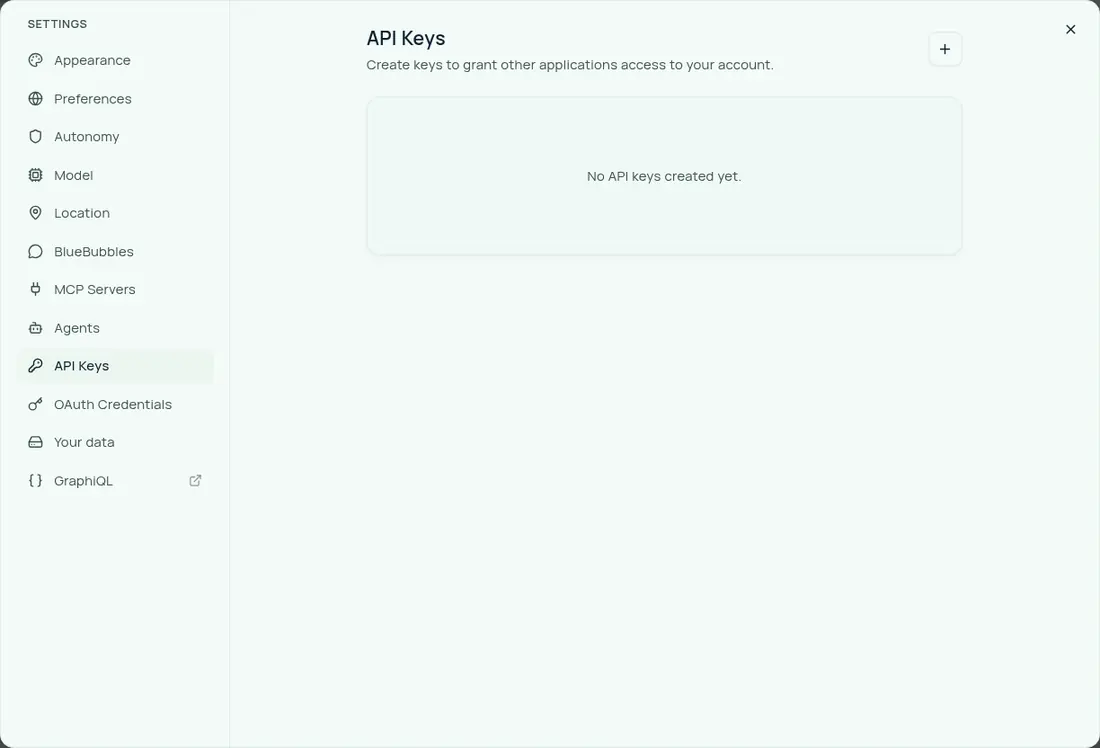
Name, expiration, access and capability are all fields of the same dialog — you fill them in
before the key exists, not after. Expiration is optional; an expired key is refused with a plain 401
that does not say it expired, so set a date only if you will remember to replace the key.
Name it
Give it a name that identifies the client you are connecting, so you can revoke precisely later.
Tick the areas it may reach
The scope checkboxes are grouped under Access. For MCP you must select both MCP and
Intents. See the scope trap below — this is the single most
common setup mistake.
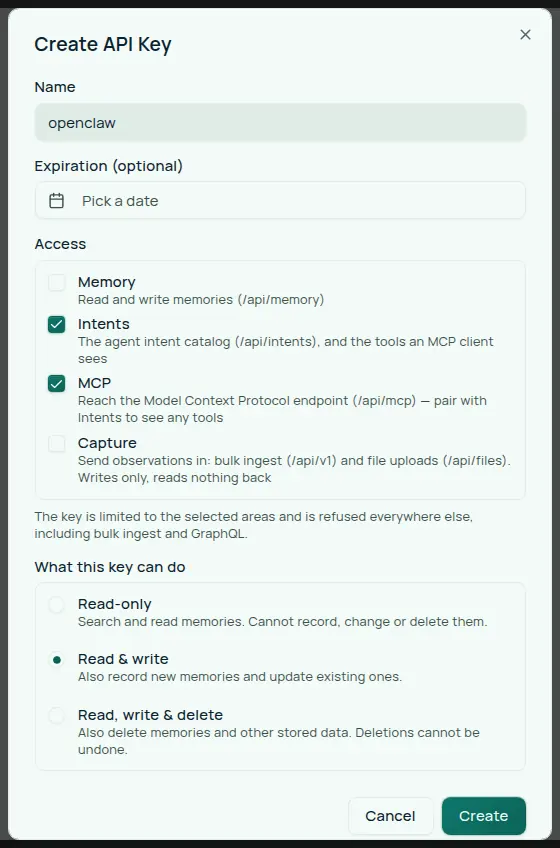
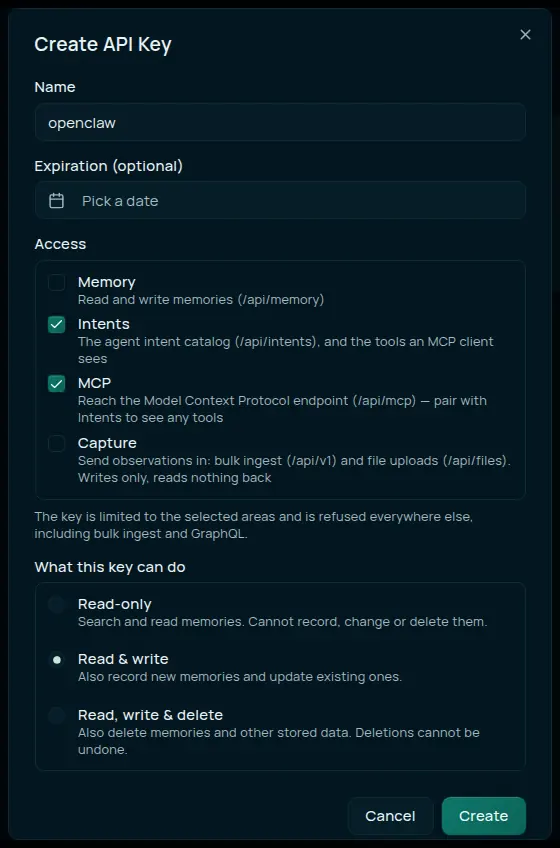
The dialog warns about both traps itself: the MCP checkbox reads “pair with Intents to see any
tools”, and the note under the group confirms the key “is limited to the selected areas and is
refused everywhere else, including bulk ingest and GraphQL.”
Add Memory if you use the key for anything beyond MCP — including
first-class memory: the passive-capture provider
talks REST, so a key without Memory is refused on every call it makes, silently. Ticking those
three (Memory, Intents, MCP) yields one key that covers both the MCP setup and the provider.
The fourth checkbox, Capture, is for a different kind of client entirely — a capture agent that
streams observations in and reads nothing back. Leave it unticked for an agent setup; see
Scopes below for what it opens.
Get this right the first time. Scopes cannot be changed after creation — the edit dialog offers only the name and the capability. A key with the wrong access has to be replaced.
Choose a capability
Under What this key can do, the dialog labels these Read-only, Read & write, and
Read, write & delete — the same three levels this page calls read, write, and full. See
Choosing a capability.
The dialog starts on Read & write, as in the screenshot above. For a client whose job is recall, change it to Read-only — that is a deliberate step, not the default. The exception is a key for first-class memory: passive capture writes, so that key must stay on Read & write — on a Read-only key, recall works and every capture is silently refused, which looks exactly like a healthy setup that never remembers.
Create it, and copy the key
The key is shown once, on submit, under “Your new API key has been created” — and the panel tells you plainly that “the key value won’t be shown again.” Store it in your password manager or export it as an environment variable now.
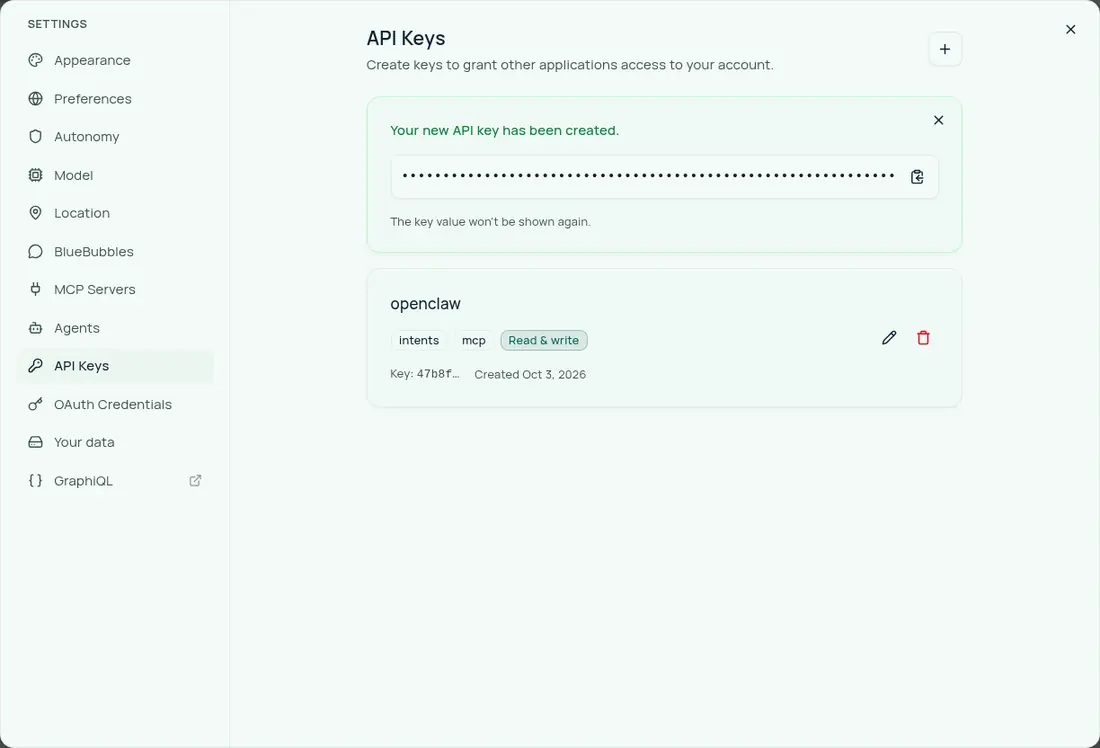
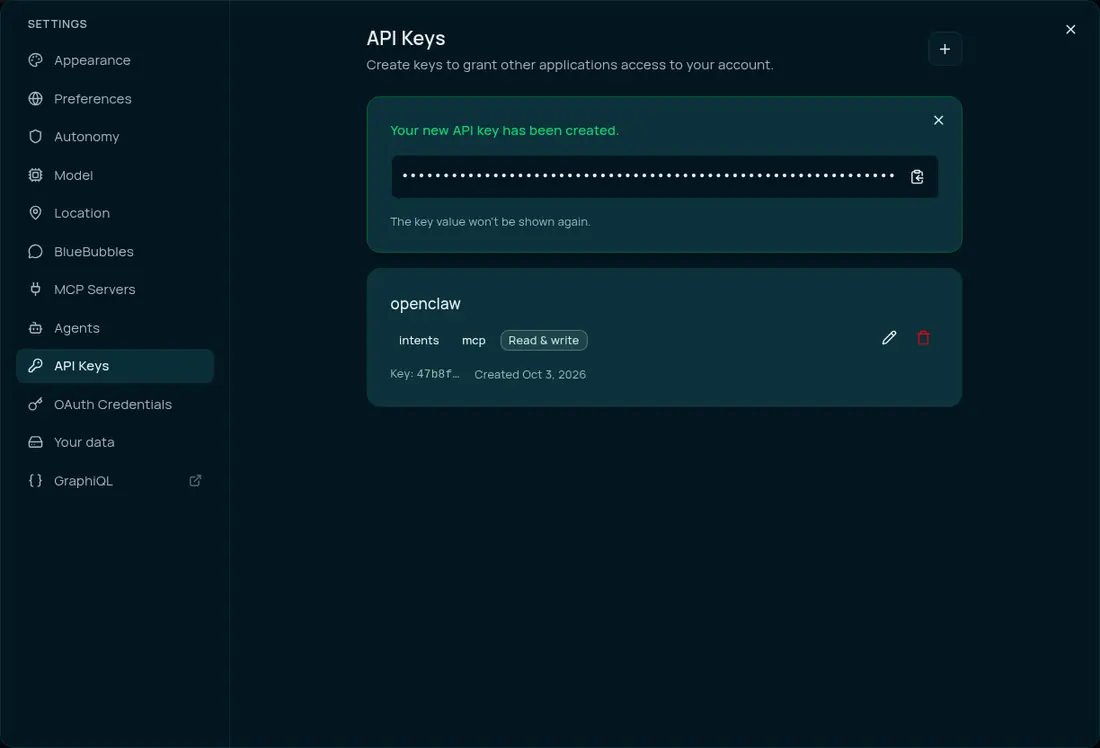
Once you dismiss that banner the key row keeps only a short prefix alongside its scope chips and its capability. Enough to identify the key, never enough to use it.
Scopes: which surface the key opens
Scopes say where a key may go. They are not the same thing as capability, which says what it may do once it gets there.
| Scope | Opens |
|---|---|
MCP | The Model Context Protocol endpoint at /api/mcp |
Intents | The agent intent catalog — and the tools an MCP client can see — and the pending-action routes (/api/pending-actions) |
Memory | The memory REST API (/api/memory/*) — recall, context, write, turn, compact — plus /api/v1/intelligence/* and the agent job routes (/api/v1/agent/jobs) |
Capture | The write-only observation plane: the /api/v1 bulk-ingest routes (not /api/v1/files, /api/v1/ingest/* or /api/v1/intelligence/*) and /api/files upload/update |
Capture exists for capture agents — Companion Capture, the browser extension — that stream what
they saw in and read nothing back. It deliberately does not open /api/memory/*, GraphQL, or the
maintenance routes.
The grant is narrower than the /api/v1 prefix suggests. It is declared on the v1 controller
itself, so a Capture key opens exactly its ingest routes — /api/v1/events,
/api/v1/communications, /api/v1/contents, /api/v1/things, /api/v1/browser-activity,
/api/v1/notes, /api/v1/positions, /api/v1/receipts, /api/v1/product-models,
/api/v1/observations, and /api/v1/inventory, a deprecated alias of /api/v1/things — plus POST /api/files/upload and PATCH /api/files/:id. The sibling mounts
under /api/v1 sit outside that grant and 403 a Capture key: POST /api/v1/files (the batch
upload lane), POST /api/v1/ingest/finish and GET /api/v1/ingest/status declare no scope at all,
and /api/v1/intelligence/* requires Memory.
The ingest-lifecycle pair is the one that bites. A bulk load is three steps — push the batches, then
POST /api/v1/ingest/finish to run the enrichment and search-index backfill the push deliberately
deferred, then poll GET /api/v1/ingest/status until the queue drains. A Capture-only key can do
step 1 and neither of the others, so the rows land and nothing ever indexes them. Steps 2 and 3 need
a key with no scopes ticked, or a signed-in session.
The scope trap: MCP without Intents
A key with MCP but not Intents authenticates successfully, opens a session, and then advertises
zero tools. Your client reports a connected server with nothing on it, which looks exactly
like a broken server and is not one.
Measured against a live instance: MCP alone advertises no tools at all — tools/list answers
-32601 Method not found, because nothing was ever registered. Adding Intents fixes it. See
the full table, which also shows how
capability changes the count.
Different jobs need different scopes. If you are wiring MCP and want your agent to reach the
memory REST API, you need MCP + Intents + Memory. A key minted for MCP alone connects over
MCP and returns 403 on every /api/memory/* request.
Start from the job and read off the boxes to tick:
flowchart LR
    Q{"What will this key do?"}
    Q -->|"MCP tools only"| A["MCP + Intents"]
    Q -->|"MCP tools and the memory REST API"| B["MCP + Intents + Memory"]
    Q -->|"First-class memory provider<br/>(passive capture)"| C["Memory + Intents + MCP<br/>at Read & write"]
    Q -->|"Stream observations in,<br/>read nothing back"| D["Capture"]
    Q -->|"GraphQL or the graph routes"| E["No boxes ticked —<br/>a full-access key"]
Scopes are not additive permissions — enforcement is deny-by-default. Only
those four surfaces declare a scope at all, and a key with any box ticked is
refused everywhere no scope is declared: GraphQL, the graph routes, the
batch-upload lane, and the /api/v1/ingest/* lifecycle routes. So MCP +
Intents + Memory is not “the maximal key” — it is narrower than leaving
every box unticked. An unscoped key is the only one that reaches those
remaining surfaces, and it is full-access by construction.
Choosing a capability
Capability says what a key may do on the surfaces its scopes opened. It is a separate axis, and every key has one.
| Capability | Reaches | Use it when |
|---|---|---|
read | Read-only tools. Nothing it calls changes state. | The agent’s job is recall, search, and inspection |
write | Plus mutating tools — install, start, stop, restart, record. Default. | The agent should manage apps or record memories |
full | Plus destructive tools — uninstall, reset, update an app, restore or delete a backup, change an app store, bulk actions. | You specifically want the agent to be able to remove things |
Prefer read unless you want the agent changing things. A key that only needs to recall memories
does not need permission to uninstall your apps, and a key pasted into a third-party client is a key
you no longer fully control.
Capability also filters what your agent sees. A read key’s tools/list returns only the tools it
could actually call, so the agent never wastes a turn on a tool that was always going to be refused.
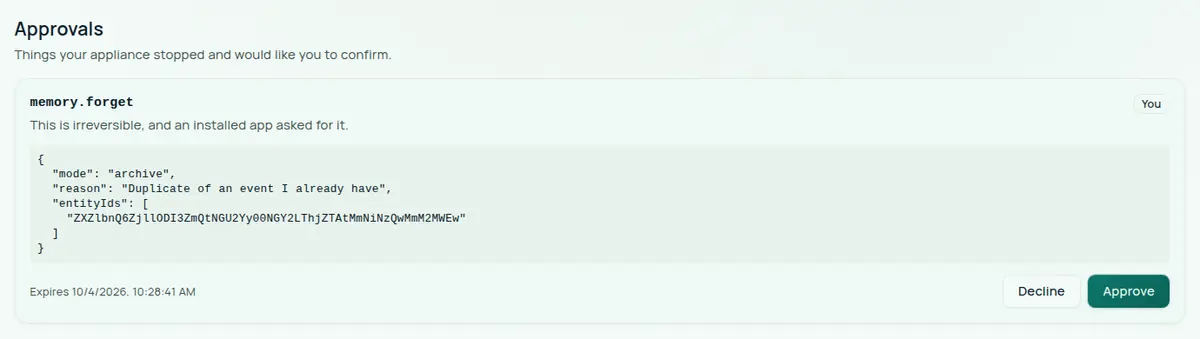
A full key still waits for Approvals
Capability decides which tools your agent can call. It does not decide whether
Companion Memory runs a risky one without asking you. A tool that deletes data or
sends something outside the appliance — memory_forget, messaging_send,
planning_completeTask, import_import_inbox — is held for your approval when
Settings → Autonomy is Balanced (the default) or Cautious. Memory
queues a card under Approvals and answers the client with the error code
TOOL_QUEUED and a pendingActionId. The call runs once you approve the card,
and a card nobody answers expires after 24 hours. Tell your agent to report that
the call is waiting for approval rather than retry it. Hands-off runs these
calls without asking, except for a key that Hub minted for an installed agent app,
which is always asked first.
This covers the curated intent tools. The GraphQL-derived tools that a key with no
scopes also sees are checked against capability only, so a full key can change or
delete through them without a card. Give an unscoped key the lowest capability that works.
read with no scopes selected
On Companion Memory v2026.9.28.1 and later, capability is enforced on every route a key can reach.
A route that declares a level requires it, and a route that declares nothing requires what its shape
implies: a GraphQL mutation or any request that is not GET needs write, and a query or GET needs
read. So Read-only holds for a key with no scopes selected too. Scopes add something else — they
confine the key to particular areas.
On earlier releases the rule was opt-in per route. GraphQL, the POST /api/v1/files batch upload,
/api/v1/ingest/*, the maintenance routes, and the graph and import routes declared neither a scope
nor a capability, so a read key with no scopes reached them with nothing checking what it did. If
you cannot upgrade, select the areas the key needs rather than leaving them all unchecked.
The two app-proxy tools are gated differently
hub_call_app_api proxies an HTTP call to an app, so what it does depends on the arguments. It
appears in every capability’s tool list and the decision is made per call from the method.
The dividing line is narrower than it looks: only GET, HEAD and OPTIONS count as reading.
Everything else — POST, PUT, PATCH, DELETE — is treated as destructive and needs full.
So a write key can see this tool and use it to read, but is refused for every mutating method, the
same as a read key. An unrecognised or missing method counts as mutating.
If your agent needs to drive an app’s HTTP API beyond reads, full is the only capability that
works.
hub_call_app_tool is gated the other way. A bridged tool’s effect is opaque to the Hub, so it is
flagged destructive outright rather than judged per call — only a full key sees it. If your
agent needs to call tools on an app’s bridged MCP server, read and write do not work.
Changing a key later
You do not need to replace a key to change what it can do — but where you do it differs by server.
Companion Memory
In Settings → API Keys, edit the key and change its capability. Raising a key’s authority asks for confirmation; lowering it does not, so tightening a key is never harder than loosening one.
Revoking
Revoke a memory key from Settings → API Keys with the delete icon on its row, and a Hub key from Settings → Security with Revoke. Because keys are per-client if you minted them that way, revoking one leaves your other clients working.