📱 Mobile App
Your memory in your pocket. Native iOS and Android clients for your own Companion Memory appliance — browse, capture, and keep working when the network doesn’t.
The Companion mobile apps are in closed preview and are not in the App Store or Play Store yet. Ask the Companion Intelligence team for a preview build.
The app formerly documented here as “CI Connect” is retired. Its repository was archived, and mobile now ships from the Companion Memory codebase as two independent apps — one for iOS, one for Android. They are clients of your Memory server, not remote controls for the Hub.
This page is about the Companion Memory apps. A separate mobile app for the Hub itself — sign in to your CI Account, pick one of your Hubs, and manage it from the phone — is in development and is not available yet in the App Store or Play Store. It is a different app from the two described here. This page will link to it when there is something to install.
Which mobile app to install
| You want to | App | Availability |
|---|---|---|
| Browse, search, and capture into your Companion Memory from a phone | Memory — the two apps on this page (com.companionintelligence.app on iOS, com.ci.memory on Android) | Closed preview |
| Manage your Hub from a phone | Companion Hub mobile app (a Tauri app that signs in to your CI Account and picks a Hub) | Not available yet |
On your phone, the app is named Memory.
Overview
Both apps are thin native shells (Capacitor) around the same web interface Companion Memory serves in the browser — there is no separate mobile UI codebase, so what you see on the phone is the app you already know. What the native shell adds is everything a browser tab cannot do: a durable outbox that holds notes and location fixes while you are offline, an on-device replica of recent notes and messages, optional location capture, and OS-level secure storage for credentials.
Each app points at a server you own. On the same network it talks to your appliance directly; from elsewhere it reaches it over whatever remote access you set up for your Hub — a private VPN such as Tailscale, or the Cloudflare tunnel provisioned through your CI Account.
Key Features
- Your whole memory, on the phone — the same Explorer, Today, Chat, and Sources surfaces the web app has
- Capture — photos, video, audio, files, and quick notes straight into your memory
- Offline-first — for notes and location — an encrypted on-device outbox holds notes and location fixes until the appliance is reachable again. Photo and video capture is not queued: media uploads straight to the appliance and needs it reachable
- On-device working set — where the appliance has PowerSync enabled (off until it is configured), a rolling window of recent notes, messages, threads and file metadata (last 14 days by default) syncs to the phone. It is a replica, not yet a read path — the browse screens still query the appliance; Settings → Your data shows its size and can clear it
- Connection-mode indicator — the app tells you whether you are on the appliance (Connected, shown as a green dot with no visible label), on the on-device fallback (On this phone — the local sidecar that holds the outbox is up, though it does not serve your memory back yet), on a saved copy (Offline copy — nothing answers, so you see what was saved on the phone), or on nothing at all (Not synced yet)
- Optional location tracking — off until you choose a mode in Settings → Location: While using records location fixes into your memory’s timeline while the app is open, and Always also records in the background
- Safari extension (iOS) — the iOS app bundles Companion Memory for Safari, which saves pages you visit to your Memory server. Settings → Safari in the app shows how to turn it on. See Browser Extensions
- Secure credentials — the app holds a per-device API key in the OS secure store, not a password
- Push registration — the device registers its push token with your appliance and, when that appliance is configured with a Portal push relay, the token is forwarded to your CI Account (the APNs/FCM keys live there, never on the LAN box). No relay is configured by default, in which case only local notifications work
On-device chat is an early preview, and on-device speech has no screen yet. In the iOS and Android apps, Settings → On-device model can download a small language model from Hugging Face to the phone and lets you choose when chat uses it: Always use my Companion, Use my Companion, fall back to this phone, or Always answer on this phone. The model list depends on the phone’s memory: Qwen3 0.6B (about 340 MB, needs 4 GB of RAM) and Qwen2.5 1.5B Instruct (about 1.6 GB, 6 GB) on iOS and Android, and Gemma 4 E2B (about 2.6 GB, 8 GB) and E4B (about 3.7 GB, 12 GB) on Android only. The feature has not been verified on a physical phone yet. Dictation and read-aloud exist as native plugins, but no screen uses them.
Supported Platforms
| Platform | Status |
|---|---|
| iOS 15.5+ — iPhone only | 🔄 Closed Preview |
| Android 6.0+ (API 23) | 🔄 Closed Preview |
Some pieces need newer OSes than the app itself does: the Siri / Shortcuts / Spotlight actions are gated to iOS 16+ (on iOS 15 they are simply absent), and Android’s on-device model feature needs Android 8.0 (API 26) or newer, where the rest of the app still works on older devices. Each on-device model also needs a minimum of RAM and free storage; the app shows why a model is unavailable on your phone.
The iOS app is built iPhone-only (TARGETED_DEVICE_FAMILY = 1). It runs on
iPad in Apple’s iPhone-compatibility window, which the mobile layout is
designed for — but there is no native iPad layout.
Use Cases
- Browse your Companion Memory and ask questions of your agent while commuting
- Capture photos, video, or a quick note that flows into your local Companion Memory
- Keep taking notes with no signal and have them land when you’re back on the network
- Turn location tracking on so your notes, photos and events land on a map — While using records while the app is open, and Always records in the background
Architecture
The shell is thin by design: the screen you see is the web app, and the native layer sits between it and your appliance. The dotted edges are the only two things that touch Companion Intelligence infrastructure.
flowchart TD
    subgraph APP["Companion app — a Capacitor shell on the phone"]
        UI["The @ci/fe-web interface<br/>the same web app Companion Memory serves in the browser"]
        NATIVE["What the shell adds<br/>camera / media capture · encrypted outbox (notes + location fixes) ·<br/>PowerSync local replica (sync only, not a read path) · API client (x-api-key) · OS secure store"]
        UI --- NATIVE
    end
    NATIVE -->|"direct on the LAN, or over your VPN / CI Account tunnel when remote"| MEM["Companion Memory — your appliance<br/>timeline, entities, search · agents & chat · import & connectors"]
    NATIVE -.->|"setup only: sign in and list the Memory Servers you own"| PORTAL["CI Account (Portal)<br/>hub.ci.computer"]
    MEM -.->|"push token, only when a Portal push relay is configured"| PORTAL
Your memory data never routes through Companion Intelligence infrastructure. Two things do:
- Setup. The default connect flow signs in against your CI Account’s Portal (
hub.ci.computerin production builds) and lists the Memory Servers you own from there. A Memory Server address typed by hand cannot pair a new phone; once you pick a server, every request goes to your appliance. - Push. If your appliance is configured with a Portal push relay, it forwards the device’s push token there, because APNs and FCM keys cannot live on a self-hosted box. With no relay configured — the default — the token stays on the appliance and only local notifications work.
Setup
Have a Memory server
Install Companion Memory on your Hub first — the app is a client and has nothing to show without one.
Set up remote access (optional)
If you want the app to work away from home, pair your Hub with your CI Account or bring up Tailscale first. See CI Account documentation.
Install the app
Once your preview access is approved, the Companion Intelligence team sends you install instructions. The app has no App Store or Play Store listing yet.
Connect it to your server
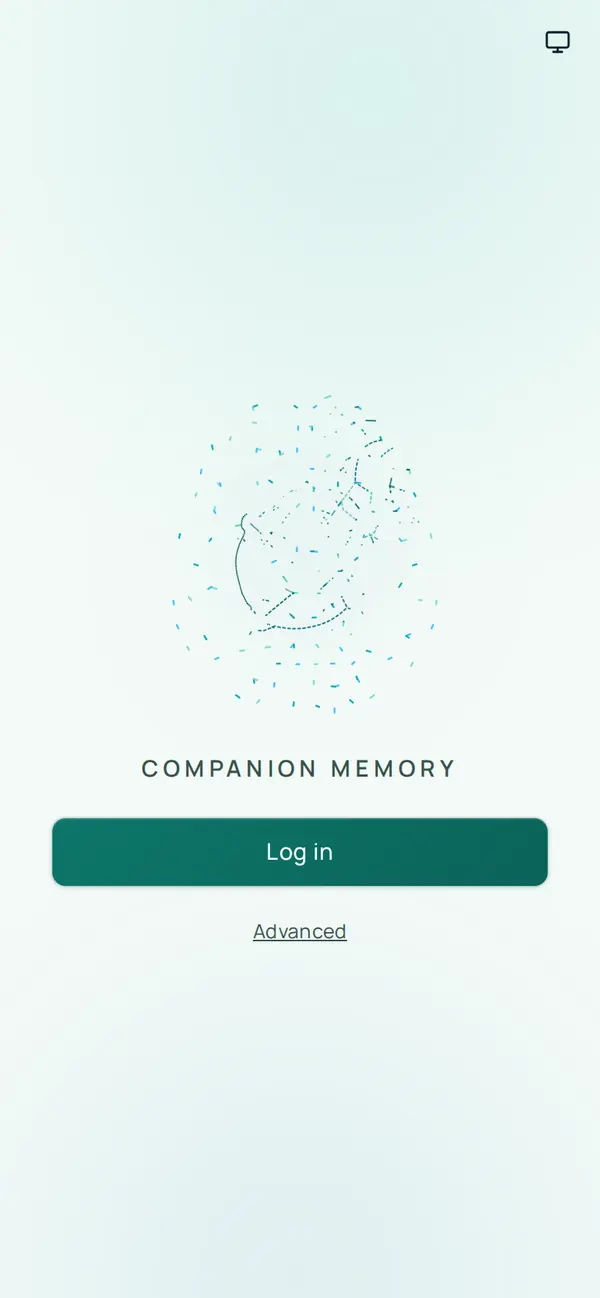
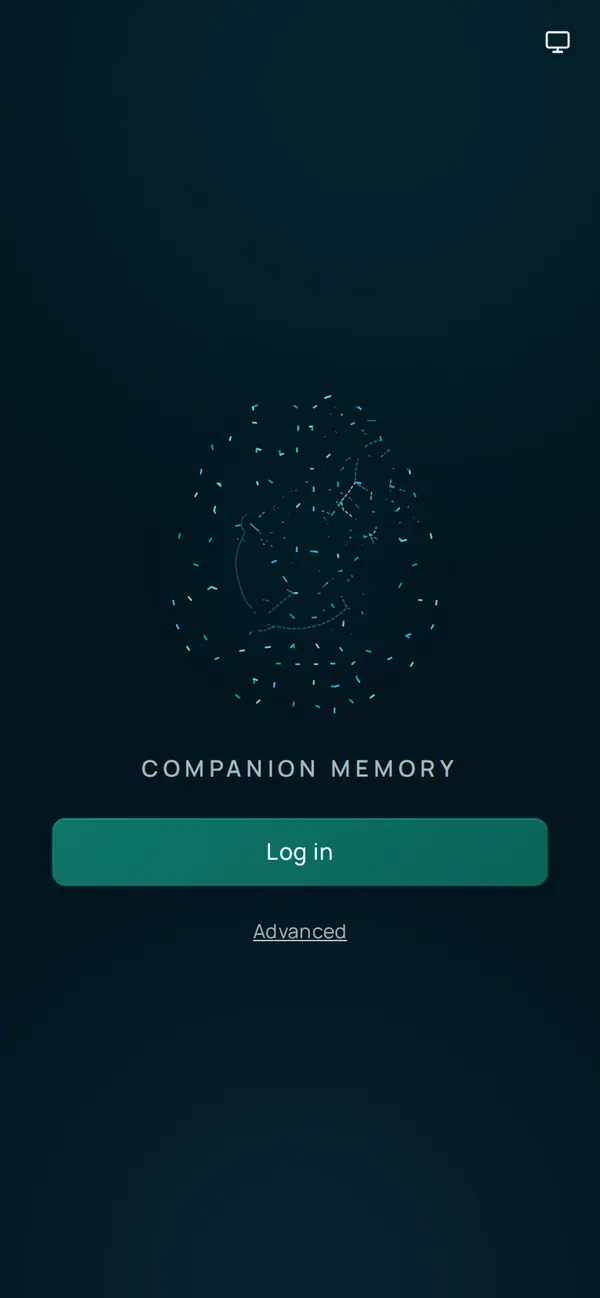
On first launch, with no server configured, the app opens a Companion Memory screen with a Log in button. Tap Log in and finish signing in with your CI Account in Safari (iOS) or your browser (Android), then return to the app.
The app then shows Pick a Memory Server, listing the Memory servers on your account with their addresses and status. Tap the one this phone should use.
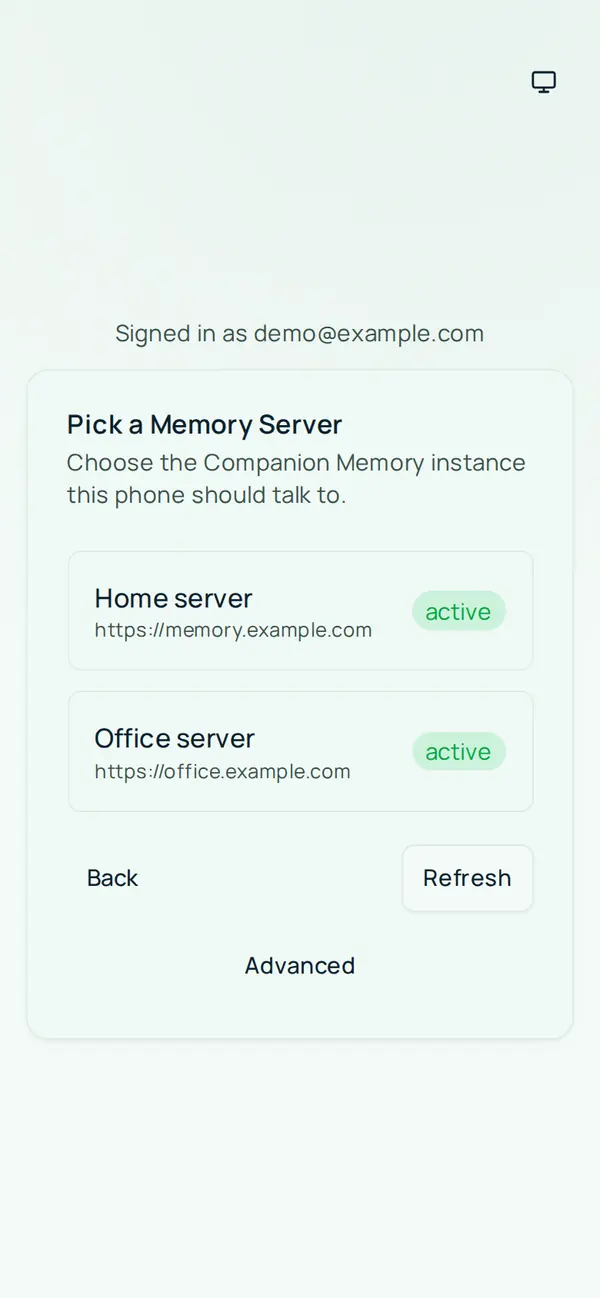
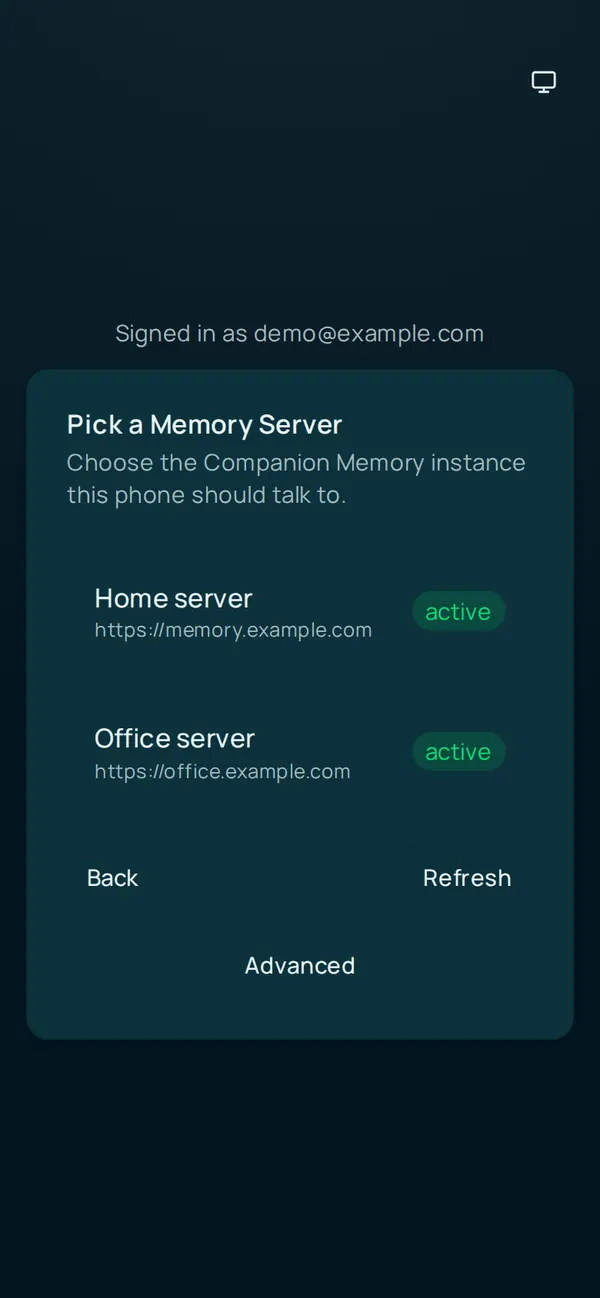
If the list is empty, it says No Memory Servers on this account. Install Companion Memory on your Hub, then Refresh. Install Memory, then tap Refresh. A server with no published address shows as unreachable and cannot be selected.
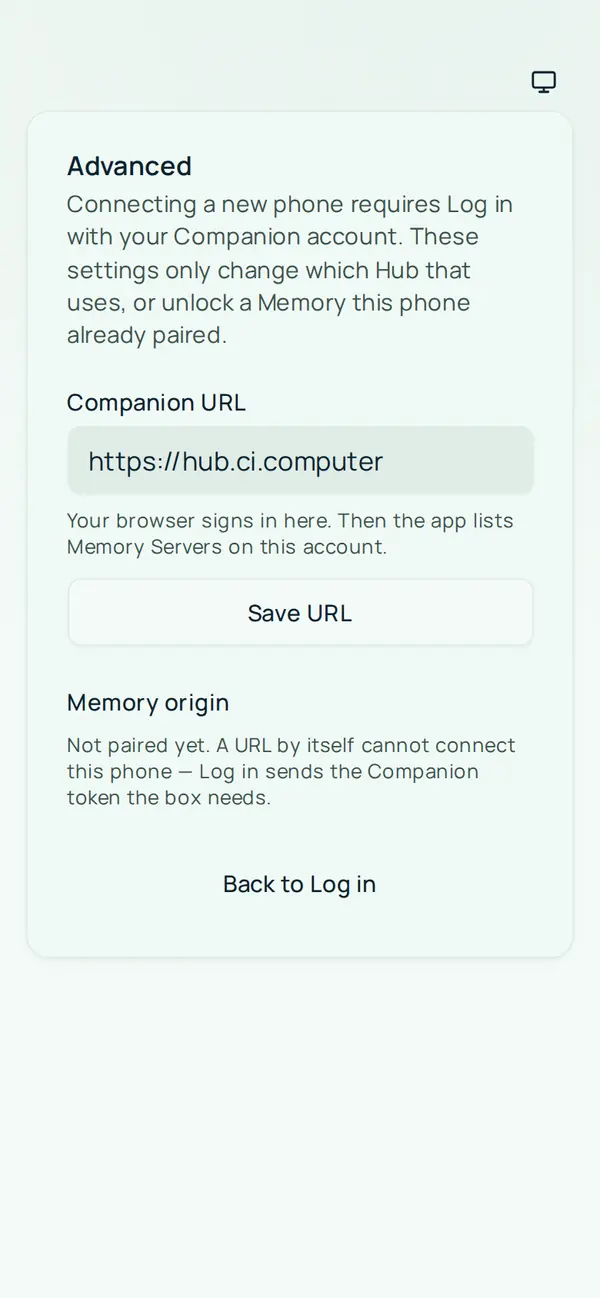
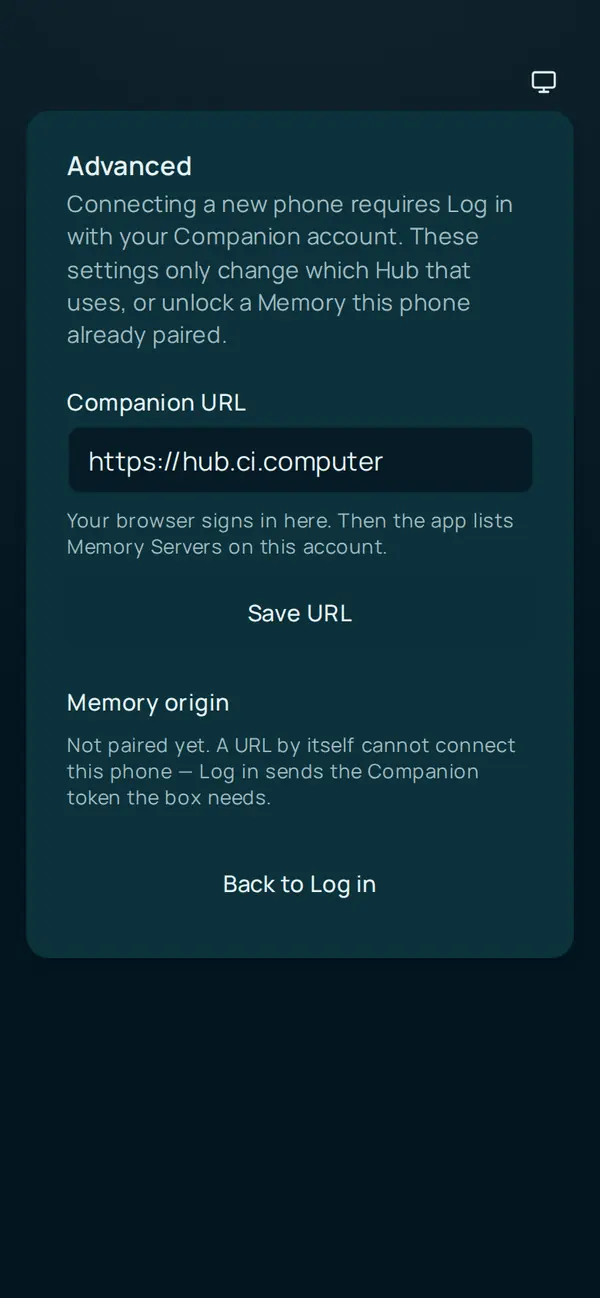
You cannot pair the phone by typing a Memory server address. The Advanced link opens a Companion URL field, which points the app at a non-default CI Account (Portal), not at your appliance, and an email and password form that unlocks offline storage on a Memory this phone is already paired with.
After you pick a server, the app exchanges your sign-in for a durable per-device API key and stores it in the OS secure store. Every request after that carries that key.
Usage
Capture
Tap Add, then Capture, to open Save to Memory. Choose Photo, Video, Audio, or Files, or choose Choose from library. To jot a note, tap Add, then Note. Media uploads to your appliance and is ingested into your memory, which means it needs the appliance reachable at the moment you capture. The app shows Saving … to Memory…, then Saved to Memory or Could not save to Memory. Uploads continue if you leave the Capture screen. Notes get their permanent id on the device, so an offline note is a real note from the moment you type it.
Offline
If the appliance is unreachable, notes and location fixes queue in an encrypted on-device outbox and drain when it comes back, oldest first. The app never tells you one of those was saved when it wasn’t — if it could not durably record the capture, it says so.
Photo, video, audio, and file capture is not in the outbox. Media goes straight to the appliance’s upload endpoint, so a capture taken while the appliance is unreachable fails then and there and is never retried. The app reports the failure with Could not save to Memory. Because the in-app camera does not save the photo to your camera roll, a photo that fails to upload is lost. Queued and resumable media upload is a known gap, not a shipped feature, so with no connection use your phone’s camera app and add the shot once you are back on the network.
Location tracking
Choose a mode under Settings → Location: Off (the default), While using, or Always. Choosing either of the other two asks you to confirm with Agree. Fixes go only to your Companion Memory server, and a fix taken with no connectivity waits in the outbox.
- While using records a fix while the app is open, when you have moved about 50 metres or five minutes have passed.
- Always is available in the phone apps only. It keeps recording after you leave the app, including while the phone is locked or the app is closed, when you have moved about 150 metres or 10 minutes have passed. Android shows a persistent notification, and iOS shows the blue location indicator. iOS asks twice, first Allow While Using the App and then Always Allow. If the second prompt does not appear, use Open Settings in the app and set Location to Always.
Signing out
Signing out clears the app’s local copy of its API key. The key stays valid on the server — revoke it from Settings → API Keys in Companion Memory if the device is lost.
Troubleshooting
Cannot connect to my server from outside home The app talks to your appliance, not to a Companion Intelligence relay, so remote access has to exist first: check your Hub’s VPN or tunnel is up, then re-check the server the app is pointed at. See CI Account troubleshooting.
The app says “On this phone”, “Offline copy”, or “Not synced yet” That is the connection-mode indicator telling you your appliance is not answering. “On this phone” means the on-device fallback picked it up, “Offline copy” means nothing answered but the phone holds saved data, and “Not synced yet” means nothing answered and there is nothing saved. Browsing needs the appliance in every case; new notes and location fixes queue in the outbox until it returns.
Something I captured never appeared Check the connection mode first. If it was a note or a location fix taken offline, it is in the outbox and will drain. If it was a photo or video taken offline, it was never queued — see Offline. If the app says connected and the item is still missing, look at the Memory server’s Jobs page for the failed upload.
Log in says “Could not reach the Companion server”
Before it opens the sign-in sheet, the app checks that your CI Account’s address answers. If the message names https://hub.ci.computer, check the phone’s connection and try again. If it names another address, that is the Companion URL under Advanced: correct it, or set it back to https://hub.ci.computer.
App crashes on launch Ensure you are running a supported OS version (iOS 15.5+ or Android 6.0+). Force-quit and relaunch. If it persists, sign out, sign in again with Log in, and pick your Memory server again to re-establish the server and key.