Connect an existing agent
If you already run OpenClaw, Hermes, Claude Code, or any other MCP-capable client, it can connect to your Companion Hub and Companion Memory directly — no Companion-built agent required.
Neither packaged agent app is a fork. The Companion OpenClaw app installs stock OpenClaw from npm, and the Companion Hermes app builds on the official Hermes Agent image — so the MCP surface they use is the same one your install can reach.
What the images add on top is a memory-slot provider plus some appliance plumbing. That provider is published separately for OpenClaw and Hermes, so your own install can have it too — see Beyond MCP: first-class memory.
The short version
Connecting takes four steps. Each links to the section with the details.
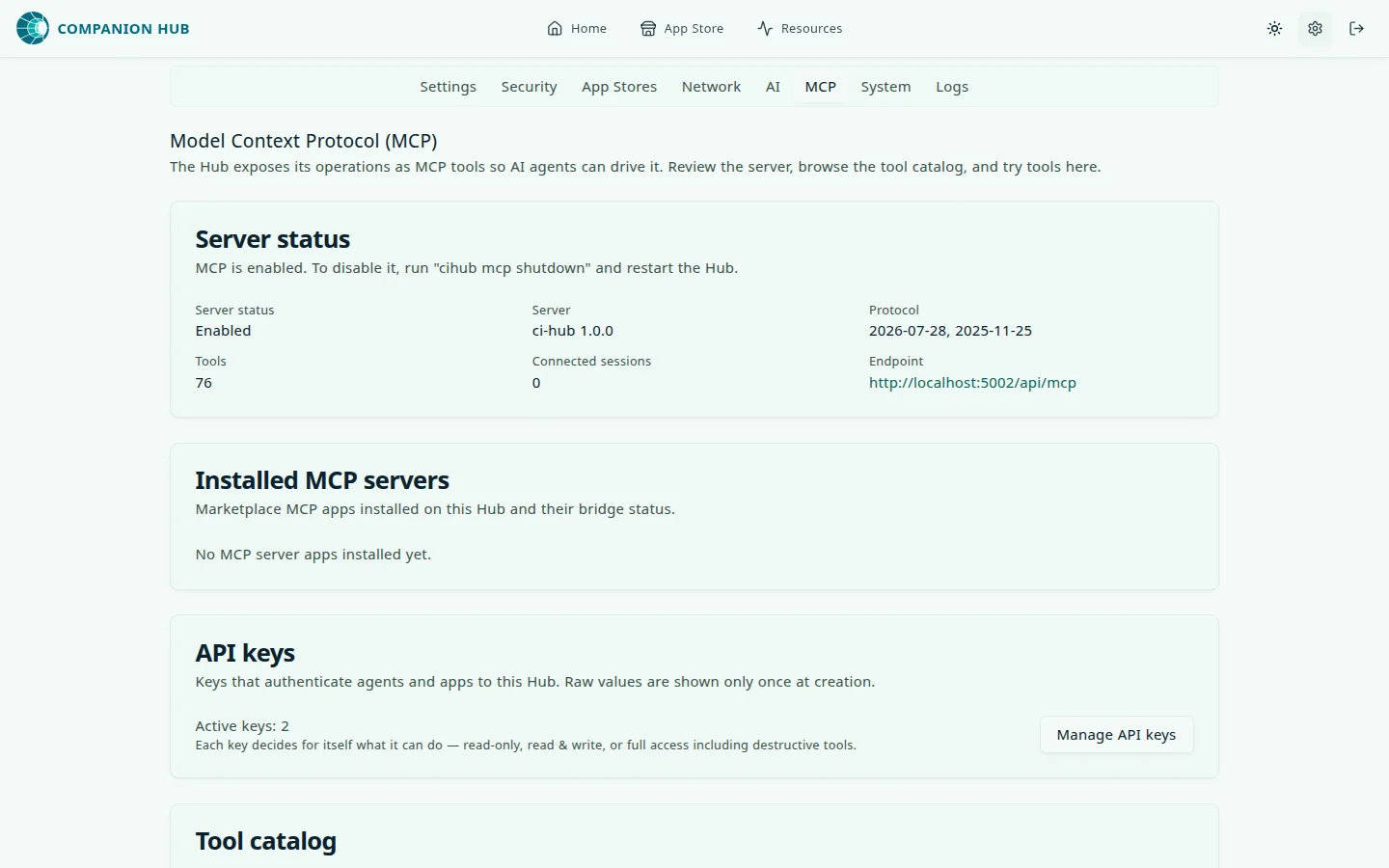
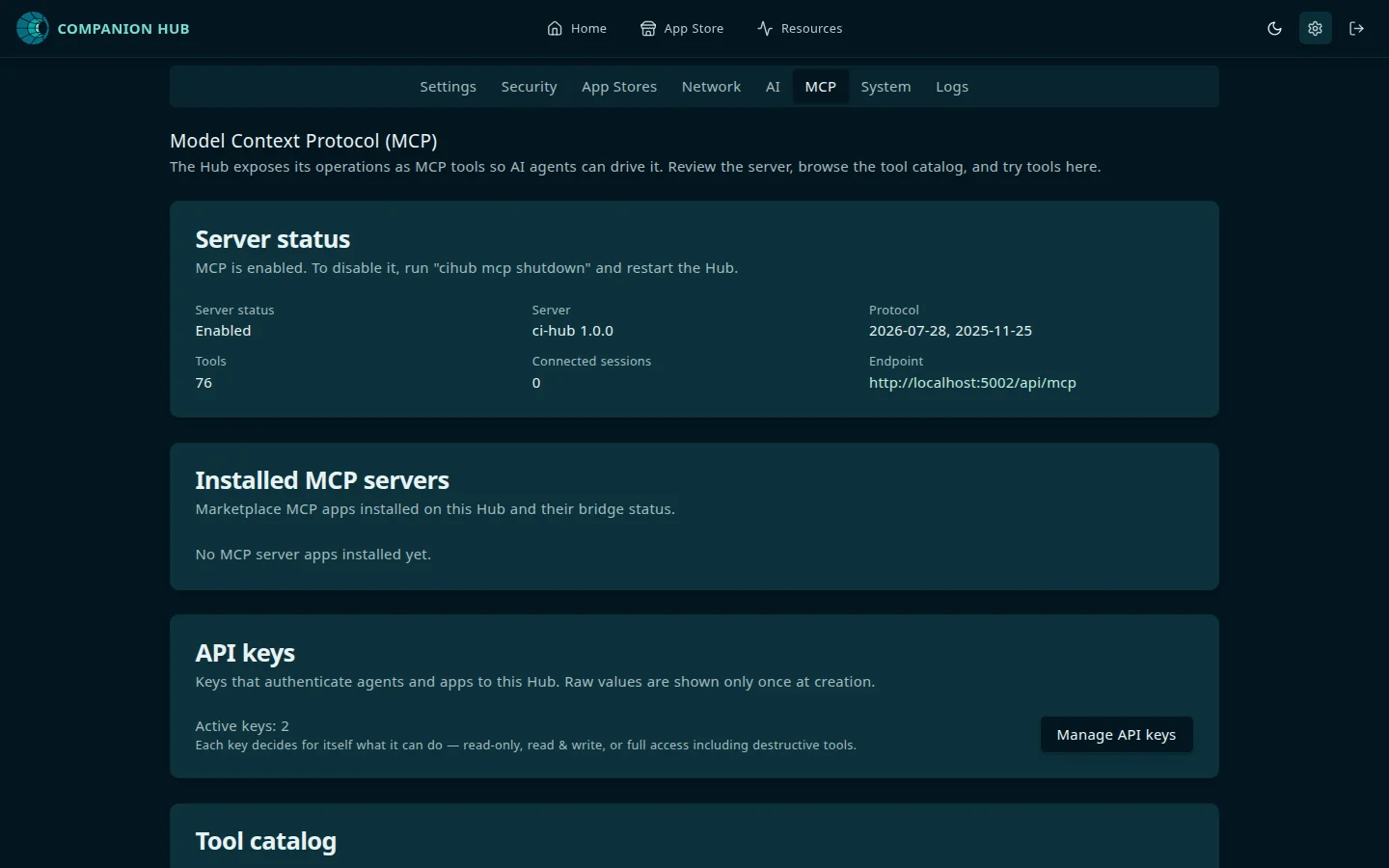
- Find both addresses. In the Hub dashboard, Settings → MCP shows Hub’s endpoint with a copy button. On the Companion Memory app page, the Access points card lists its addresses. See Before you start.
- Mint a key on each server. Hub: Settings → Security → Create key, scope MCP. Memory: Settings → API Keys, tick MCP and Intents. Choose Read-only unless the agent must change things. See Get your API keys.
- Register both servers in your client. Use the page for OpenClaw, Hermes, or Claude Code, Cursor, and others.
- Check the tool count. A working Hub key lists tools such as
hub_list_installed_apps, and a working Memory key lists tools such asmemory_recall. A server that connects but lists nothing is almost always a Memory key without theIntentsscope. Then ask the agent a question that needs the server, such as “Which apps are installed on my Hub?” or “What do you remember about my projects?”. A new Companion Memory with nothing imported has nothing to recall, so an empty answer is not a fault. To prove the write path, use a Read & write key and ask the agent to remember a fact, then ask for it back.
What connecting gives you
Companion Hub and Companion Memory each expose a Model Context Protocol server over Streamable HTTP. Registering them gives your agent tools it can call — appliance management from Hub, and recall and capture from Memory.
Two servers, two keys, and the same path on both:
flowchart TB
    A["Your agent<br/>(any MCP client)"]
    A -->|"Hub key<br/>Authorization: Bearer only"| H["Companion Hub<br/>hub-url/api/mcp"]
    A -->|"Memory key<br/>Bearer or x-api-key"| M["Companion Memory<br/>memory-url/api/mcp"]
    H --> HT["hub_* tools<br/>apps, logs, config, app proxying"]
    M --> MT["Memory tools<br/>recall and capture"]
MCP gives your agent tools. It does not give it a memory slot — passive turn capture and automatic context injection are a separate mechanism. With MCP alone, memory is something your agent calls, not something that happens in the background. OpenClaw and Hermes can have both: see Beyond MCP: first-class memory.
Before you start
You need three things.
1. A reachable address for each server. Both endpoints sit at the path /api/mcp. What comes
before that path is not a fixed value for either server — it depends on how you reach your
appliance, and for Companion Memory also on how it was installed.
Every example in this section writes those two origins as <hub-url> and <memory-url>. Work out
yours before you start:
- Companion Hub — on the LAN or over a VPN it is
port
5002. By public URL or tunnel there is no port at all. Settings → MCP in the Hub dashboard shows the endpoint with a copy button. - Companion Memory — a Hub install
publishes it on host port
8642when that port is free, and on a port in the10000–60000range otherwise. The Access points card on the Companion Memory app page shows the real address for each route. The desktop app, which has no public download yet, always serveshttp://127.0.0.1:8642on its own computer.
Each server’s page above also covers its tools, scopes, and quirks.
If you have seen HUB_MCP_URL injected into an app’s environment, that value
is the complete internal Docker address, path included —
http://ci-hub:5002/api/mcp (http://ci-os-hub:5002/api/mcp on an appliance
that was installed before the container was renamed). It resolves only inside
the appliance’s container network. From your own machine, use the LAN address
of the appliance or a tunnel origin.
2. Two API keys. They come from different places and are not interchangeable. See Get your API keys.
3. Hub’s MCP server running. It is on by default — it loads unless someone has explicitly set
MCP_ENABLED=false. Settings → MCP in the Hub dashboard shows Enabled or Disabled, and
cihub mcp config on the appliance host prints the same setting.
On Windows, install where the agent actually runs. Both OpenClaw and Hermes
can run natively or inside WSL2, and the two have separate homes: a ~ typed in
PowerShell is C:\Users\<you>, while a ~ inside the distro is the Linux home,
and neither agent treats a missing directory as an error — it loads nothing.
Native Hermes is the one to watch, because its home is
%LOCALAPPDATA%\hermes rather than ~/.hermes. Each page below gives the
Windows form of its commands alongside the bash one.
Pick your client
What each client gets, as the pages in this section describe it:
| Capability | OpenClaw | Hermes | Claude Code | Other MCP clients |
|---|---|---|---|---|
| Hub and Memory tools over MCP | ✓ | ✓ | ✓ | ✓ |
| Transport declared as | transport: streamable-http | omit the field | type: http | Streamable HTTP, in the client's own spelling |
| Registers a server with | openclaw mcp add | hermes mcp add | claude mcp add | The client's config file |
| Checks the connection with | openclaw mcp probe | hermes mcp test | claude mcp list | A curl handshake |
| First-class memory (passive capture) | openclaw-memory | hermes-memory | – | – |
| cihub connect on the Hub host | ✓ | ✓ | ||
| Used from a phone | Official iOS and Android apps | Web dashboard in the browser |
Reaching an agent from a phone is a different job. Those pages point an agent at your MCP servers. If the agent already runs on your Hub and you want to use it from iOS or Android, that is pairing a mobile client to the agent — see Agents on your phone.
Or let your agent do it
If the client you are connecting is itself a capable agent, it can read the setup and wire itself
up. The ci-connect skill is this whole section written for a model rather than a person —
every endpoint, both first-class-memory routes, and the traps below.
https://docs.ci.computer/connect/SKILL.mdTwo ways to use it, and the difference matters:
| How | When | |
|---|---|---|
| Once | Paste that URL and ask the agent to connect itself | A one-off setup, or a client you are trying out |
| Installed | Save it to a skills directory the agent scans | You want it available whenever the task comes up again — including on a machine you set up later |
Installing takes one file and one config line, and a single directory serves both OpenClaw and Hermes: see installing the skill .
Installing a skill does not run anything. Both agents load skills as guidance consulted when a task matches, so this is about the instructions being available later, not about a setup step happening now.
It cannot mint your API keys — nothing can, that path needs a browser or the appliance host — so have both ready before you start, exactly as above.
Know before you wire it up
Three things account for nearly every failed setup. Each has a full explanation on the Troubleshooting page, but they are worth knowing in advance.
This is the handshake every client performs, sessionful as most agents do it today, with the answers each mistake produces:
sequenceDiagram
    participant A as Your agent (MCP client)
    participant S as Companion Hub or Companion Memory
    A->>S: POST initialize, Authorization: Bearer key
    alt Path is /mcp, not /api/mcp
        S-->>A: 404 from Hub, 405 from Memory
    else Key refused
        S-->>A: 401 (unknown key, wrong server, x-api-key on Hub)
        Note over S: Missing MCP scope: 401 on Hub, 403 on Memory
    else Key accepted
        S-->>A: 200 + Mcp-Session-Id
        A->>S: POST tools/list, with Mcp-Session-Id
        S-->>A: The tools the key's scopes and capability allow
        A->>S: POST tools/call
        S-->>A: Appliance state (Hub) or memories (Memory)
    end
The path is /api/mcp, not /mcp
The two servers report this mistake differently: Companion Memory answers 405 Method Not Allowed and Companion Hub answers 404 Not Found. Neither reads like “wrong path”, which is why this is worth knowing before you start. See 405 or 404.
Both servers take Authorization: Bearer
Hub accepts only that header. Memory accepts either Authorization: Bearer or x-api-key. Use
Authorization: Bearer for both and you have one pattern to remember instead of two.
Every client names the transport differently
All three speak the same protocol. They disagree only on how you declare it, and one of them fails silently when you get it wrong.
| Client | Field | Value |
|---|---|---|
| OpenClaw | transport | streamable-http |
| Hermes | omit the field entirely | — |
| Claude Code | type | http |
Security
The key you paste into a third-party client can do everything that key is permitted to do, and it lives in that client’s config file until you revoke it.
- Mint a key per client, so you can revoke one without disturbing the others.
- Choose the lowest capability that works. A key for memory recall does not need permission to uninstall your apps. See Choosing a capability.
- Prefer an environment-variable reference over pasting the key into a config file, wherever your client supports it.
- Browser-based MCP clients cannot connect to Companion Memory. The blocker is headers
rather than origins: its CORS config allows only
Content-Type,Authorization,X-CSRF-TokenandX-API-Key, and exposes onlyX-Thread-Id— so from any origin a browser can neither send nor read theMcp-Session-Idthat Streamable HTTP needs afterinitialize. The origin allowlist is narrow on top of that: the native webview origins plus barehttp(s)://localhost, so a browser page on an origin carrying a port is refused (an operator can extend it withCORS_ALLOWED_ORIGINS, which widens origins only — not headers). Hub allows only its own port onlocalhost, the domains you configured, and origins an operator lists inCI_HUB_EXTRA_CORS_ORIGINS, and it refuses otherlocalhostports. Treat both as server-side and CLI endpoints.
If you lift a config file out of the packaged OpenClaw app, drop its
gateway.controlUi block first. The packaged app sets
gateway.controlUi.allowedOrigins so its own authenticated proxy can reach
the Control UI, and that list has no meaning in a standalone install.
Beyond MCP: first-class memory
MCP alone gives your agent memory it can query, not memory that accumulates on its own. An agent connected only over MCP has to call a memory tool during a conversation for anything to be stored — telling it so in your system prompt is usually enough.
Passive capture, and bootstrap context injected at the start of a session, come from a memory provider registered in the agent’s native memory slot. That is a different mechanism from MCP, and for OpenClaw and Hermes it is published separately:
| Agent | Provider | Set up |
|---|---|---|
| OpenClaw | @companionintelligence/openclaw-memory | First-class memory |
| Hermes | @companionintelligence/hermes-memory | First-class memory |
Each page documents two routes: the official commands for that ecosystem, and a cihub connect
command if you are working on the Hub host (for Hermes it finishes by handing off to the official
wizard). The two are independent of the MCP setup above — you can do either, both, or neither.
One thing to know before minting the key: the provider talks REST, not MCP, so its key needs the Memory scope at capability Read & write — a key minted for the MCP sections alone cannot store anything, and the failure is silent. Each page spells this out; so does Get your API keys.
Other MCP clients have no equivalent mechanism to plug into, so for Claude Code, Cursor, and others memory stays something the agent calls.