🛰️ Even Realities
Heads-up access to your local AI. Talk to your Companion agents through Even Realities G2 smart glasses — ask a question with a touchbar long-press and watch the answer stream onto the heads-up display, with no screen to look at.
The Setup & Connect page walks through install, sign-in, and saving your Hub’s address. CI Companion is still a developer preview, so it can’t be installed from there yet. See Install the app.
Overview
CI Companion is an Even Hub app for the Even Realities G2 smart glasses, paired with a small sibling agent-hub service. The glasses app stays a thin OpenAI-compatible client: voice goes in through the G2 touchbar, transcribed text is sent to whichever agent you point it at, and the streamed reply is word-wrapped onto the G2’s green MicroLED display in real time.
Sign in once with Companion Intelligence, enter your Companion Hub’s address, and pick a preset — or point the app at any OpenAI-compatible endpoint you already run. Your prompts go only to the backend you configure. With your Hub behind it, the glasses are the microphone and the display and your Hub does the thinking. The app itself runs on the phone paired with your G2, inside the Even Hub app, so keep that running.
Status: developer preview. You can’t install it yet. It has no public
download or store listing, and its source repository is private, so you can
run it only if Companion Intelligence gives you access. To ask about access or
follow progress, join the Discord . CI Companion
isn’t in the Even Hub store, no .ehpk file is published, and the one-click
agent-hub isn’t in the Companion Hub store either, so both the app and the
agent-hub come from source.
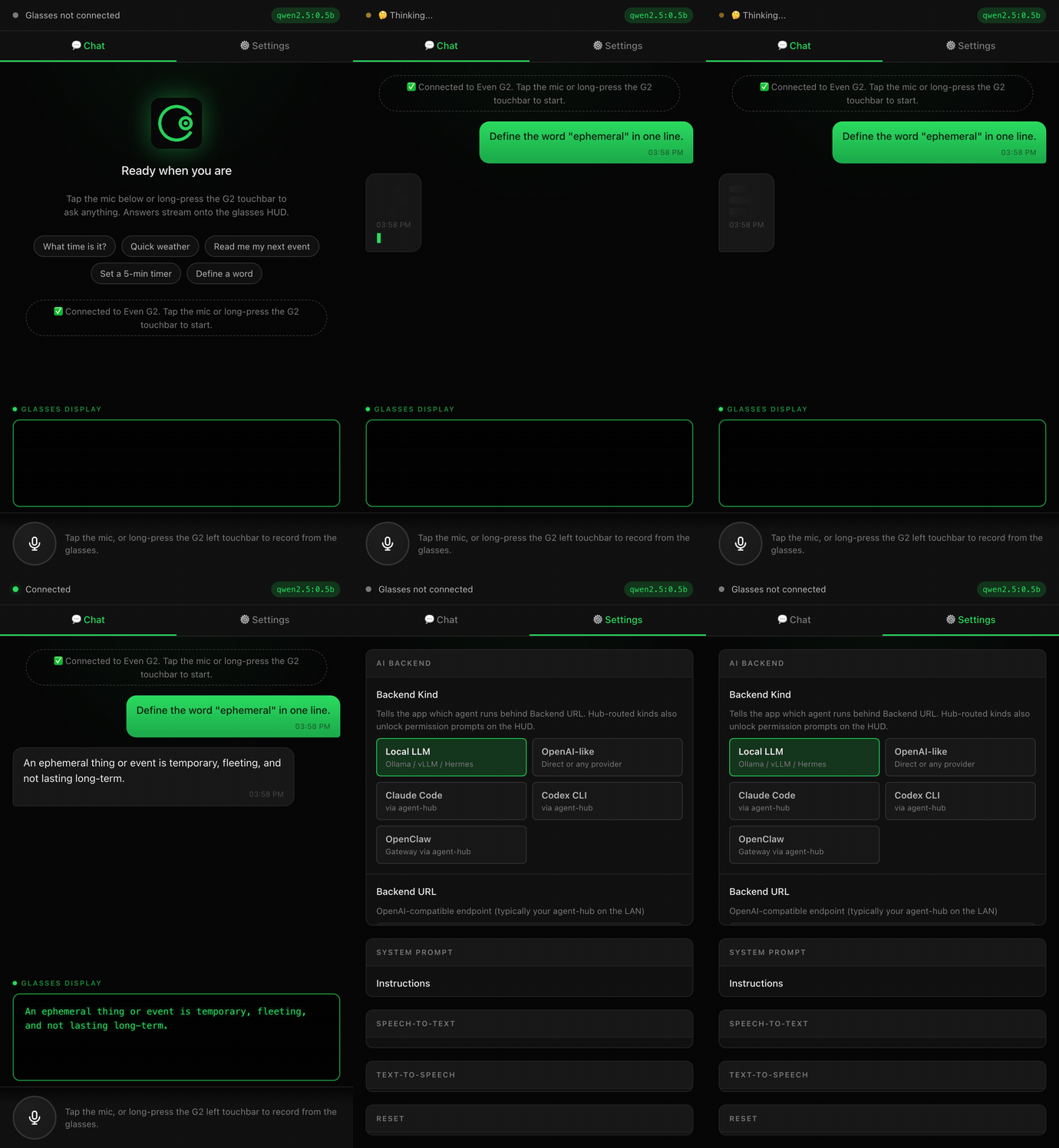
The phone companion opens on the Chat tab with quick-action chips and a Glasses display panel underneath — a fresh conversation ready for your first question:
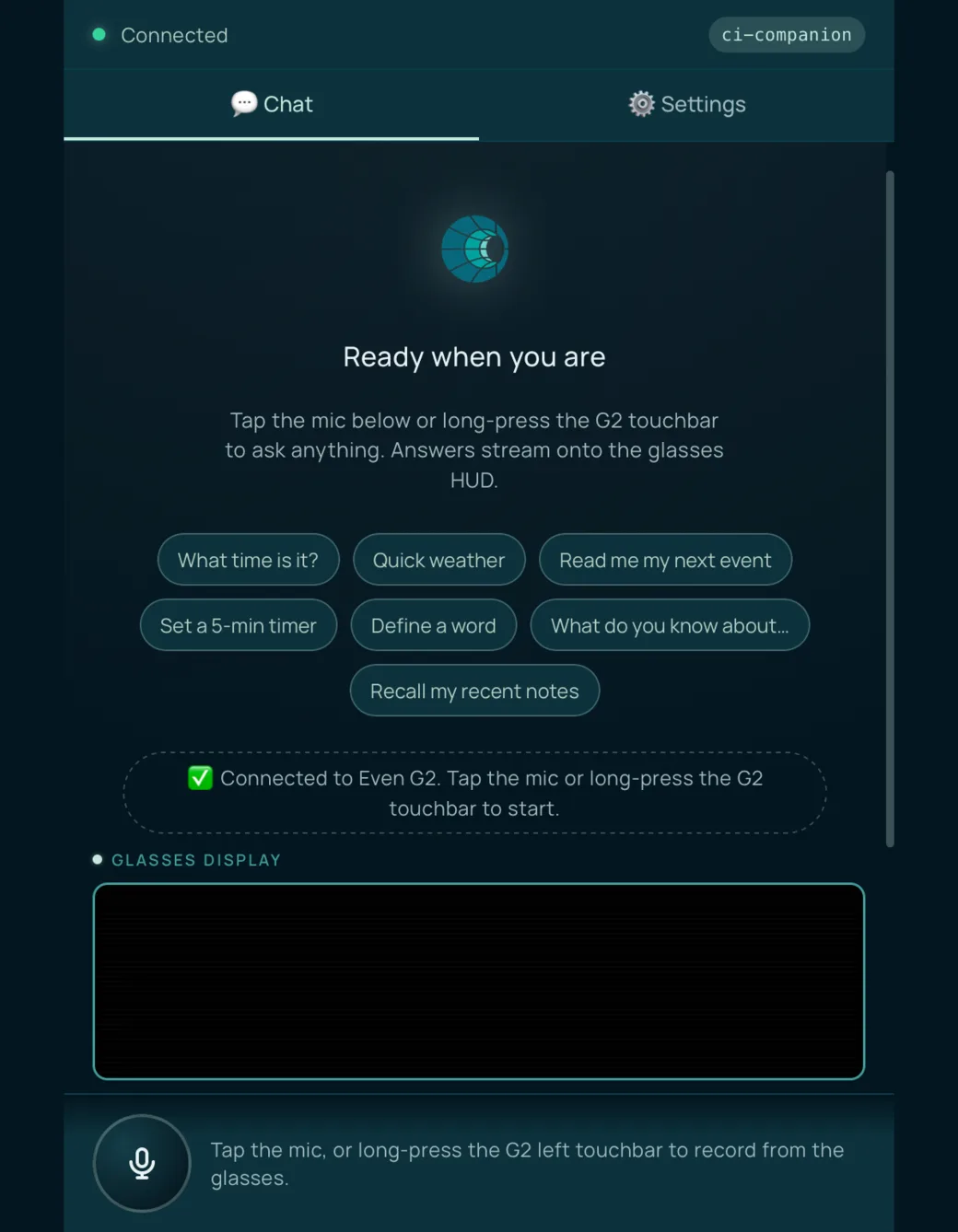
The Glasses display panel under the chat fills in with the full text of a reply once the reply has finished streaming. It is plain, unwrapped text, so treat it as a convenience preview rather than a pixel-accurate mirror: it doesn’t show status lines, permission cards, or page turns. Use the Even Hub simulator or the glasses themselves to see the real HUD. The phone UI is dark-only and follows the Companion Intelligence design system (sage accent, Manrope type); the G2 HUD itself is green on black.
- Backend kinds
- 8
- Assistant, Local LLM, OpenAI-like, Hermes, OpenClaw, Memory, Claude Code, and Codex CLI, all on one OpenAI-compatible wire.
- from Backend kinds
- Hub presets
- 5
- Enter your Hub address once, then one tap fills in the URL, kind, and model.
- from CI-Hub quick connect
- Characters per HUD line
- ≈ 42
- Five lines to a screen. Longer replies paginate, and you move between pages with the ring.
- from Read and navigate
Key Features
- Streaming HUD — answers stream onto the G2 display, word-wrapped to about 42 characters per line and five lines per page
- Hands-free voice — long-press the G2 left touchbar to record; the G2 microphone audio is transcribed by a Whisper-compatible server (the agent-hub can front one). A Web Speech fallback exists, but it ignores the glasses recording and listens on the phone microphone instead
- Sign in with Companion Intelligence — one sign-in with your CI Account; the session refreshes itself. API-key mode is still the default on a fresh install
- CI-Hub quick connect — enter your Companion Hub’s address once and tap a preset: Assistant, Ollama, Hermes, OpenClaw, or Memory
- One Assistant, many agents — the first preset lets the agent-hub route each request to Companion Memory, Hermes, OpenClaw, Claude Code, Codex CLI, or your local model
- Companion Memory — a Memory preset for recall, plus an optional toggle that recalls from and saves back to memory on every reply
- Pluggable agents — one OpenAI-compatible wire in front of your Hub’s local model, Hermes, OpenClaw, Claude Code, and Codex CLI, or any other OpenAI-compatible endpoint you type
- Permission prompts — coding agents ask before running a tool; a double-tap approves, a single tap denies
- Ring navigation — single tap pages forward, scroll moves between pages, double-tap clears the conversation
- Phone companion UI — Chat and Settings tabs, quick-action chips, and a Glasses display preview of each finished reply
- Runs in a few places — as a standard web app inside the Even Hub mobile app, in the Even Hub simulator for development, or in a plain browser tab (no voice input there)
Supported Hardware
| Device | Connection | Status |
|---|---|---|
| Even Realities G2 | Bluetooth LE (via Even Hub app) | ✅ Supported |
| Even Hub simulator | Local web preview | ✅ Dev / testing |
| Any modern browser | Dev / “browser mode”, no voice | ✅ Dev / testing |
The app draws a single text area 488 px wide and wraps replies at about 42
characters per line, 5 lines per page. Replies longer than a page are
split into pages you move through with the ring; on a multi-page reply the
last line of each page shows a [current/total] indicator such as [2/3].
The app needs the Even Hub mobile app 2.2.10 or newer.
Backend Kinds
The Backend Kind selector in Settings tells the app what to expect on the wire. Every kind except openai is routed through the agent-hub, which picks the target for each request from the kind the app sends. Because one hub serves them all, you can switch kinds between questions without restarting anything.
| Settings card | Kind | Where it runs | Notes |
|---|---|---|---|
| Assistant | auto | agent-hub picks a target for each question | The preset to start with. Routes by what you say — see Assistant routing. |
| Local LLM | local-llm | Ollama, vLLM, or another local server behind the hub | Hub default is Ollama on http://localhost:11434 (DOWNSTREAM_URL). |
| OpenAI-like | openai | Any OpenAI-compatible URL | The app’s default kind. The only kind that can also use the Responses API. Hub optional. |
| Hermes | hermes | agent-hub forwarding to your Hermes gateway | Needs HERMES_GATEWAY_URL on the hub. See Hermes. |
| OpenClaw | openclaw | agent-hub forwarding to an OpenClaw Gateway | Needs OPENCLAW_GATEWAY_URL, the gateway’s full chat-completions URL. See OpenClaw. |
| Memory | memory | agent-hub calling Companion Memory | Recall only: your question becomes the query and the recalled memories stream back. Needs CI_SERVER_URL. |
| Claude Code | claude-cli | agent-hub spawning Claude Code on the hub’s machine | Emits permission prompts; double-tap approves. |
| Codex CLI | codex-cli | agent-hub spawning Codex CLI on the hub’s machine | Same permission flow as Claude Code. |
Assistant routing
With the Assistant preset (auto) the hub reads each question and chooses a target, so you can talk naturally. The rules are fixed phrases at the start of what you say:
| If your question starts with | It goes to |
|---|---|
| ”remember”, “recall”, “do you remember”, “what do you know”, “what did I” | memory |
| ”ask hermes” or “hermes,“ | hermes |
| ”ask openclaw”, “openclaw,”, or “ask claw” | openclaw |
| ”ask claude” or “claude,“ | claude-cli |
| ”ask codex” or “codex,“ | codex-cli |
| anything else | local-llm |
An explicit address such as “ask hermes” is removed before the question is forwarded. The HUD briefly shows where a question went, for example → memory.
If the chosen target is Hermes or Memory and your hub has no HERMES_GATEWAY_URL or CI_SERVER_URL, the hub answers from its default target instead. That is AGENT_KIND, which is openai unless you change it, and it goes to the same model as Local LLM. OpenClaw, Claude Code, and Codex CLI are always offered to the router, so if OpenClaw isn’t set up you get an error such as openclaw: OPENCLAW_GATEWAY_URL not configured rather than a fallback.
Architecture
Voice goes in through the touchbar, one OpenAI-compatible request goes out, and the reply streams back onto the display:
flowchart LR
    accTitle: How a spoken question reaches the G2 display through the agent-hub
    T["G2 touchbar<br/>long-press"] --> MIC["Mic capture<br/>G2 microphone"]
    MIC --> STT["Speech-to-text<br/>Whisper-compatible server"]
    STT --> API["ApiAdapter<br/>OpenAI-compatible wire"]
    API -->|"openai"| LLM["Any OpenAI-compatible URL"]
    API -->|"every other kind"| HUB["agent-hub<br/>port 8787<br/>auto = route by intent"]
    HUB -->|"local-llm"| OL["Ollama / vLLM<br/>on your Hub"]
    HUB -->|"hermes · openclaw"| GW["Hermes and OpenClaw<br/>gateways"]
    HUB -->|"memory · use_memory"| CM["Companion Memory"]
    HUB -->|"claude-cli · codex-cli"| AG["Claude Code · Codex CLI"]
    LLM -->|"SSE stream"| R["GlassesRenderer"]
    HUB -->|"SSE stream + permission_prompt cards"| R
    R --> D["G2 display<br/>double-tap = approve · tap = deny"]
The glasses app speaks one wire format (OpenAI SSE) regardless of backend. openai can point straight at any endpoint. Every other kind goes through the agent-hub, which brokers each target, holds their secrets server-side (the Hermes gateway token, the OpenClaw token, the Companion Memory key), and forwards the target’s events. The app uses one URL for chat and for voice: Whisper transcription of the G2 recording is posted to <Backend URL>/v1/audio/transcriptions, and the hub can forward that to a Whisper-compatible server. The Web Speech option is not part of this path: it ignores the glasses audio and uses the phone microphone.
Setup
Run the agent-hub
Every preset points at the agent-hub on port 8787, so start it first, on the machine that will be your Hub. If an agent-hub is already running on your network, skip this step and note its address. The hub needs Node.js 20.6 or newer. It comes from the CI Companion source repository, which is private, so you need access to it.
# From the CI Companion source you were given access to, on that machine
cd agent-hub
npm install

# Option A: a static secret. Enter the same value as the API Key in the app.
HUB_TOKEN=choose-a-secret npm start

# Option B: accept Companion Intelligence sign-in tokens instead.
PORTAL_OIDC_ENABLED=true HUB_BIND=0.0.0.0 npm start
Run bare npm start and the hub listens on 127.0.0.1 only, so your phone can’t reach it. HUB_TOKEN makes it listen on all interfaces. PORTAL_OIDC_ENABLED alone does not, so option B sets HUB_BIND as well. More variables are in Configure the agent-hub.
Save your Hub address at er.ci.computer
Open er.ci.computer on your phone or computer. It is the guided Setup & Connect page for CI Companion. It walks through three steps:
- Install — a Get on Even Hub button and a QR code, both of which open the Even Hub portal, and a Sideload latest .ehpk button that opens a GitHub releases page in a private repository. CI Companion isn’t listed on Even Hub yet and no
.ehpkrelease is published, so none of the three gets you an installable app today. Use Install the app instead. - Connect — Sign in with Companion Intelligence, then enter your Hub’s address (for example
ci-hub.localor192.168.1.50) and select Connect. It remembers the sign-in and the address in your browser and reconnects by itself the next time you visit. - Talk — how to ask a question and what the ring gestures do.
A Help button opens a dialog with how it works, screenshots, manual configuration, the backend kinds, and troubleshooting.
The page can’t verify a typical agent-hub. An agent-hub answers on plain http://<host>:8787, and browsers block a secure page from reaching a plain-http address. For that address the page saves the host and shows Saved http://<host>:8787 — not verified, with a note to finish in the app. Only a hub served over https:// gets a real Connected or Unreachable result. The page doesn’t change the app’s settings for you either way. Enter the same address in the app, as in the steps below, and use Test Connection there to check it.
Install the app
CI Companion is not in the Even Hub store yet. The listing copy and screenshots are prepared for version 0.5.2, but the app hasn’t been uploaded to the Even Hub portal, so there is nothing to install from the Even Hub mobile app today. Until it is listed, run it from source and load it onto your glasses in developer mode. The source repository isn’t public and no .ehpk release is published, so you need access to the repository, and to the GitHub Packages registry it installs from, to do this today. You need Node.js 20.19 or newer (or 22.12 or newer), because the app is built with Vite 8.
# From the CI Companion source you were given access to
cd ci-glasses-app
# @companionintelligence packages come from GitHub Packages, so npm needs a
# token with packages:read for the organization:
NODE_AUTH_TOKEN="$(gh auth token)" npm install
npm run dev   # serves on http://0.0.0.0:5173
Preview it in the Even Hub simulator, or scan a QR code with the Even Hub mobile app to load your dev server on real glasses:
npm run simulator   # evenhub-simulator http://localhost:5173/
npm run qr          # evenhub qr --port 5173
Sign in, or use an API key
Open the Settings tab. In the Account card, tap Sign in with Companion Intelligence — see Sign in with Companion Intelligence for what happens next.
Prefer a static key? Skip this step and enter it as the API Key in the AI Backend card. This is the HUB_TOKEN from option A above. API-key mode is the default on a fresh install.
Connect your Hub
In the CI-Hub card (the app’s name for your Companion Hub), enter your Hub’s address under Hub Base URL, then tap a preset. Assistant is the one to start with. See CI-Hub quick connect.
The app calls your backend directly from the phone’s WebView or browser,
so the backend must allow the app’s origin via CORS. The agent-hub answers
CORS itself. For any other server, add the app’s origin (in development,
http://localhost:5173) to its allowed list.
Configure the agent-hub
By default the hub listens on 127.0.0.1 only, so nothing else on your network can reach it. To use it from your phone, set HUB_TOKEN (the hub then listens on all interfaces) or set HUB_BIND yourself. PORTAL_OIDC_ENABLED on its own does not change the interface. Run it as an unprivileged user — the claude-cli and codex-cli targets run with the hub’s permissions — and don’t expose it to the public internet without TLS.
| Variable | What it does |
|---|---|
HUB_TOKEN | Static bearer token the app must send. Setting it also makes the hub listen on 0.0.0.0. |
HUB_BIND, HUB_PORT | Interface to listen on (default 127.0.0.1, or 0.0.0.0 with a token) and port (default 8787). |
PORTAL_OIDC_ENABLED | Set to true to also accept Companion Intelligence sign-in tokens (accepted audiences default to ci-hub,ci-even,ci-server). Pair it with HUB_BIND=0.0.0.0 or a HUB_TOKEN so the hub is reachable. |
AGENT_KIND | The hub’s default target, used when a request names none or names one the hub hasn’t got. Default openai. |
DOWNSTREAM_URL, DOWNSTREAM_API_KEY | Where local-llm and openai requests go. Default http://localhost:11434 (Ollama). |
HERMES_GATEWAY_URL, HERMES_APP_SEED | Enables the hermes kind. |
OPENCLAW_GATEWAY_URL, OPENCLAW_TOKEN | The full URL of your OpenClaw Gateway’s chat-completions endpoint, for example http://<gateway-host>:<port>/v1/chat/completions. The hub posts to it exactly as written, so unlike DOWNSTREAM_URL and HERMES_GATEWAY_URL it is not a base URL. OPENCLAW_TOKEN is the gateway’s bearer token. |
CI_SERVER_URL, CI_SERVER_API_KEY | Enables the memory kind and memory-augmented chat. Use a memory-scoped key — see API keys. |
CI_SERVER_TIMEOUT_MS | How long the hub waits for Companion Memory before giving up. Default 8000 (8 seconds). |
STT_URL, STT_API_KEY | The base URL of a Whisper-compatible server the hub forwards voice to. Without STT_URL the hub answers voice requests with a 501. |
CLAUDE_BIN, CODEX_BIN, AGENT_CWD | The Claude Code and Codex CLI binaries the hub spawns, and the folder they work in. |
The OpenClaw target also tidies replies for the HUD: fenced code blocks become [code] and markdown links become plain text.
The agent-hub README in the source repository has the details. Its “Run as a CI-Hub app / Docker” section describes a one-click install that isn’t available yet, so start the hub as shown in Setup.
Sign in with Companion Intelligence
Settings → Account → Sign in with Companion Intelligence signs the app in through your CI Account (Companion Portal) with an OpenID Connect Authorization Code flow with PKCE. It uses a dedicated public client, so no client secret is stored in the app.
| Field | Default |
|---|---|
| OIDC Issuer | https://hub.ci.computer/api/auth |
| Client ID | ci-even |
| Scope | openid email profile offline_access |
You only need to touch these, under Advanced (issuer / client / scope), if you use a staging or self-hosted Portal. The offline_access scope is what lets the session refresh itself.
- How the redirect works. The Even Hub SDK can’t open an external browser, so the phone’s WebView itself goes to the Portal to sign in, and the app finishes the exchange when it reloads at its own address. If a WebView can’t make that round trip, open Paste redirect result (manual fallback), paste the full address you were sent back to (it contains
code=andstate=), and tap Complete sign-in. Start the sign-in on the same device first. - After sign-in. The Account card shows who you are. The access token replaces the API key as the
Authorization: Beareron chat and voice requests. It is saved on the device — in the Even Hub bridge’s device storage when the bridge is available, otherwise in the browser’s own storage (for example in a plain browser tab). It is renewed automatically, a minute before it expires or when a request is rejected with a 401 (that request is retried once). If renewal fails the session is cleared and you sign in again. - Sign out revokes the token where the Portal supports it and returns the app to API-key mode.
- Default. A fresh install stays in API-key mode until you sign in, so nothing changes for anyone who doesn’t.
While you are signed in, the token is sent to whatever Backend URL is set. Use it with your own Hub or agent-hub. To talk to a third-party OpenAI-compatible service with its own key, sign out first and use API-key mode.
For the agent-hub to accept the token, start it with PORTAL_OIDC_ENABLED=true, and also set HUB_BIND=0.0.0.0 (or a HUB_TOKEN), because PORTAL_OIDC_ENABLED alone leaves the hub on 127.0.0.1, where your phone can’t reach it. To use a static HUB_TOKEN instead, stay signed out and enter it as the API Key.
CI-Hub quick connect
Under Settings → CI-Hub, enter your Hub’s address as Hub Base URL — a bare host such as ci-hub.local, an IP address, or a full URL. http:// is assumed when you leave the scheme off, and any port or path you type is dropped, because every preset uses port 8787. The default is http://localhost.
Then tap a preset. With a Hub Base URL of ci-hub.local, every preset sets Backend URL to http://ci-hub.local:8787:
| Preset | Backend Kind | Model | Best for |
|---|---|---|---|
| Assistant | auto | ci-companion | Talking naturally — the hub routes each question |
| Ollama | local-llm | llama3.2 | Plain chat with the local model on your Hub |
| Hermes | hermes | hermes-agent | A Hermes agent through the hub |
| OpenClaw | openclaw | openclaw/default | An OpenClaw agent through the hub |
| Memory | memory | ci-memory | Recalling from Companion Memory |
A preset sets Backend URL, Backend Kind, API Mode (Chat Completions), and Model, and leaves everything else — your API key, system prompt, streaming, and sign-in — as it was. Edit the model afterwards if your Hub serves a different one. Even the Ollama preset goes through the agent-hub rather than straight to Ollama, so voice can go through the hub too: the app sends chat and voice to the same URL, and the hub can front both (set STT_URL on the hub for voice).
Manual configuration
To use your own OpenAI-compatible endpoint, or to fine-tune a preset, open the AI Backend card:
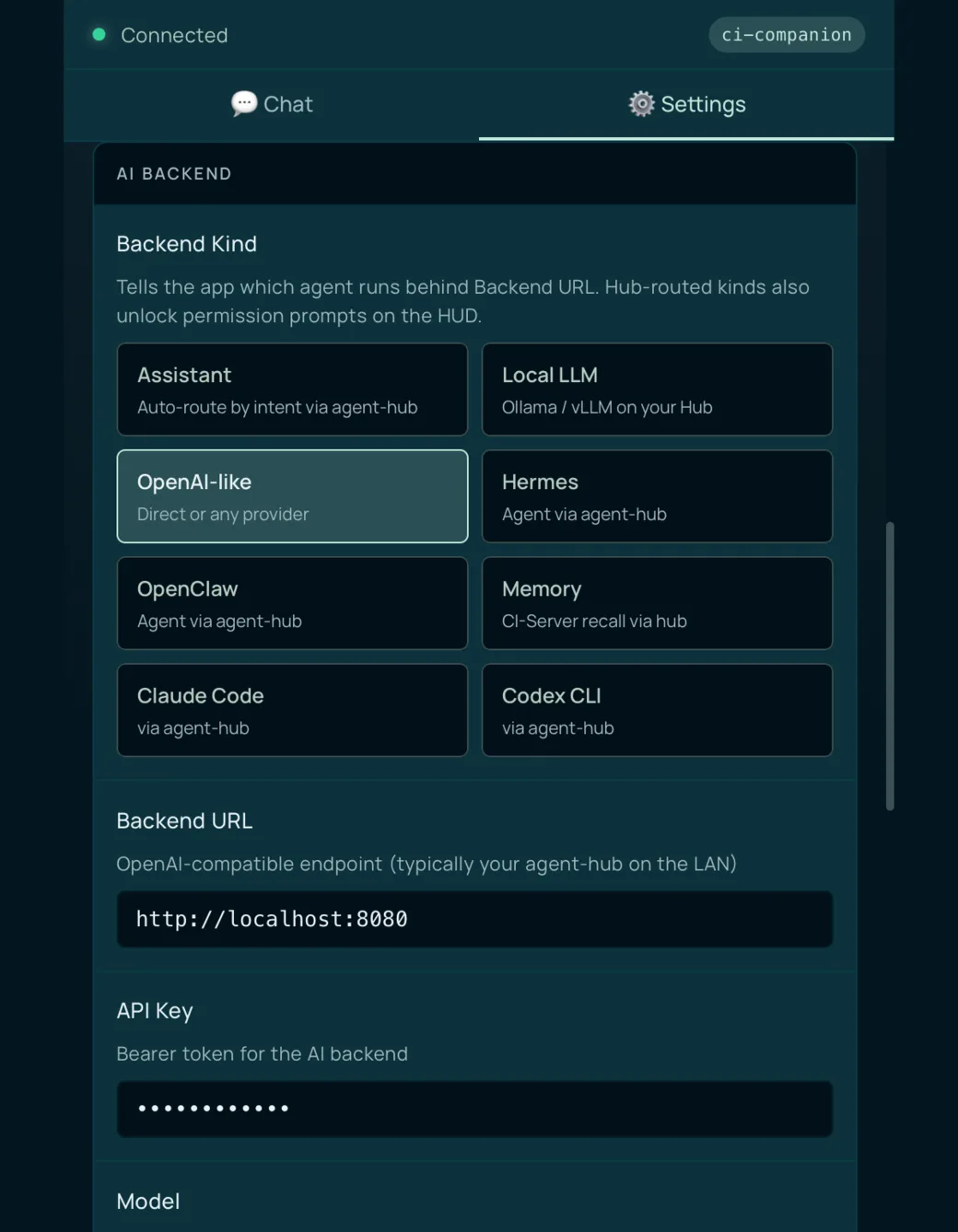
| Field | Default | Description |
|---|---|---|
| Backend Kind | OpenAI-like (openai) | Which agent runs behind the URL — see Backend Kinds |
| Backend URL | http://localhost:8080 | Base URL of an OpenAI-compatible server. Usually your agent-hub, such as http://<hub-ip>:8787 |
| API Key | ci-local-key | Bearer token; a placeholder is fine for local backends. Not used while you are signed in |
| Model | ci-companion | Model name forwarded to the backend |
| API Mode | Auto | Auto decides for you; you can force Chat Completions or the Responses API (details below) |
| Streaming | On | Stream the reply as it is generated |
| Server-side context | On | Responses API only: keep the conversation on the server (store: true) |
| STT Provider | Whisper | Whisper posts the G2 recording to <Backend URL>/v1/audio/transcriptions; Web Speech listens on the phone microphone instead |
| Audio TTS | Off | Speak replies through the phone speaker |
| Memory-augmented chat | Off | In the CI-Hub card — see Use Companion Memory |
Test Connection sends an OPTIONS request to /v1/chat/completions and /v1/responses and reports which it found. It sends no credentials, so it checks that the server answers, not that your key or token is accepted.
How API Mode Auto chooses
- Only
openaican use the Responses API. Every other kind goes through the agent-hub, which speaks Chat Completions, so those kinds always use Chat Completions whatever API Mode says. - Probe. For
openaiin Auto, the app sendsOPTIONS <Backend URL>/v1/responseswith a 3-second limit. A 2xx or 405 answer means it tries the Responses API; anything else means Chat Completions. - Fallback. Some servers answer that probe for every path, so a yes doesn’t prove the endpoint exists. If the real Responses request then comes back 404, 405, or 501, the app retries the same message on Chat Completions and remembers to skip the Responses API until you change a setting. Other errors, such as a 500, are shown rather than hidden.
- Forcing a mode. If you choose Responses API yourself, the app never falls back — you see the error. If your server has no Responses API, choose Chat Completions.
Usage
Ask a question
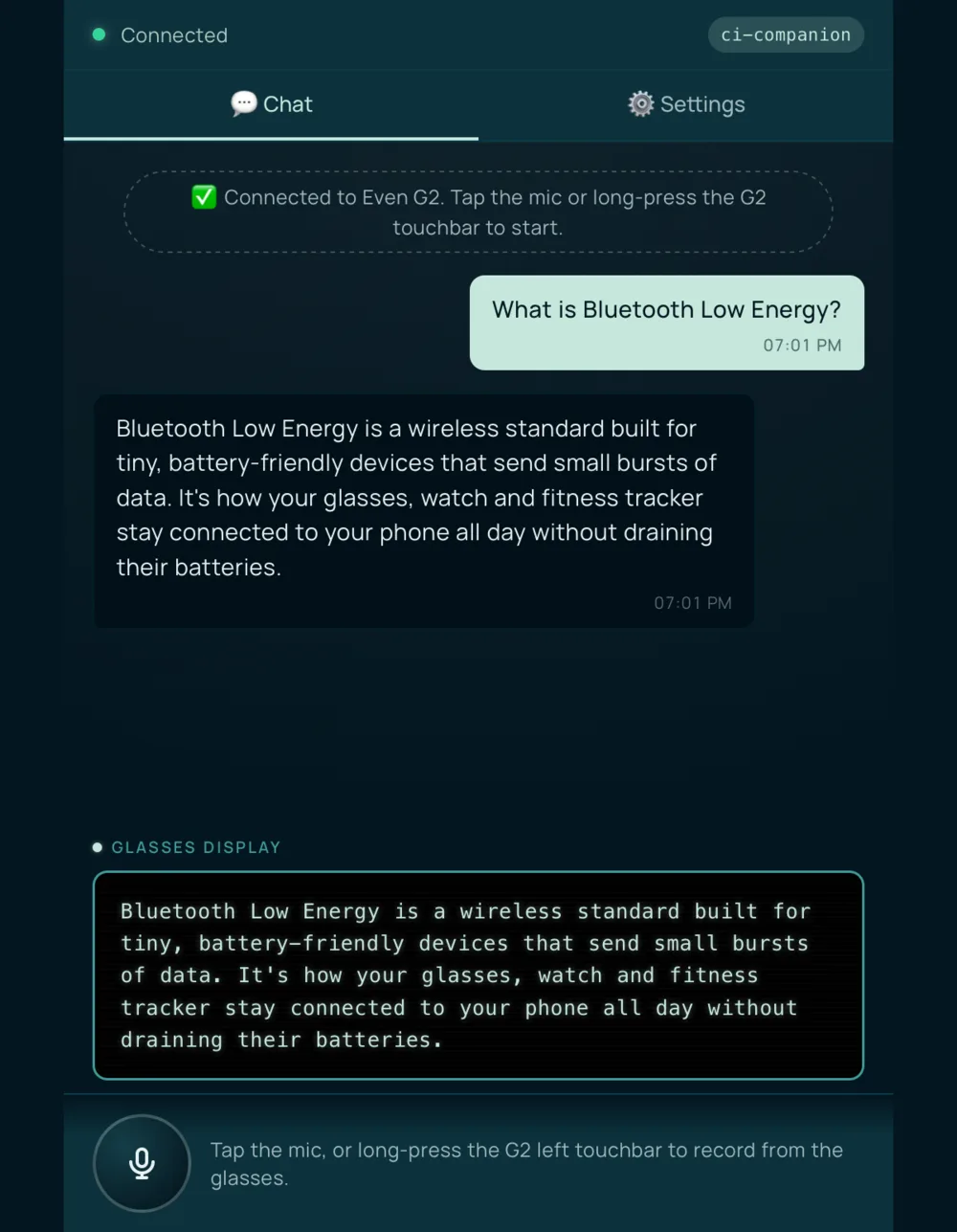
Long-press the G2 left touchbar to record, then release to stop. In the phone UI, tap the mic button once to start recording and tap it again to stop; it also records from the G2 microphone. The audio is transcribed and sent to your backend, and the reply streams onto the HUD as it arrives.
Read and navigate
The HUD shows five lines at a time. When a reply runs to more than one page, the last line of each page shows a [current/total] indicator. Use the ring (the same gestures work on the touchbar) to move through them:
![G2 HUD frame in the Even Hub simulator — four lines of green text on black, then a [1/2] page indicator on the fifth line](/screenshots/even-realities/hud-streamed-answer.webp)
- Single tap — next page (or deny an on-screen permission prompt)
- Scroll up / down — previous / next page
- Double tap — clear the conversation and cancel the reply in progress (or approve a permission prompt)
- Long-press (touchbar) — record a question
Quick actions
On a fresh conversation the phone UI shows seven quick-action chips. Tap one to send a starter prompt without speaking: What time is it?, Quick weather, Read me my next event, Set a 5-min timer, Define a word, What do you know about…, and Recall my recent notes. The last two are aimed at Companion Memory and work best with the Assistant or Memory presets.
Use Companion Memory
There are three ways to bring Companion Memory into a conversation. All of them need the agent-hub connected to your memory (CI_SERVER_URL and a memory-scoped key):
- Ask for a recall. With the Assistant preset, start a question with “remember”, “recall”, “do you remember”, “what do you know”, or “what did I”. The hub sends it to Companion Memory.
- Use the Memory preset. Every question is a recall query, and the recalled memories stream back to the HUD.
- Turn on Memory-augmented chat (Settings → CI-Hub, off by default). Before each reply the hub recalls memories relevant to your question and gives them to the agent as context, and once the reply finishes it saves the exchange back to memory. It works with whichever target answers, except the Memory kind itself, which is already a recall.
Memory-augmented chat is best-effort: if Companion Memory is slow or unreachable (the hub waits 8 seconds by default, set by CI_SERVER_TIMEOUT_MS), the reply still arrives without it, and nothing tells you memory was skipped. The Memory preset and the recall phrases are different: they are the recall, so a slow or unreachable Companion Memory shows an error instead of an answer.
Approve agent actions
When a coding agent (claude-cli or codex-cli) needs to run a tool, it sends a permission prompt. The HUD shows an approval card: a ⚠ header with the tool’s name, a short summary of what it wants to do, and a footer reading 2×tap: Approve · tap: Deny. The phone chat also logs each request as 🔐 <tool>: <summary>.
- Double tap approves.
- Single tap denies.
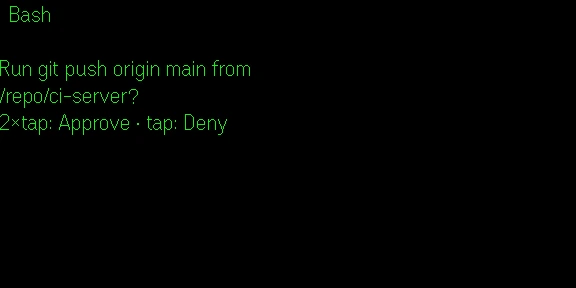
That is deliberate: brushing the touchbar by accident can never approve an action, and a denial is recoverable because the agent can ask again. While a prompt is waiting, taps answer it instead of turning pages. If the hub doesn’t accept your answer, the HUD shows a failure line and the prompt stays active, so you can answer again. Only the Claude Code and Codex CLI targets ask for approval; the other kinds never raise a prompt.
In version 0.5.2 and earlier, the approval card may not stay on the HUD. A
coding agent sends a status update right after each prompt, and the app draws
it over the card, so the display can read ⏳ awaiting_input (or ⏳ executing) while the prompt is still waiting. Taps still answer the prompt,
so check the phone chat for the 🔐 line before you approve or deny from the
glasses.
Troubleshooting
Backend unreachable / Test Connection fails
Confirm the Backend URL is reachable from the phone running the app. The default, http://localhost:8080, points at that phone itself, so set it to your Hub (for example http://<hub-ip>:8787). The agent-hub only listens on 127.0.0.1 until you set HUB_TOKEN or HUB_BIND. Against an agent-hub, ✓ Chat Completions with ✗ Responses API is the normal result. If you point the app at another server, make sure it allows the app’s origin via CORS (see the warning above).
“Responses API error 404” Builds before 0.5.1 could pick the Responses API on servers that don’t have it. Update to a build from 0.5.1 or later (pull the latest source), or set API Mode to Chat Completions. See How API Mode Auto chooses.
401 Unauthorized, or you were signed out
The agent-hub accepts its static HUB_TOKEN (put it in API Key) or, with PORTAL_OIDC_ENABLED=true, a Companion Intelligence sign-in. If a signed-in session can’t be renewed, the app clears it, and you sign in again.
Sign-in never returns to the app Use Paste redirect result (manual fallback) under Account, and paste the address you were redirected to. “No pending login” means sign-in wasn’t started on this device — tap Sign in with Companion Intelligence here first, then paste.
Hermes or Memory answers like a plain chat
The hub only offers Hermes and Memory once it has HERMES_GATEWAY_URL or CI_SERVER_URL. Without them it quietly answers from its default target instead. OpenClaw is always offered but replies with an error such as openclaw: OPENCLAW_GATEWAY_URL not configured until you set it.
No answer appears, only an error
Check that the Model name exists on your backend — the Ollama preset uses llama3.2 — and that Backend Kind matches what the URL points at. Presets and the Assistant expect an agent-hub on port 8787.
Voice not transcribing
With Whisper, the app posts to <Backend URL>/v1/audio/transcriptions using your key or sign-in token. Through an agent-hub, set STT_URL to a Whisper-compatible server — without it the hub answers 501. Otherwise switch STT Provider to Web Speech. That listens on the phone microphone after you release the touchbar, not to the G2 audio, so you speak again into the phone. The app labels it as using Google. If the Web Speech API isn’t available in the Even Hub WebView, the HUD shows ❌ Transcription failed.
The HUD stopped updating
The phone chat is the source of truth. A ⚠ HUD mark in the status bar means the glasses display isn’t updating; the app retries a failed write once, and the mark clears on the next successful update.
“Running in browser mode” This is expected when the Even Hub bridge isn’t present, for example in a plain browser tab. Settings, the chat view, and requests to your backend work, but voice does not, because the microphone is only wired up when the bridge is there. In a plain browser you can only send the quick-action chips, and the on-glasses display only renders on real hardware or in the simulator.
Setup & Connect says “Saved … — not verified”, or “Unreachable”
“Saved … — not verified” is expected for a plain-http hub: browsers won’t let a secure page test it. Check the hub with Settings → Test Connection in the app itself. “Unreachable” appears only for an https:// hub, and it is a real failure of the host, port 8787, DNS, or the certificate.
For developers: publishing
CI Companion is packaged for the Even Hub portal as a .ehpk file. The version in the repository’s manifest is 0.5.2 and its package id is com.companionintelligence.ciglasses. The store listing hasn’t been created yet, because the upload is still pending. The app asks for two permissions — g2-microphone for voice queries and network for sign-in and your chosen backend (the network whitelist is *, because you pick the backend). The agent-hub isn’t distributed through the portal; you run it yourself.
cd ci-glasses-app
npm run pack:ehpk   # builds and writes ci-companion.ehpk
Uploads are manual, through the portal’s Apps → New / Update form. The full runbook — the manifest rules, store-listing copy, screenshots, versioning, and rollback — is in PUBLISHING.md in the source repository.