🥽 Companion Scan
Scan a room with your phone, then explore it in 3D. Walk a space with your phone’s camera, and Companion Scan builds a 3D map that you can open, label, and measure in a desktop editor, all stored on your own Hub.
Install & availability
Available now, as a beta. Install from the Companion Hub App Store. The store lists it as Companion Scan.
| Hub App Store | Search Companion Scan → Install |
| Minimum Hub version | 0.2.41 |
| Port | 8000 inside the container, on the Hub’s own port for the app (the Hub app card shows it). One address serves the phone scanner, the editor, and the API |
| Architecture | linux/amd64 and linux/arm64 (multi-arch) |
| Storage | Scans, worlds, and summaries live in the app’s data folder on your Hub |
This page describes the build in the Hub store, published on 23 July 2026. The source has changed since then (the phone start screen, for example), and those changes aren’t in the store build.
Limits of the store build.
- Scanning needs an AR-capable phone and an HTTPS address. See Open the scanner on your phone.
- Object labels need an Ollama vision model that the app can reach. Without one, scans have no labels.
- Upload a video and photo-set upload don’t work. The store image is missing a file that the upload script imports, so every upload fails with an error.
- Splat training and dense reconstruction need GPU tools that the image doesn’t include.
- Companion Scan doesn’t write to Companion Memory, and it has no accounts of its own by default. See Choose who can reach it.
Overview
Companion Scan is a browser-based AR room scanner and a desktop world editor. On the phone it uses the free 8th Wall SLAM engine binary, with a native WebXR fallback, to track the space and build a live coloured point cloud while a vision-language model labels the objects it sees. On the desktop, the editor places one or more scans in a shared, metric, geo-anchored 3D world that you can inspect, align, label, measure, and share by link.
Scan files, camera frames, and detections go only to your Hub and the Ollama it uses. See What leaves your network for the few third-party requests the pages make.
What a world is
A world is a metric frame, in meters, anchored to a GPS origin. It holds one or more scans, and each scan is split into typed layers: point cloud, meshes, floors, detections, labels, and the camera’s path. The fourth dimension is time: every frame is timestamped, and edits are an append-only history, so one world can hold several scans of the same place captured at different moments. The editor opens the world named default unless you ask for another with ?world=<name>.
Key features
- Web AR scanning — 8th Wall SLAM tracks the room and builds a live point cloud. A native WebXR scanner at
/webxr.htmlruns on browsers that support it. - Object detection — each capture sends a frame to your Hub, where an Ollama vision model returns labelled boxes. The labels become 3D pins at their positions in the room.
- Scan quality guidance — a coverage bar, warnings for fast movement, low light, and reflective surfaces, and a verdict chip (Ready, Review, or Sparse). Done opens the export panel, and export asks you to confirm when the scan is sparse.
- Three ways to capture — tap to capture, auto-capture as you walk, or keyframe streaming that sends posed frames to the Hub for reconstruction jobs.
- Live view on the desktop — Start Live Stream shows the scan growing in the editor in real time.
- Autosave and history — the first capture uploads silently. Sessions stay on the phone, and the history drawer (Scan Memory) lists them with a map of where you scanned.
- Desktop world editor — scans in one shared frame, with render modes, layer toggles, a measure tool, a map, semantic tags, notes, and move, rotate, and scale controls.
- Server processing — from the phone’s panel, ask the Hub for a floor plan, a scene description, or an object report. Uploads are compressed and get lower-detail previews that the editor loads first.
- Share links by role — owner, editor, viewer, and scanner links for a world.
- Installable and offline-tolerant — a PWA with an offline queue for uploads.
The scanning experience
On your phone: scan a room
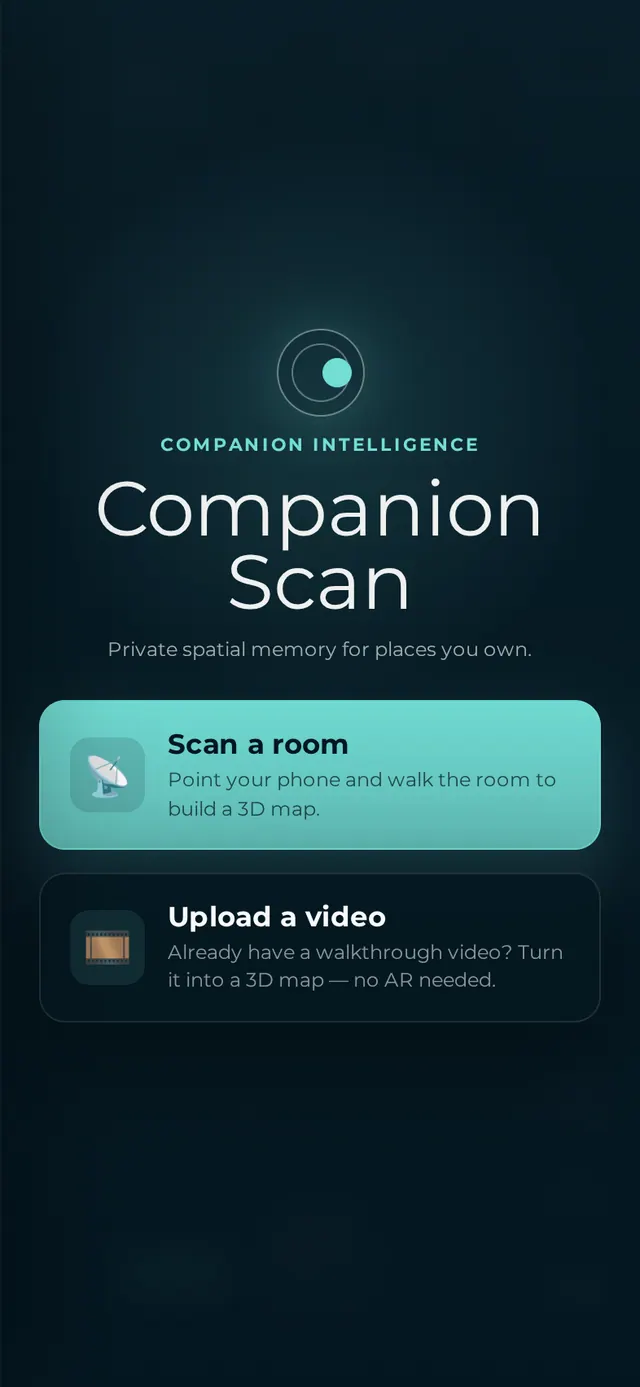
Open the app’s HTTPS address, allow camera and motion access, choose Scan a room, and sweep the space slowly. The HUD in the top-left corner shows tracking status, the live point count, the coverage bar, and the verdict chip. The buttons on the right open the desktop editor, the Review and Export panel, keyframe streaming, auto-capture, and the history drawer.
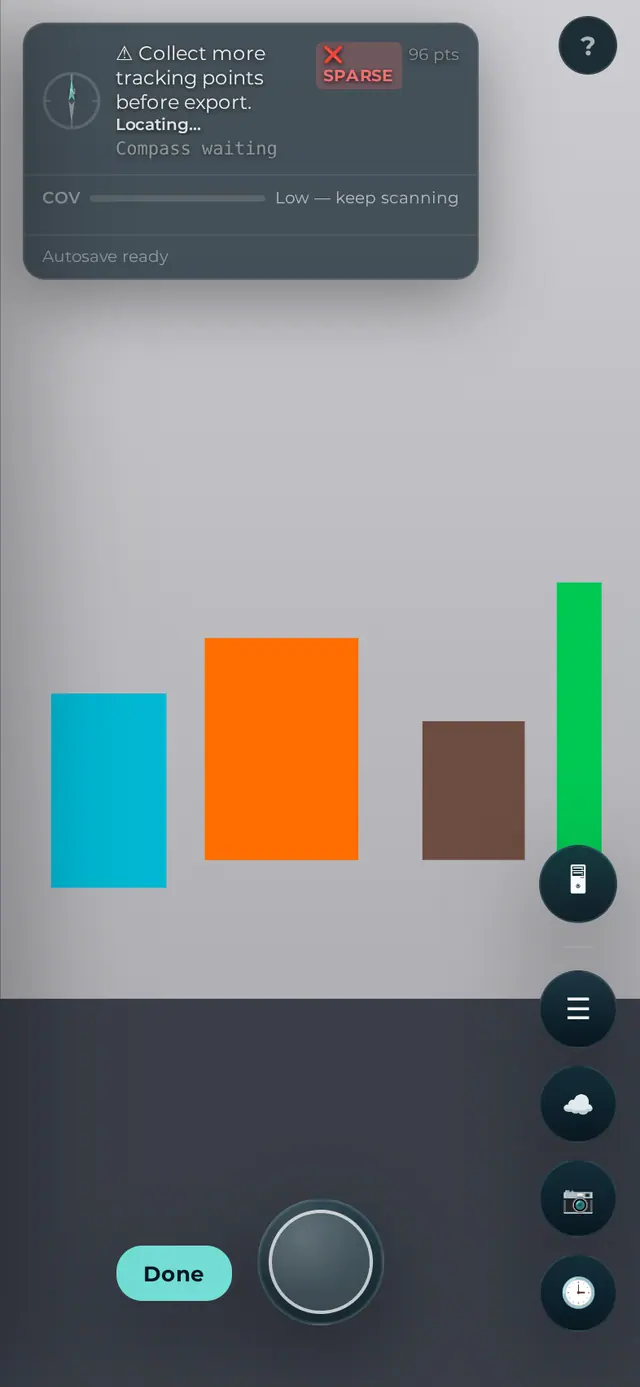
Tap the capture button to identify objects. Each detection appears as a card and as a 3D pin in the scene. When you’re done, select Done to review and export.
On the desktop: structure the world
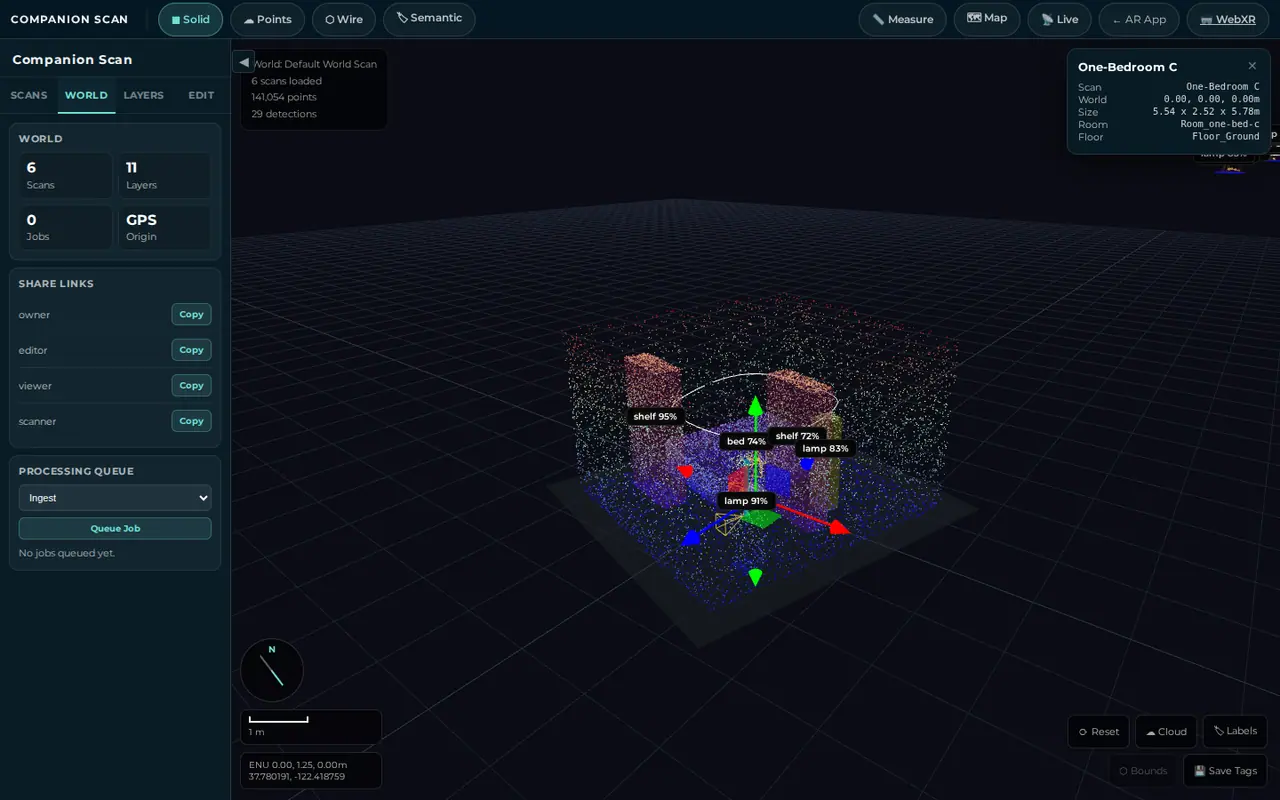
Open the editor at /viewer.html?world=default on your app’s address, or tap the desktop button on the phone’s action rail. The Scans tab lists every scan in the world. Select one to focus the view on it.
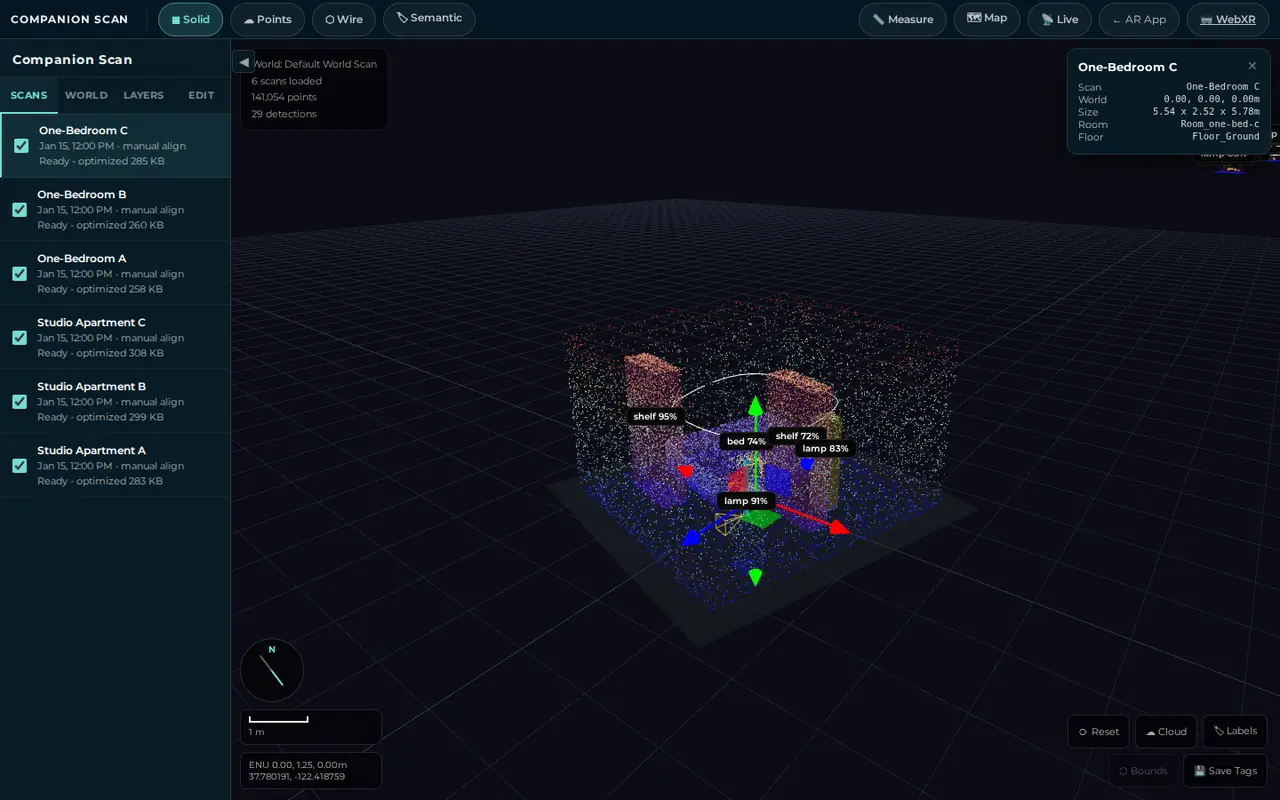
The World tab shows the world’s totals, the share links, and the processing queue.
How it works
From a phone sweep to a shareable world, the data moves through these stages:
flowchart TD
    PH["Phone: 8th Wall SLAM or WebXR<br/>pose and feature points"] -->|"point cloud<br/>plus a JPEG per capture"| DET["Detection on your Hub<br/>Ollama vision model"]
    DET -->|"boxes placed in 3D"| PINS["Labelled 3D pins"]
    PINS -->|"autosave / Export GLB"| HUB["Hub storage<br/>scans · worlds · summaries"]
    HUB -->|"compress and make previews"| ED["World editor<br/>metric frame · layers · measure · tags"]
    ED -->|"queue jobs"| JOBS["Processing jobs<br/>splats and dense reconstruction need GPU tools"]
    JOBS -->|"artifacts attach to the scan"| ED
    ED -->|"role links"| SHARE["Share links<br/>owner · editor · viewer · scanner"]
Reconstruction methods
| Method | What it produces | Hardware | In the Hub install |
|---|---|---|---|
| Live SLAM point cloud | Coloured point cloud and object pins | Phone (no GPU) | Included |
| Vision-language object detection | Labelled 3D detections | An Ollama vision model, or ONNX or WebGPU in the browser | Included. The app needs an Ollama vision model it can reach |
| Scan optimization | Compressed .opt.glb files and lower-detail previews | CPU | Included |
| Video and photo-set ingest | Keyframes from an upload | CPU (ffmpeg) | Fails in the store build. The keyframes also need LingBot-Map to get poses |
| Gaussian splatting (Brush) | Photorealistic splat files | GPU | Not included. The job is skipped with a reason |
| Dense reconstruction (LingBot-Map) | Fused point cloud and camera poses | GPU | Not included. The job is skipped with a reason |
Setup
Install from Hub
Search for Companion Scan in the Hub app store and install. It needs Companion Hub 0.2.41 or newer. The install form has these choices:
- Sign in with Companion Intelligence is off by default. When it’s on, an allowed CI Account that signs in lands in the editor with owner rights. It doesn’t lock the app by itself.
- Allowed Companion accounts lists the emails that may sign in. An empty list rejects everyone.
- Companion Memory URL and API key are in the form, but the store build doesn’t use them.
Choose who can reach it. Companion Scan stores scans of your home, and by default anyone who can reach its address can open the editor and upload scans. When the install form offers Public Web, leave Enable authentication on, or choose Private VPN or This Machine Only. See Expose your apps.
Give the app a vision model
Detection uses an Ollama vision model. The app checks Ollama once, when it starts. It uses moondream:latest unless your Hub passes it another vision model. Pull one first on the computer that runs Ollama:
ollama pull moondream:latestIf the named model isn’t pulled, the app falls back to another vision model it finds, such as llava:7b or qwen3-vl:4b, and then to the first model Ollama lists. Open <app address>/health to check: "modelReady": true means detection works, and "engineLoadState": "failed" means the app couldn’t reach Ollama when it started. If your Hub’s inference engine isn’t Ollama, the app has no Ollama address to use, so detection stays unavailable.
Open the scanner on your phone
Your phone needs an HTTPS address for the app: camera and motion APIs require a secure origin, and a plain http://<hub-address>:<port> address isn’t one. Expose the app or reach the Hub over Tailscale. Open the link and grant camera and motion access when prompted. A five-step onboarding overlay explains permissions, movement speed, the capture modes, scan quality, and desktop editing, and you can replay it from the ? button.
Live AR needs a recent iPhone with Safari, or an Android phone with Chrome and ARCore. The project’s device checklist covers both, but its results table is empty, so we couldn’t confirm which phones work. Native WebXR (/webxr.html) doesn’t run in iOS Safari. On iOS, open it in a WebXR-capable browser such as HelloXR instead.
Capture footage
For best results:
- Move slowly and steadily, and let the coverage bar reach a good level before you finish.
- Keep even lighting, and avoid direct sunlight and harsh shadows.
- Sweep surfaces from multiple heights and angles.
Select Done when the verdict chip reads Ready, then Export GLB.
Open the world editor
On a computer, open /viewer.html?world=default on the app’s address. Select a scan to focus it, then use the World tab to copy a share link or queue a job.
Usage
Viewing a completed scan
Orbit, pan, and zoom the scene. The render buttons along the top switch between Solid, Points, Wire, and Semantic (recoloured by tag). The Layers tab toggles each layer on its own: the point cloud, meshes, floors, detections, labels, and camera path. Map pins every GPS-tagged scan on a map.
Measuring
Select Measure, then click two points. Because the world is metric, the readout is in real meters.
Tagging and editing
Select a scan in the Scans tab to open the Edit tab. There you can move, rotate, or scale the scan, assign a semantic tag, add notes, or hide it. Every edit is saved as an append-only patch.
Sharing
The World tab has owner, editor, viewer, and scanner links. Each carries a token in its address. The store build doesn’t enforce those tokens by default, so treat the app’s address itself as the thing to protect.
Exporting
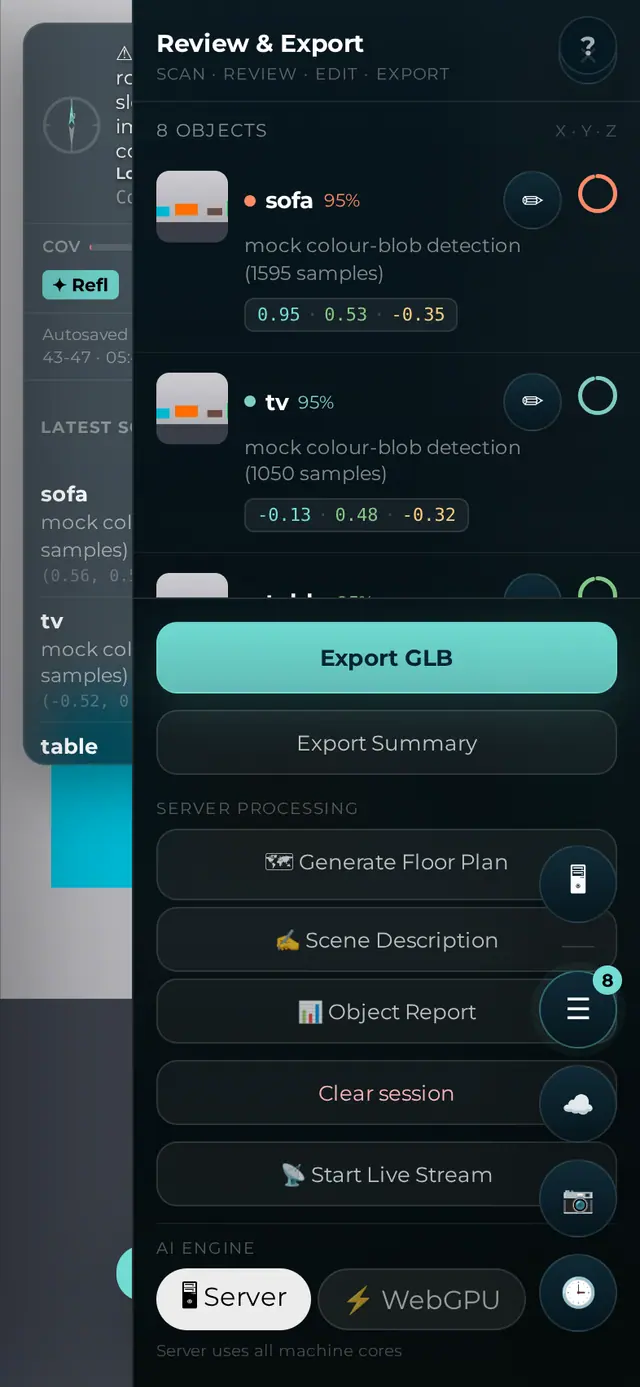
From the phone’s Review and Export panel, Export GLB saves the scan as a .glb file and uploads it to your Hub, and Export Summary saves a summary of the scan.
What leaves your network
Scan files, camera frames, and detections go to your Hub and, for labelling, to the Ollama it uses. The pages themselves make a few third-party requests:
- Fonts load from Google Fonts, and the map library loads from unpkg.com.
- The maps draw tiles from the CARTO basemap, which uses OpenStreetMap data.
- When location access is on, the phone asks OpenStreetMap’s Nominatim service to turn your coordinates into an address.
Troubleshooting
Tracking never starts, or “Move camera to initialise tracking…” never goes away Camera or motion permission was denied. Re-enable it in your browser or OS settings (iOS: Settings → Safari → Motion & Orientation Access, and camera access for the site) and reload over the HTTPS link.
“HTTPS required” on the start screen Camera and AR APIs only work on a secure origin. Open the app’s HTTPS link, not a plain-HTTP address.
The scan has no labels, or capturing reports an error
The app couldn’t use an Ollama vision model. Check <app address>/health as described in Give the app a vision model, pull a vision model, and restart the app, because it checks Ollama only when it starts.
Uploading a video or photos fails This is a known problem in the store build: the upload scripts import a file that isn’t in the image. Use live AR scanning instead.
Splat training or dense reconstruction is skipped These jobs need GPU tools that the store image doesn’t include. The job reports a skipped reason.
The reconstructed model has holes Coverage was too low. Capture more angles of the problem areas and scan again. A world can hold several scans of the same space.