Companion Memory Data Import
Reclaim your digital sovereignty. Pull your files, social exports, and personal data archives into your local Companion Hub — recognized, parsed, and handed off to your Companion Memory.
Install & availability
Available now. Install from the Companion Hub App Store. Verified on the test fleet: the published image pulls, starts, serves its web UI, and survives a container restart.
| Hub App Store | Search Import Tools → Install |
| Web UI port | 12002 |
| Architecture | linux/amd64 and linux/arm64 (multi-arch) |
| Mounts | /repo (read-only source data) and /data (SQLite state) |
Overview
Import Tools moves your existing digital footprint — data exports, photo libraries, message archives, location logs — into your local Companion Hub and Companion Memory. It recognizes a wide range of export formats, parses the recognized ones into normalized records, and can push them to your Companion Memory.
You work from a guided wizard (or a CLI). You point Import Tools at data on disk under the mounted /repo, or drop files into the wizard’s per-source inbox folders — there is no “upload a single cloud archive” pipeline.
Current capabilities
What Import Tools does today, as shipped:
- ~31 file- and API-based importers for common personal-data exports (see the list below)
- Format auto-recognition — it identifies what an export is from its structure
- Asynchronous import jobs with live progress over SSE
- NDJSON export via
/api/exportand push to Companion Memory handoff - MCP server at
/mcpso agents can drive imports - Optional auth via the
CI_AUTH_TOKENenvironment variable - A 3-step wizard: Pick a source → Export instructions → Summary + Companion Memory handoff
Import Tools’ MCP server does not follow the pattern the other two do. It
serves at /mcp, not /api/mcp, and it authenticates with the shared
CI_AUTH_TOKEN rather than a per-client API key — so it has no scopes, no
capability, and cannot be revoked for one client without disconnecting all of
them. It also answers 401 on every path, so the usual “is my path right?”
check does not work here. Connect an Agent therefore covers
Companion Hub and Companion Memory only; its /api/mcp guidance does not
apply to this server. Alignment is tracked in
CI-Import-Tools#198 .
Every importer in the catalog below parses today, each with test coverage in the backend suite.
Earlier versions of this page advertised SFTP/SMB, Obsidian, Notion,
custom-CSV, and direct iCloud sync importers, plus a “privacy scrubbing / PII
stripping / EXIF review” step and a ci-import CLI installed via
get.ci.computer/import-tools. None of those exist. The accurate catalog,
CLI, and workflow are documented below.
Supported importers
The real catalog is roughly 31 importers across files and APIs:
| Category | Sources |
|---|---|
| Takeout family, Google Voice, YouTube | |
| Apple | Apple Photos, Apple Health, Contacts, Calendar, iMessage |
| Social | Facebook, Instagram, WhatsApp, Twitter, Reddit |
| Media & activity | Spotify, Strava, Kindle, Flighty |
| Dev & web | GitHub, browser history (Chromium and others) |
| Location | GPX, KML, GeoJSON, NMEA |
| Contacts & mail | vCard, email / mbox, Google Voice |
| Generic | Generic file importer |
There is no PII scrubbing, EXIF review, or privacy-filtering feature. Import Tools recognizes, parses, and forwards data — it does not redact it.
The import workflow
The flagship flow is the 3-step wizard — Pick → Export → Sync — not an archive upload:
- Pick — choose the platforms and services you use (e.g. Google Takeout, Apple Photos, Strava, GPX). Sources are grouped by category and searchable.
- Export — for each source you picked, the wizard shows tailored, per-source export instructions, plus the expected format and what will be imported. Follow them to produce the export, then place the files where the importer can see them: under the mounted
/repopath, or dropped into the wizard’sdata/inbox/<source>/folder. - Sync — review the running item count, then push everything you’ve ingested into your own Companion Memory.
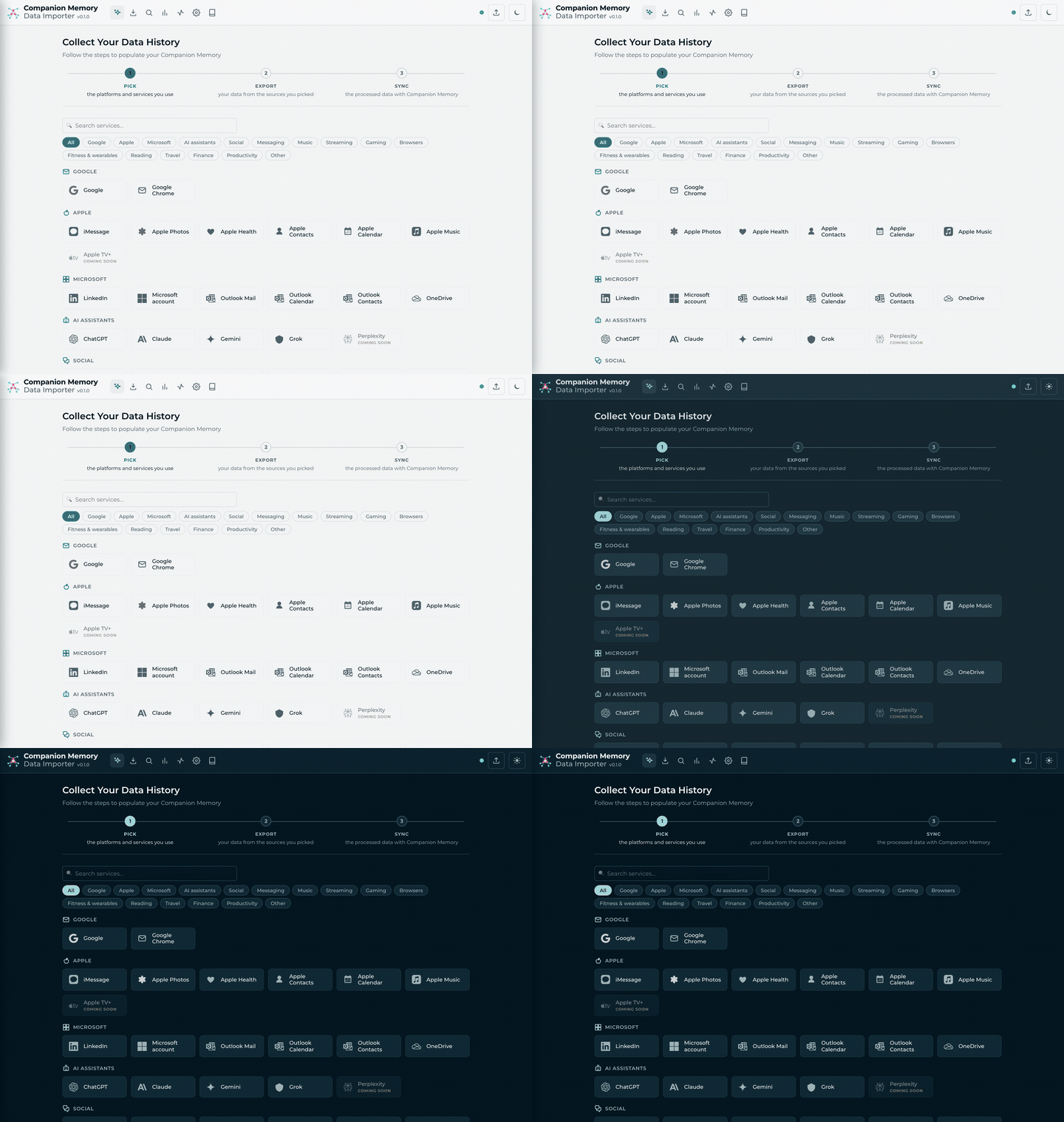
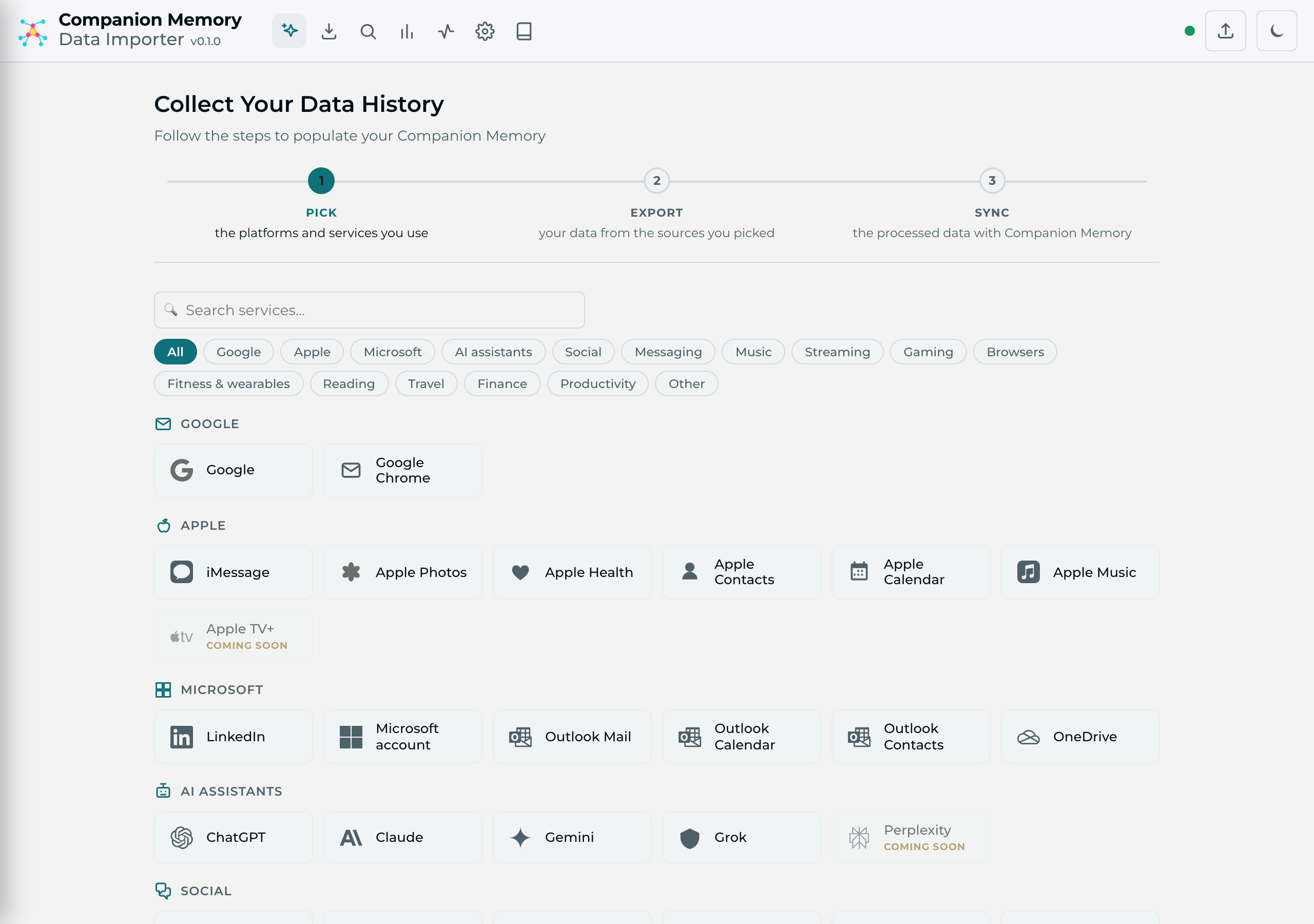
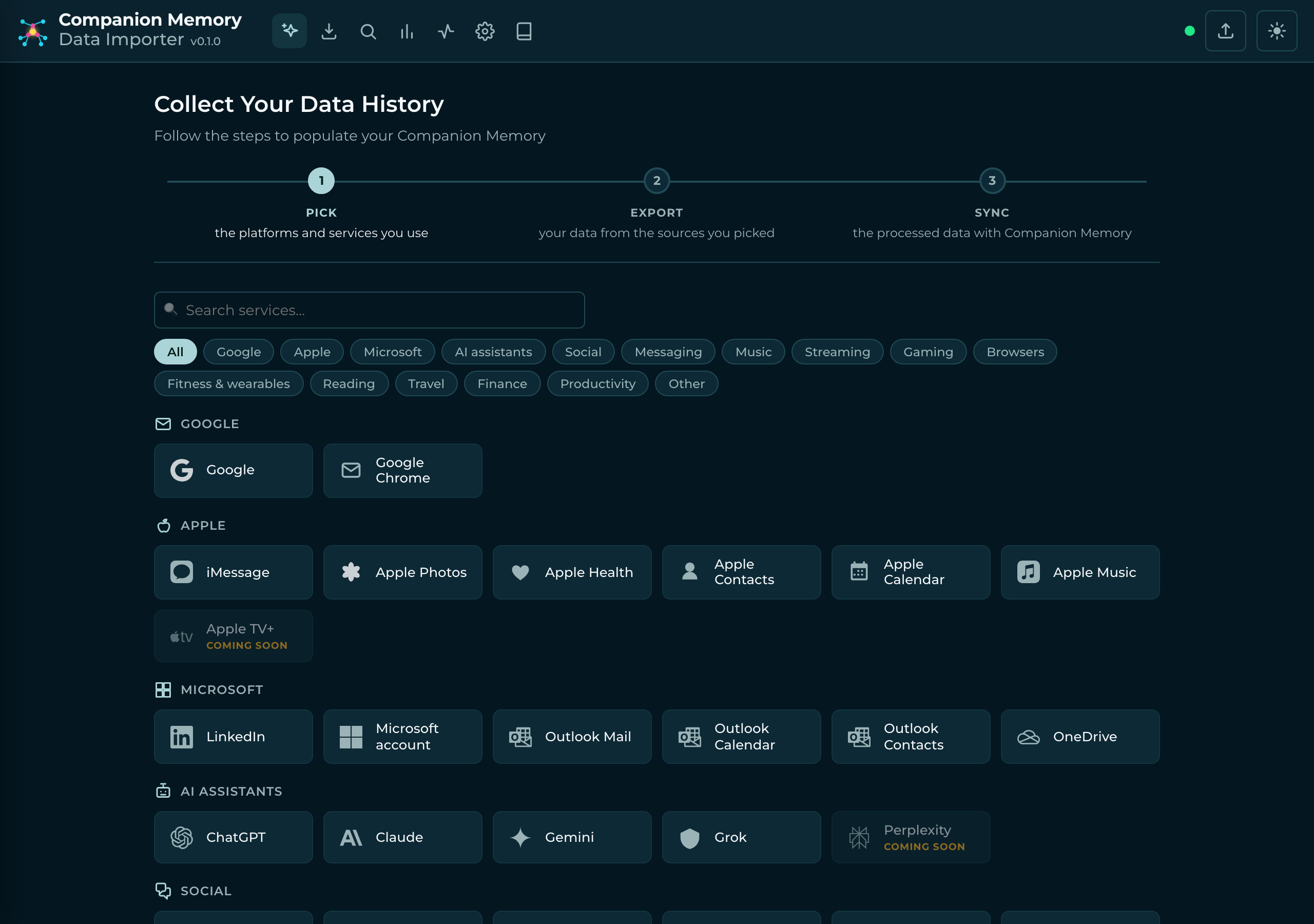
The Pick step opens the importer: a searchable, category-filtered grid of Google, Apple, Microsoft, AI-assistant, social, messaging, media, and more sources — tick the ones you use and move on:
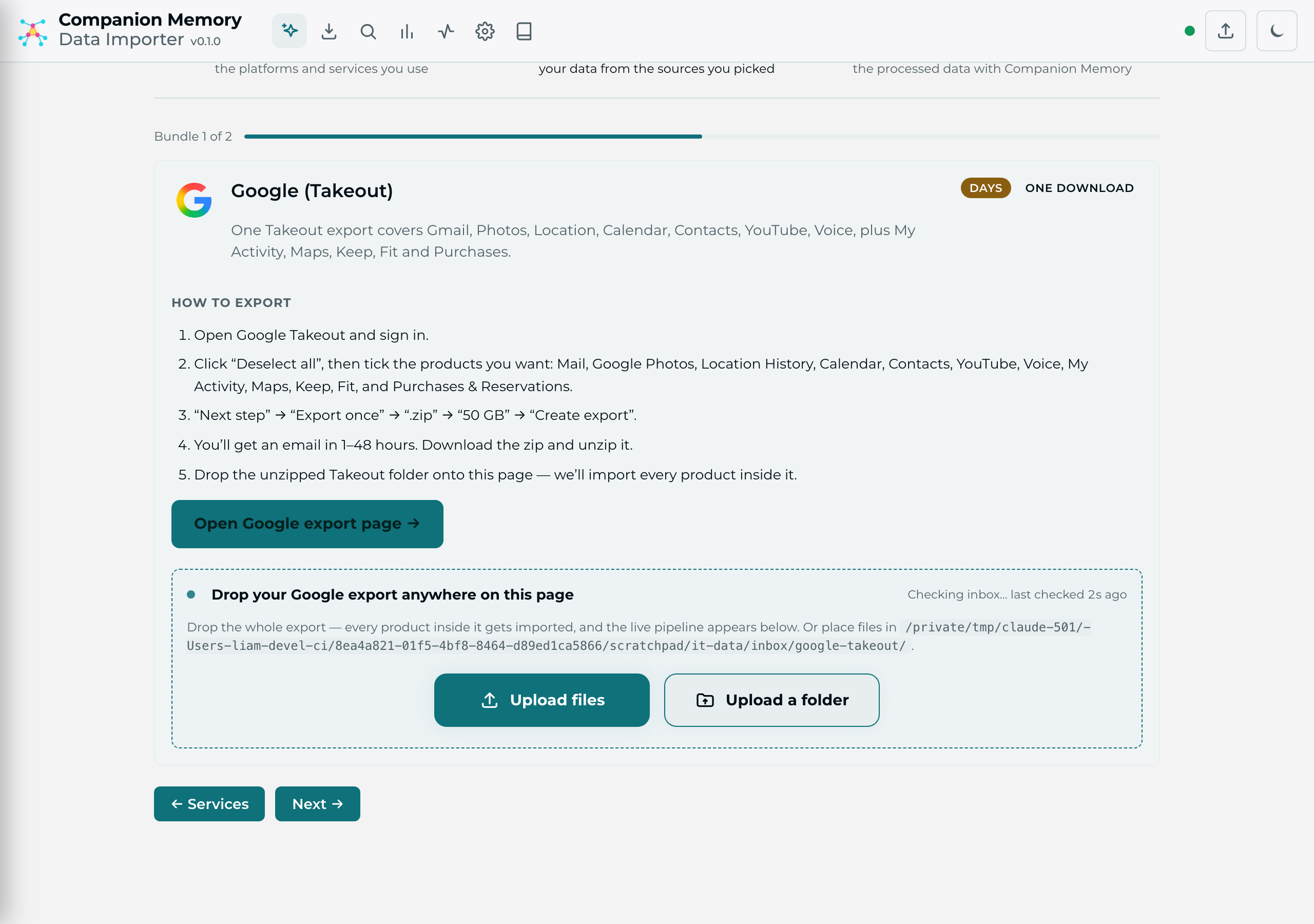
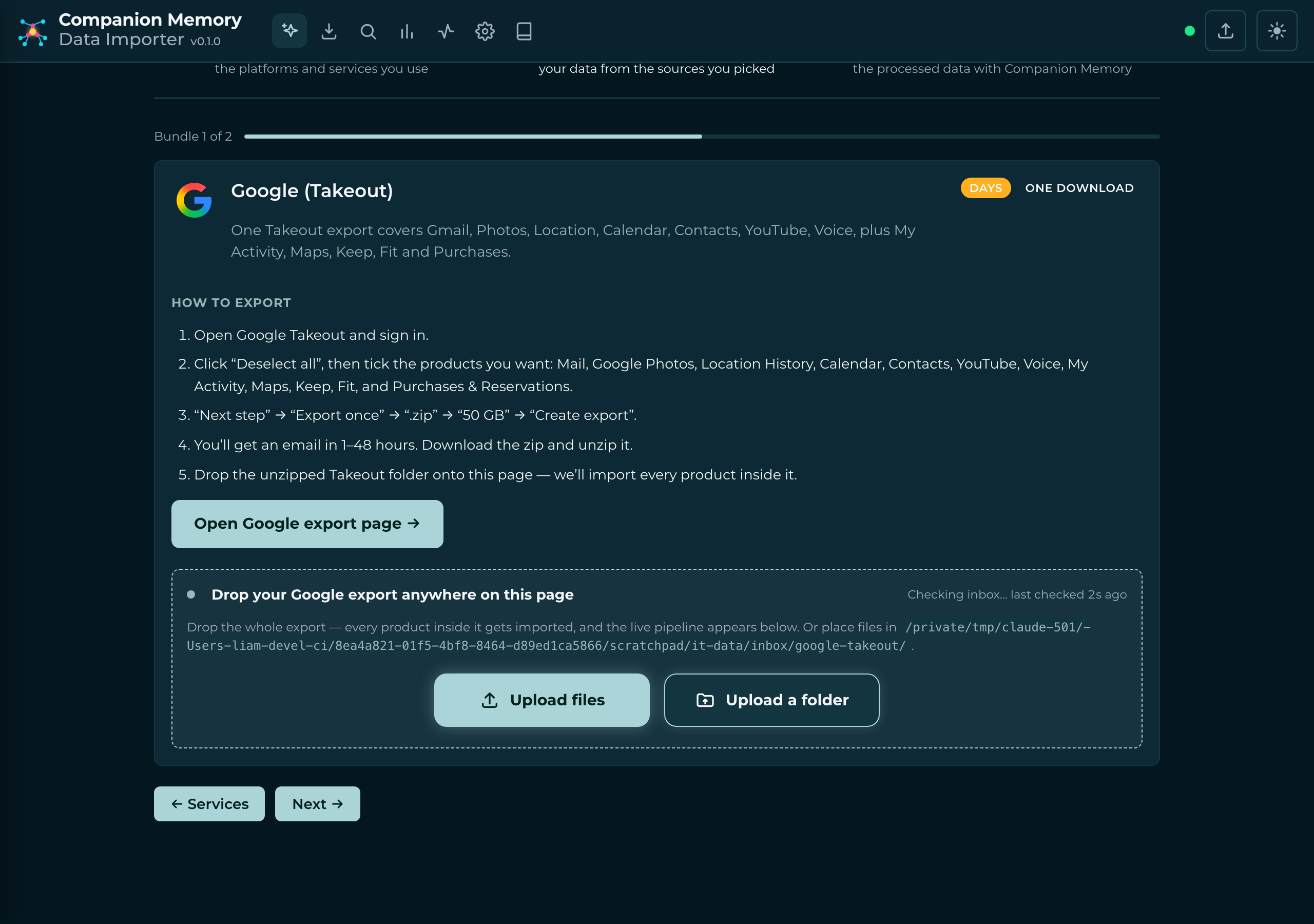
Each source you selected gets its own Export card with concrete instructions, the expected on-disk format, and exactly what lands in your memory:
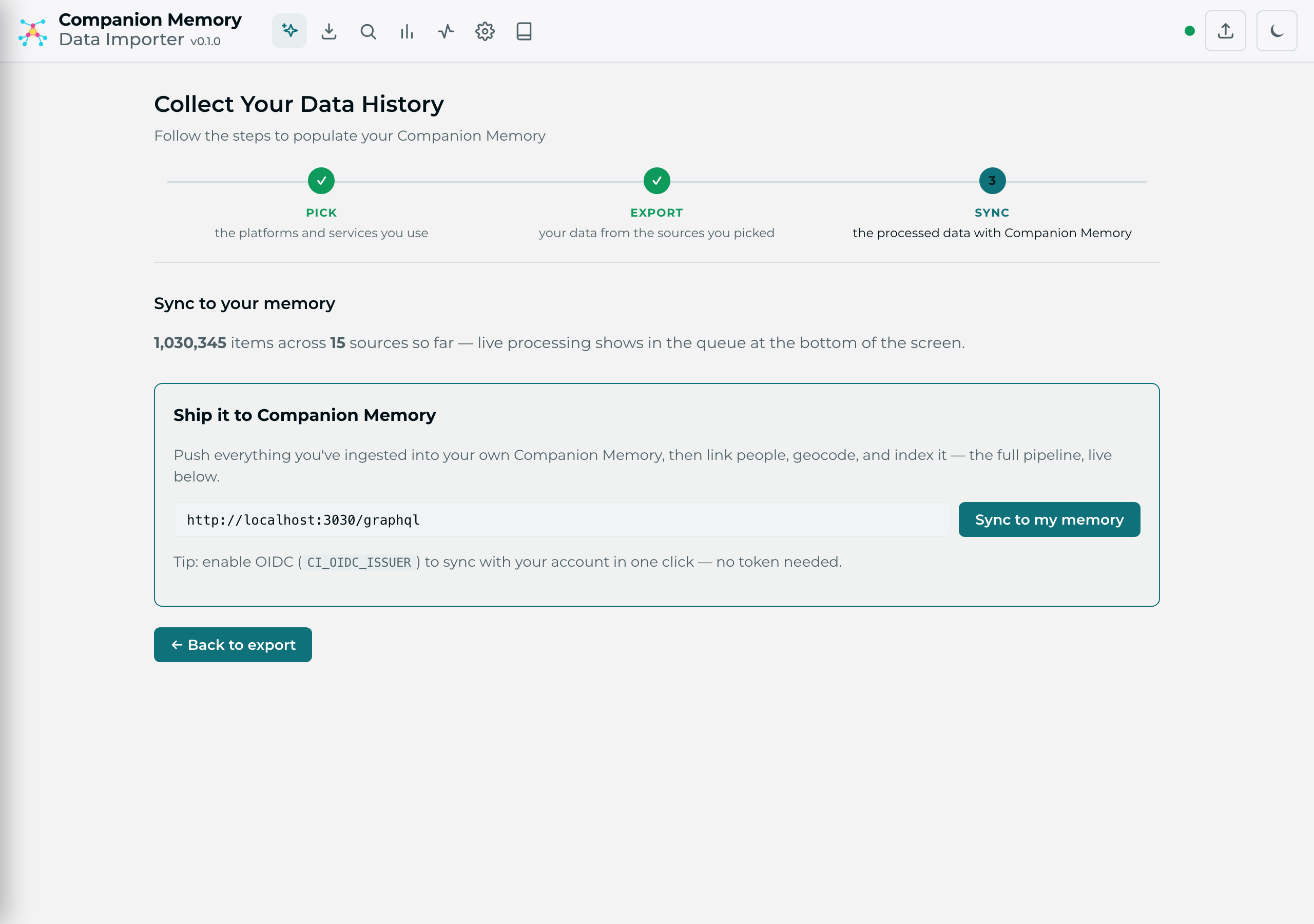
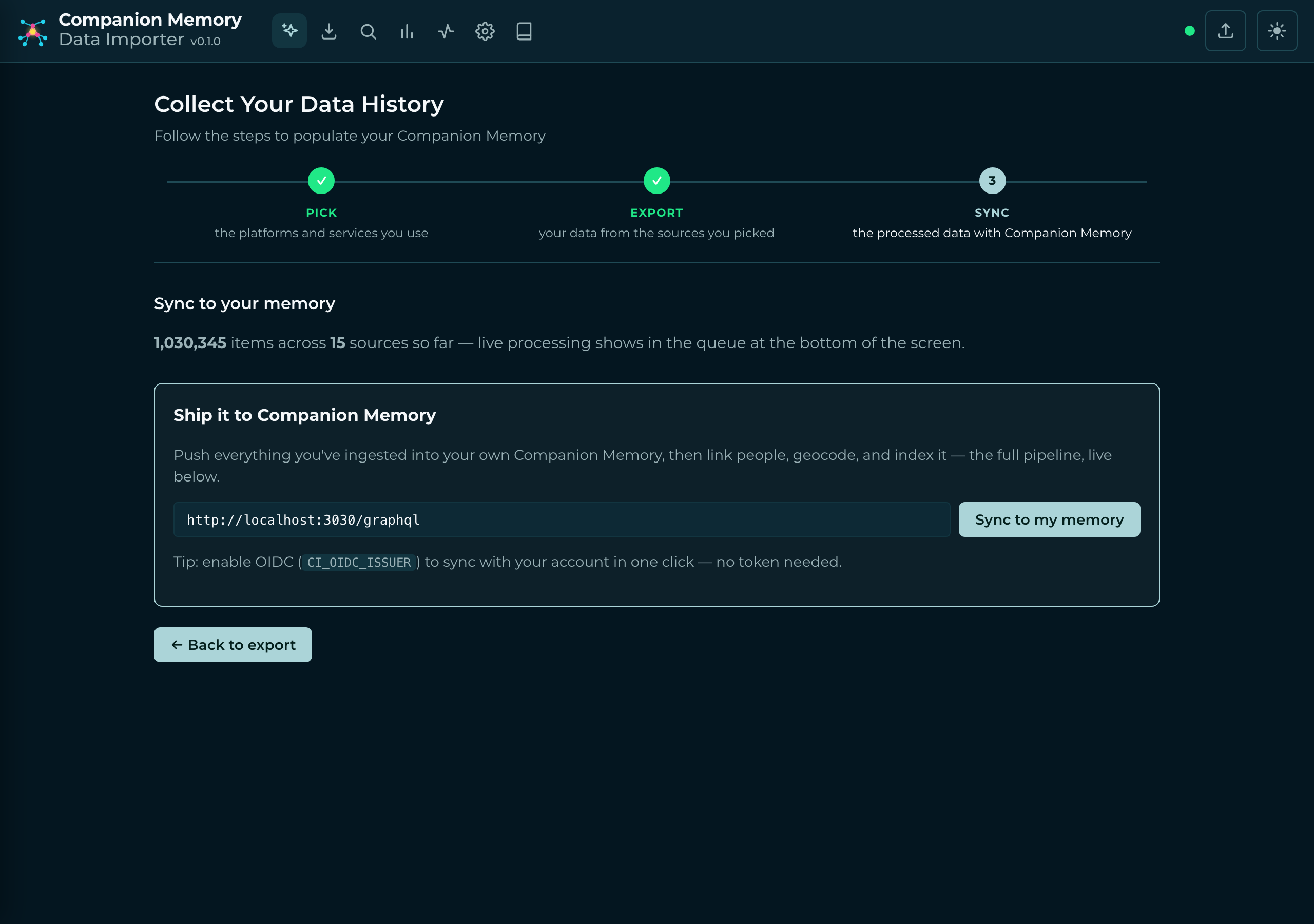
The final Sync step ships your parsed timeline to Companion Memory. Records are sent as GraphQL createEvent mutations to your own server; enabling OIDC lets you sync to your account in one click, with no token to paste:
CLI
There is no ci-import binary and no get.ci.computer/import-tools installer. The real CLI lives in the repository’s backend/ directory and is run via npm scripts:
# from backend/
npm run cli -- stats               # show what's in the repo / inbox
npm run cli -- recognize           # auto-recognize formats present
npm run cli -- import              # run the importers
Differentiators
Worth knowing about Import Tools specifically:
- Format auto-recognition so you don’t have to hand-classify exports
- Async jobs with SSE progress for long-running imports
/api/exportNDJSON stream plus direct push to Companion Memory- MCP server at
/mcpso Companion Agents can trigger and monitor imports - Optional
CI_AUTH_TOKENto require auth on the API
Setup
Install from Hub
Search for Import Tools in the Hub app store and install. The Hub provides the /repo (read-only source) and /data (SQLite state) mounts.
Open the wizard
App hostnames use your configured local domain — .localhost is the default. If one doesn’t resolve on your setup, see Finding Your App’s URL.
Navigate to http://import-tools.localhost and start a new import. Pick your source.
Place your data
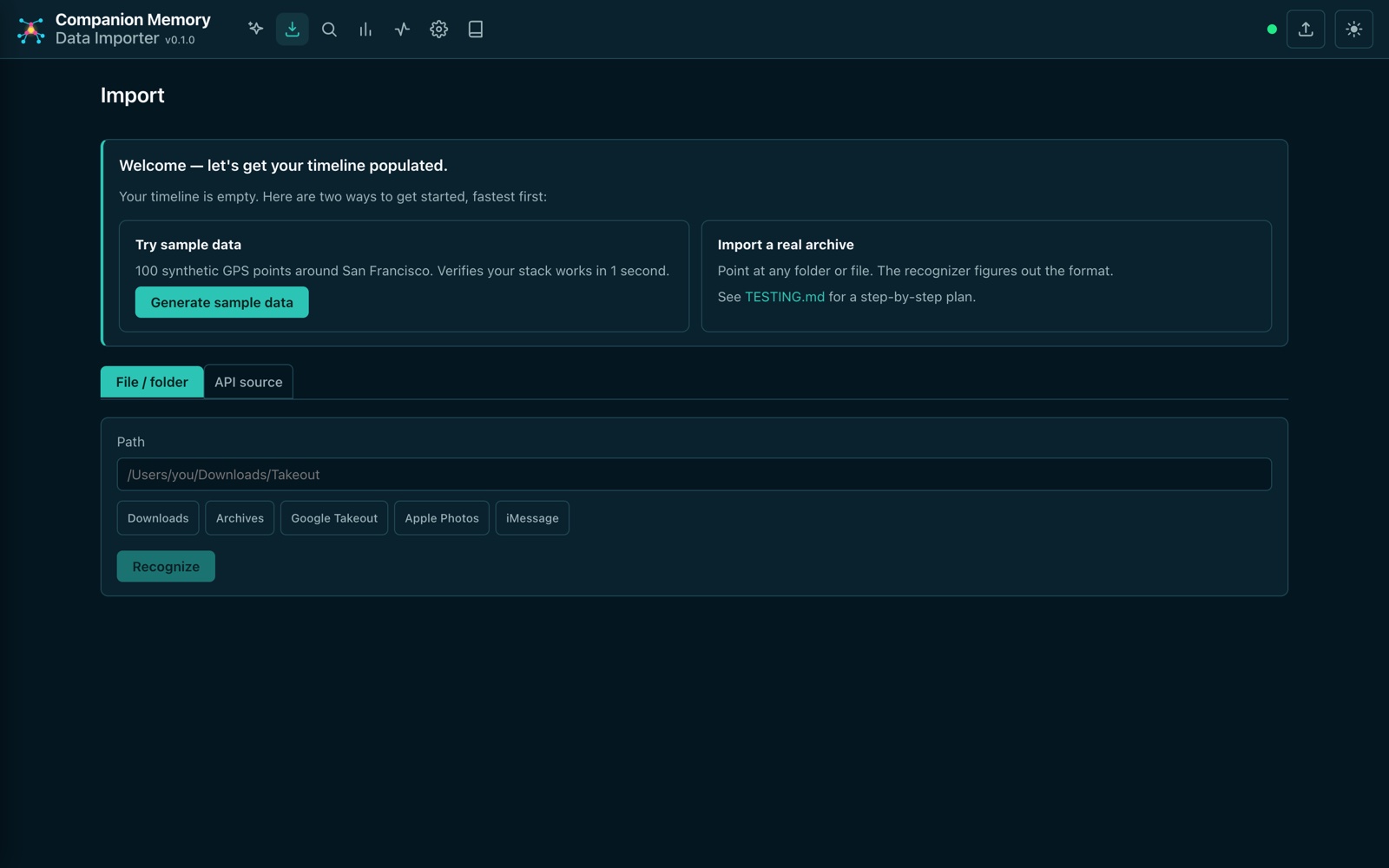
Follow the per-source export instructions, then put the files under the mounted /repo path or drop them into the wizard’s data/inbox/<source>/ folder. On the Import page you can point at any folder or file and let the recognizer figure out the format — or click Generate sample data to verify your stack end-to-end in a second.
Recognize, import, hand off
Let Import Tools recognize and parse the files, review the summary, and push to your Companion Memory. (Equivalent CLI: npm run cli -- {stats,recognize,import} from backend/.)
Usage
Running an Import
Web UI
Open http://import-tools.localhost → start a new import → Pick your sources → follow the per-source Export instructions and place files under /repo or in data/inbox/<source>/ → Sync the recognized, parsed timeline to Companion Memory.
Watching Progress
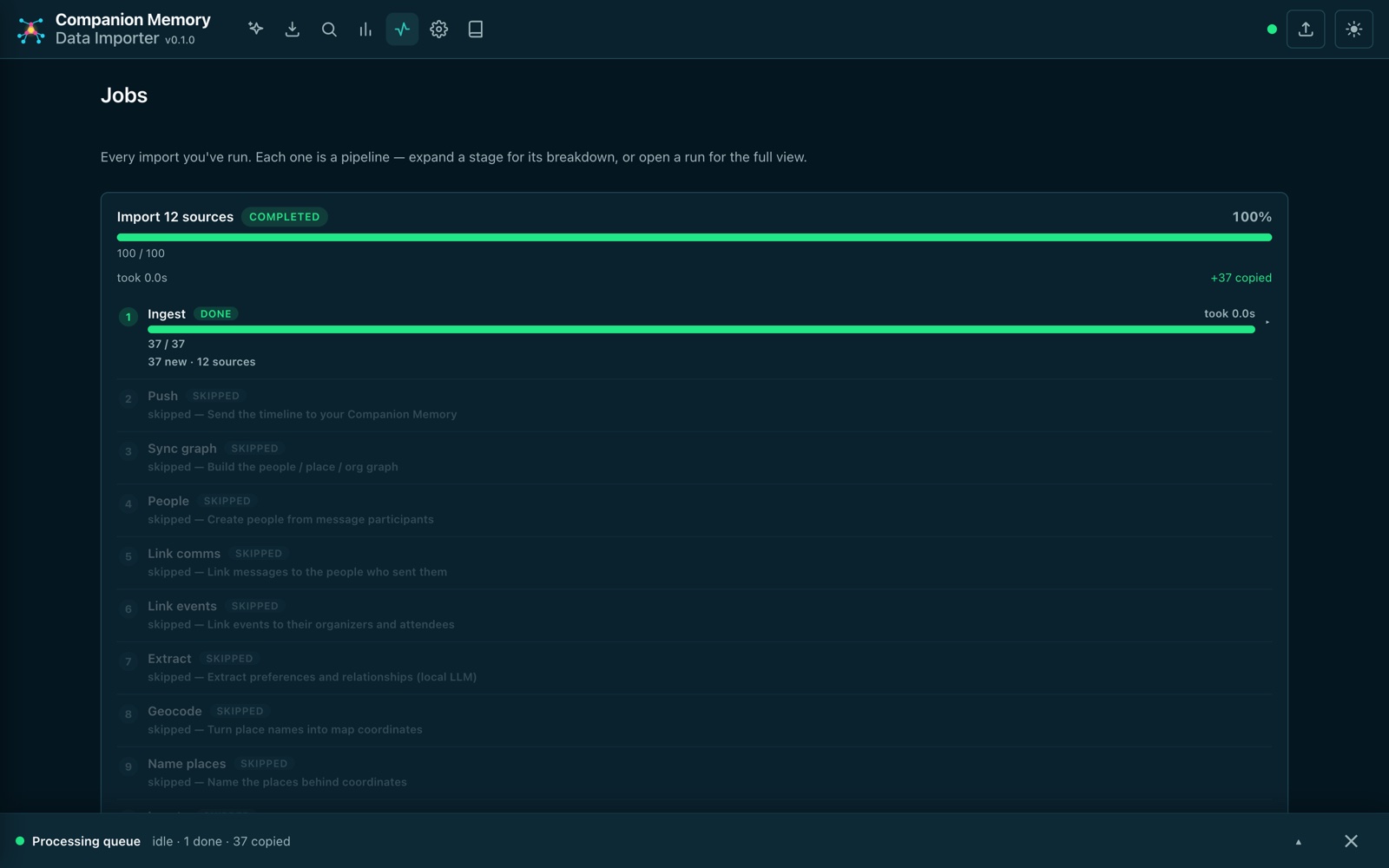
Imports run as async jobs and stream progress over SSE. The Jobs view lists every import you’ve run; each one is a pipeline you can expand stage by stage — ingest, push, graph sync, people, linking, extraction, geocoding, and more — with live counts and timing.
Exporting / Handing Off
Use /api/export to stream parsed records as NDJSON, or use the built-in push to send them to your Companion Memory.
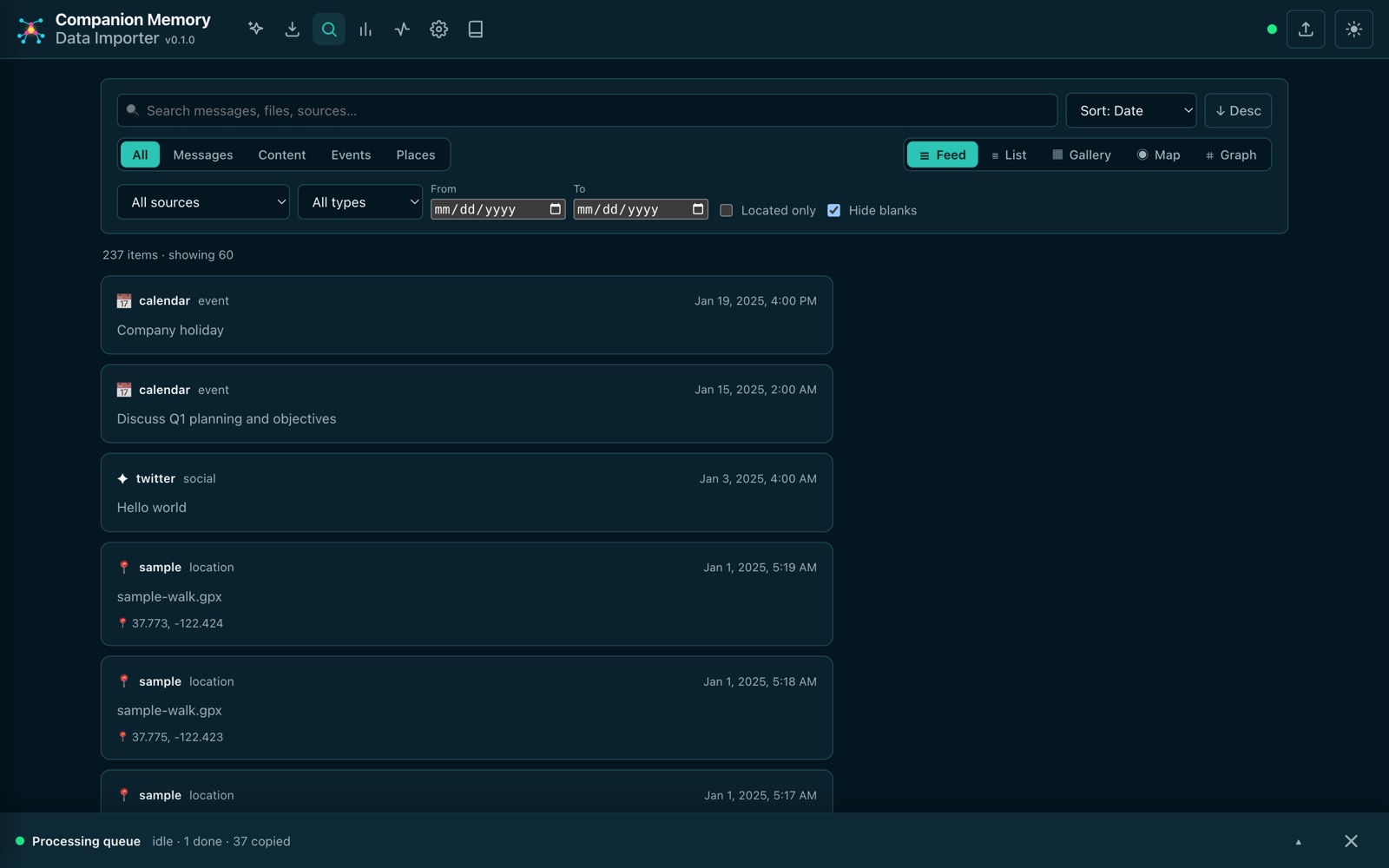
Once synced, your imported history is browsable right there — the built-in Explorer searches and filters everything you’ve ingested across sources, in a feed, list, gallery, map, or graph view.
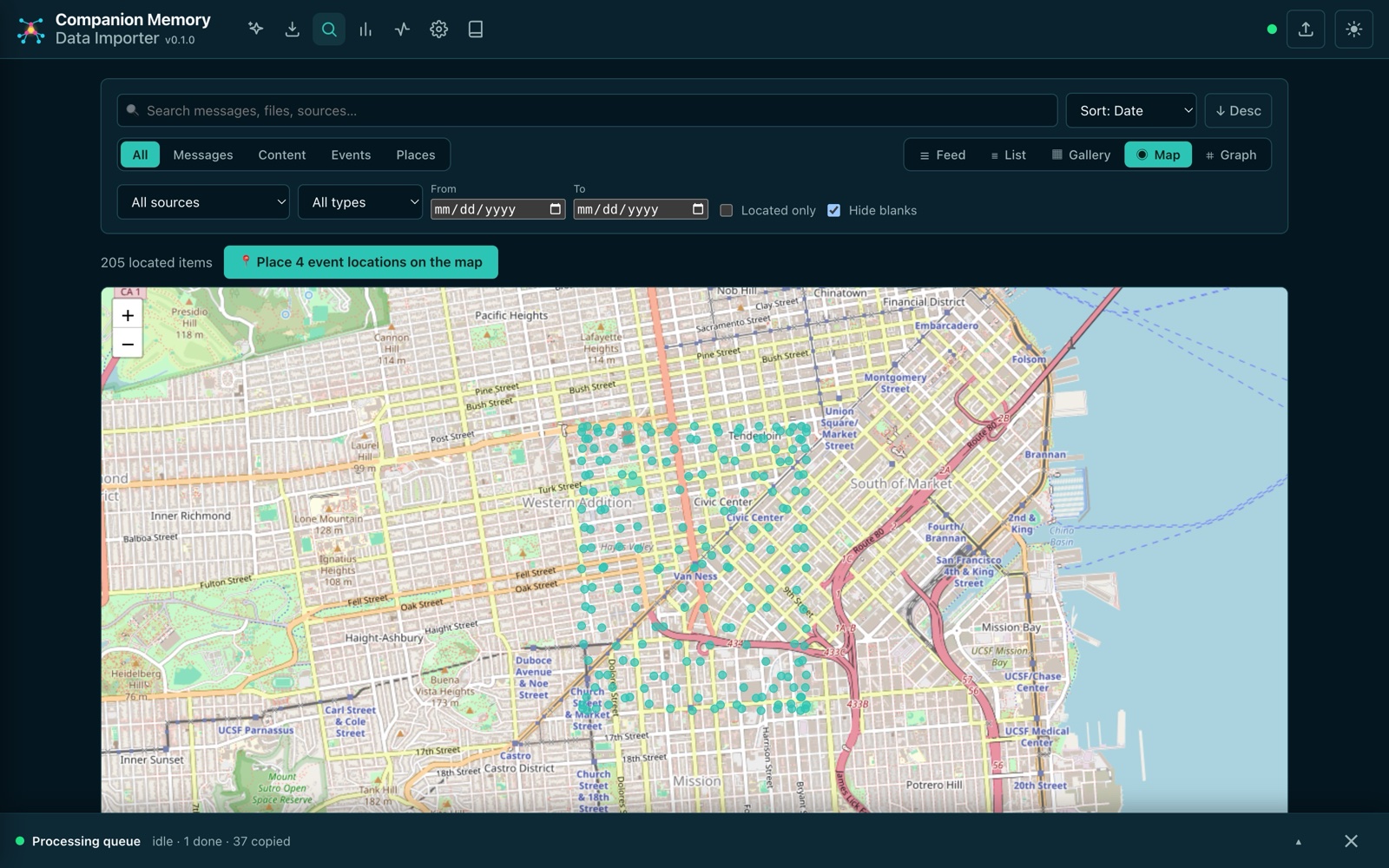
Located items — GPS tracks, photo EXIF, check-ins — cluster on the Map view so you can see where your timeline actually happened:
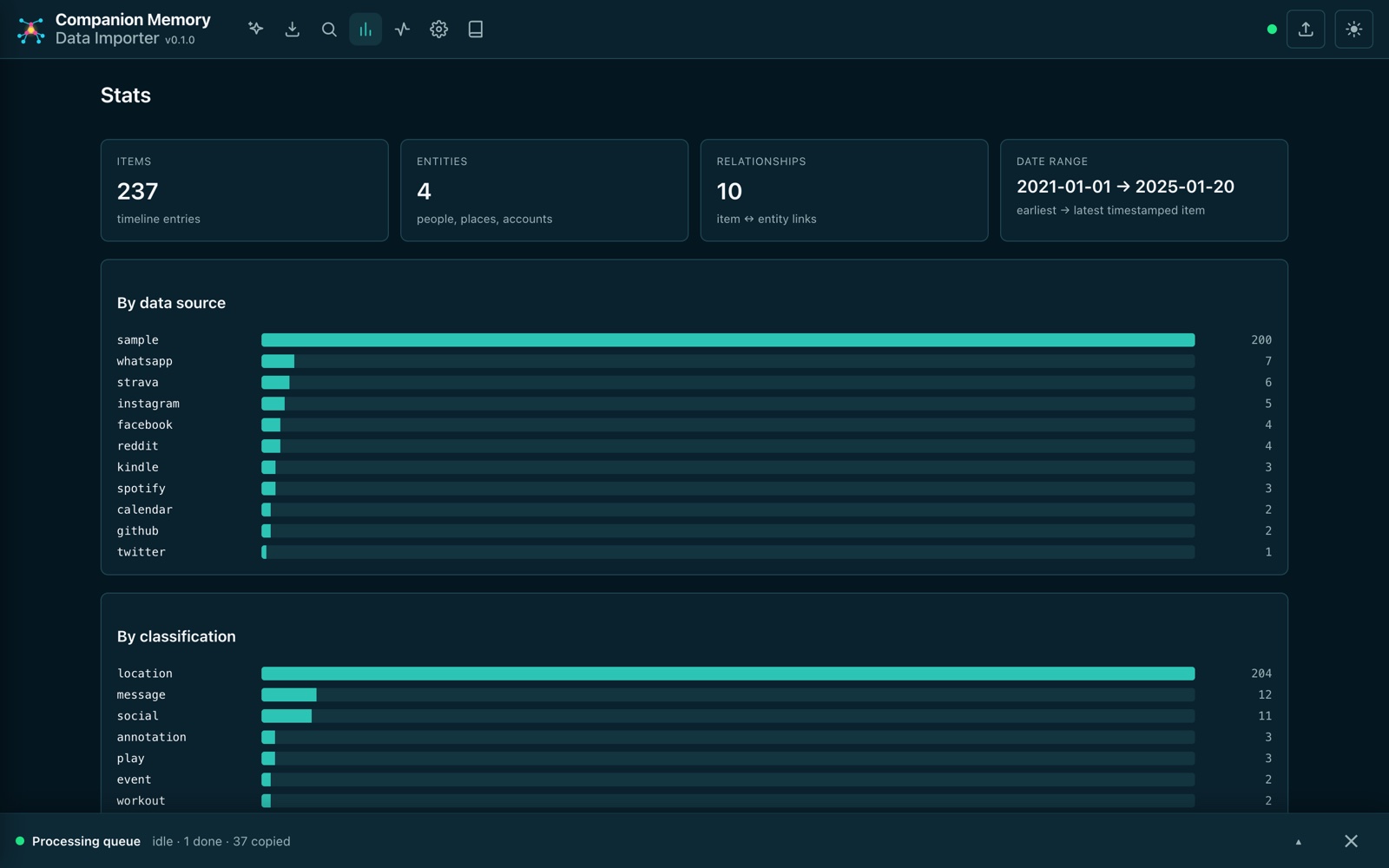
The Stats dashboard gives you the shape of everything imported: total items, extracted entities and relationships, the date range covered, and breakdowns by data source and classification.
Troubleshooting
My export was placed but nothing imported
Make sure you ran the import (not just recognition), and that the files sit under /repo or the right data/inbox/<source>/ folder. If an import ran but produced no records, check the job logs for parse warnings.
Files aren’t recognized
Confirm they’re under the mounted /repo path or the correct data/inbox/<source>/ folder, and run npm run cli -- recognize (or re-run the wizard’s recognize step).
API rejects my requests
If CI_AUTH_TOKEN is set, include it. Otherwise the API is open.