☄️ Photo Time Machine
A 3D time machine for places. A demo of the spatial photo experience to come: a slowly turning globe with open-data points of interest and sample photo pins.
This is the separate web viewer, not the demo globe this page describes. It connects to a Photo Time Machine server that you run yourself.
Install & availability
Available now (demo mode). Install from the Companion Hub App Store. The published image ships as a self-contained demo; see Current capabilities for what that means.
| Hub App Store | Search Photo Time Machine → Install |
| Web UI port | 5173 inside the container, on the Hub’s own port for the app (the Hub app card shows it) |
| Minimum Hub version | 0.2.27 |
| Architecture | linux/amd64 and linux/arm64 (multi-arch) |
| Stateless | The demo stores nothing on the server |
This app has three names. The Hub app store and this page call it Photo Time Machine, earlier versions of these docs called it Photogram, and the running UI’s title and HUD read “CI Time Machine · M2”. They are the same app. The store description mentions organizing your visual history as 4D Gaussian splats, and this build doesn’t do that yet.
Don’t confuse it with the separate Photo Time Machine service at photo.ci.computer , which turns an image, image set, or video into a shareable 3D model. That viewer needs a processing server you run yourself, and it isn’t the app this page describes.
Overview
Photo Time Machine is a locally hosted 3D globe that demonstrates the spatial-photo experience Companion Intelligence is building toward. In this build the globe is textured with OpenStreetMap map tiles, turns slowly on its own, and shows open-data points of interest and a handful of sample photo pins. It requires a browser with WebGL2 and internet access.
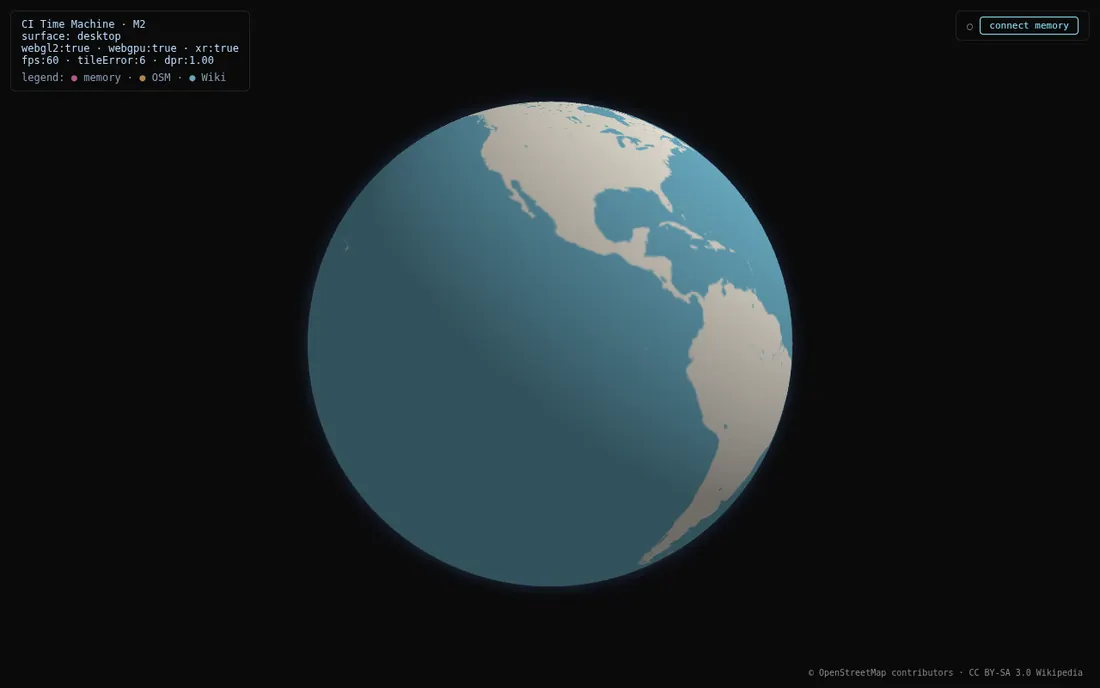
This is a demo of the experience, not yet a personal photo library. The capture apps and the Gaussian-splat trainer that would turn your own photos into 3D scenes are separate components that are not deployed in this image.
Current capabilities
What Photo Time Machine does today, as shipped:
- A 3D globe rendered client-side (needs WebGL2). Its texture is 16 OpenStreetMap tiles at the lowest zoom level, fetched when the page loads. If they can’t load, the globe is a dark sphere
- Open-data POI pins fetched client-side from OpenStreetMap Overpass and Wikipedia , always around Lisbon (the demo’s anchor), not around where you are
- 4 sample photo pins in Lisbon (Praça do Comércio, Belém Tower, Castelo de São Jorge, and Cabo da Roca) to demonstrate the photo-on-globe idea
Network requests in demo mode go to tile.openstreetmap.org, overpass-api.de, and en.wikipedia.org.
This build has no controls: you can’t orbit or zoom the globe, and it has no photo upload or import UI, no timeline scrubber, and no Gaussian-splat rendering. Points of interest and the sample pins are drawn as large discs, so near Lisbon they can cover part of the view. The connect memory button in the top right switches to signing in… and stays there, because no Companion Memory address is built into the image.
Companion Memory connection (build-time only)
Connecting Photo Time Machine to a Companion Memory instance is configured at build time via Vite environment variables such as VITE_CI_MEMORY_URL. The published image is built without these set, so it runs purely in demo mode and cannot fetch from a user’s Companion Memory. To wire it up you would rebuild the image with the appropriate VITE_CI_* build args.
Planned / roadmap
Described in the product vision but not in this release:
- Importing and managing your own photo collections
- Reconstructing photos and video into 4D Gaussian splats, a photorealistic 3D scene that you can view from any angle (this needs the separate, undeployed splat trainer)
- A capture-app pipeline feeding scenes into the globe
- A timeline scrubber to move through time
- Integration with Companion Spatial and Companion Memory
Use cases
- Watch a globe of OpenStreetMap tiles turn, with open-data landmarks layered on near Lisbon
- Preview how photos pin to real-world locations using the sample Lisbon set
- Evaluate the spatial-photo interface ahead of the capture and reconstruction pipeline
Setup
Install from Hub
Search for Photo Time Machine in the Hub app store and install. It needs Companion Hub 0.2.27 or newer.
Open Photo Time Machine
Open the Local access address on the app’s page in the Hub dashboard, in a WebGL2-capable browser. See Finding Your App’s URL. The globe loads and starts to turn, as in the screenshot under Overview. The HUD in the corner confirms it’s running — it reads “CI Time Machine · M2”, not “Photo Time Machine.”
Usage
Watching the globe
The globe turns on its own, about one full turn every three and a half minutes on a 60 Hz screen (the speed follows the screen’s refresh rate). Points of interest and the sample photo pins sit near Lisbon, so they come into view once per turn. The corner HUD is a live debug readout — surface type, webgl2/webgpu/xr support, current fps, tile error setting, and device pixel ratio — useful for confirming the browser is rendering correctly.
Troubleshooting
Globe doesn’t render The browser must support WebGL2. Verify hardware acceleration is enabled.
The globe is a dark sphere with no continents
The globe’s map tiles come from tile.openstreetmap.org. If the device can’t reach that host, the app falls back to a dark sphere. Allow the host, or check the device’s internet access.
No POIs appear
POIs are fetched client-side from overpass-api.de and en.wikipedia.org. If the device has no internet access to those hosts, only the globe and the sample pins are shown.
I can’t rotate or zoom the globe This build has no camera controls: the globe only turns on its own.
Looking for my own photos Photo import and Gaussian-splat reconstruction are not in this demo build — see Planned / roadmap.