Importing Data
The Import page lives in the Companion Memory web UI: open Sources in the
left rail, then Import. The address is <memory-url>/sources/import, where <memory-url> is the address on
the Access points card of the Companion Memory app page in Companion Hub — see
Finding Your App’s URL.
Beside the page heading, three buttons switch the view:
| View | What it is for |
|---|---|
| Wizard | Pick services, follow each one’s export steps, upload, then sync. The default. |
| Inbox | Copy many archives into a folder on the appliance and import them in one click. |
| History | Every import the appliance has run, with the live progress of any still going. |
An import that is still running shows above all three views, so you can see it from any step.
Two routes reach your memory — the wizard, one service at a time, or the inbox folder, everything at once:
flowchart LR
    subgraph W["Wizard"]
        P["Pick services"] --> E["Export: upload the file"]
        E --> B["Unpack · Read · Store files<br/>start as soon as the upload lands"]
        B -->|"Next service"| E
    end
    subgraph I["Inbox"]
        F["Copy archives into the inbox folder"] --> ALL["Import all"]
        ALL --> ALLS["Unpack · Read · Store files · Save"]
    end
    B -->|"Finish → Sync"| S["Sync to my memory: Save"]
    ALLS --> M["Your memory"]
    S --> M
Using the wizard
The wizard walks three steps, shown in a row at the top: Pick, Export and Sync.
-
Pick the services you use. The catalogue lists every source Memory has an export guide for. Some tiles are bundles: a single Google tile stands for one Takeout that carries Gmail, Photos, Calendar and more, and it lists the members by name. Type in Search services… to filter. A service whose parser is not finished shows a Coming soon badge. A service you have already imported shows the date, so you can tell what you have done. Select every service you want, then select Continue → N selected at the bottom right. The button stays disabled until you pick something.
-
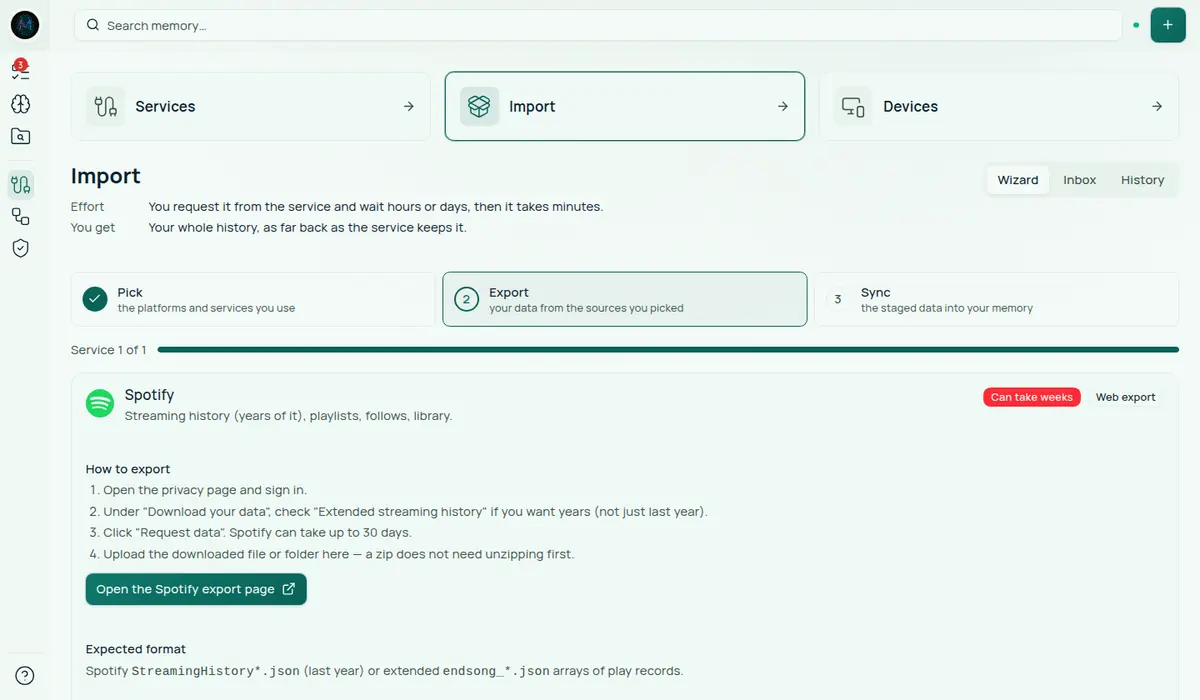
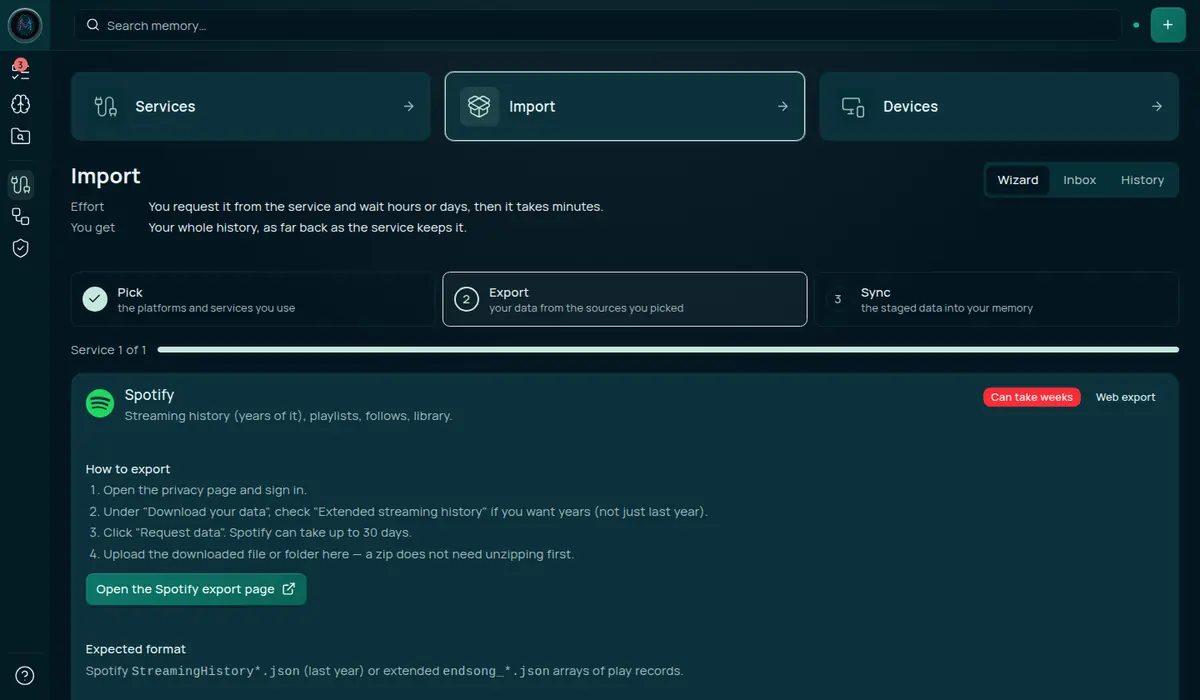
Request the export and wait. The Export step shows one card per service you picked — “Service 1 of N” — with a badge for how long the export usually takes and the numbered steps to request it. You request each export from the service itself, and you do it once.
-
Upload the file. When the file arrives, drag it onto Drop your
<Service>export here, or select Choose files or Choose folder. Upload the.zipexactly as it arrived; do not unzip it first. A folder is packed into one zip in your browser before it uploads.Files upload one at a time, and each row shows a percentage. Keep the browser tab open until every file has uploaded: closing or reloading it cancels the file that is on the wire. Moving around inside Companion Memory is fine. If a file fails, the row says why, and Retry N failed uploads sends only the failed ones. If you drop more than 50 files, the wizard suggests the inbox instead, because each file becomes its own import; Upload N files anyway overrides that.
-
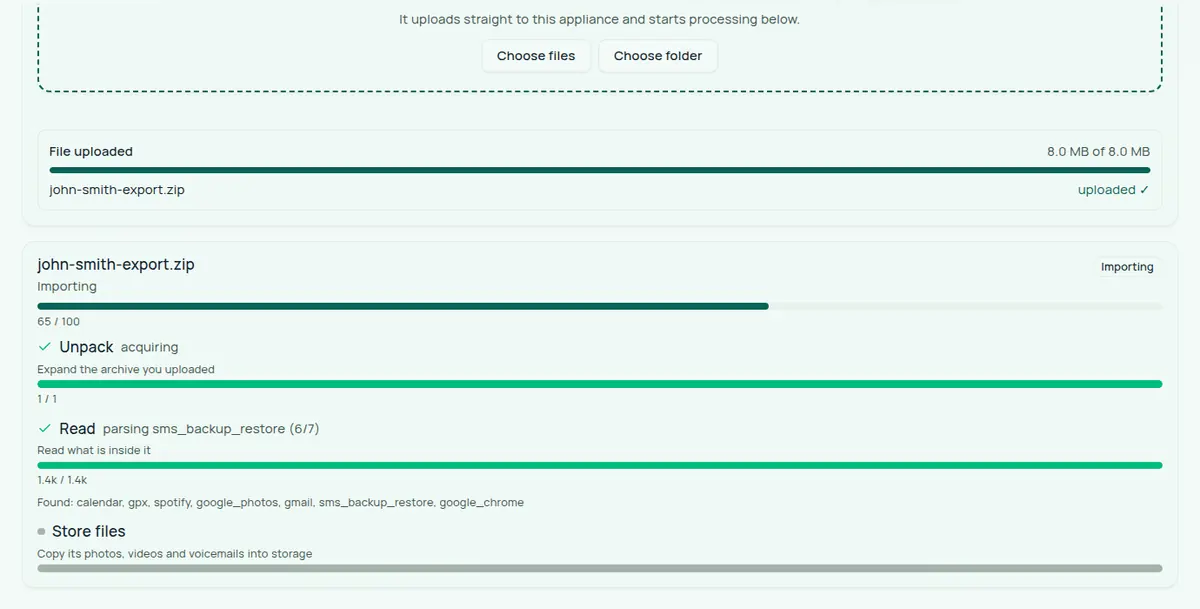
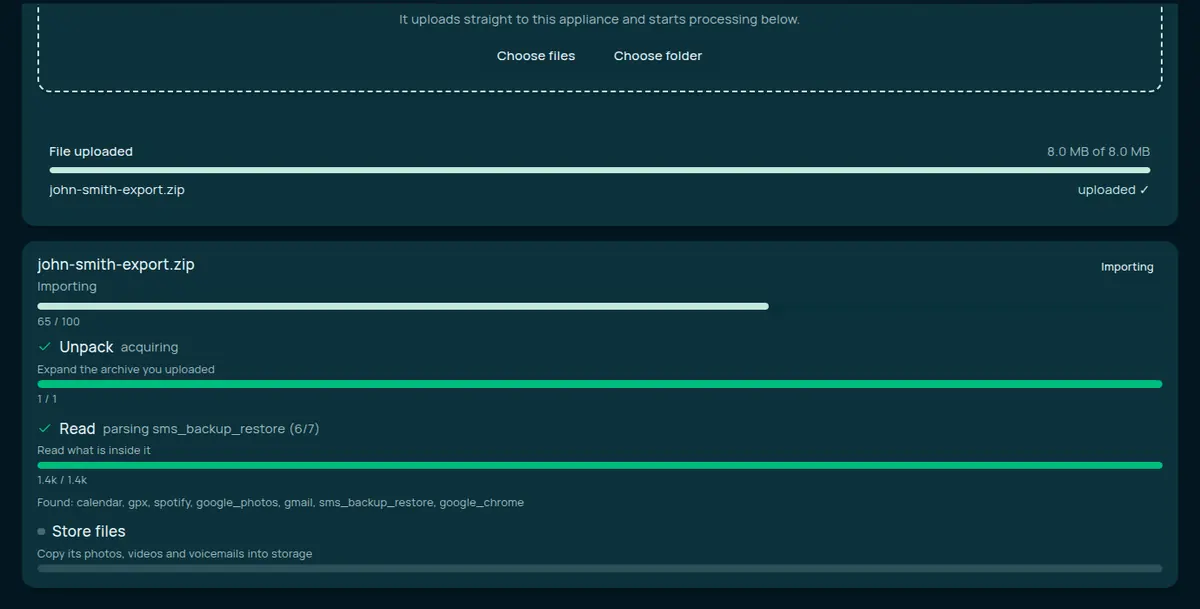
Watch it import. The moment a file finishes uploading, its import starts on the appliance. Four bars show the stages — Unpack, Read, Store files and Save — plus one overall bar. See How importing works for what each one does. In the wizard, an upload runs the first three stages; Save waits for the Sync step. Once a file has uploaded you can close the page: the import continues on the appliance. While a stage cannot yet count its work, its bar animates and shows a live count.
-
Check what it found. The Read stage lists which sources it recognised inside your archive — for example “Found: gmail, google_photos”. A card shows upload started ✓ once a file has landed.
-
Select Next → to go to the next service you picked, and repeat steps 2–5. On the last service the button reads Finish → Sync.
-
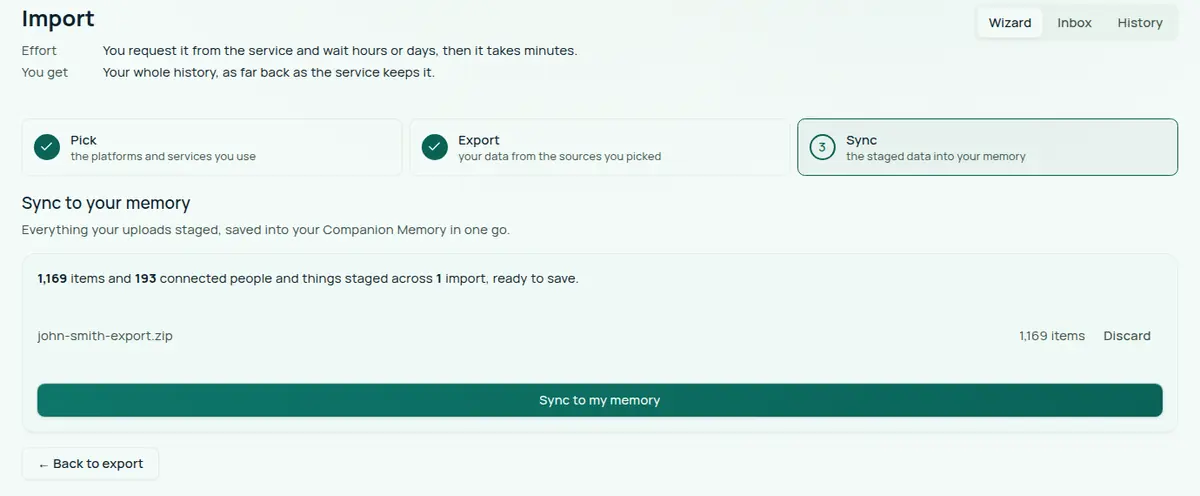
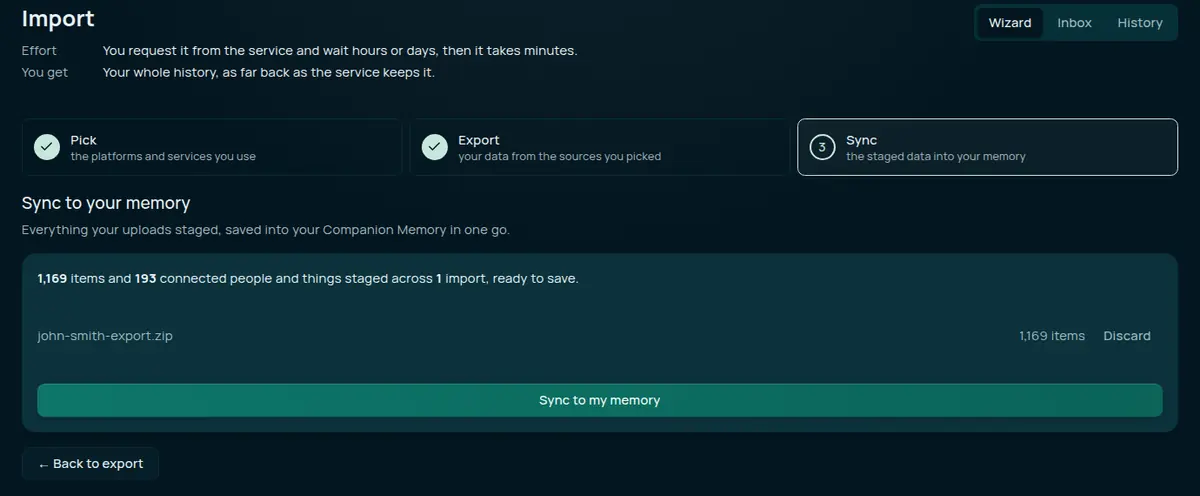
Sync. The Sync step lists every import that has been read but not saved, including ones from an earlier session: “N items and M connected people and things staged across K imports, ready to save.” Select Sync to my memory to save them all. Nothing staged is lost if you leave and come back — the Sync step offers it again.
Until you sync, none of it is in your memory. If you leave the wizard first — including by finishing the setup wizard while an import is still reading — the appliance shows a You have unsynced imports notice with a Sync now button the next time you load Companion Memory, once the read has finished. The notice appears once per page load, so if it does not, open Sources → Import → Sync.
Each staged import also has a Discard button. Discarding asks you to confirm with Delete permanently, and deletes the parsed rows for good. It does not delete your export: if the appliance still holds the archive you uploaded, it goes back to your uploads, and any photos the import already stored stay in your memory.
Using the inbox
Memory also has an inbox folder, where you can copy many services’ archives at
once and start one import of all of them. Use it for anything the browser upload
cannot take — a file over 10 GB, or a folder holding hundreds of files.
-
Open Sources → Import, then select Inbox. The Inbox folder heading shows the folder’s path. On an appliance installed from Companion Hub the path is under the app’s data directory, at
data/ci-import/inbox. -
Every Companion Memory account has its own subfolder, named after the account’s email address. This keeps members of a shared appliance from importing each other’s exports by accident. The folder you see is the one for the account you are signed in as.
-
In a file browser, open that folder. It holds a subfolder for each source family the importer supports, such as
google-takeout,apple,amazon,redditandspotify. Putting an archive in the matching subfolder tells the importer what it is, which makes recognition faster. -
Copy — do not move — your export archives into the matching subfolders. You can also copy them to the top level of your folder. Archives at the top level still import, but the importer has to work out which service they came from.
-
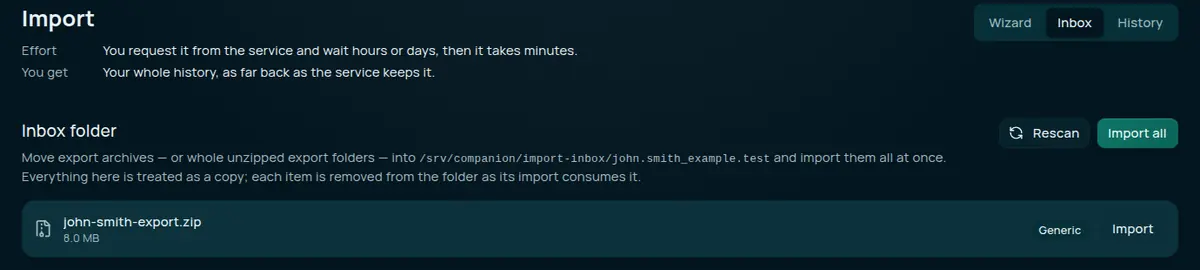
Go back to the Inbox view. It lists what it found, each with its size, a badge for the services it recognised, and an Import button. Select Rescan if you copied files after the page loaded. Select Import all to start every listed item. A dialog reminds you that each item is removed from the folder as its import consumes it.
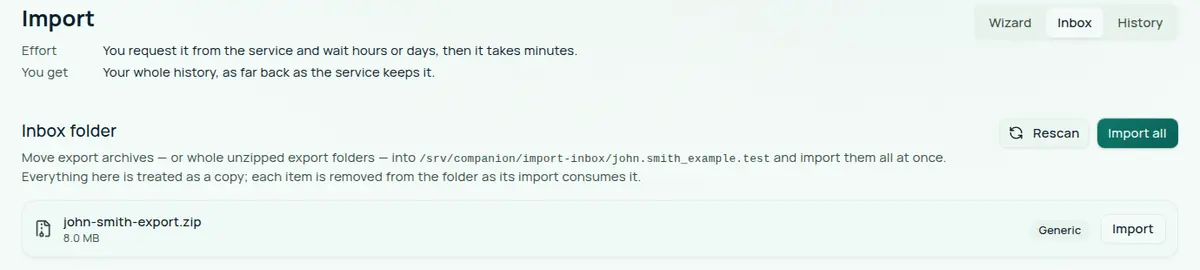
An inbox import runs all four stages, including Save, so there is no Sync step. The runs appear in History, and an item that is already importing shows “Importing — see History”.
Follow an import in History
History lists every import, newest first, as cards showing the date, the number of records saved, the status and the services found. Select View on a card to open its live progress. While an import is running you can select Cancel. When a stage fails or is cancelled, Try again appears beside it.
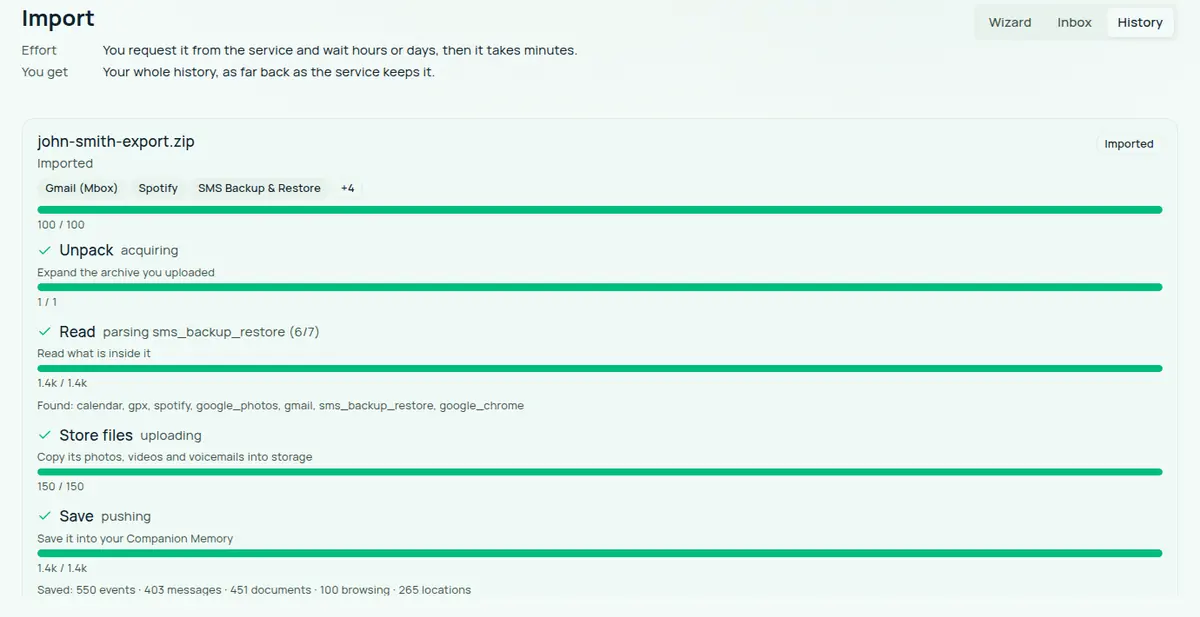
A run can finish in one of these states:
| Status | What it means |
|---|---|
| Waiting to start | Queued behind other work. Only one archive unpacks or reads at a time. |
| Importing | At least one stage is running. |
| Imported | Every stage finished. |
| Imported, with some items skipped | A partial import: a success with gaps. See the next section. |
| Failed / Cancelled | A stage stopped. Use Try again on that stage. |
What “partial” means
A partial import is a success with gaps, not a failure. The run’s status reads Imported, with some items skipped.
It means most of the archive imported and some of it did not — an archive in a multi-part export was truncated or unreadable, one parser hit a file it could not read, nothing in the upload was recognised, the Store files stage could not store a file or attachment, or the Save stage could not write some records. Where the run can say which, it does so under the stage that noticed:
- “Could not read
<archive>:<reason>” — an archive was set aside as unreadable. - “Could not read your
<service>data:<error>” — one parser failed while the others ran. - “N could not be saved”, with Try these again — rows the Save stage could not write.
Three lines on a stage can appear on a run that finished as plain Imported, because they describe records that were never going to be saved rather than records that failed:
- “N groups skipped (albums, threads and places)” — groupings that cannot be matched to an existing copy, so they are not carried across.
- “N records could not be identified” — records with no name, email address or phone number to match on. The line names the reason and lists examples.
- “N already in your memory (repeat references to the same thing)” — not a problem: several events pointed at one document.
Nothing is gained by uploading the whole archive again over a partial result. If something specific failed, use Try again on that stage.
If something goes wrong
“Not enough disk space to unpack.” The message names how much the archives expand to and how much is free. Free some space and start the import again; nothing was written. See Prepare your data.
An archive was set aside as unreadable. Almost always a download that stopped early. The file looks complete but its index is missing, so nothing can open it. Download it again from the service and upload the new copy.
Nothing was recognised. The Read stage finishes with a partial result and the reason “no recognized data sources in the uploaded tree”. Either the appliance has no parser for that export, or the file is a different format from the one the parser expects. Check the service’s guide for its expected format; some services have several export formats and only one is supported.
An upload fails part way. Check the row’s message. A single file over 10 GB is rejected by the gateway; use the inbox for it.
A stage failed. Open the run in History and use Try again on that stage. Only that stage runs again; the stages before it do not repeat. A failed stage does not retry on its own, because re-expanding a large archive because storage hiccuped is expensive. The exception is a stage whose worker stopped partway, such as a restart in the middle of a read: Companion Memory retries that one itself after a few minutes.
After it finishes
Your imported records are ordinary records now. They appear in search, on the timeline, and against the people they involve, alongside everything else the appliance holds. Search by meaning can take a while to catch up with a large import — see what runs after an import.
Then import the next archive. The second source is where this starts to be interesting, because it is the first time two accounts of the same day sit next to each other.