Companion Memory
Companion Memory is the app that holds your life: everything you have imported — messages, photos, calendars, documents, places, the people in them — indexed so you can search it, ask questions of it, and share carefully from it.
It runs on your own appliance, and questions are answered by models running on your own hardware. A few background jobs do contact other services — see What leaves your appliance. Companion Memory is free on both the Free and Pro plans.
This page is the overview. For setup, every screen, the API and MCP access, see the app reference, Companion Memory Server.
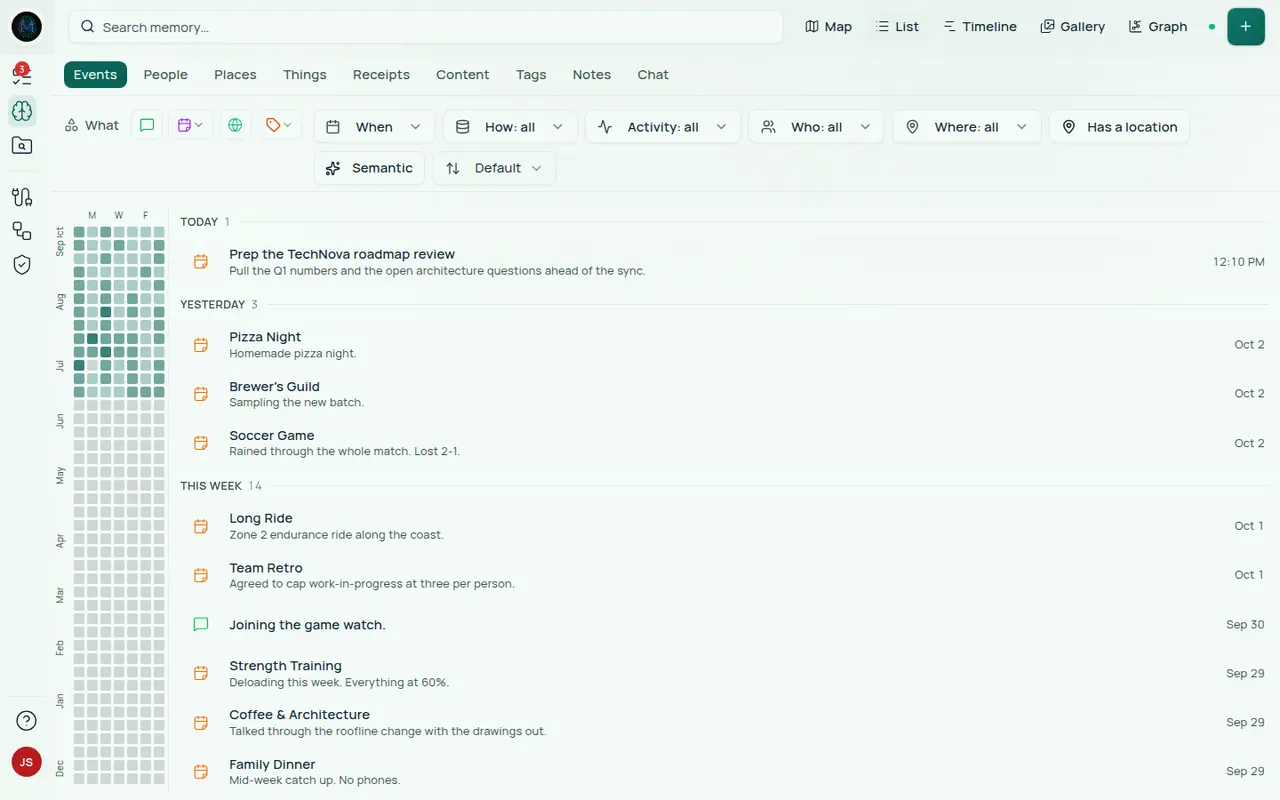
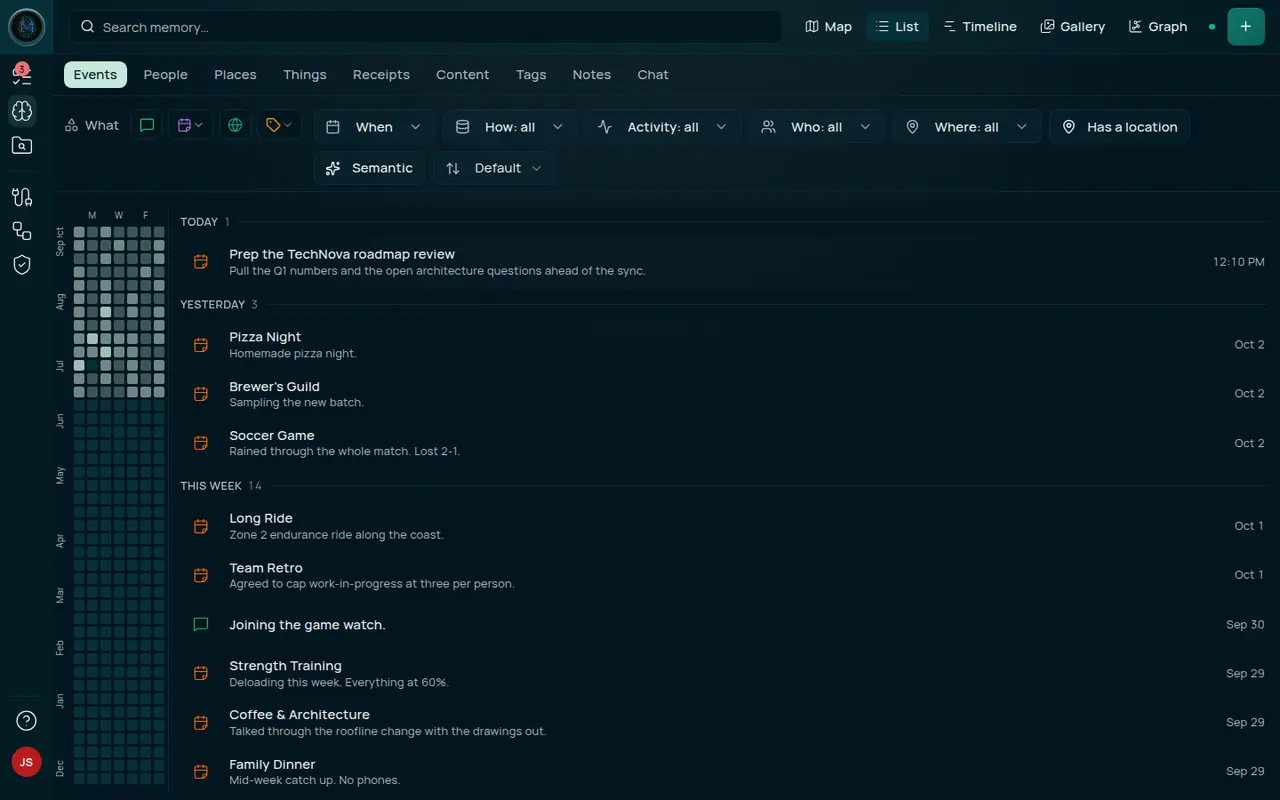
Get started
- Install it from the Companion Hub App Store — see Install via Companion Hub. A Windows and Linux desktop app exists too, but it has no public download yet.
- Sign in and finish setup. The first account on a new appliance owns it, and the setup wizard takes a couple of minutes — see Sign in and finish setup.
- Give it a chat model so Chat can answer — see Give Memory a chat model.
- Add your data. Connect an account, install a browser extension, or import an archive. Request exports first, because some take days — see Prepare your data. The browser extension, Companion Capture and the mobile apps all sign in with your CI Account and need a running Companion Memory to send to.
- Search it, then connect an agent — see Connect Companion Agents.
What the first run looks like
Three screens on a new appliance, in order. The steps behind them are in Sign in and finish setup.
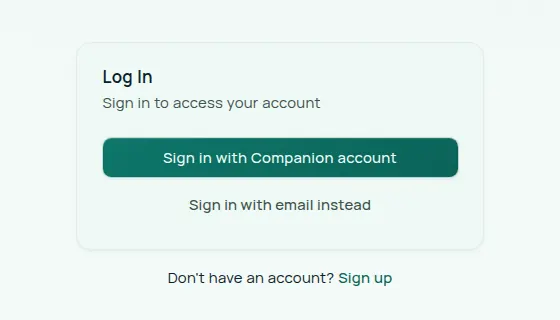
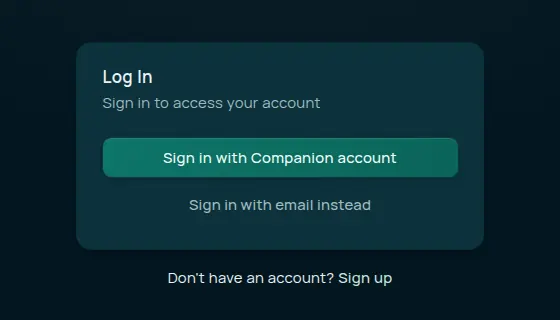
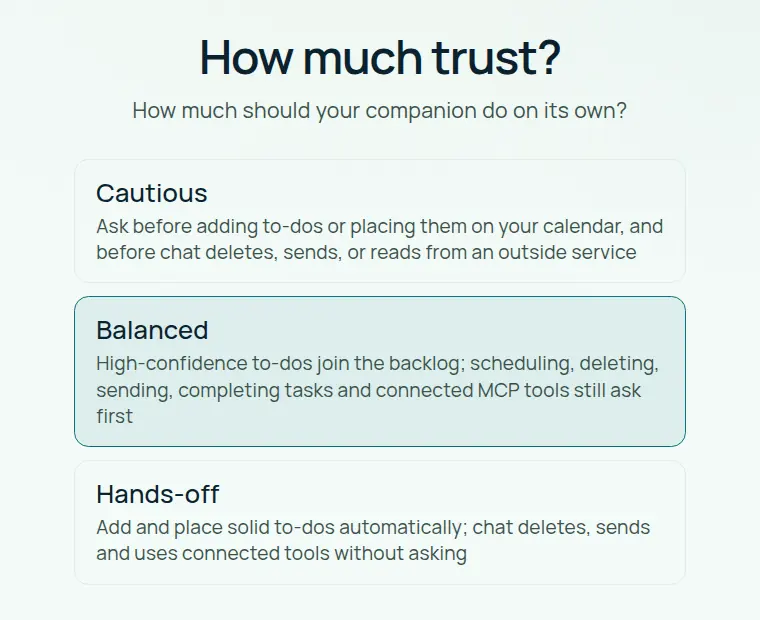
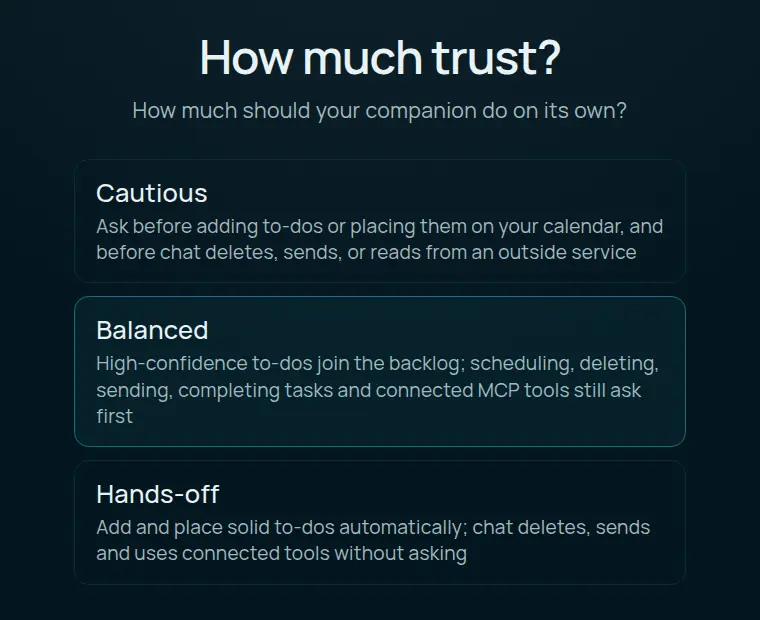
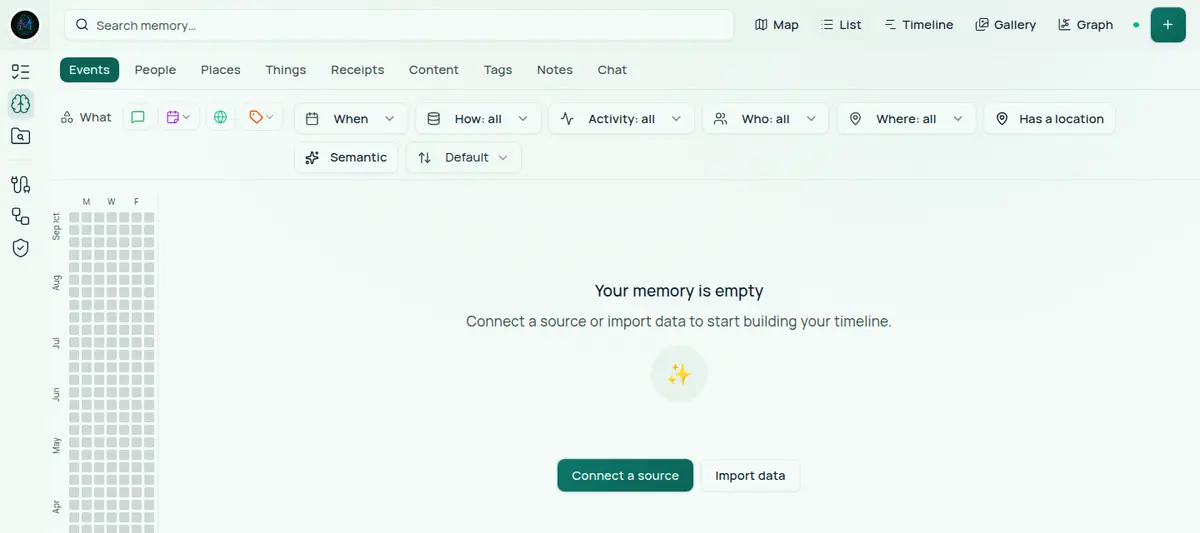
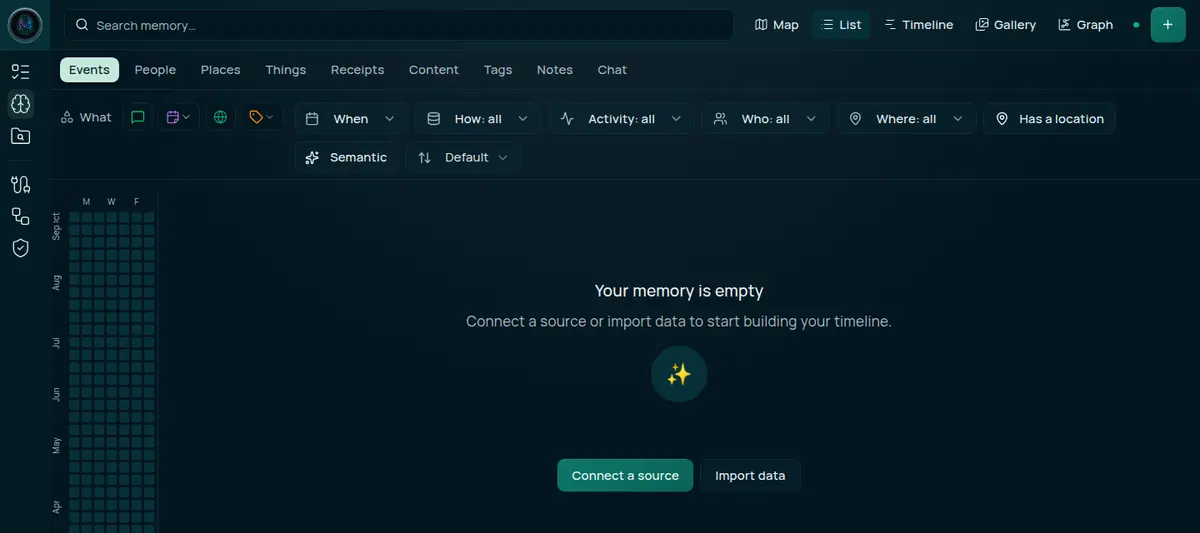
What it does
- Imports your existing archives — Google Takeout, Apple exports, chat histories, photo libraries — and turns them into a searchable timeline.
- Builds a graph of the people, places and things that recur, so a question about “the lake trip” can find the photos, the messages and the calendar entry.
- Answers questions locally, using models running on your own hardware.
- Shares selectively. Other people’s Companions can ask yours questions, and your answers are governed by rules you set — see Asking Other Companions.
From archive to answer
Before anything is searchable, an import runs through four stages. Separate background jobs then build the embeddings that let a search rank by meaning:
flowchart TB
    U["Upload<br/>stored, not yet read"] -->|"wizard: starts on upload<br/>inbox: Import all"| P["Unpack<br/>free space checked, nested zips expanded"]
    P -->|"one parser per source"| R["Read<br/>Mail, Photos, Location History…"]
    R -->|"partial if one parser fails"| M["Store files<br/>photos, videos, voicemails"]
    M -->|"wizard: Sync to my memory"| S["Save<br/>messages, events, documents, things, locations"]
    S -->|"as records arrive, hourly sweep"| E["Embed<br/>text, photos and video"]
    E --> X["Search, Chat and Asks"]
If one parser fails, the others still run and the import finishes as partial rather than failed. Re-importing the same archive does not double anything, and you can run an interrupted stage again with Try again. Search by meaning can lag behind a large import while the embedding jobs work through it; the Jobs page shows the backlog. The full account is in How importing works.
Where it sits
Companion Memory is the middle of the platform: the surfaces you own feed it, and the agents you run read from it. What comes in is normalised into six kinds of record — Person, Place, Thing, Content, Event and Space — and indexed locally. Any MCP-capable client you already run can then use your memory as a tool source (see Connect Companion Memory).
- Import stages
- 4
- Unpack, read, store files and save. Embeddings follow on separate jobs.
- from How importing works
- Explorer views
- 5
- Map, List, Timeline, Gallery and Graph — one search, five ways to look at it.
- from The Explorer
- Trust tiers
- 4
- Family, Trusted, Peer and Stranger — plus Household for people who share your appliance.
- from Asking Other Companions
Sharing between people
The part of Companion Memory that reaches other people is deliberately the most conservative part of it. Review is the default: an unmatched question waits for you rather than answering itself, and what leaves the box is capped by what you allowed, not by what was asked for.