Headless Wi-Fi Setup Portal
Every CI-OS appliance — Companion Core Server or otherwise — can be set up without a keyboard, mouse, or monitor. Whenever it has no working network, it broadcasts its own Wi-Fi hotspot and serves a single captive-portal page, “Connect Companion Core,” so you can hand it your network credentials from any phone or laptop. Companion OS is in beta. This page covers what that portal actually is; the Core Server Quick Start is the shorter, task-oriented version of the same flow.
Which network is my phone on?
Your phone changes networks twice during setup, and the Core changes once. This is the step where people get lost, so it helps to know the sequence:
flowchart LR
    accTitle: Which network your phone and the Core are on during Wi-Fi setup: the setup hotspot, the handoff, then your own network
    subgraph S1["1. Join the hotspot"]
        P1["Phone joins<br/>Companion-Setup-XXXX"]
        C1["Core broadcasts the hotspot<br/>Portal at 192.168.99.1"]
    end
    subgraph S2["2. Submit and hand off"]
        P2["Page says Settings saved,<br/>then the phone drops off<br/>the hotspot: this is expected"]
        C2["Core stops the hotspot,<br/>joins your Wi-Fi, and checks<br/>the pairing code if you gave one"]
    end
    subgraph S3["3. Back on your network"]
        P3["Phone rejoins your home Wi-Fi<br/>or mobile data"]
        C3["Core is on your Wi-Fi<br/>Hub at http://CORE_IP:5002"]
    end
    P1 -->|"Configure Device"| P2
    P2 -->|"reconnect yourself"| P3
    C1 --> C2
    C2 -->|"about 2 minutes"| C3
    P3 -->|"open Hub, or sign in<br/>at hub.ci.computer"| C3
    C2 -.->|"can't join Wi-Fi"| X["Core records why and brings the<br/>hotspot back, which can take minutes"]
How it works
The whole exchange, from a network-less boot to the hotspot shutting itself down:
sequenceDiagram
    participant D as CI-OS appliance
    participant P as Your phone or laptop
    D->>D: No working connection (up to 45 s boot grace, then ~6 s): scan for networks, then hostapd brings up SSID Companion-Setup-XXXX
    P->>D: Join Companion-Setup-XXXX (WPA2, dnsmasq, 192.168.99.0/24)
    P->>D: Open http://192.168.99.1 (nginx serves the portal page)
    D-->>P: Pairing-code field (when needed) and the network list captured before the hotspot started
    P->>D: POST /api/configure with pairing code, SSID, and password
    D-->>P: 202 Settings saved (the reply goes out before the hotspot stops)
    D->>D: About 3 s later, stop the hotspot, join the network via NetworkManager, then check the pairing code with your CI Account
    D--xP: Your phone has left the hotspot, so any later failure is recorded on the Core and not shown on your phone
The device broadcasts a hotspot
setup-network-monitor checks the connection every ~3 seconds. It counts a
connection as working when the device has a default route and can ping either
8.8.8.8 or its gateway. Two failed checks in a row (~6 seconds) start the
hotspot, with two exceptions:
- For the first 45 seconds after boot, the monitor waits for NetworkManager to join a known Wi-Fi network.
- While a Wi-Fi link is connected or negotiating, the monitor doesn’t fall back to the hotspot.
Before it broadcasts, the start script scans for nearby networks, because a
single-radio chip can’t scan while it acts as an access point. The hotspot is a
real access point (hostapd) with its own DHCP/DNS (dnsmasq,
192.168.99.0/24) — no upstream network is reachable from it by design.
| Setting | Value |
|---|---|
| SSID | Companion-Setup-XXXX; four random letters and digits, new each time the hotspot starts |
| Security | WPA2-PSK, default password SetupDevice123 |
| Band | 2.4 GHz, channel 6, up to 10 clients |
| Gateway | 192.168.99.1 |
| DHCP range | 192.168.99.10 to 192.168.99.250 |
| Portal URL | http://192.168.99.1 or http://setup.ci.computer (HTTP only) |
You connect and open the portal
nginx serves the static page on port 80 and proxies its /api/* calls to the
on-device Flask backend (setup_service.py). Most phones and laptops open the
captive page when they connect; otherwise browse to http://192.168.99.1 or
http://setup.ci.computer. The portal has no HTTPS version, so https:// URLs
fail.
You enter a pairing code and Wi-Fi credentials
The Pairing Code is the 6-character code from Add Device in your CI Account at hub.ci.computer . The field accepts letters and digits, and the page upper-cases what you type. The field appears only when the Core’s Hub is running and not yet paired. If it doesn’t appear, the subtitle reads pairing not required, and you pair on Hub’s own registration screen instead.
The network list comes from the scan the device ran just before it started the hotspot. It is sorted by signal strength. Scan re-reads that saved list; it doesn’t search again.
The device joins your network and the hotspot stops
The backend answers the form first with Settings saved. About three seconds later it stops the hotspot services, hands the Wi-Fi radio back to NetworkManager, and joins your network, retrying for up to 30 attempts. It then waits up to about 20 seconds for internet access. If the form included a pairing code, it checks the code with your CI Account, registers the device, and passes the registration to Hub.
While this runs, the setup monitor holds off restarting the hotspot for up to five minutes. If the device can’t join your network, it records why and the monitor brings the hotspot back. The backend handles one attempt at a time: a second submit while the first is running returns Setup is already in progress. Please wait.
No one-time flag turns the hotspot off for good. The monitor starts the hotspot again whenever the device has no working network, including after a restart.
The states
The portal is one page whose look changes entirely based on what the backend reports — there’s no separate screen to navigate to.
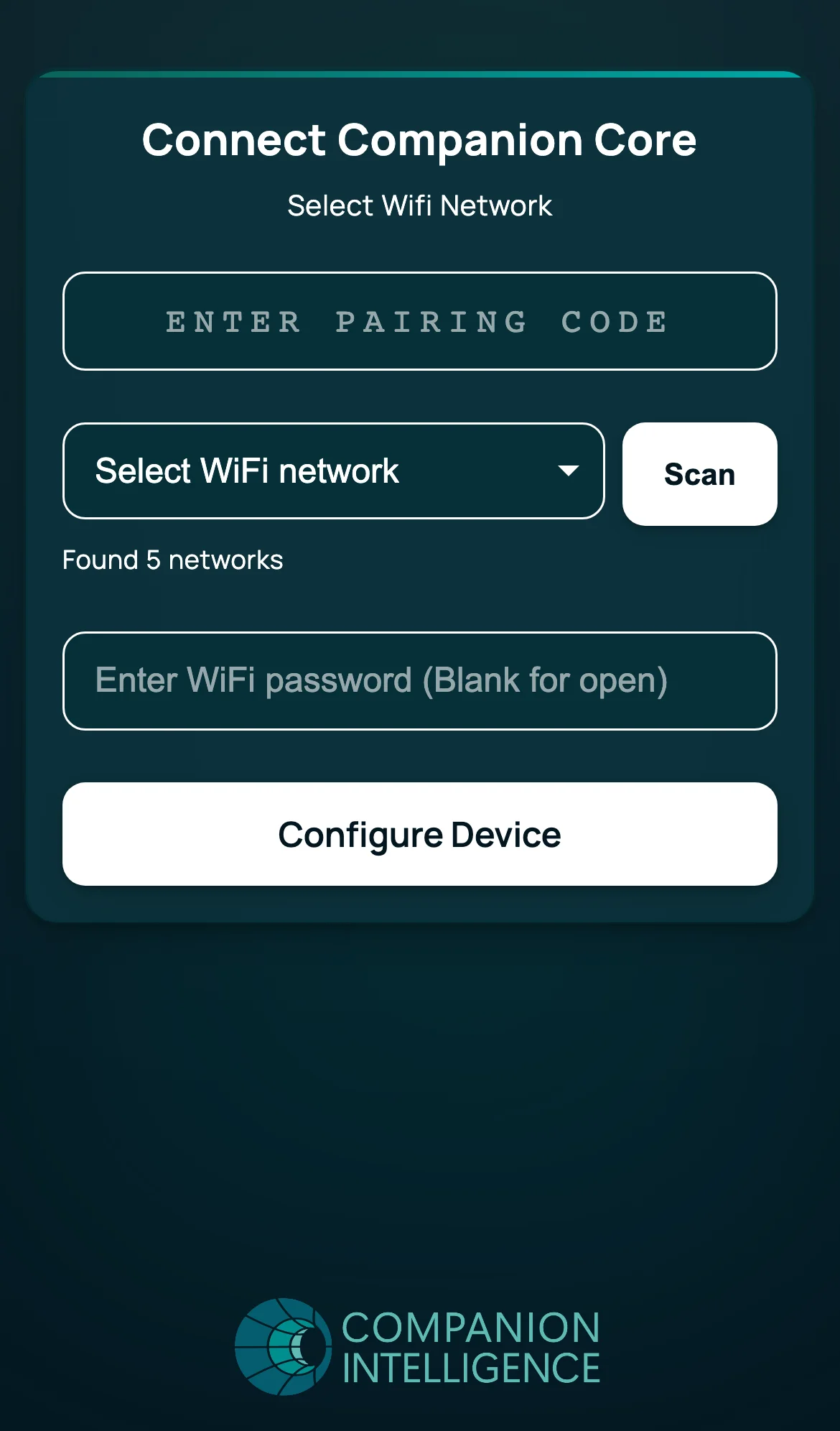
First-boot form. The default state: pairing code, network selector, password field, Configure Device. The network list loads automatically.
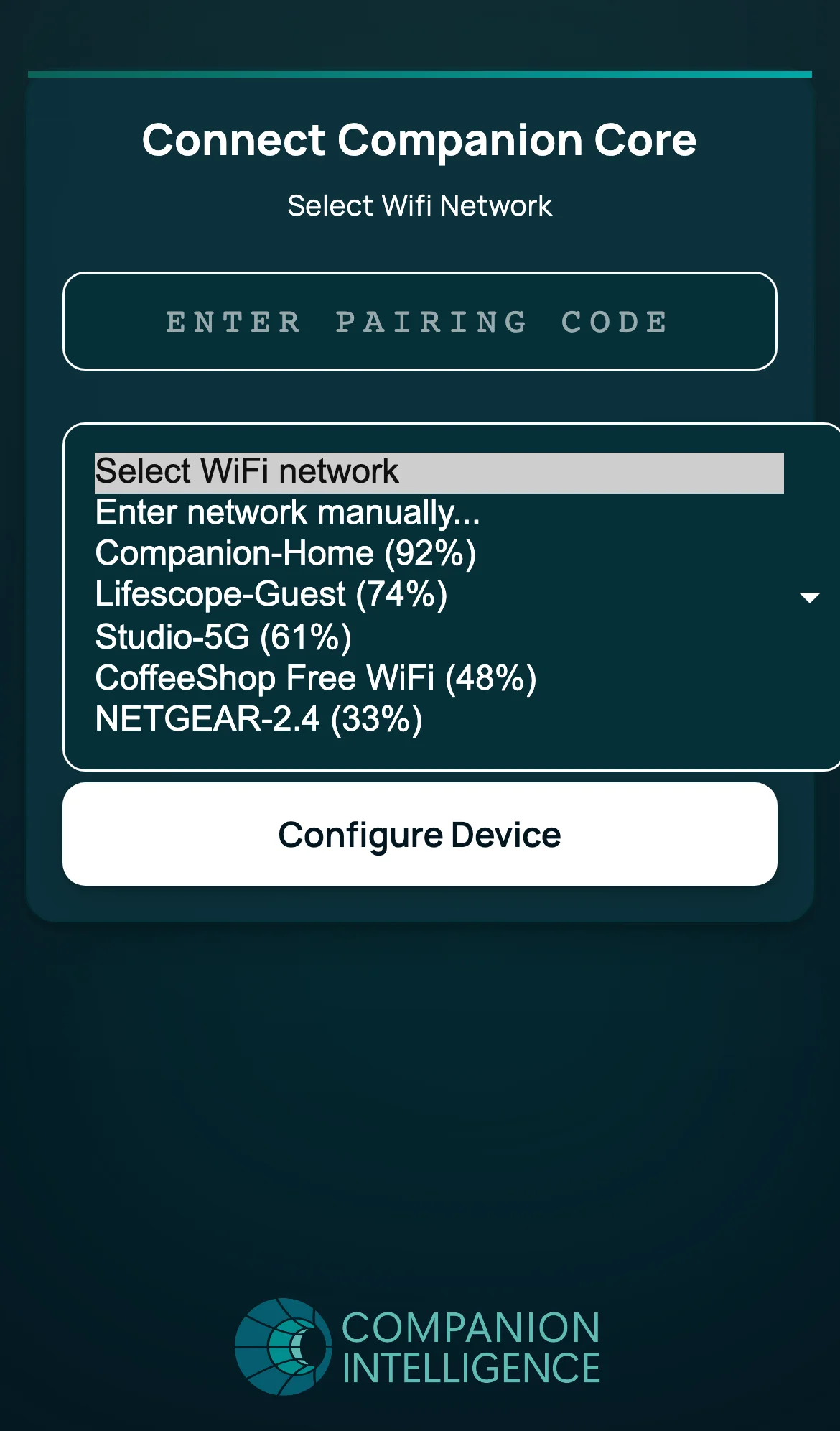
Network list. The selector shows the networks the device saw before it
started the hotspot, with the signal percentage beside each name. Choose
Enter network manually… to type a hidden or out-of-range SSID. When the
Hub is already paired, or isn’t running, the backend reports
require_pairing: false and the page hides the pairing-code field.
Settings saved. When you submit over the hotspot, the Core replies before
it shuts the hotspot down. The banner reads Settings saved. The setup hotspot
will now close and the device will join “your network”. Reconnect this phone to
your usual network to continue. It ends with a link to
https://portal.ci.computer, and the button reads Setup in progress. About
20 seconds later the page opens that link. It isn’t your Hub, and it may not
load. Ignore it: reconnect your phone to your normal network and open Hub at
http://CORE_IP:5002, or check the device at
hub.ci.computer .
If a wired connection with internet is already up when you submit, the Core pairs over Ethernet first and answers with the real result, Device paired or the exact reason it refused. A refusal leaves the hotspot up so you can try again.
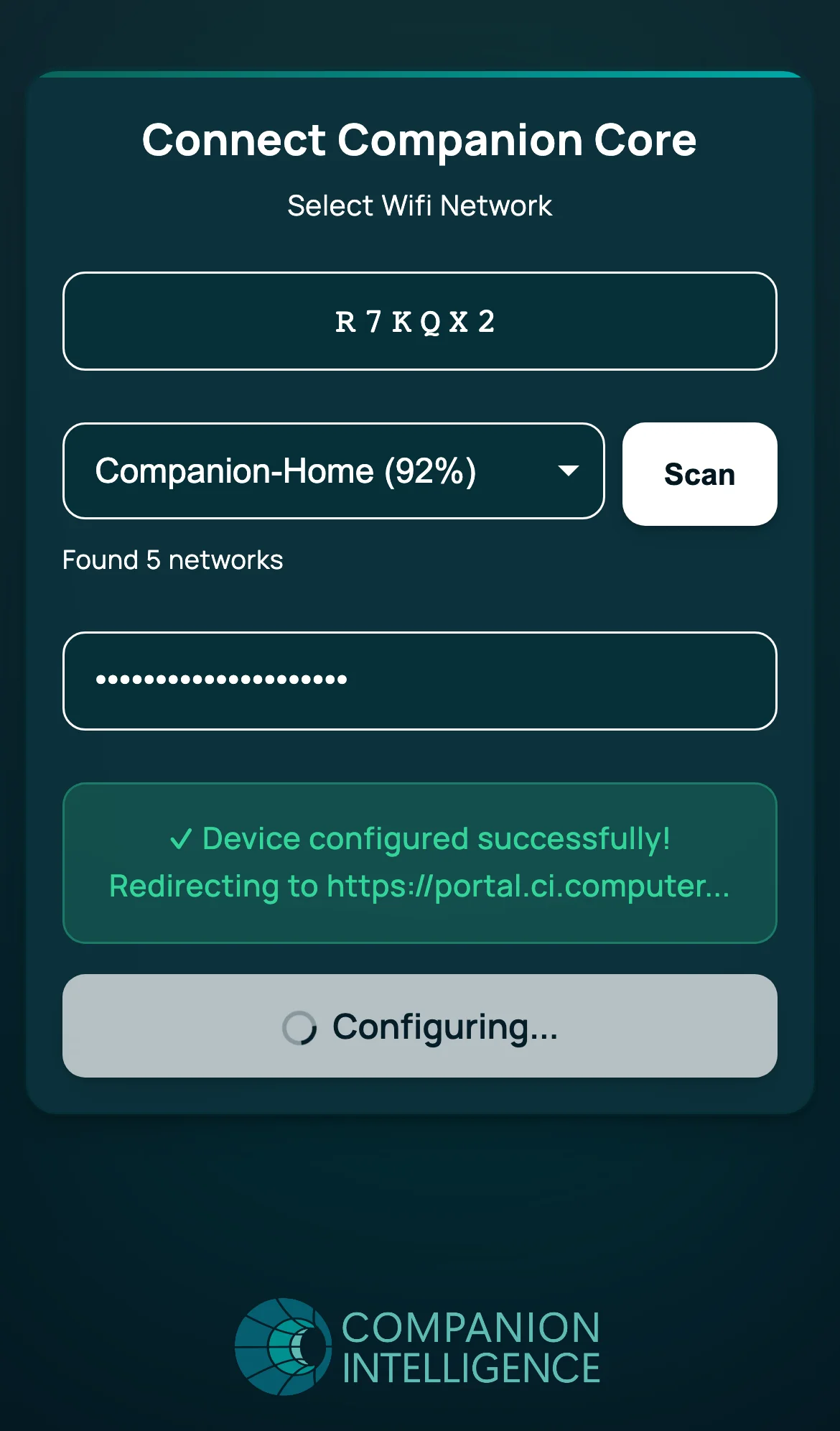
Device configured successfully. The screenshot shows this banner, which the Core sends only when you reach the setup page over your own network rather than through the hotspot. It was captured against a stubbed backend. It isn’t what you see when you submit over the hotspot.
What errors you can and can’t see
Only problems the device finds before it stops the hotspot show up inline. When Ethernet is already up, that includes pairing problems. Every other problem happens after your phone has left the network.
| Problem | Where you learn about it |
|---|---|
| No network selected, or a pairing code that isn’t 6 characters | Inline on the page, before anything changes: SSID required, Pairing code required for unregistered Hub, or Pairing code must be 6 characters |
| The device can’t create the Wi-Fi connection | Inline: Failed to create WiFi connection |
| A second submit while the first is running | Inline: Setup is already in progress. Please wait. |
| Wrong Wi-Fi password, or a network the Core can’t join | Not on your phone, which has left the hotspot. The Core records Could not join WiFi network “NAME”. Check the password and try again. and its monitor brings the hotspot back, which can take several minutes. Rejoin it: the setup page then shows Last pairing attempt failed with the reason. See Something went wrong? |
| Wrong pairing code, a code CI Portal can’t validate, or CI Account refuses it | Not on your phone. The Core stays on your Wi-Fi, so the hotspot doesn’t return. The reason is recorded on the Core, for example The pairing code did not match or CI Portal could not validate the pairing code. Pair again on Hub’s device registration screen with a fresh code. |
| Your CI Account refuses the device (already registered elsewhere) | Hub’s registration screen names the problem. |
See it end to end
The golden path — pairing code, network list, password, success — in one take. It was captured against a stubbed backend, and it ends on the Device configured successfully banner that a real Core doesn’t show over the hotspot:
If setup goes wrong
Start with the Something went wrong? table on the Core quick start. These are the recovery options behind it.
Restart the Core. After a restart, the hotspot starts again whenever the Core has no working network. Try this if the hotspot hasn’t returned several minutes after a wrong Wi-Fi password.
Use Ethernet instead. A working wired connection needs no hotspot. Plug the Core into your router before you power it on, find its address, and open http://YOUR_DEVICE_IP:5002. From there, pair and set up Hub as usual.
Fix Wi-Fi from a terminal on the Core. You need a monitor and keyboard, or a terminal over Ethernet. These commands ship with the setup package:
sudo setup-wifi-recoverstops the hotspot, unblocks the Wi-Fi radio, and reloads the Wi-Fi driver. Use it if Wi-Fi disappears after setup or the hotspot keeps cycling.sudo bash /usr/local/bin/setup-hotspot-reset.sh WIFI_INTERFACEdisconnects the Wi-Fi interface, restarts NetworkManager and the setup services, then starts the hotspot once. Find your interface name withnmcli device.- To remove a saved network that has the wrong password, run
nmcli connection show, thensudo nmcli connection delete "NETWORK_NAME". These are standard NetworkManager commands.
Reset Hub, not the network. These reset Hub’s own data. They don’t change Wi-Fi or the operating system:
| Goal | Use |
|---|---|
| Pair with a CI Account again, keeping users and apps | Settings → Network → Reset this Hub only |
| Erase Hub’s users, apps, and registration and return to first-time setup | Settings → System → Factory reset Hub, then type this Hub’s device name to confirm |
| Do the same when the Hub dashboard won’t load | cihub reset --yes on the Core. Run cihub reset --dry-run first to list what it removes |
Both Settings resets leave the device in your CI Account until an owner or admin removes it there. If the account still has the device, Hub’s registration screen offers Restore my device: in your CI Account, open this computer’s device menu, choose Regenerate pairing code, and enter the code on the Hub.
Reinstall the operating system. Companion Core ships with a Companion OS recovery USB. Instructions for using it are not documented yet.