🖥️ Companion Capture
Perceive your desktop, grow your memory. Companion Capture is a menu-bar (macOS) and system-tray (Windows, Linux) app that sends diff-gated screenshots, activity snapshots, tracked file edits, and — on a Mac, if you turn them on — device activity and your iMessage and SMS history to your Companion Memory server.

Companion Capture was called Desktop Applet (CI-Applet) before version 0.2.0. Old links to the Desktop Applet page redirect here. A machine with a CI-Applet install starts fresh: the new app uses a new config folder, so you sign in again, re-add watched folders, and re-grant macOS permissions.
Pre-release. ci.computer/download offers 0.2.0-alpha.7, built on August 6, 2026; it was still the newest build on October 3, 2026. This page describes the current source, 0.2.0-alpha.8, which is not published yet; Differences in the published alpha build lists what the download does not have yet. The source repository and its GitHub releases are private. Companion Capture is not in the Hub App Store and does not update itself: to upgrade, install the newer download over the old one.
Companion Capture talks to your Companion Memory server, not to Hub. You sign in with your CI Account, which the app labels Companion or Portal. After sign-in, the app asks your CI Account where your Companion Memory server runs and configures itself. It does not pair with Hub using a device code. Screenshots, activity, and file edits go straight to the Companion Memory server you signed in to.
- Capture lanes in Settings
- 3
- Screens, Activity, and Files. macOS adds a fourth, Device activity. iMessage and BlueBubbles have no controls in the app; you turn them on in the config file.
- from What it captures
- Default diff threshold
- 10%
- The share of the frame that must change before a screenshot is saved and uploaded.
- from Configuration
What it captures
| Lane | What it records | Ships via |
|---|---|---|
| Screens (screenshots) | The primary display only, every 300 seconds by default. A frame is skipped when fewer than 10 percent of its pixels changed since the previous capture. Capture also pauses while the screen is locked and, on macOS and Windows, after the desktop has been idle for a full interval. Companion Memory’s vision model describes each frame by default. | POST /api/files/upload |
Activity (vizier) | On macOS: the focused window (app and title), the other open windows, display layout, mouse position, idle time, established network connections (protocol, ports, remote address, owning app), and the path and kind of files created, modified, renamed, or deleted under your home folder. On Linux: network connections and file paths, plus the windows, displays, and a focused terminal’s working directory under the Hyprland compositor. On Windows: file paths only. Contents are not included. | POST /v1/events |
| Device activity (macOS, off by default) | Which apps you use and for how long, media playback, notifications you receive, and Bluetooth device connections, read from your Mac’s own activity log (knowledgeC.db), plus a daily summary per app. It needs Full Disk Access. It never reads page URLs, Bluetooth addresses, or notification bodies, and it always skips password-manager apps. | POST /v1/events (kind = knowledge_*) |
| Files | Edits in folders you explicitly add: a fingerprint, the file’s content converted to Markdown when the type is supported, and a durable local queue. Only edits made after you add a folder are captured; existing files are not imported. | POST /v1/events (kind = file_event) |
| iMessage (macOS) | New rows in this Mac’s own ~/Library/Messages/chat.db. Needs Full Disk Access and no BlueBubbles server. | POST /v1/events (kind = imessage_message) |
| BlueBubbles | New messages polled from a BlueBubbles server’s REST API, on another Mac or this one. | POST /v1/events (kind = bluebubbles_message) |
Companion Capture does not record audio. Nothing is captured until you sign in. File tracking stays off until you add a watched folder, Device activity stays off until you turn it on in Settings → Capture, and both message lanes stay off until you turn them on by hand in config.json.
The sensitive-file exclusions apply to files, not to your screen. A screenshot shows whatever is visible on your primary display, including a password manager, a private message, or a banking page. Choose Pause Captures from the tray before you show anything you do not want stored in your Memory.
Key capabilities
- Diff-gated screenshots. The interval (default 300 seconds) and diff threshold (default 10 percent) keep near-duplicate frames from being uploaded. Screenshots also pause while the screen is locked and, on macOS and Windows, while the desktop is idle.
- Activity perception. Each tick sends a cold-start snapshot, then RFC 6902 JSON Patch diffs. A tick that observes nothing is not sent.
- Opt-in file tracking. Changes are fingerprinted (SHA-256), converted to Markdown where possible, and queued.
- Privacy-first ignores. Default ignores (
node_modules,.git, build directories, caches, browser profiles, VM images) can be extended or turned off. A sensitive list (.ssh, keychains,.aws/credentials,.gnupg,.envfiles, private keys and certificates, password vaults) is enforced before any file is hashed and cannot be turned off. The Activity lane applies the same list to the file paths it reports. - Durable local queues. File events persist in SQLite (
file-tracker-queue.db) and drain with exponential backoff. Screenshots that fail to upload stay on disk and retry, so an outage does not lose them. - Browser sign-in or an API key. Sign in through your browser (OIDC Authorization Code with PKCE), or paste a Companion Memory API key.
- Opt-in message capture. A local
chat.dbreader and a BlueBubbles poller, both off by default, both resuming from a cursor file. - Opt-in device activity (macOS). A reader for your Mac’s own app-usage log, off by default, controlled from Settings → Capture.
- Start at login. Setup turns it on; Settings → Capture turns it off. A second launch shows Companion Capture is already running instead of starting a second copy.
- Self-tests.
--check-serverreports resolved endpoints, local sign-in state, and a live reachability probe.--check-imessage,--check-bluebubbles, and--check-knowledgedo the same for the optional lanes.
Companion Memory describes screenshots on the server by default. To describe them on this computer instead, set a local vision endpoint under Settings → Advanced. Then full screenshots are sent to that endpoint, so point it only at a machine you control.
Supported platforms
| Platform | Status |
|---|---|
| macOS 11 or later (Intel and Apple Silicon) | Pre-release. Developer ID signed and notarized. |
| Windows (x64) | Pre-release. Per-user installer, no administrator rights needed. Screen capture uses the Desktop Duplication API. |
| Linux (x86_64) | Pre-release. .deb and AppImage. Needs an X11 session and an AppIndicator tray host. |
No installer is published for Windows on Arm or Linux on Arm.
Differences in the published alpha build
The download page offers 0.2.0-alpha.7, which was built before several changes in the current source. If you run it, expect these differences from the rest of this page:
- A left-click on the tray icon does not open Settings.
- There is no Start when you log in setting, and the setup assistant does not turn it on. Add Companion Capture to your OS login items yourself.
- Nothing stops a second copy from starting.
- Screenshots pause only while the macOS screen saver runs. Nothing pauses them on a locked Windows or Linux session, or while the desktop is idle.
- The screenshot lane captures the first display your OS lists, which is not always your primary display.
- On Windows and on Linux without Hyprland, the Activity lane can report a placeholder terminal window as your focused window.
- There are no iMessage, BlueBubbles, or Device activity lanes, and none of the
--check-imessage,--check-bluebubbles,--check-knowledge, or--import-*flags. - The tray never shows ⚠︎ N waiting to reach Memory, and Settings does not warn about data waiting on your computer.
Use cases
- Give your agent visual context on what you were looking at, without manual note-taking.
- Track edits to a handful of project folders so your AI remembers the files you work on, without syncing your whole disk.
- Keep an iMessage feed flowing from a Mac you already run Companion Capture on, without standing up a BlueBubbles server.
- Keep capture local-first: nothing is captured until you sign in, and file tracking stays off until you opt in per folder.
Architecture
Six lanes on one machine, one Companion Memory server, two ingest routes:
flowchart LR
    subgraph A["Companion Capture (tray) — Mac / Windows / Linux"]
        S["Screens"]
        V["Activity (vizier)"]
        F["Files"]
        I["iMessage (chat.db)<br/>macOS only, Full Disk Access"]
        B["BlueBubbles<br/>polls a BlueBubbles REST server"]
        K["Device activity<br/>macOS only, Full Disk Access"]
    end
    subgraph M["Companion Memory server — API key or sign-in token"]
        U["POST /api/files/upload"]
        E["POST /v1/events<br/>activity · file_event · imessage_message · bluebubbles_message · knowledge_*<br/>/api/v1/events fallback"]
    end
    S --> U
    V --> E
    F --> E
    I --> E
    B --> E
    K --> E
Screenshots go to the file upload endpoint. Everything else rides the unified capture ingest endpoint. Companion Memory’s canonical route is POST /v1/events; the app also tries /api/v1/events for older or reverse-proxied deployments.
Setup
Download
Go to ci.computer/download , find the Companion Capture section, and choose your OS: dmg apple silicon or dmg intel for macOS, exe x64 for Windows, or deb x64 or AppImage x64 for Linux. Each download is about 8–21 MB. Companion Memory links the same downloads under Sources → Devices.
Companion Capture sends everything to a Companion Memory server that belongs to your CI Account, and it has nothing to do without one. If you do not have one yet, install Companion Hub, pair it with your CI Account, and install Companion Memory from the Hub App Store before you set up Capture. The setup assistant’s Companion Hub link opens the same download page.
Install
macOS. Open the .dmg and drag Companion Capture to Applications, then open it. The app lives in the menu bar and has no Dock icon.
Windows. Run the -setup.exe. It installs for your user only. If SmartScreen warns about an unrecognized app, choose More info → Run anyway. The app appears in the system tray; if you do not see it, check the hidden-icons area of the taskbar.
Linux. On Debian or Ubuntu, run sudo apt install ./companion-capture_*_amd64.deb; the package installs GTK 3, libayatana-appindicator3, libxdo, and xcb. For the AppImage, run chmod +x companion-capture_*.AppImage and then start it. You need an X11 session and an AppIndicator or StatusNotifier tray host; GNOME needs the AppIndicator extension.
Complete the setup assistant
On launch, Welcome to Companion Capture opens by itself until you are signed in or you choose Start capturing. It has four steps on macOS. Windows and Linux skip Permission, so they have three.
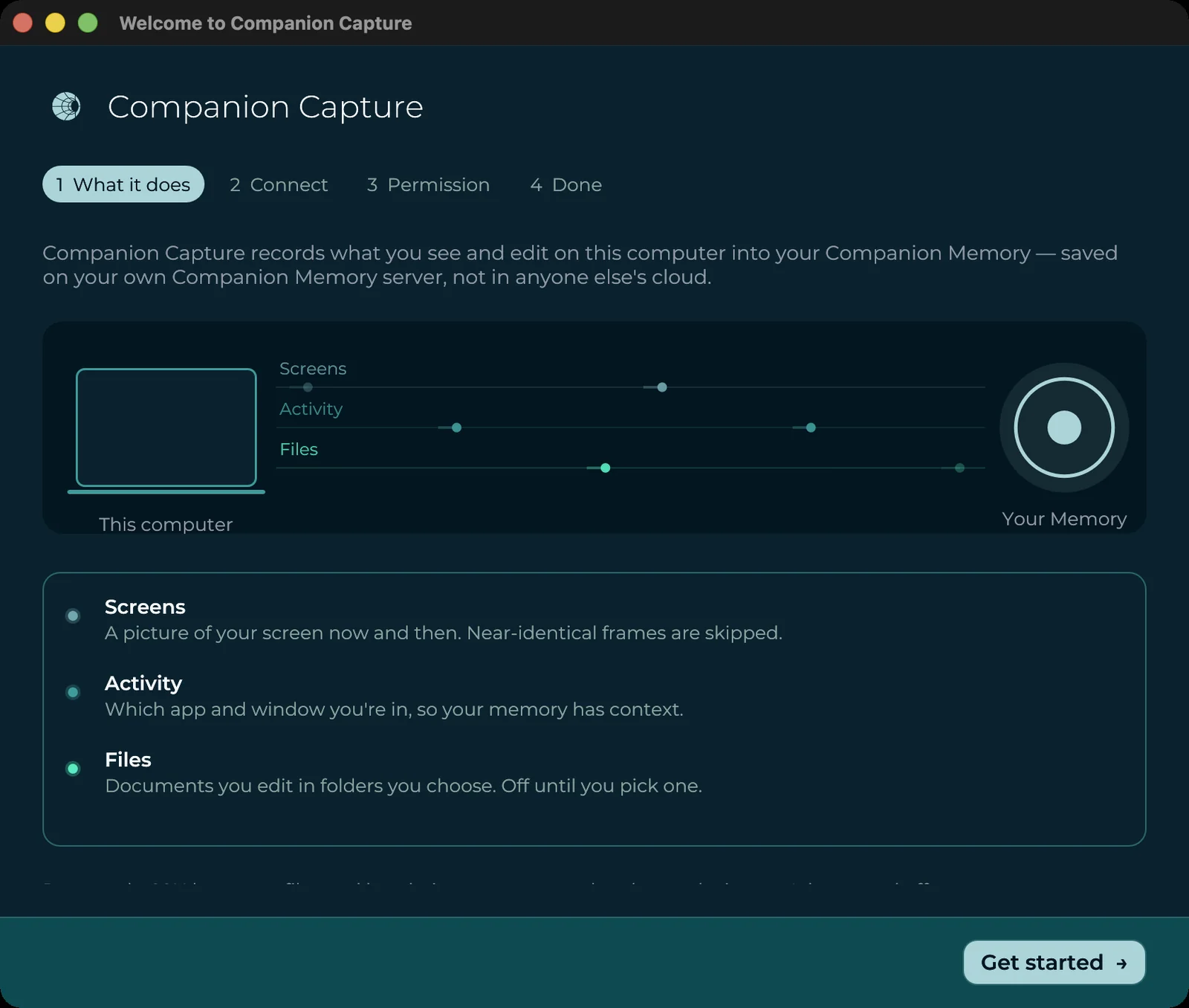
- What it does. A short explainer of the three lanes and the exclusions that cannot be turned off. Choose Get started.
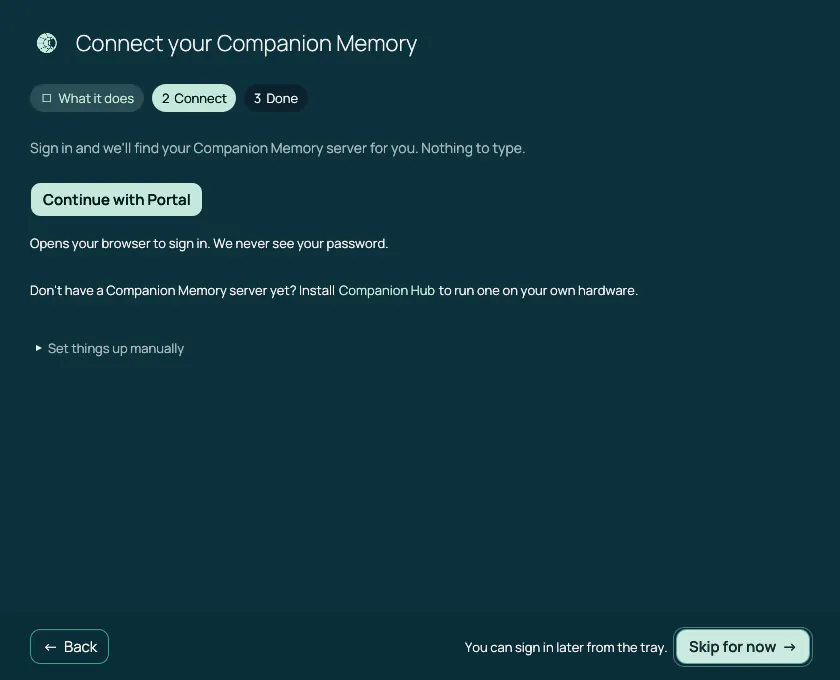
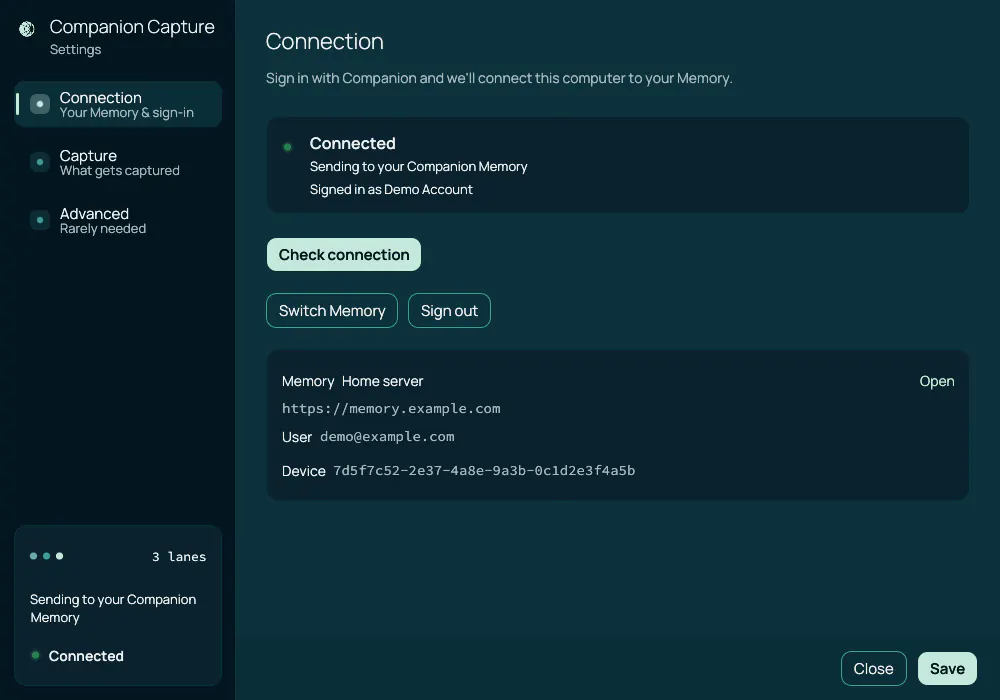
- Connect. Choose Continue with Portal. Your browser opens so you can sign in with your CI Account; the app never sees your password. When you finish, the browser page says Signed in and you can close it. The app then looks up your Companion Memory server, and the Connect step reports what it found. If your account has more than one Memory, it tells you to pick one in Settings → Connection. If your account has none, install Companion Memory on a Hub first.
- Permission (macOS only). macOS needs your permission before any app can see the screen. Choose Allow…, then turn on Companion Capture in System Settings → Privacy & Security → Screen Recording. The card switches to Granted by itself. Companion Capture asks for no other permission during setup.
- Done. A summary shows whether you are connected, whether Screen Recording is allowed, and how many folders are watched. Choose Start capturing. This also turns on Start when you log in.
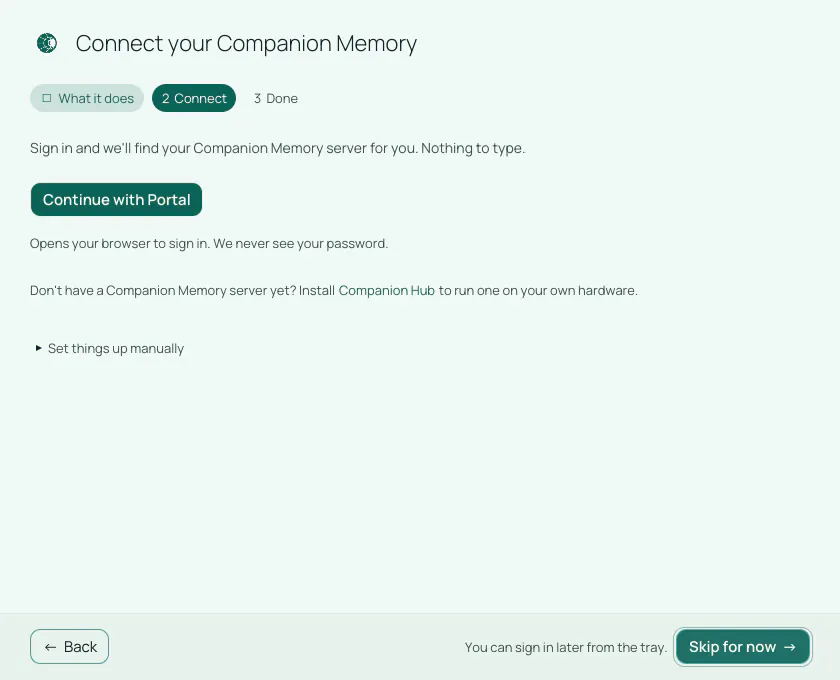
The assistant can lose the address it just found. After you sign in, the Connect card can keep saying Looking for your Companion Memory server… while the line under it says your Memory was found. Choosing Continue then saves an empty address over the one it found, so the summary shows no address and the tray reads ⚠︎ Memory not connected. The code in the published 0.2.0-alpha.7 and in the current source behaves this way. To fix it, open Settings → Connection and choose Find my Memory; one click saves the address and checks the connection.
If you close the assistant before you sign in, without choosing Start capturing, it opens again at the next launch. Reopen it any time from the tray menu with Setup Assistant….
Verify the first capture
Open the tray menu (right-click the icon on macOS and Windows). Status: Monitoring means capture is running. If it shows ⚠︎ Sign in to start, ⚠︎ Memory not connected, or ⚠︎ Permissions needed, see Troubleshooting. If ⚠︎ Memory not connected appears right after you finish the setup assistant, see the known issue above: open Settings → Connection and choose Find my Memory.
The first screenshot is sent shortly after sign-in, because there is no earlier frame to compare it with. Later frames are sent only when the screen changed enough. Choose Open Companion Memory to open your Memory in the browser and look for the screenshot. Your Memory server’s vision model describes each screenshot, so the description can appear after the image.
Point at a server by hand (optional)
Most people never need this. Open Settings → Advanced → Manual connection and set Your Companion Memory server to the server origin, for example http://core-1:8642 or https://memory.example.com. Use the server root, not a page route such as /plan. To skip browser sign-in, set Authentication to API key and paste a Companion Memory API key from Settings → API Keys in Companion Memory. The app sends the key as x-api-key.
The tray menu
On macOS and Windows, left-click the tray icon to open Settings and right-click it to open the menu. On Linux the tray does not report clicks to the app, so open the menu from your desktop’s tray or indicator and choose Open Settings….
| Item | What it does |
|---|---|
| Status: … | Read-out: Monitoring, Paused, ⚠︎ Sign in to start, ⚠︎ Memory not connected, ⚠︎ Finishing device setup, ⚠︎ Permissions needed, or ⚠︎ N waiting to reach Memory. |
| Pause Captures / Resume Captures | Stops or restarts every lane. |
| Capture Now | Runs one screenshot and activity capture immediately. The screenshot still goes through the diff, lock, and idle checks, so it saves nothing when the screen has not changed. Greyed out until you sign in and connect a Memory. |
| Upload Document… | Opens a window to upload PDF, Word, Excel, CSV, text, or Markdown files to Companion Memory by hand. Greyed out until you sign in and connect a Memory. |
| Open Companion Memory / Today’s Activity | Open your Memory server in the browser, or open today’s activity as a list. |
| Screenshot Interval, Diff Threshold, Identity, Memory, Vision | Read-outs of your current settings. Change them in Settings. |
| Login via … / Signed in as … | Starts browser sign-in, or shows who is signed in. |
| Sign Out | Clears the sign-in and the stored credential. A Memory address you typed by hand is kept. |
| Setup Assistant… | Reopens the setup assistant. |
| Open Settings… | Opens the Settings window. |
| Show Config Location | Shows the path of config.json. |
| Quit Companion Capture | Stops capture and exits. |
Companion Capture starts at login after you finish the setup assistant. Turn this off or on in Settings → Capture → Start when you log in (autostart.enabled in config.json). The published 0.2.0-alpha.7 build has no such setting; to capture after a restart, add it to your OS login items yourself: on macOS, System Settings → General → Login Items. If you open the app while it is already running, it shows Companion Capture is already running.
Pausing and deleting data
- Pause. Choose Pause Captures to stop the screenshot, activity, file, iMessage, BlueBubbles, and Device activity lanes. Edits you make to watched files while paused are not queued; there is no catch-up after Resume Captures. Uploads of screenshots waiting on your disk also wait.
- Stop one device from sending. Choose Sign Out, or delete the API key named Companion Capture (your computer’s name) in Settings → API Keys in Companion Memory.
- What stays on your computer. Uploaded screenshots are deleted as soon as your Memory server confirms them. Screenshots and activity that could not be sent stay under the app’s data folder until they upload, and are then pruned after 14 days or once they exceed 2,048 MB, oldest first (
capture.retention_max_age_daysandcapture.retention_max_total_mb). The file-tracking queue and message cursors live in the same folder. - Delete data already sent. Companion Capture only writes to Companion Memory; it cannot read back or delete what it has sent. Delete that data in Companion Memory.
Capturing iMessage
Companion Capture can forward iMessage and SMS into Companion Memory two ways: by reading this Mac’s own ~/Library/Messages/chat.db, or by polling a BlueBubbles server over its REST API. Both are off by default, and neither appears in the tray or in Settings yet. You turn them on by editing config.json and restarting the app. Neither lane is in the published 0.2.0-alpha.7 build.
Both message lanes are prototypes. They forward each message as a timeline
event, not as a threaded conversation. The local chat.db lane sends the
message text (including bodies macOS stores only in a binary column, which the
app decodes), sender, chat name, timestamp, participants, and reply and edit
details, and skips tapback reactions. The BlueBubbles lane sends text, sender,
chat, timestamp, and attachment metadata. Neither uploads attachments, and
neither carries read receipts. If you want the full-fidelity version of the
same data, use one of the other two routes below.
Which iMessage route to use
Three different parts of the platform can ingest the same messages. They read the same data but write it under different provenance, so they cannot deduplicate against each other — pick one route per Mac.
| Route | Where it runs | What it needs | Fidelity | Use it when |
|---|---|---|---|---|
| Companion Memory → BlueBubbles connection | On the appliance | A BlueBubbles server and its password, reachable from the appliance | Full — threads, participants, attachments, reactions, replies; live via webhook | You already run BlueBubbles, or are willing to install it |
| Companion Memory → Import wizard | On the appliance | A copy of chat.db uploaded as an archive | Full, and the best historical parse — decodes attributedBody, resolves attachments on disk | You want everything that ever happened, once, and don’t need it to keep updating |
| Companion Capture → iMessage lane | On the Mac itself | Full Disk Access; nothing else | Prototype — text, sender, timestamp, chat name, participants; no attachments | Companion Capture already runs on the Mac and you want an ongoing feed without standing up a BlueBubbles server |
There is also a Companion Capture → BlueBubbles lane, which polls a BlueBubbles server from the app instead of from the appliance. It has prototype fidelity, so use it only when the appliance cannot reach the BlueBubbles server but the machine running Companion Capture can.
Running two routes against the same account duplicates every message. A
message read from chat.db by Companion Capture and the same message pulled
by the appliance’s BlueBubbles connection arrive under different source
identities, so Companion Memory stores both and there is no merge step that
collapses them afterwards. Turn one off before turning another on.
Granting Full Disk Access
The local iMessage lane reads a file macOS protects. Unlike Screen Recording, there is no prompt to trigger — you have to add the app yourself:
Open the pane
System Settings → Privacy & Security → Full Disk Access. The --check-imessage output prints a deep link straight to it.
Add Companion Capture
Click +, and add the app that is actually running — Companion Capture for a normal install, or your terminal (or your IDE’s terminal) if you run it from source. Granting the wrong one is the usual reason this appears to do nothing.
Relaunch
macOS only re-evaluates the grant at process start. Choose Quit Companion Capture from the tray and start it again; a running process keeps the old, denied state.
Verify before enabling anything. Run the app’s executable with --check-imessage (on macOS it is the companion-capture file inside the app bundle):
companion-capture --check-imessageIt prints the database path, whether it exists, the grant state, and reads five messages back — reporting their shape, not their contents — without sending anything anywhere. Three outcomes:
✓ granted— you’re done.✗ not granted— the grant didn’t take. Re-check which app you added, then relaunch.n/a (no chat.db on this Mac)— Messages has never stored history here. This is not a permissions problem and granting access will not change it; there is nothing on this Mac for the lane to read.
Turning on the lanes
Open config.json (tray → Show Config Location) and set the lane you want. Both take effect on the next restart.
{
  "imessage": {
    "enabled": true,
    "poll_interval_secs": 30
  },
  "bluebubbles": {
    "enabled": true,
    "host": "192.168.1.50",
    "port": 1234,
    "use_https": false,
    "password": "your-bluebubbles-server-password",
    "poll_interval_secs": 30
  }
}
poll_interval_secs defaults to 30 and is floored at 10, so a stray 1 in the file cannot hammer the Mac being read. The local lane has no host or password because there is only one Messages database it will ever read — this Mac’s.
The BlueBubbles server password is stored in plaintext in config.json,
the same as the other local service credentials in that file. It is a
full-control credential for the Mac running BlueBubbles, not a read-only one.
To prove the whole path end to end before leaving a lane running, do one real pass of five messages against a live server:
CI_SERVER_URL=https://your-companion-memory.example.com \
CI_SERVER_API_KEY=$CI_API_KEY \
  companion-capture --import-imessage-once

BLUEBUBBLES_HOST=192.168.1.50 BLUEBUBBLES_PASSWORD=… \
CI_SERVER_URL=https://your-companion-memory.example.com \
CI_SERVER_API_KEY=$CI_API_KEY \
  companion-capture --import-bluebubbles-once
Both read their credentials from the environment rather than config.json and report how many messages were skipped. The iMessage command sends five messages, and IMESSAGE_IMPORT_LIMIT raises that number. The BlueBubbles command always sends five. --check-bluebubbles does the same reachability probe as --check-imessage, against a server rather than a file.
Known gaps
These are current limitations, not misconfigurations:
- Messages land as timeline events, not conversations. They are searchable and dated, but they do not populate the threaded message views that the archive import and the appliance’s own BlueBubbles connection fill in.
- Attachments are not uploaded. The local lane records how many a message has; the files themselves never leave the Mac.
- A message that syncs in later but is dated earlier is skipped permanently. Each lane tracks its place with a cursor that only moves forward. Messages in iCloud backfill and multi-device sync can drop an older message into
chat.dbafter the app has already moved past that point in time, and it will not be picked up. A full historical load through the Import wizard is the way to recover those. - Messages with an unreadable timestamp are dropped, counted, and reported at
warnin the log rather than being dated with the current time. - A message the server permanently rejects stalls the lane. Rather than skip it, the lane stops advancing and retries on every poll, so the same warning repeats until the cause is fixed. Nothing is lost, but nothing after it moves either.
Configuration
Companion Capture keeps its settings in config.json in the app’s config folder. Show Config Location in the tray always shows the right path. On macOS the folder is ~/Library/Application Support/com.compint.com.compint.Companion-Capture/; a Mac that also has an older CI-Applet install has a second, unused …CI-Applet folder next to it. On Linux it is ~/.config/companioncapture/ ($XDG_CONFIG_HOME/companioncapture/ when that variable is set), and screenshots waiting to upload are kept under ~/.local/share/companioncapture/.
Most settings are in the Settings window, which has three tabs:
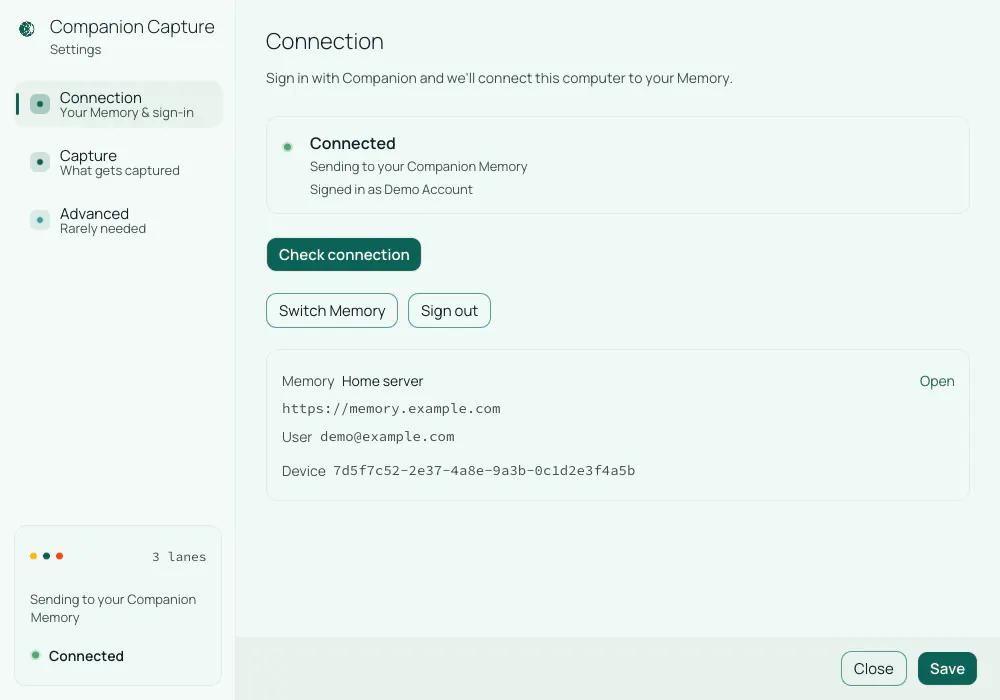
- Connection. Sign in with Companion, the Memory picker (Find my Memory, Use this Memory, Switch Memory), Check connection, Sign out, and a read-only This device card.
- Capture. Screenshot interval, Diff threshold, Start when you log in, a read-out of the capture lanes (Screens, Activity, Files, and on macOS Device activity), Watched folders (Add folder…, Remove, and a File tracking enabled switch that stops watching without losing the folder list), and on macOS a Record device activity switch with its Full Disk Access status.
- Advanced. Language, Manual connection, Describing your screenshots (a local vision model instead of your Memory server), and Send crash reports.
The fields you may edit by hand:
| Field | Purpose |
|---|---|
server.portal_url | Companion Memory server origin that receives captures. Settings labels it Your Companion Memory server. |
server.applet_auth_token | Companion Memory API key or sign-in token. Set by sign-in or pasted in Settings. |
oidc.issuer | Sign-in URL. Default https://hub.ci.computer/api/auth. Settings labels it Portal sign-in URL. Change it only for a self-hosted CI Account. |
oidc.client_id | Default ci-applet. A self-hosted issuer must register this client. |
oidc.redirect_uri | Default http://127.0.0.1:0/callback. Port 0 means the OS picks a free port at each sign-in, so an issuer must accept any 127.0.0.1 port. |
capture.screenshot_interval_secs | Default 300, minimum 30. |
capture.diff_threshold_percent | Skip frames that changed less than this. Default 10. |
capture.retention_max_age_days / capture.retention_max_total_mb | Caps for screenshots that have not uploaded. Defaults 14 and 2048. |
file_tracker.watched_paths | Folders to watch; empty means the file lane is off. |
file_tracker.ignore_globs | Extra ignore patterns on top of the defaults. |
vizier.enabled | Turns the Activity lane on or off. Default true. |
autostart.enabled | Start at login. Default false; the setup assistant sets it to true when you finish. |
knowledge.enabled | Device activity lane (macOS). Default false. Turn it on in Settings → Capture. |
imessage.enabled | Local chat.db lane; default false. |
imessage.poll_interval_secs | Default 30, minimum 10. |
bluebubbles.enabled | BlueBubbles polling lane; default false. |
bluebubbles.host / .port / .use_https | BlueBubbles server to poll (default port 1234); an empty host means the lane is off. |
bluebubbles.password | BlueBubbles server password, stored in plaintext; empty means the lane is off. |
bluebubbles.poll_interval_secs | Default 30, minimum 10. |
crash_reporting | Send scrubbed crash reports. Default true. |
A background task refreshes the sign-in token before it expires and retries device registration if your Memory server was unreachable at sign-in. After you sign in, the app also asks your Memory server for a long-lived API key named Companion Capture (your computer’s name), so capture continues after the sign-in token expires.
Each message lane keeps its place in a small imessage-cursor.json or bluebubbles-cursor.json file in the app’s data folder, next to file-tracker-queue.db. On macOS that is the same folder as config.json. Deleting one makes that lane re-read from the oldest message it can see; Companion Memory discards the repeats rather than storing them twice, so it costs traffic and nothing else.
Crash reports
Release builds send scrubbed crash reports (panic messages and stack traces only) to Sentry, a service Lifescope does not run. This is on by default and is the one exception to everything Companion Capture records staying on machines you own. File paths, server addresses, your username, and anything that looks like a credential are replaced with [redacted] first, and screenshots, window titles, and file contents are never included. Turn it off with Settings → Advanced → Send crash reports, or set CI_TELEMETRY=off or CI_LOCAL_ONLY=true in the app’s environment.
Command-line checks
These commands run the app’s executable without opening the tray. From a source checkout, prefix them with cargo run --.
companion-capture --check-server
companion-capture --check-server --portal https://your-companion-memory.example.com
--check-server reports resolved endpoints, your local sign-in state, and a live reachability probe against /health and GraphQL. It is safe to run any time and does not change server data.
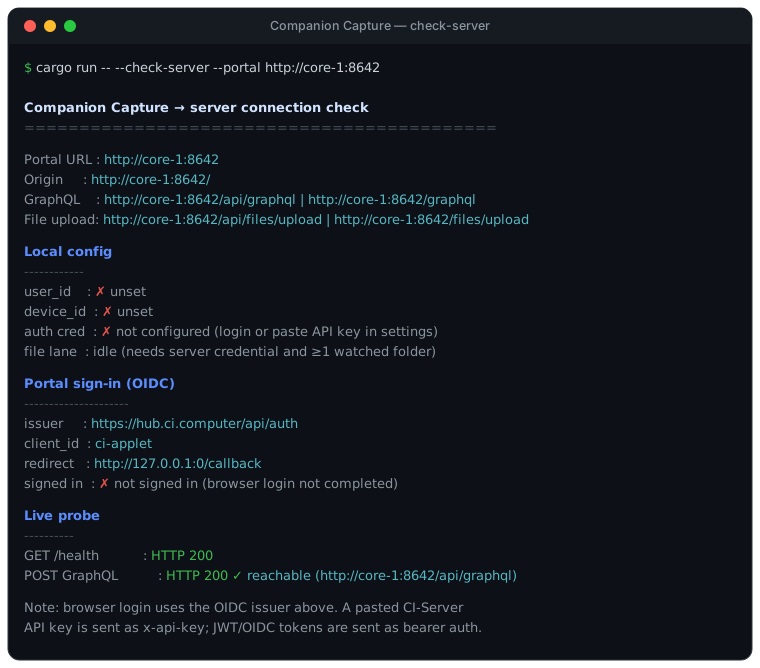
Other flags: --login runs browser sign-in without a tray (useful on a headless box) and prints the resolved identity; --open-memory and --search "query" open your Memory in the browser; --settings-ui, --upload-ui, and --onboarding-ui open the three windows directly; --check-knowledge and --import-knowledge-once check and test the Device activity lane the way the iMessage flags do.
Usage
Adjusting screenshot cadence
Open Settings → Capture to change Screenshot interval (default 300 seconds, minimum 30) and Diff threshold (default 10 percent, the share of the frame that must change before a screenshot is saved). Choose Save. A threshold of 0 saves every frame.
Uploading a document by hand
Choose Upload Document… from the tray, add files, and choose Upload. Supported types are PDF, Word, Excel, CSV, text, and Markdown. Each row shows Queued, Uploading, Processing, Ready, Already uploaded, or a failure. Drag and drop is not supported yet.
Finding your config file
Choose Show Config Location from the tray to see the path of config.json, which you need to edit file_tracker.watched_paths, ignore_globs, or the message lanes by hand.
Troubleshooting
The tray shows “⚠︎ Sign in to start”
No sign-in is stored. Choose Login via … from the tray, or open Settings → Connection and choose Sign in with Companion.
The tray shows “⚠︎ Memory not connected”
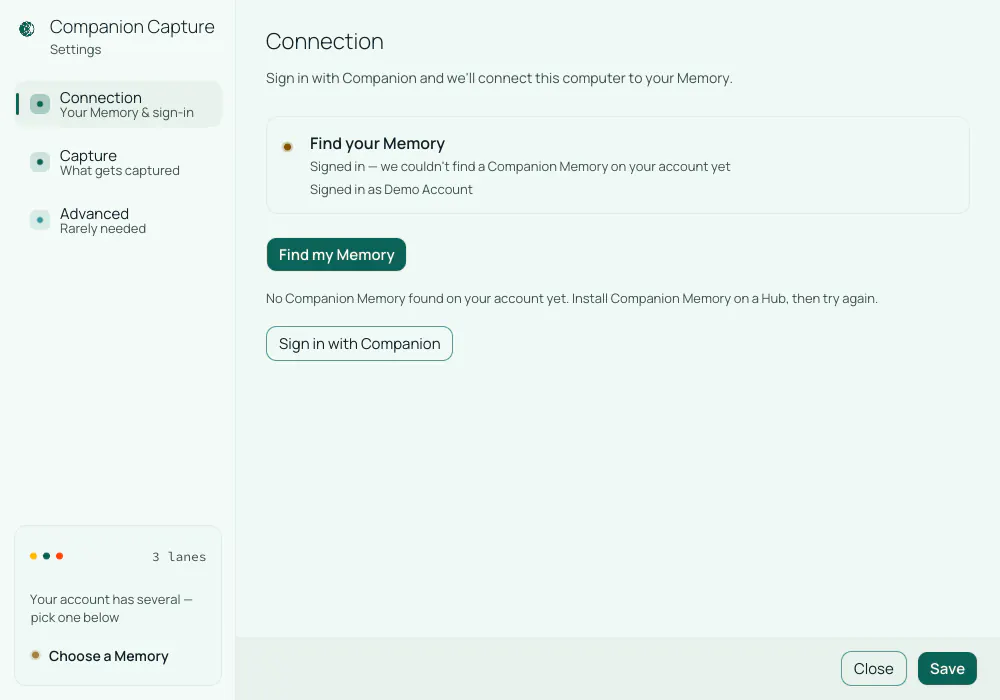
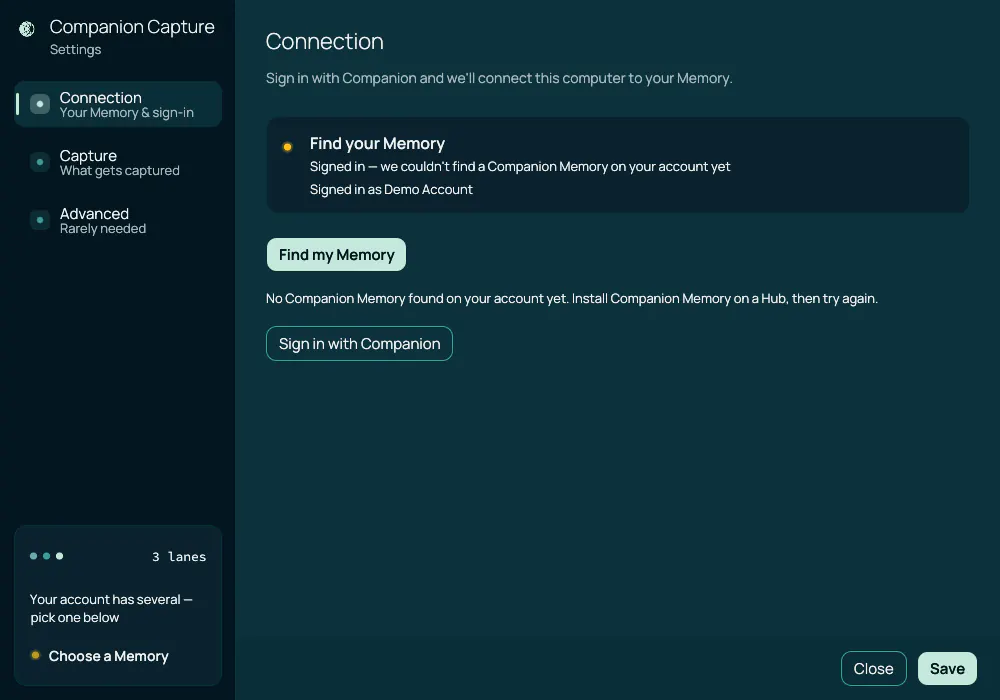
You are signed in, but the app has no Companion Memory server address. This is what you see when the setup assistant lost the address it found. Open Settings → Connection and choose Find my Memory. Until you do, the screen says we couldn’t find a Companion Memory on your account yet, and the summary at the lower left can say Your account has several, even when your account has exactly one; both lines appear before any lookup, so choose Find my Memory regardless. If the lookup comes back empty, your account has no Companion Memory yet: install it on a Hub, then try again. To use a server that is not on your account, set it under Settings → Advanced → Manual connection.
The tray shows “⚠︎ Permissions needed” or screenshots are blank
macOS Screen Recording is not granted. Open System Settings → Privacy & Security → Screen Recording and turn on Companion Capture. If captures stay blank after you grant it, choose Quit Companion Capture from the tray and open the app again.
The tray shows “⚠︎ N waiting to reach Memory”
Screenshots or file edits are queued on this computer because the Memory server is not accepting them. Open Settings → Connection and choose Check connection. The queue drains on its own once the connection works.
Sign-in fails
The error names the sign-in URL and the client id. Check that the CI Account is reachable and, for a self-hosted CI Account, that the ci-applet client is registered with a loopback redirect on any port.
Companion Capture cannot reach the Memory server
Check TLS trust for self-signed certificates, firewall rules, and that Companion Memory is running. Choose Check connection, or run companion-capture --check-server. An address that starts with http:// is not encrypted; on Tailscale, use the https:// name.
Screenshots aren’t showing up in Companion Memory
Capture is diff-gated. It also pauses while the screen is locked and, on macOS and Windows, after the desktop has been idle for a full screenshot interval, so a static desktop can go a while between uploads. Capture Now still applies the diff threshold, so it saves nothing when the screen has not changed; change what is on screen first, or set the threshold to 0. Confirm that Settings → Connection shows a Memory, and on macOS that Screen Recording is granted.
File tracking isn’t picking up a folder
Confirm the folder is listed under Settings → Capture → Watched folders, that File tracking enabled is on, that captures are not paused, and that a default or custom ignore pattern does not exclude it. Sensitive-path ignores (.ssh, keychains, credential stores) cannot be turned off.
High CPU usage after adding a large folder
Watching a folder tree with thousands of files can use more CPU, especially where tools rewrite many files at once. Exclude high-churn directories (for example node_modules, .git, and build output) with file_tracker.ignore_globs.
High disk use locally
Screenshots that have not uploaded stay on disk until your Memory server confirms them, up to the 14-day and 2,048 MB caps. Fix the connection and the folder empties. File events use a bounded SQLite queue.
Screenshots are blank or missing on Linux
Screenshot capture works on X11. On a GNOME or KDE Wayland session it can fail on every capture without showing a message in the app. Log in with an X11 session.
Linux tray icon doesn’t appear
You need an AppIndicator or StatusNotifier host. On GNOME, install the AppIndicator extension. The .deb package installs the required GTK 3 and libayatana-appindicator3 dependencies.
--check-imessage says Full Disk Access is not granted, but I granted it
macOS grants access to a specific app, and only re-reads the grant when that app starts. Confirm you added the app that is actually running — Companion Capture, or your terminal or IDE if you started it from one — and then quit and reopen it. A running process keeps the state it started with.
--check-imessage says n/a (no chat.db on this Mac)
Messages has never stored history on this Mac, so the local lane has no source. This is not a permissions problem, and granting Full Disk Access will not change it. Use the BlueBubbles route against a Mac that does have history, or import a chat.db copy through the Import wizard.
A message lane is enabled but nothing arrives
Check the log for lane idle. The local lane needs imessage.enabled: true; the BlueBubbles lane additionally needs a non-empty host and password — with either blank it stays idle rather than erroring. Both only re-read config.json on restart.
The same warning repeats every poll and no new messages appear
One message at the front of the queue is being rejected by Companion Memory, and the lane deliberately stops rather than skipping past it, so nothing after it moves either. The warning names the message. Nothing has been lost; the lane resumes on its own once the cause is fixed.
Messages arrive with no text
Attachment-only messages, such as a photo or a sticker, have no text because attachments are not uploaded. If a text message arrives empty, run --check-imessage and report the result. The Import wizard’s chat.db parser is the most complete reader — see Which iMessage route to use.
Links
- Companion Memory — including the appliance’s own BlueBubbles connection
- BlueBubbles — the self-hosted iMessage bridge both BlueBubbles routes talk to
- Importing your archives
- Browser Extensions
- Mobile App
- Source code: a private repository, not publicly accessible