🪐 Companion Atlas
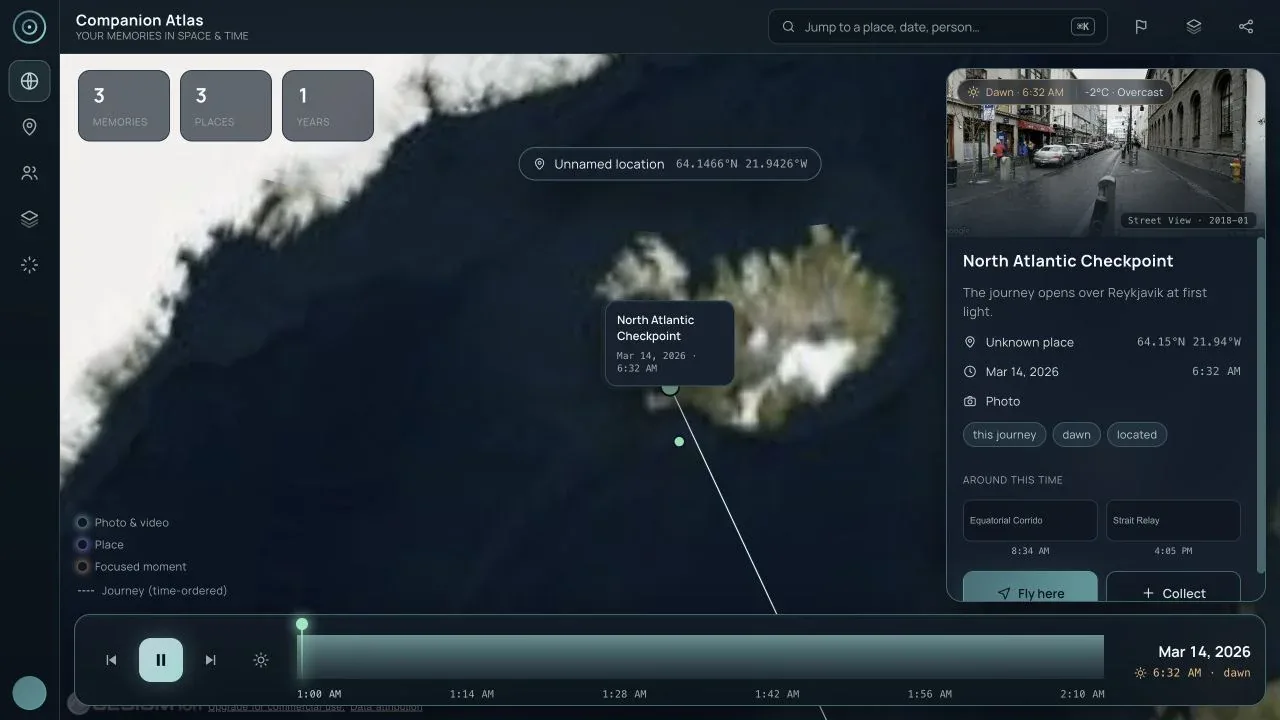
Explore a life as a place and a timeline. Companion Atlas turns located Companion Memory events into a navigable globe, then lets you collect moments into a scrapbook and play them as a journey on a desktop, phone, or WebXR headset.
There is no hosted Atlas and no Hub App Store listing yet. The viewer runs
from source, and the source repository is private, so today this page is a
reference for the Companion Intelligence team and early testers. A Hub
manifest for installing Atlas as a custom app exists in the repository, but
Atlas is not in the store. The planned public address, atlas.ci.computer,
does not resolve yet. Atlas is licensed under the PolyForm Noncommercial
License 1.0.0.
Companion Atlas is a pre-release viewer. The screenshots on this page were captured on 2026-09-02 from the bundled Pacific Crossing, Spring 2026 demo story. They contain demo locations and public imagery, not anyone’s private memory archive. Live-memory and physical-device validation are called out separately below.
Product shape
Atlas has one story model and three presentation surfaces:
| Surface | Best for | Current entry point |
|---|---|---|
| Desktop browser | Reviewing a whole archive, searching, curating, and saving journeys | Cesium globe with inspector and time machine |
| Mobile browser | Quick place review, collection, and sharing | Responsive Cesium shell at a 390 × 844 reference viewport |
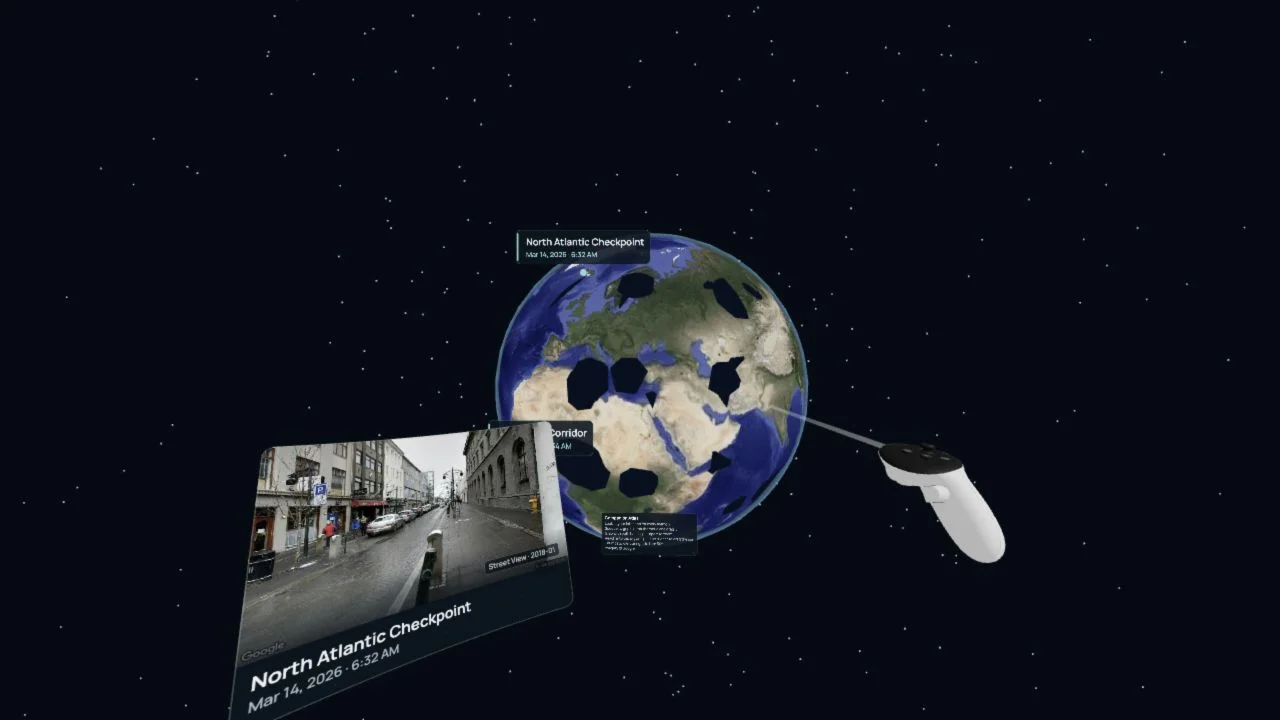
| WebXR | Spatial exploration and embodied time travel | Three.js globe with WebXR controls and a Quest 3 emulator |
The viewer can load a published companion.atlas/story@1 document or query a
connected Companion Memory for located memories. A story is the portable,
shareable unit; a live Memory connection is the private archive behind it.
- Presentation surfaces
- 3
- Desktop browser, mobile browser, and WebXR, over one story model.
- from Product shape
- Located memories per page
- 100
- The live GraphQL query pages Companion Memory results 100 at a time.
- from Connect to local Companion Memory
- Located-memory cap
- 2,000
- The client stops here and only warns in the console when the server reports more.
- from Known gaps
Both sources feed the same story model, and the scrapbook writes back out as a story:
flowchart LR
    S["Published story<br/>companion.atlas/story@1"] -->|"?story=url"| M["Story model"]
    C["Companion Memory<br/>located memories"] -->|"GraphQL via ?memory=<br/>100 per page"| M
    M --> D["Desktop browser<br/>Cesium globe"]
    M --> P["Mobile browser<br/>responsive Cesium shell"]
    M --> X["WebXR<br/>Three.js globe"]
    M --> B["Scrapbook"]
    B -->|"Download .story.json"| S
    B -->|"Save to Memory<br/>atlas-story event"| C
Open the viewer
Safe demo story
Run the viewer from a source checkout (npm install, then npm run dev; it serves on port 4174 by default) and open the bundled story with the URL below. The empty
memory parameter intentionally disables any build-time Memory connection so
the result is safe to share:
http://127.0.0.1:4174/?memory=&story=/stories/sample-pacific-journey.json&renderer=cesiumThe same story is available over a Tailscale hostname when the dev server is bound to the tailnet. Replace only the host in the URL; do not add credentials to a published link.
Connect to local Companion Memory
Use a same-origin dev proxy when Companion Memory is running locally:
http://127.0.0.1:4174/?memory=/memory&renderer=cesiumThe viewer sends a located-memory GraphQL query through /memory, pages up to
100 results at a time, restores chronological order, and maps the response to
the story model. The development proxy target is configured with
VITE_DEV_MEMORY_PROXY, for example http://localhost:5173/api when the
Companion Memory web app is the local gateway.
For a direct Companion Memory origin, use ?memory=<memory-origin> and provide
a session cookie, ?token=<jwt>, or ?apiKey=<key> as appropriate for the
local environment. Tokens and API keys must stay in local environment configuration
or a private session: the Share control removes memory, token, and apiKey
from the copied URL. When a live Memory request is unauthorized, the viewer
now offers an in-viewer sign-in/retry path. It exchanges the server’s
CSRF-protected credentials for a short-lived bearer kept in the current browser
tab; it never adds credentials to a share URL. Portal OIDC redirect login
remains a separate integration item.
WebXR emulator
The development-only Quest 3 emulator makes the immersive path testable in a normal browser:
http://127.0.0.1:4174/?memory=&story=/stories/sample-pacific-journey.json&renderer=xr&xremu=quest3?xremu=quest2, ?xremu=questPro, and ?xremu=generic are also accepted.
The emulator is never installed in production and is skipped when a real
immersive device is available.
Function inventory
Data and navigation
| Function | How to use it | What it does | Evidence |
|---|---|---|---|
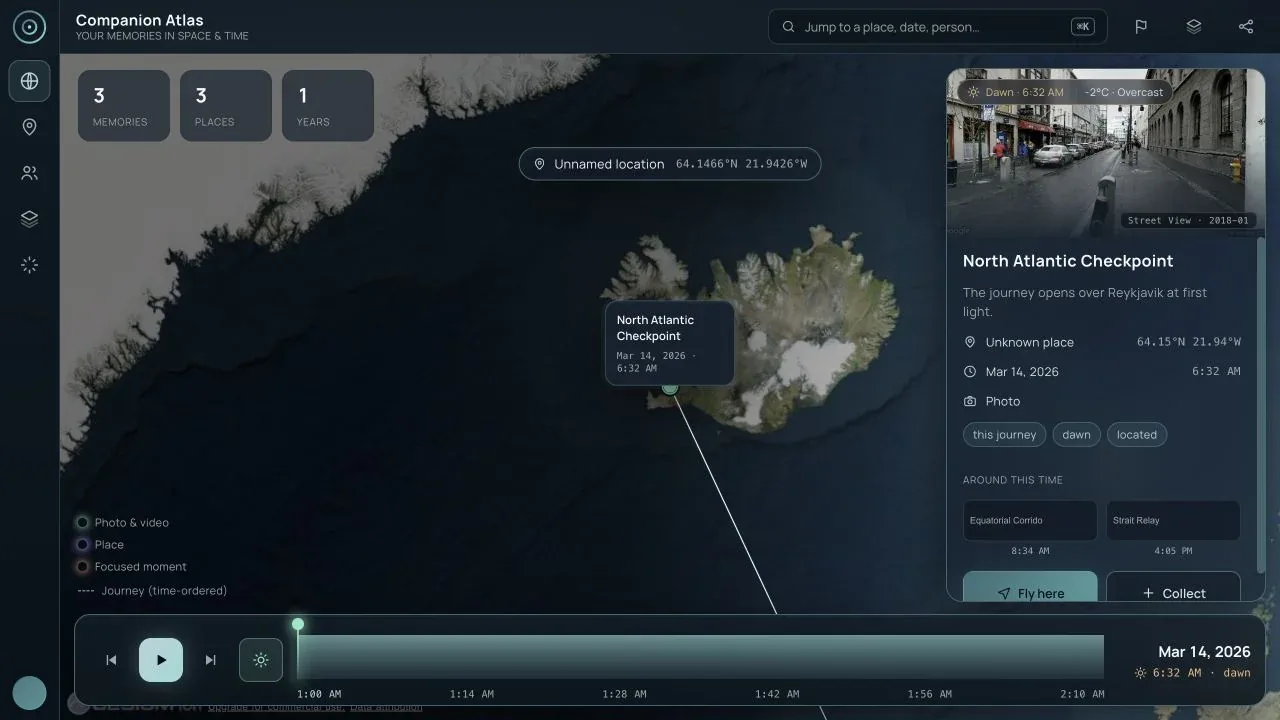
| Load a demo or published story | Use ?story=<url>; omit it for the bundled sample | Loads a portable story without a Memory account | Desktop overview |
| Load live located memories | Use ?memory=<server> or the local /memory proxy | Fetches located events and converts them into a time-ordered globe | Live data is intentionally not published in this screenshot set |
| Globe home | Click the Globe control in the left rail | Returns to the all-memories framing | Desktop fit all |
| Fit all places | Click the pin / Fit all places control | Pauses playback and frames every located memory | Desktop fit all |
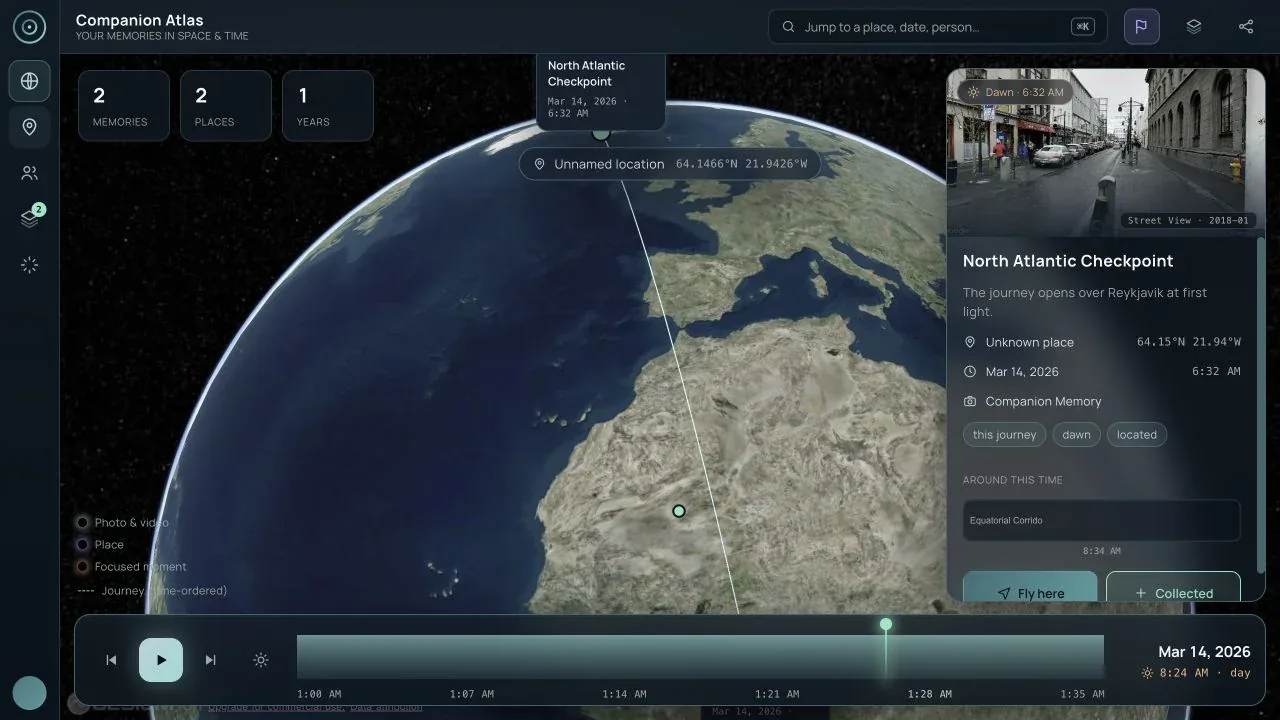
| Select a memory | Click a globe pin or a scrapbook frame | Focuses the memory, moves the clock to its instant, and flies to its location | Desktop overview |
| Inspect a place | Toggle Named places, then select a place marker | Shows place identity and, for live data, the place’s visit history | Desktop named places |
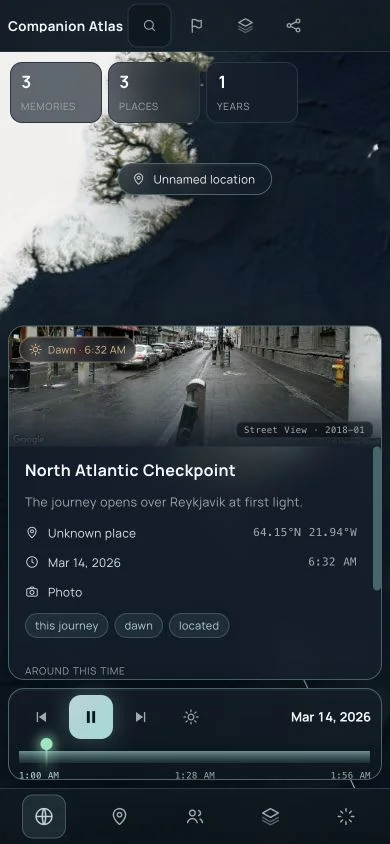
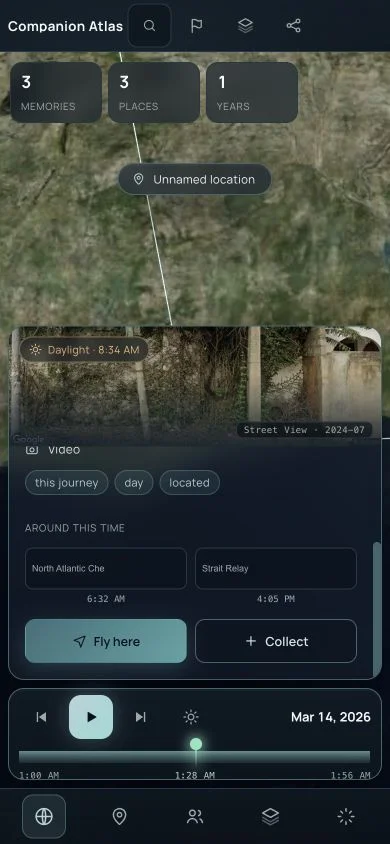
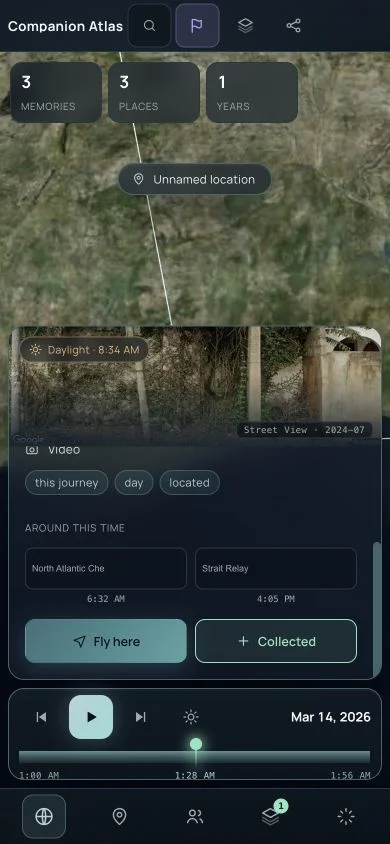
| Fly here | Scroll the inspector and choose Fly here | Reframes the camera around the selected memory | Mobile Fly here |
| Around this time | Scroll the inspector to the related-memory cards | Moves to a nearby memory from the same story | Mobile Fly here |
Search and time
| Function | How to use it | What it does | Evidence |
|---|---|---|---|
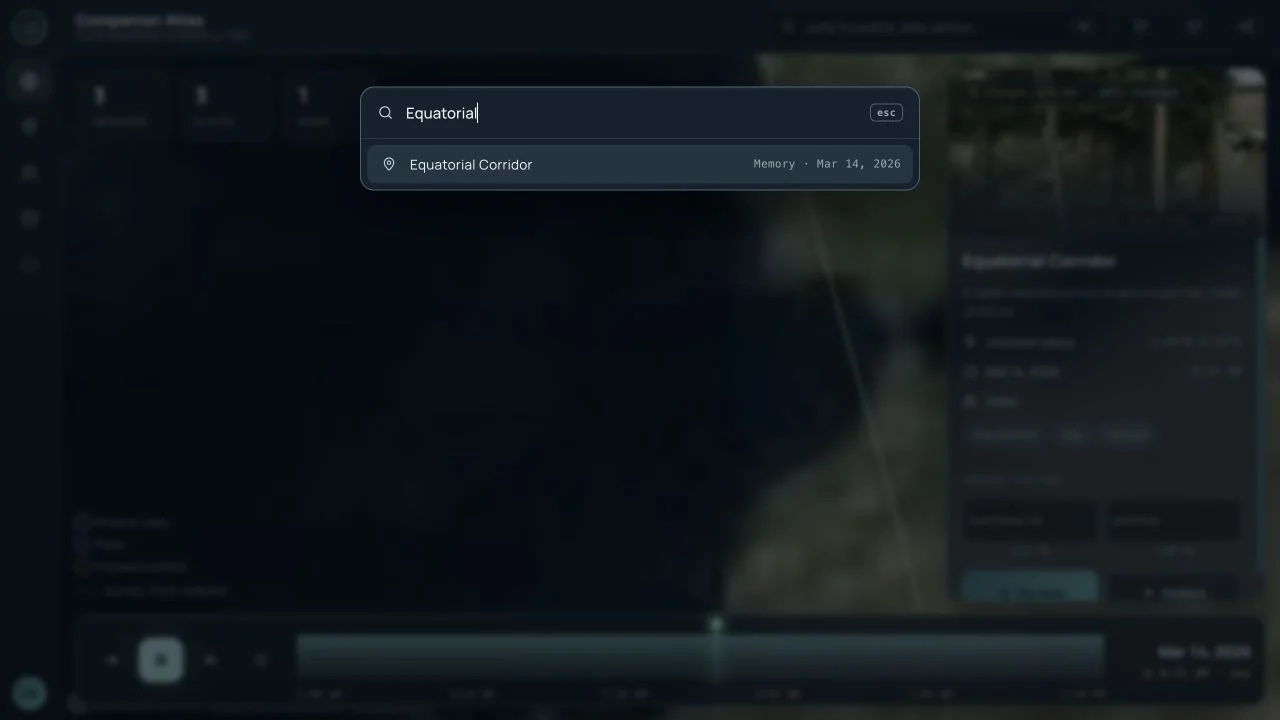
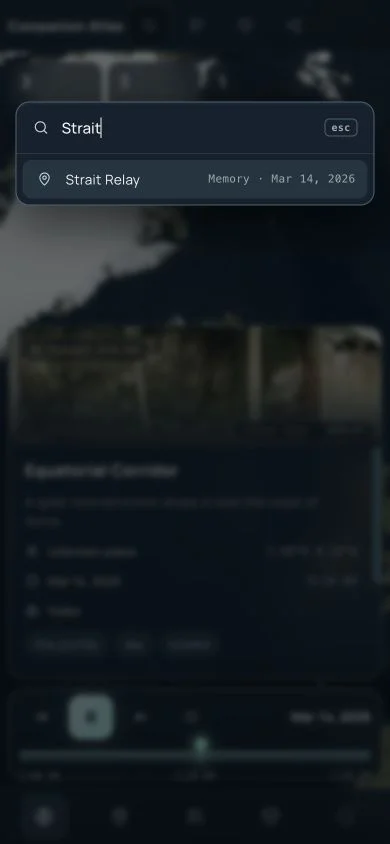
| Search memories | Click Search or press ⌘K / Ctrl+K | Opens the command palette for titles, places, people, and free-text matching | Desktop search |
| Search result selection | Choose a result in the palette | Focuses the result and closes the palette | Mobile search |
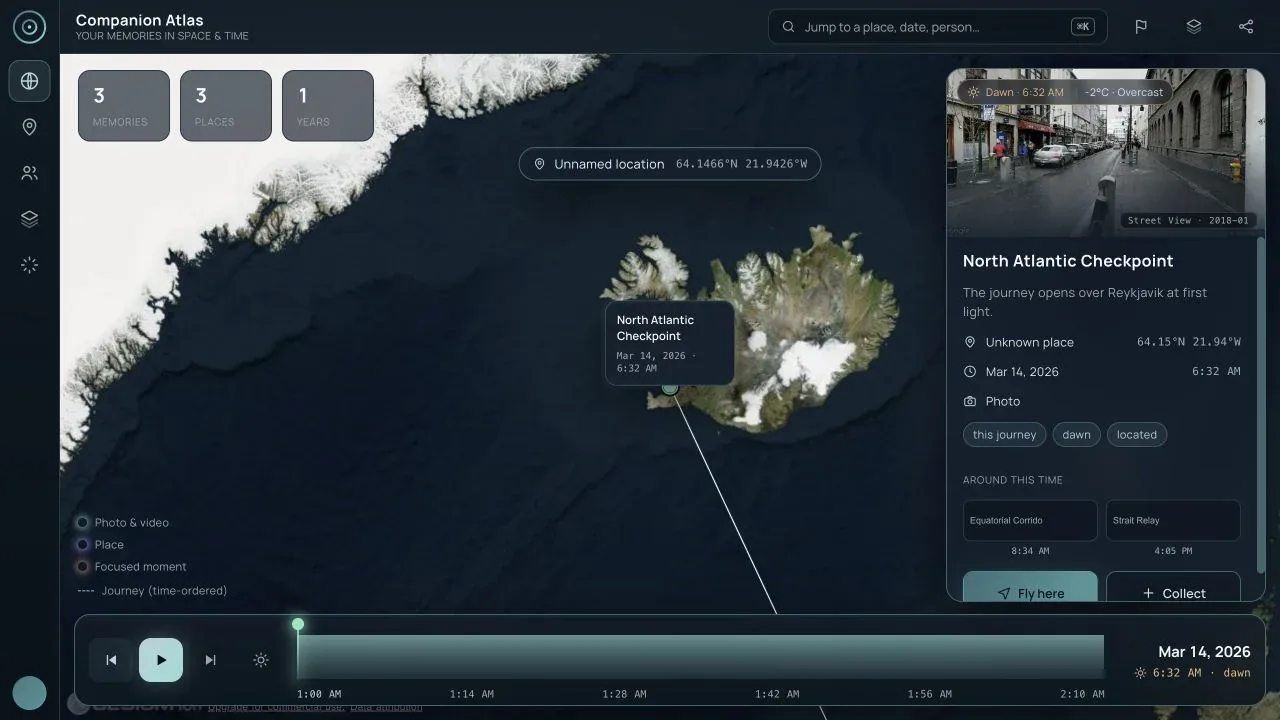
| Previous / Next memory | Use the two step buttons in the time bar | Selects the memory immediately before or after the current playhead | Desktop time machine |
| Play / Pause | Click the centre time-bar button | Plays the story through its timeline, or pauses it at the current instant | Desktop time machine |
| Scrub the archive | Drag or tap the histogram track | Moves the clock and its place/time readout; a grab stops playback | Mobile time machine |
| Keyboard time control | Focus the scrubber, then use arrows, Page Up/Down, Home, or End | Supports fine steps, larger jumps, and timeline bounds without a mouse | Implemented and covered by automated tests; not a separate published screenshot |
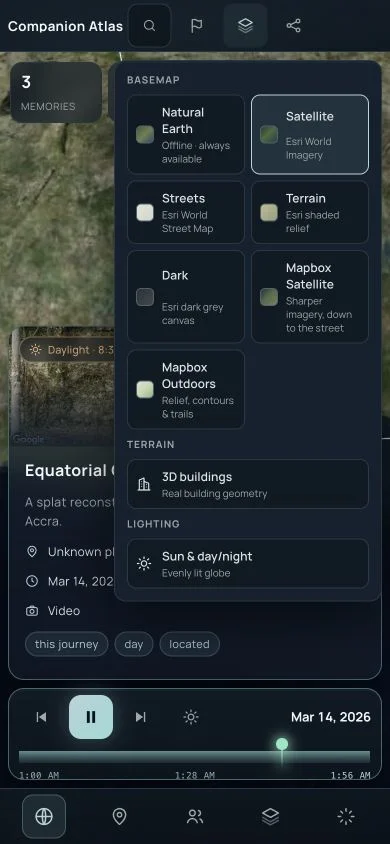
| Day/night lighting | Use the sun button in the time bar or the Layers popover | Applies the real solar terminator to the globe for the selected moment | Desktop day/night |
Map and media
| Function | How to use it | What it does | Evidence |
|---|---|---|---|
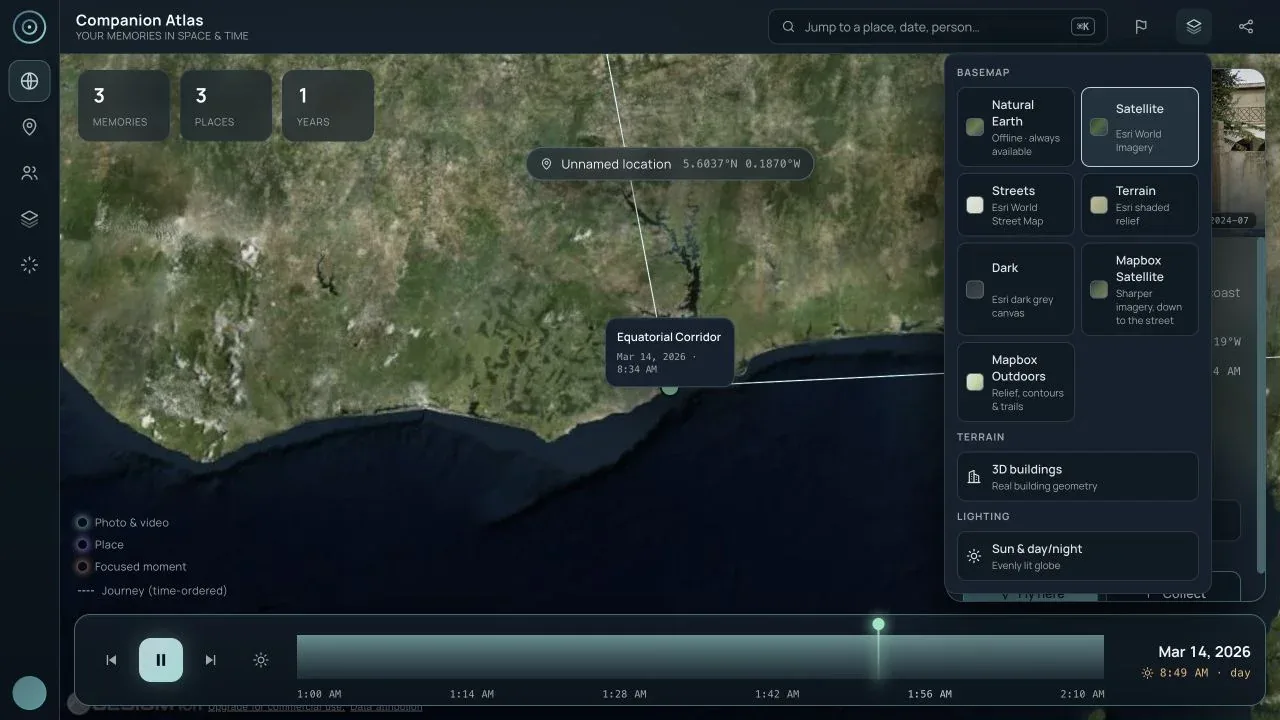
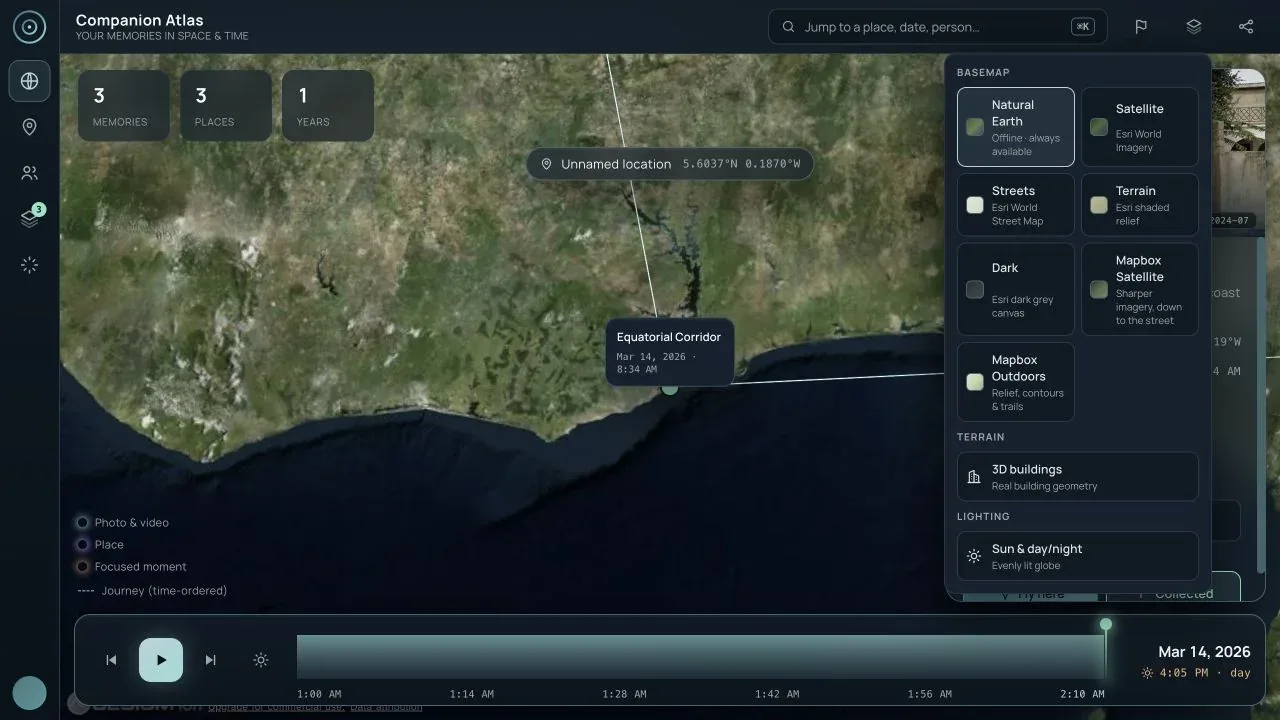
| Basemap selection | Open Map layers, then choose a basemap | Switches between Natural Earth, Satellite, Streets, Terrain, Dark, and Mapbox options | Desktop basemap |
| 3D buildings | Open Map layers and choose 3D buildings | Uses Google Photorealistic 3D Tiles when a Google key is configured; otherwise the disabled control explains the prerequisite | Desktop map layers |
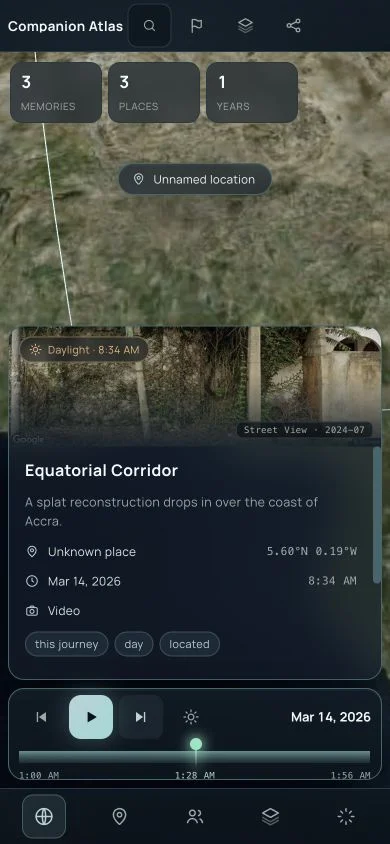
| Street View preview | Select a located memory | Shows Google Street View of the place when available, clearly credited as place imagery rather than the user’s photo | Desktop overview |
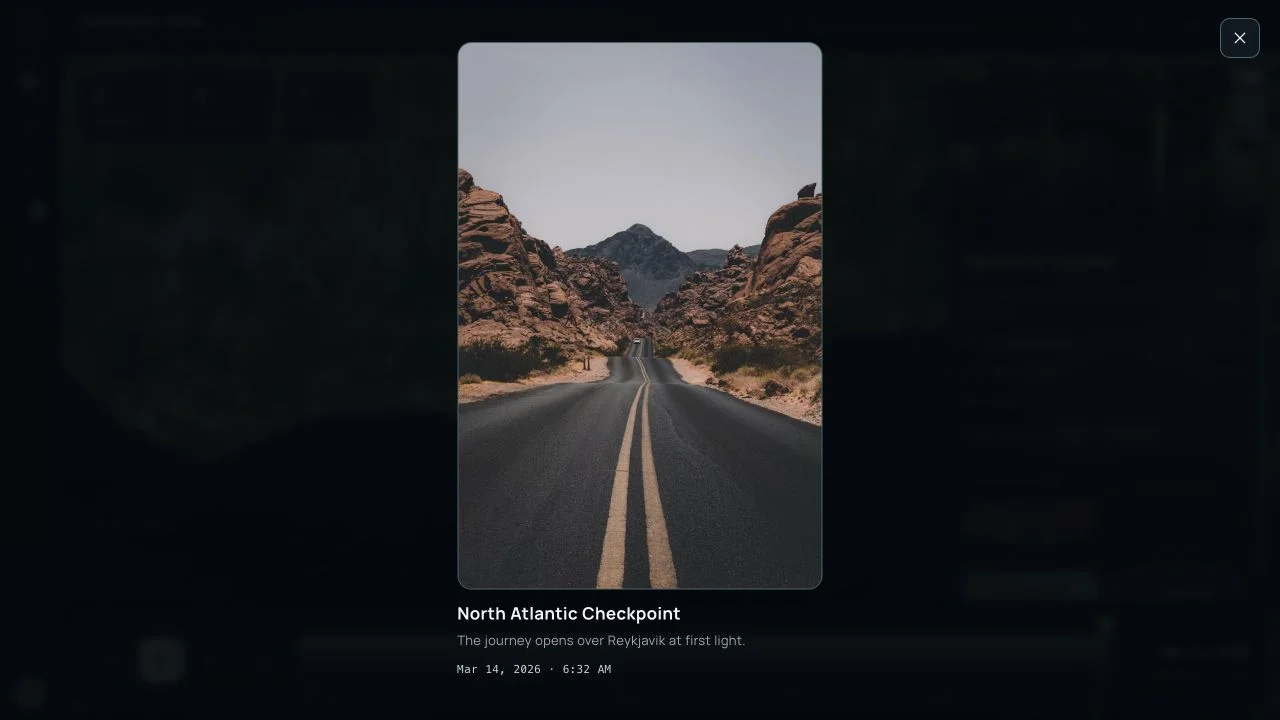
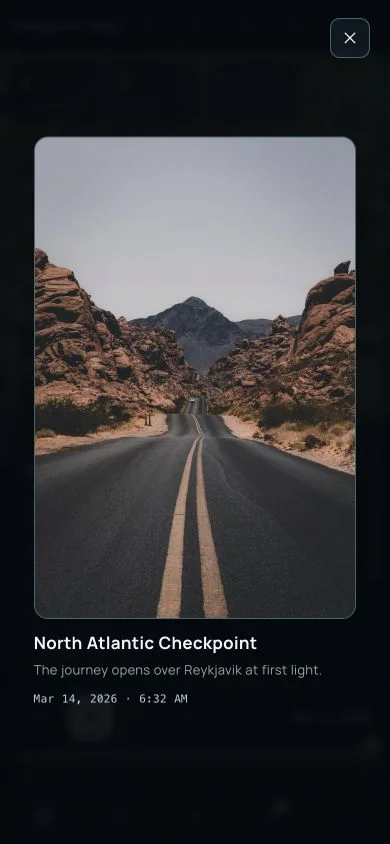
| User media | Select a memory with a loadable photo | Opens the full media lightbox; Escape closes it | Desktop lightbox, Mobile lightbox |
| No-media state | Select a memory without a photo or Street View coverage | States that no panorama is available instead of showing a misleading empty frame | Covered in the component tests; not represented by a public demo screenshot |
Scrapbook and sharing
| Function | How to use it | What it does | Evidence |
|---|---|---|---|
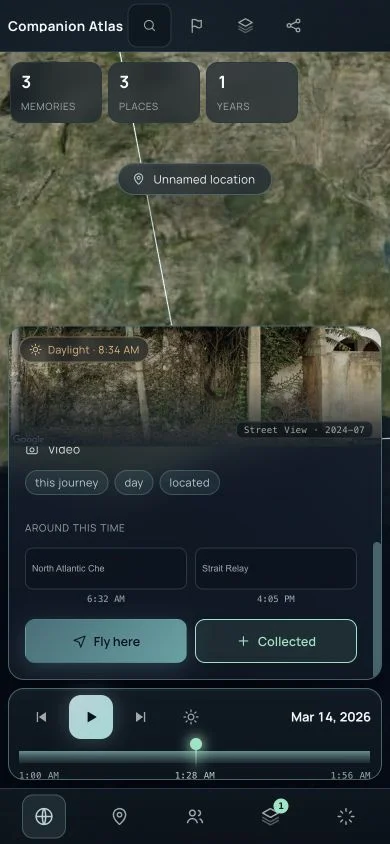
| Collect | Choose Collect in the memory inspector | Adds the memory to the story-scoped scrapbook and updates its badge | Mobile collect |
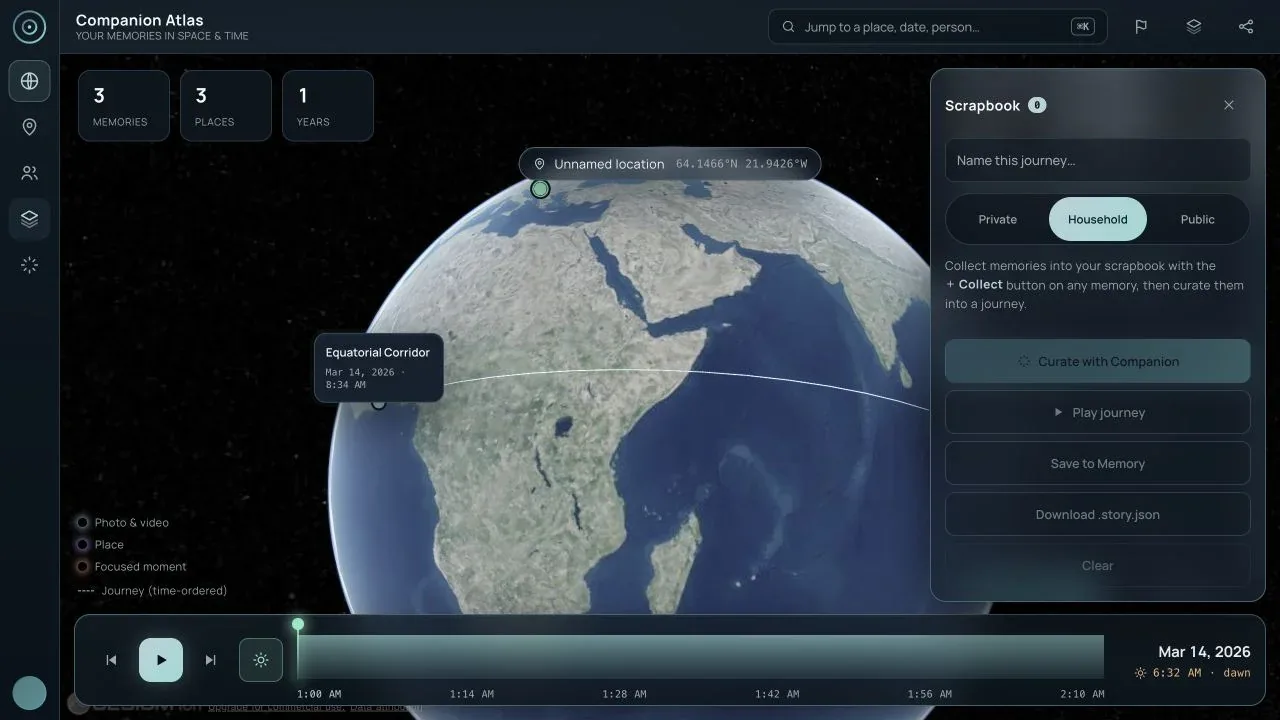
| Remove / Clear | Open Scrapbook and use the row ✕ or Clear | Removes one entry or resets the draft | Desktop scrapbook |
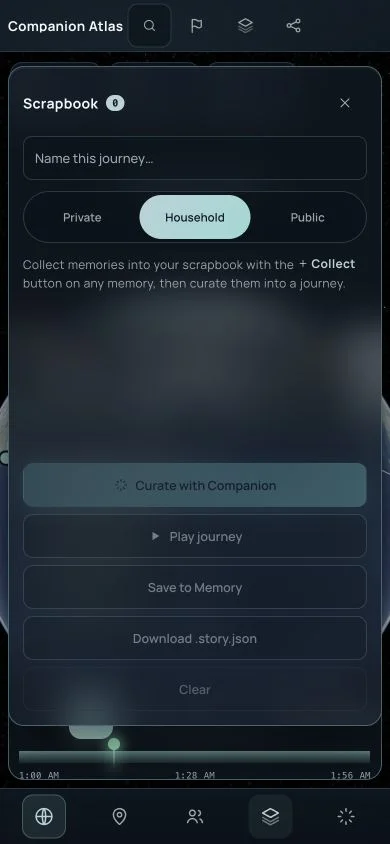
| Name a journey | Type in Name this journey… | Gives the draft a human-readable title | Desktop scrapbook |
| Set visibility | Choose Private, Household, or Public | Stores the intended sharing level for a save or downloaded story | Desktop scrapbook |
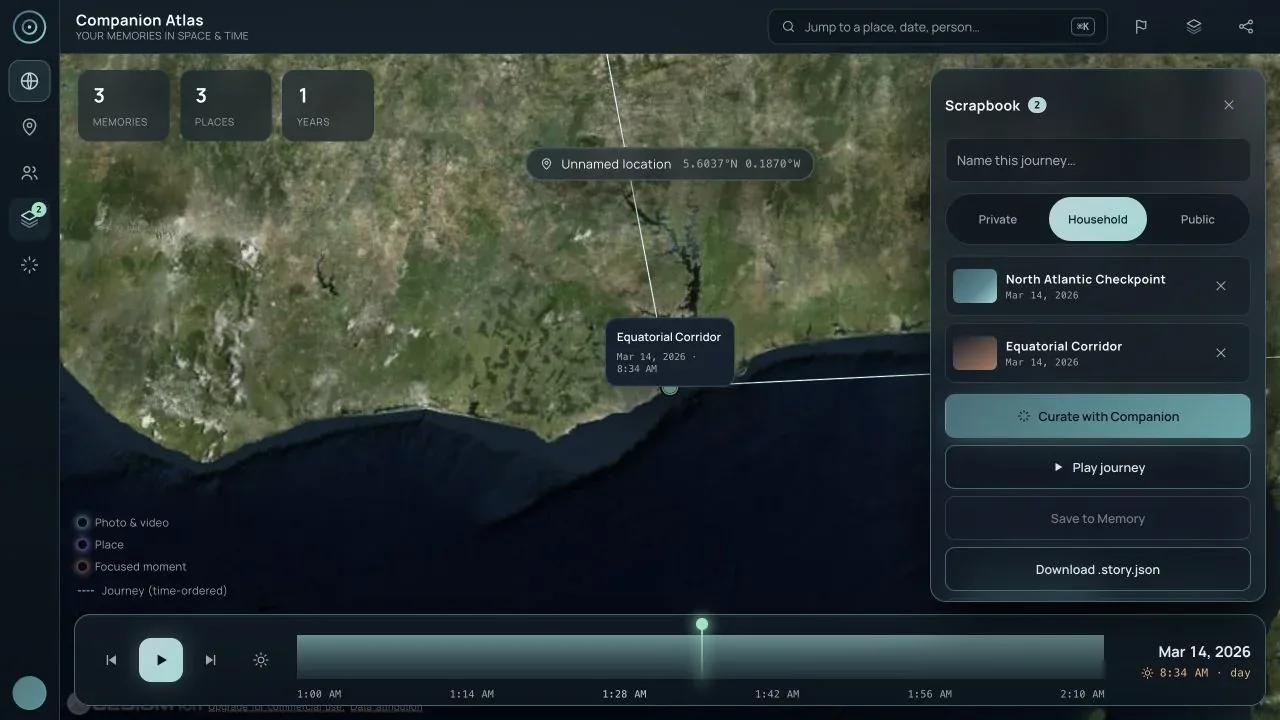
| Curate with Companion | Collect at least one memory, then choose Curate with Companion | Builds a narrated journey and titles it from the selected moments | Desktop curated journey |
| Play journey | Choose Play journey | Replaces the base story temporarily with the scrapbook journey and resumes playback | Desktop curated journey |
| Save to Memory | Connect a live Memory source, then choose Save to Memory | Writes an atlas-story event back to Companion Memory with the selected sharing level; disabled in the offline demo | Disabled safely in Desktop scrapbook |
| Download story | Choose Download .story.json | Downloads a portable story document without requiring a server connection | Desktop scrapbook |
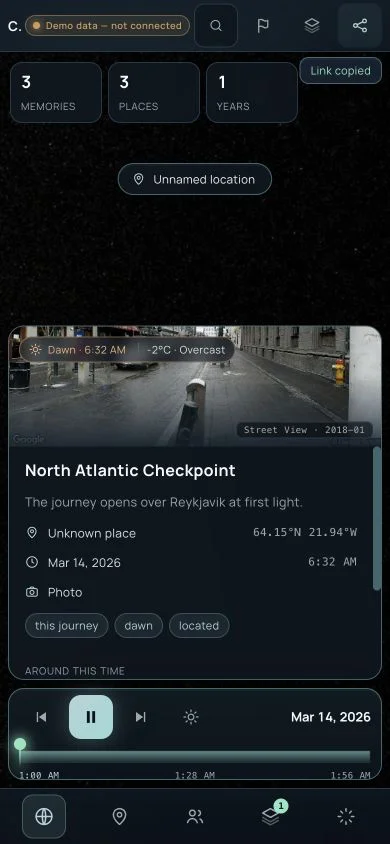
| Copy link | Click the share icon | Copies the current view while stripping private memory and bearer token parameters | Desktop share link, Mobile share link |
People and immersive controls
| Function | How to use it | What it does | Evidence |
|---|---|---|---|
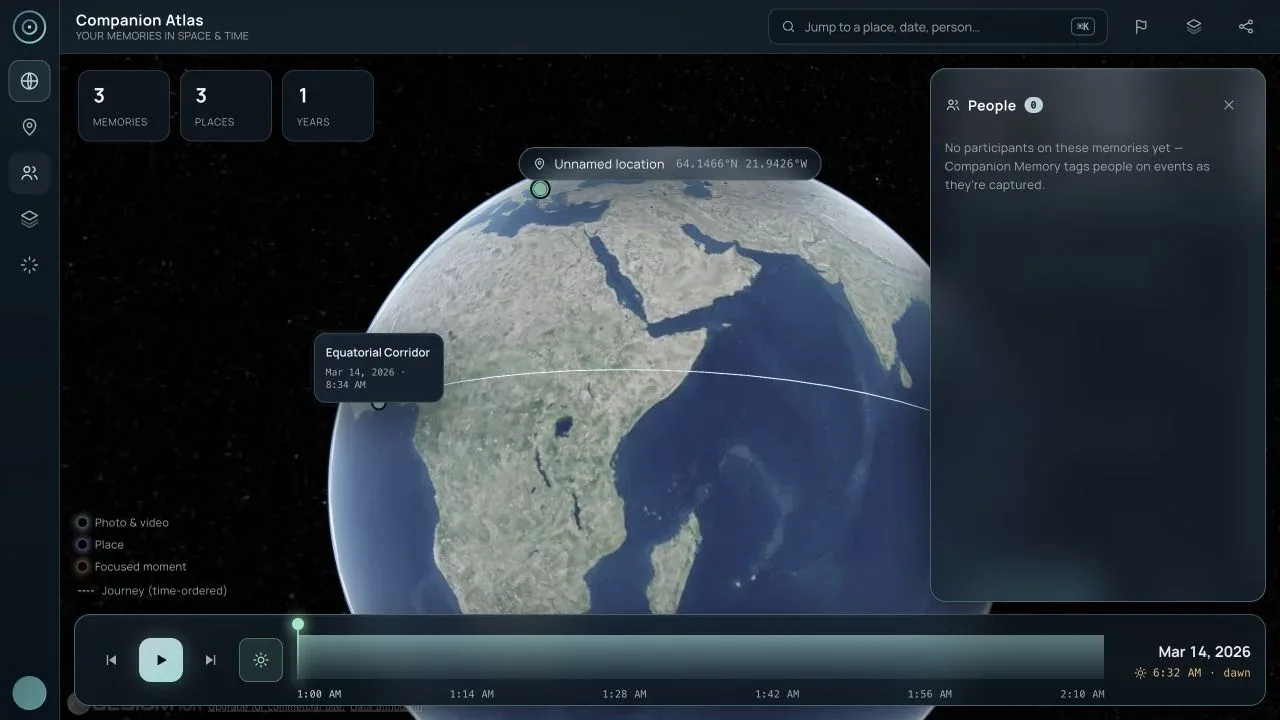
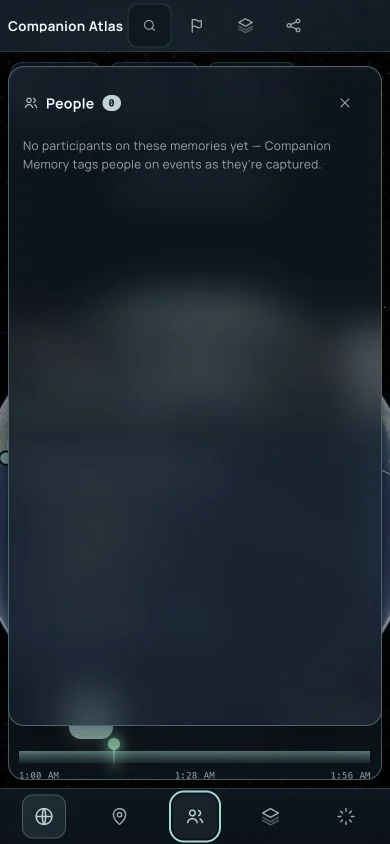
| People facet | Choose People in the rail / bottom navigation | Groups live-memory events by participant and can play a person’s journey; the bundled demo has no people | Desktop people, Mobile people |
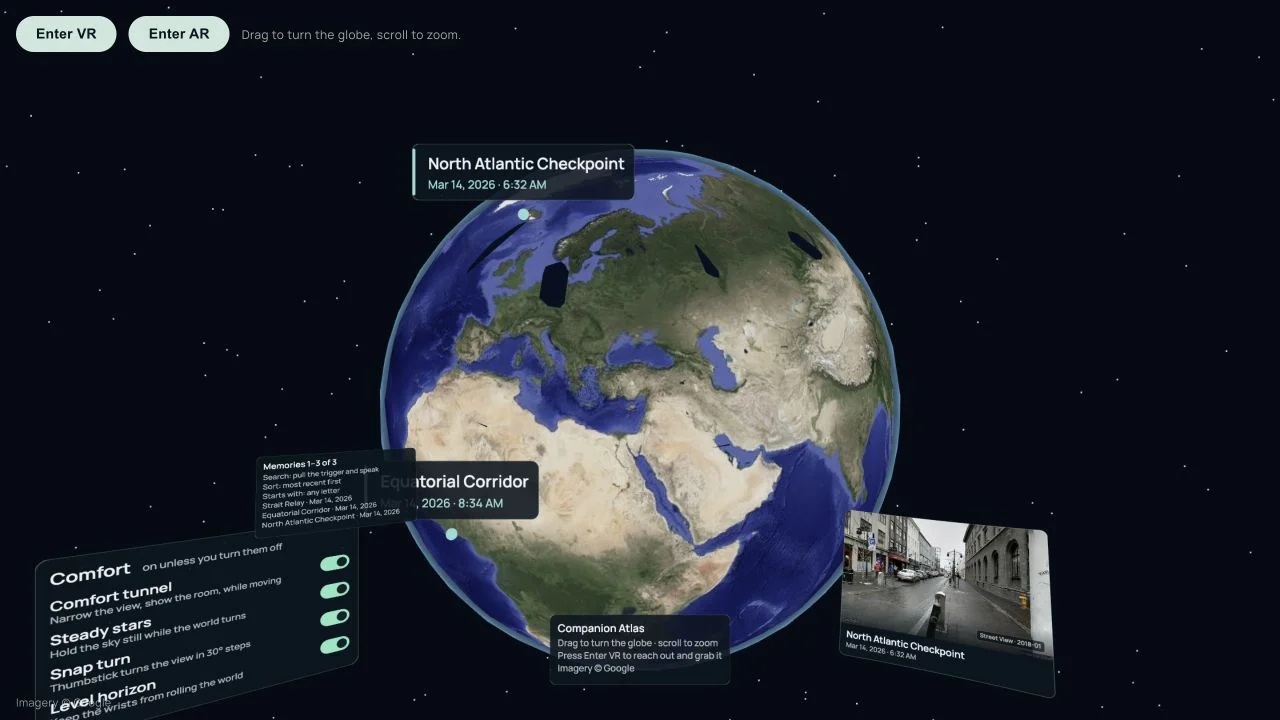
| Enter VR / Enter AR | Choose the corresponding control in the XR renderer | Starts an immersive session when a device or emulator supports it | WebXR baseline, WebXR entered |
| Turn and zoom the globe | Desktop XR: drag and scroll; headset: grab with a grip and move both hands to zoom | Provides a flat-window fallback plus hand-based locomotion in immersive mode | WebXR entered |
| Wrist memory menu | Look toward the off hand in VR | Surfaces the memory list and lets the user travel to a memory that is not currently in view | Implemented in the XR scene; physical-headset verification remains open |
| Sky time scrub | In VR, reach into the sky and pull the trigger | Turns the sky into a time axis; the sun, moon, readout, and visible pin window follow it | Implemented in the XR scene; needs headset input validation |
| Comfort controls | Use the Comfort panel in XR | Toggles comfort tunnel, steady stars, snap turn, and level horizon; settings persist locally | WebXR baseline |
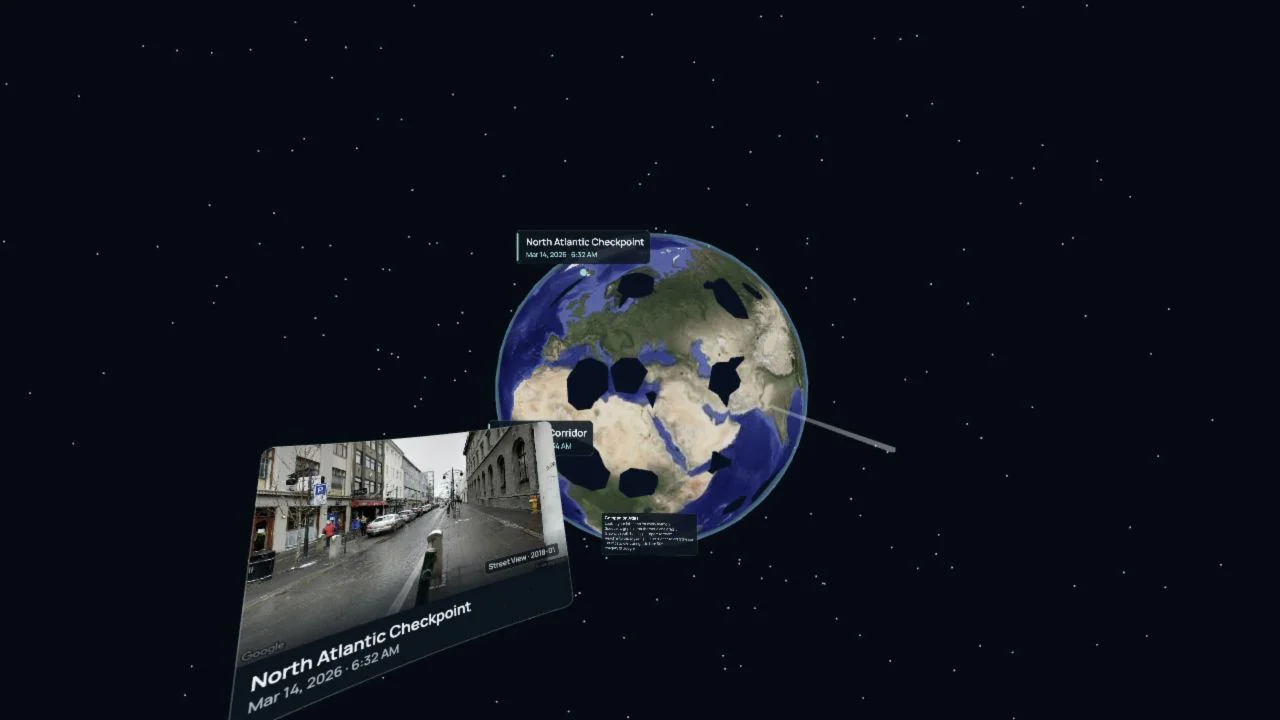
| XR controller ray / grab | Use the emulated controller or a physical controller | Tests the spatial input path and world grabbing without relying on page buttons | WebXR controller |
Platform guidance
Desktop
The desktop shell is the richest review surface: it keeps the rail, top-bar actions, inspector, globe, and time machine visible together. Use it for archive-wide review, curation, and diagnosing a live Companion Memory connection.
Mobile
The reference capture is 390 × 844. The responsive shell keeps navigation in a bottom rail and lets the inspector scroll independently. The initial viewport prioritizes the selected memory; Fly here and Collect are below the fold on a phone, so the location-action screenshot intentionally captures the scrolled state. The compact 320px layout has no horizontal overflow, but the mobile flow still needs iOS Safari, Android Chrome, and soft-keyboard validation before release sign-off.
WebXR
The emulator verifies that the XR renderer mounts, presents a globe and memory cards, exposes VR/AR entry points, and renders a controller. It is an emulator smoke test, not evidence of comfort, tracking, passthrough, or text legibility on a physical headset. Validate Quest 3, a WebXR-capable desktop browser, and at least one browser with no WebXR support before release.
Screenshots
Every image below is a fresh demo-data capture from the Codex browser on
2026-09-02. Desktop and mobile images are 1280 × 720 and 390 × 844
respectively. The XR images are 1280 × 720 and use ?xremu=quest3.
Desktop
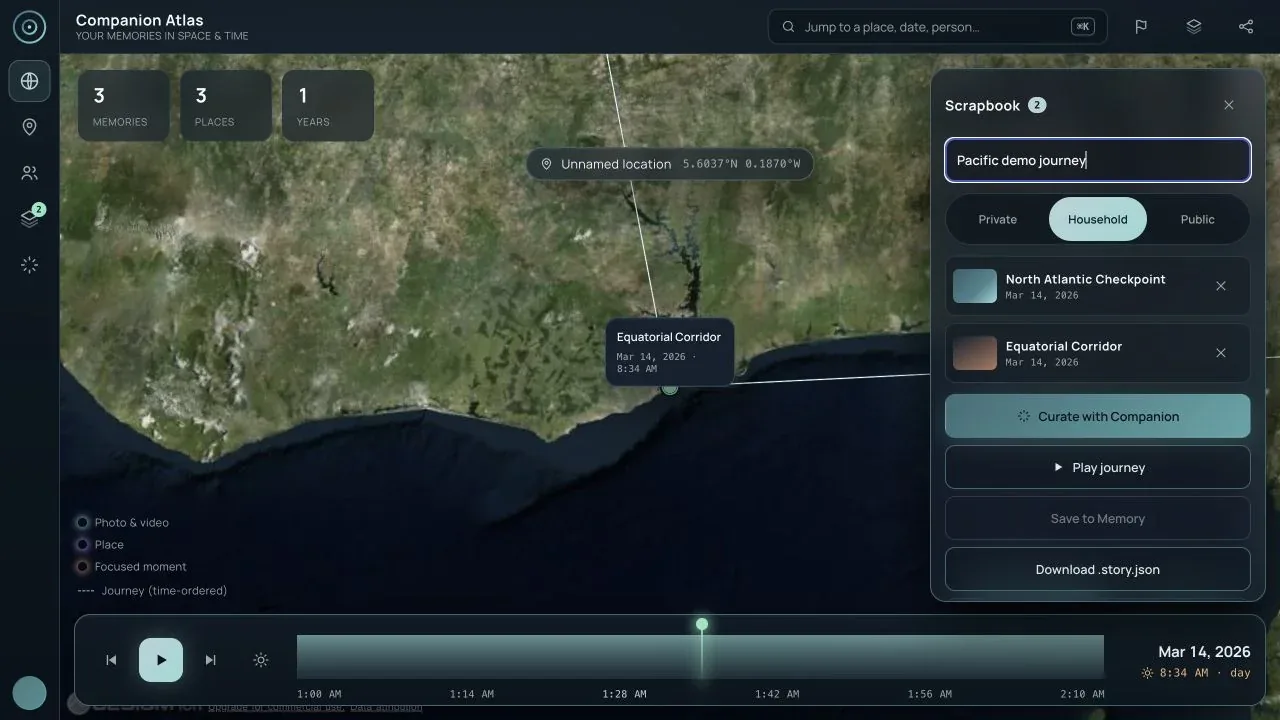
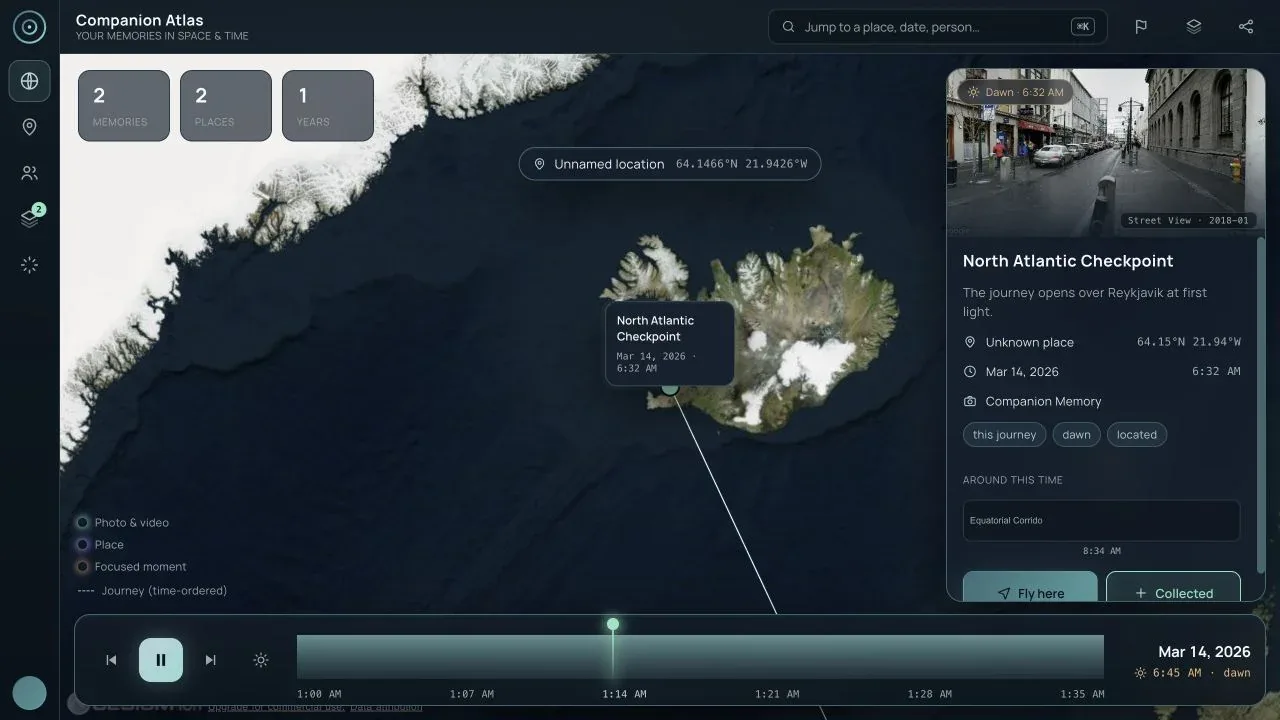
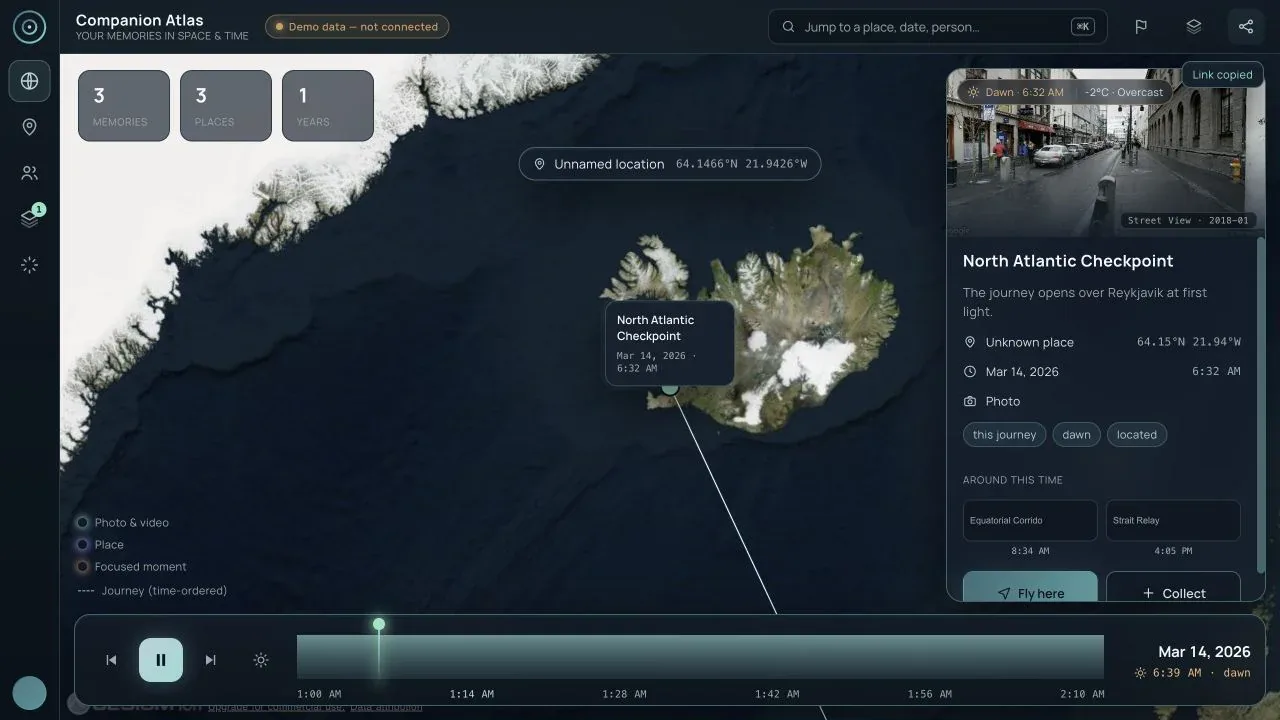
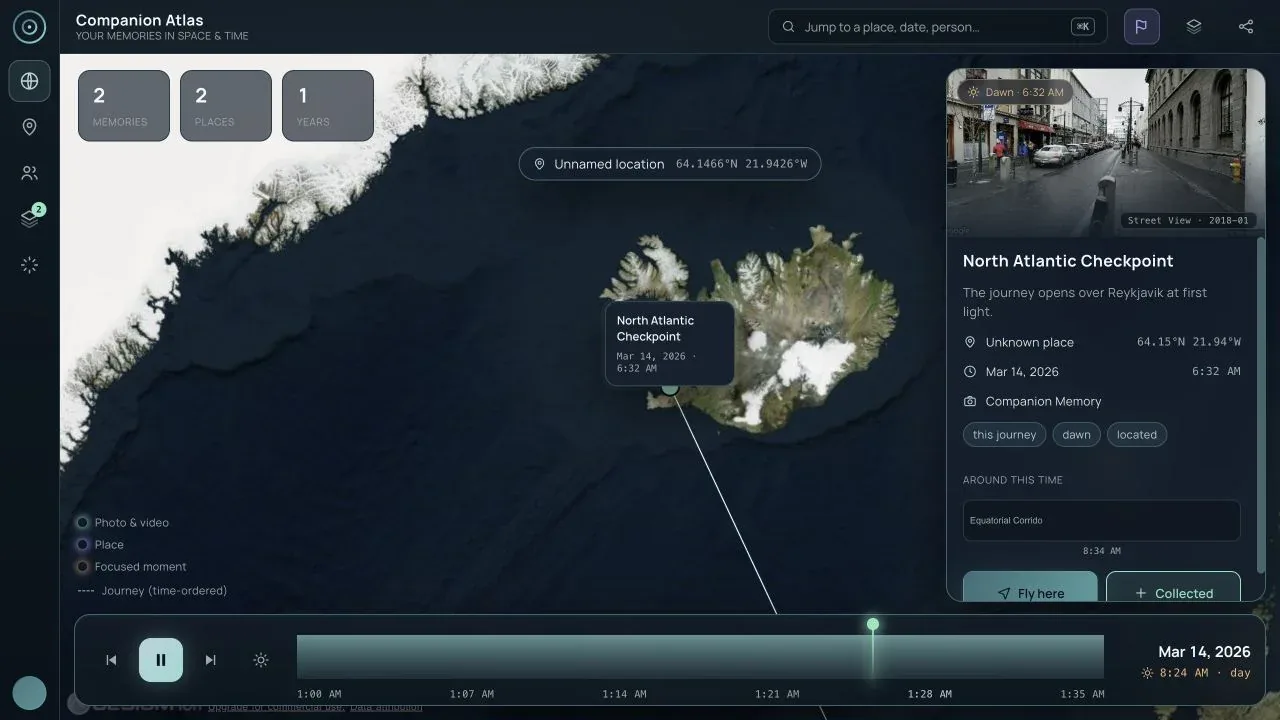
Mobile
WebXR
Known gaps and release plan
P0 — make live data trustworthy
- Add refresh/logout and expiry handling around the current in-viewer sign-in bridge. The viewer no longer depends on a build-time bearer for an initial recovery, but its tab-scoped access token is still short-lived.
- Surface the Companion Memory result count and pagination state in the UI. The client currently stops at a hard cap of 2,000 located memories and only warns in the console when the server reports more.
- Add explicit live connection, expired-session, CORS, and empty-located-memory states to the release checklist and end-to-end suite.
P1 — remove interaction surprises
- Keep the primary location actions reachable without guesswork on 320 × 568 and 390 × 844 viewports; test the inspector with the keyboard visible.
- Make date search match its promise. The current palette handles text and numeric year matching more reliably than natural-language dates.
- Keep the visible success/failure status for Copy link and cover it with a browser-level accessibility assertion in the release suite.
- Either implement the advertised gallery route or remove
view=galleryfrom links and documentation until it has a distinct view.
P1 — validate real devices and accessibility
- Run the same scenarios on iOS Safari, Android Chrome, a desktop browser without WebXR, and a physical Quest 3. Include screen-reader, keyboard-only, reduced-motion, contrast, focus-order, and touch-target checks.
- Measure Cesium/XR bundle size and first interactive render on a mid-range phone; the current production build emits large-chunk warnings.
- Exercise media absence, weather availability, place history, live People groups, save success, save failure, and offline/reconnect transitions with controlled fixtures.
P2 — make the story loop legible
- Add analytics or local diagnostics for load source, search completion, collection, curation, save, and download outcomes without collecting private memory content.
- Document story-schema versioning, supported media URLs, Google imagery attribution, and the difference between a user’s media and Street View.
- Add a repeatable screenshot matrix to release CI so desktop, mobile, and XR regressions are caught before publishing docs.
Verification evidence
The current source-level and runtime checks for this pass were:
- Viewer tests: 17 files, 198 passed.
- Story-schema tests: 7 files, 36 passed.
- Server tests: 5 files, 22 passed.
- Viewer typecheck, viewer build, root build, and server build passed.
- Visual suite: 16 of 16 passed.
- Share-link safety smoke: a dummy
apiKeyparameter was removed from the copied URL in the Codex browser. git diff --checkpassed.- Codex-browser smoke: authenticated live sign-in and reload recovery, desktop demo flow, 390 × 844 and compact 320px mobile flows, and Quest 3 WebXR emulator baseline / VR / controller / flat drag-and-zoom states were exercised.
These results establish a documented demo path, not release sign-off for live private data or physical hardware. Keep the Companion Atlas source repository (private) and the Companion Memory server documentation aligned as the integration contract evolves.